Control

Share a single app

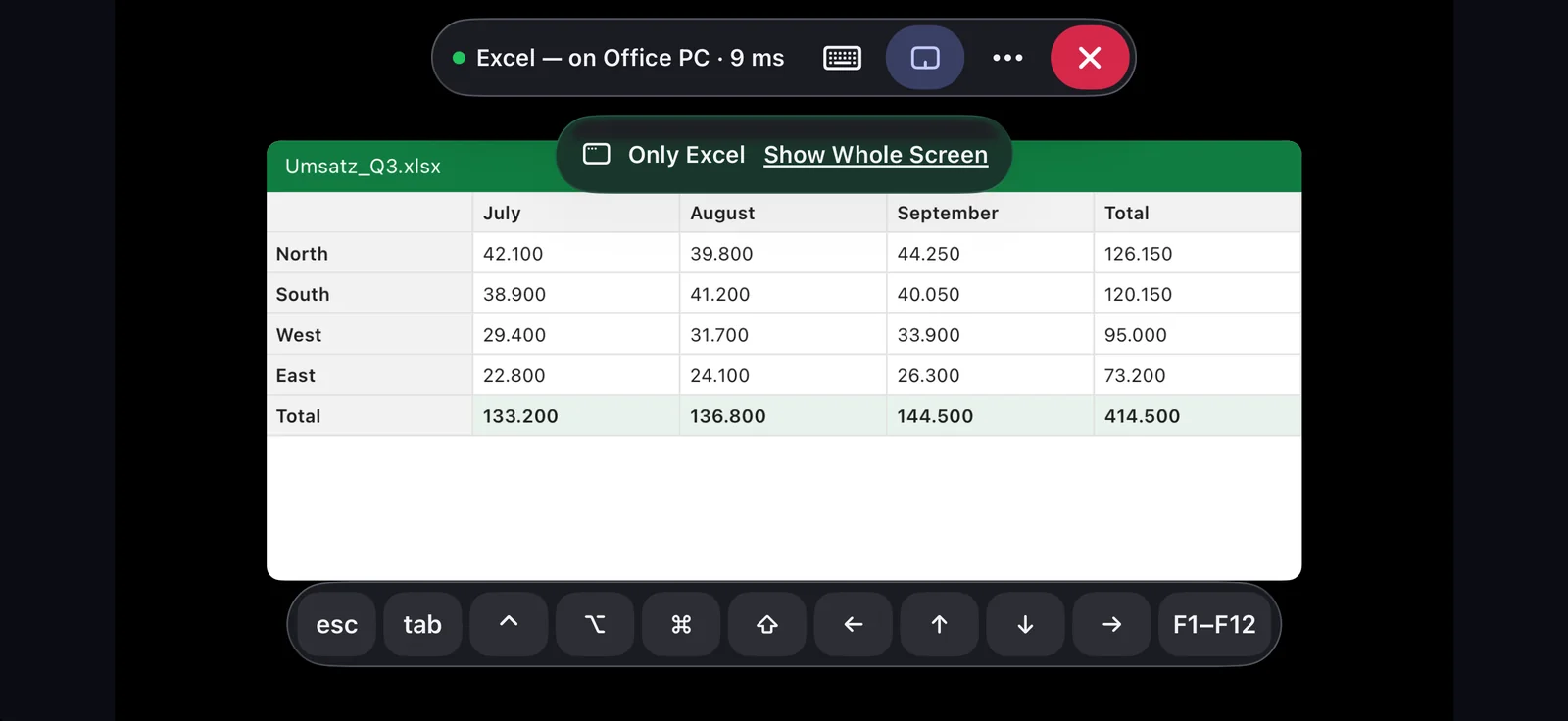
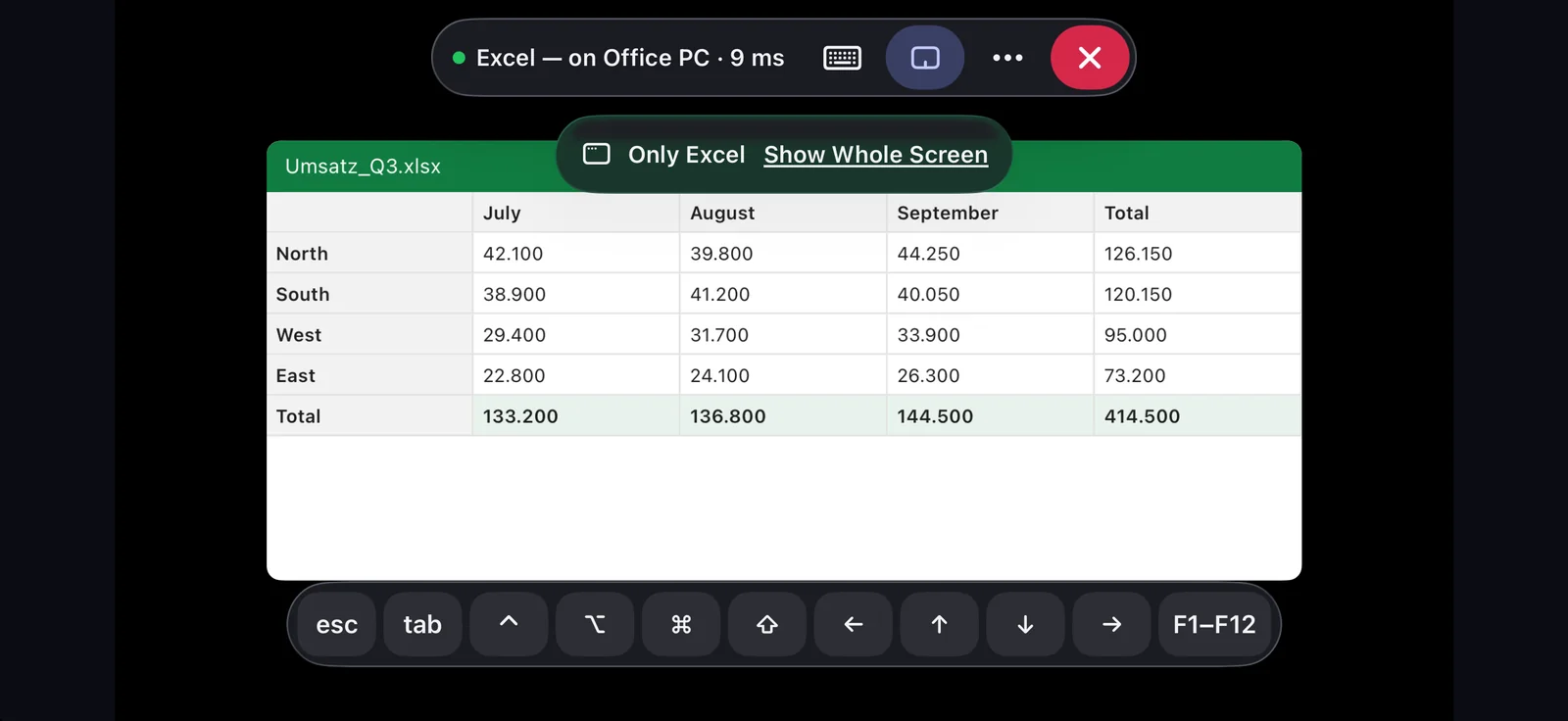
Show one app instead of the whole screen. Other windows, the desktop and notifications stay hidden. On Mac and Windows the app opens on your side like a window of your own.

FreemacOS · Windows
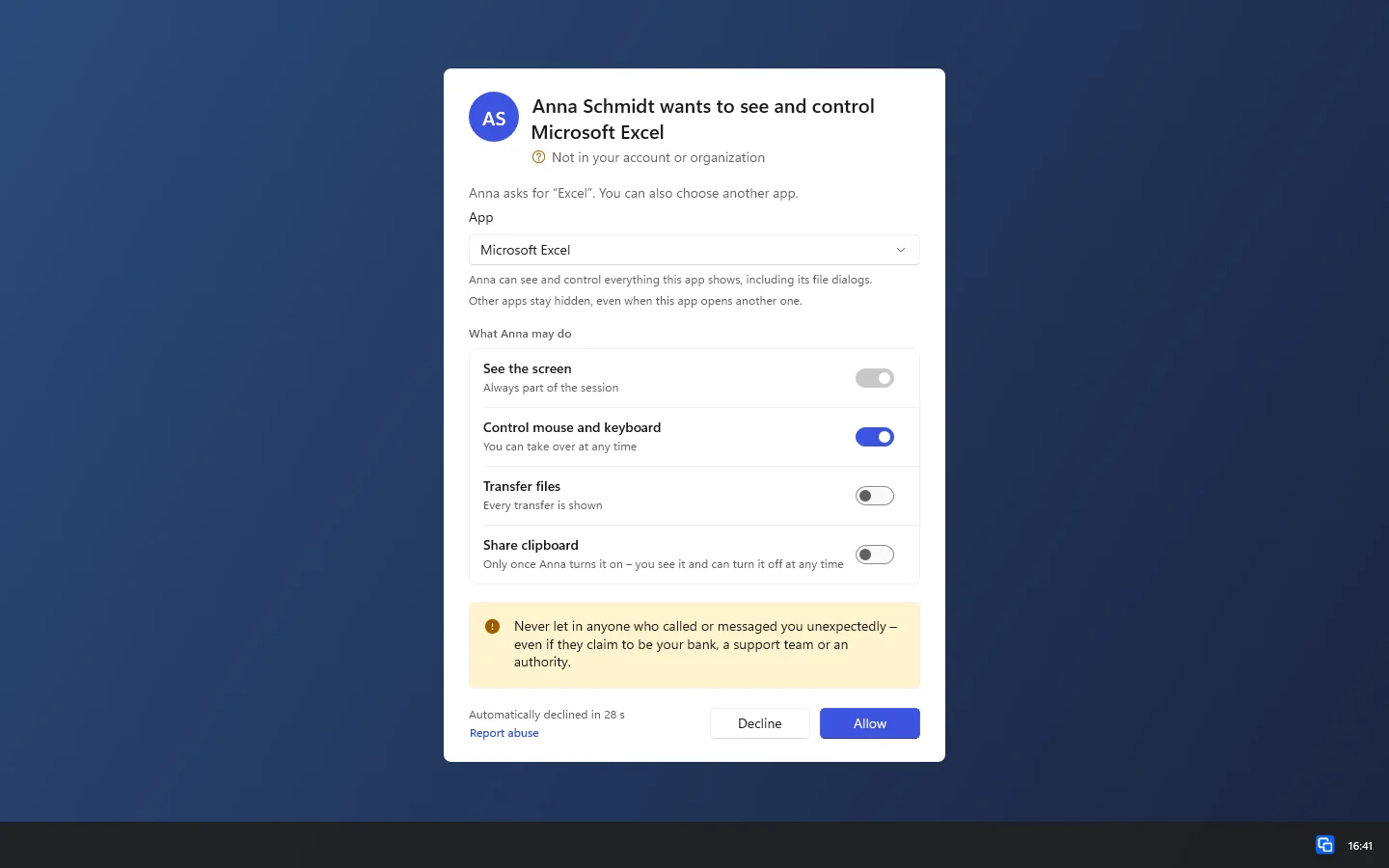
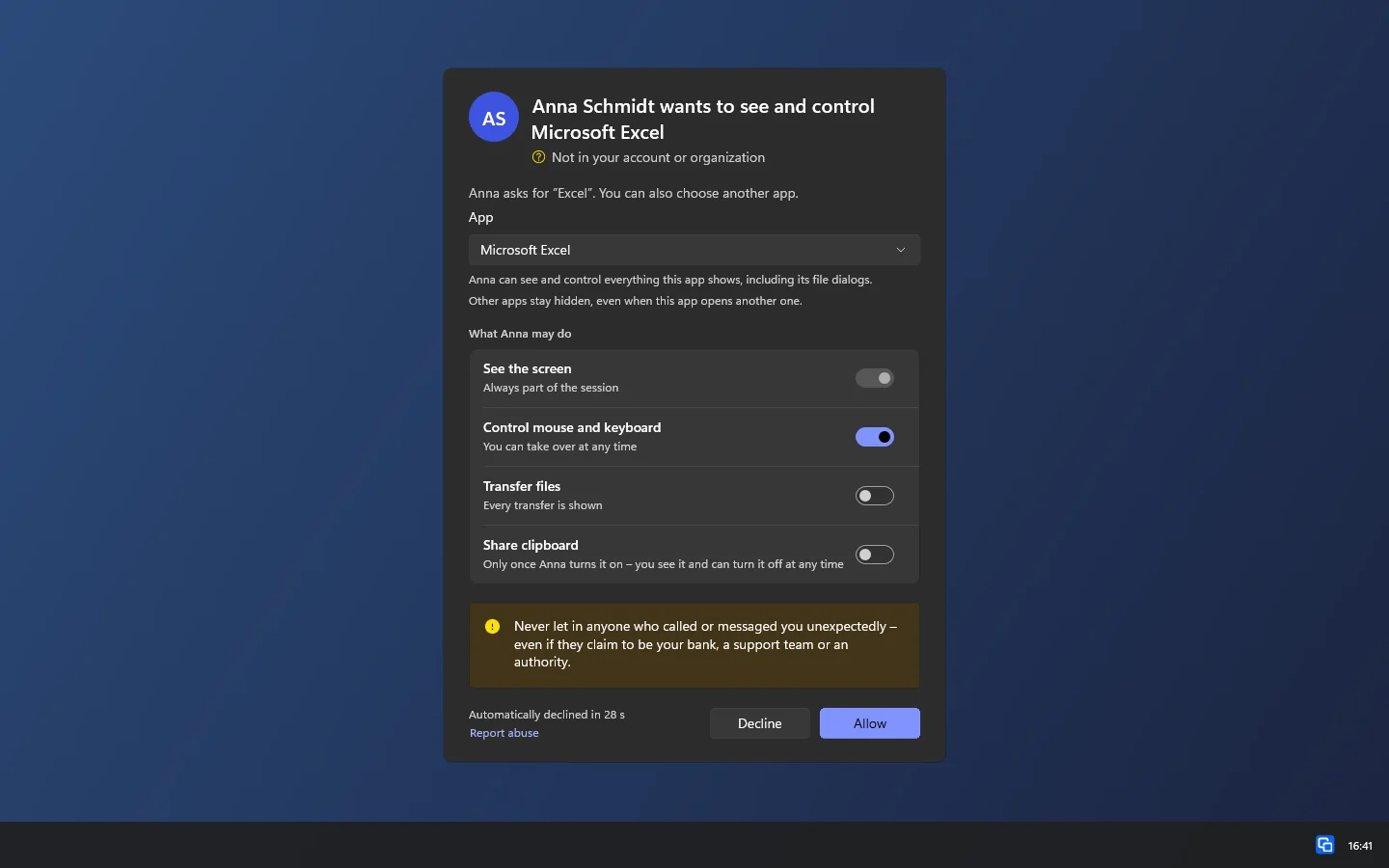
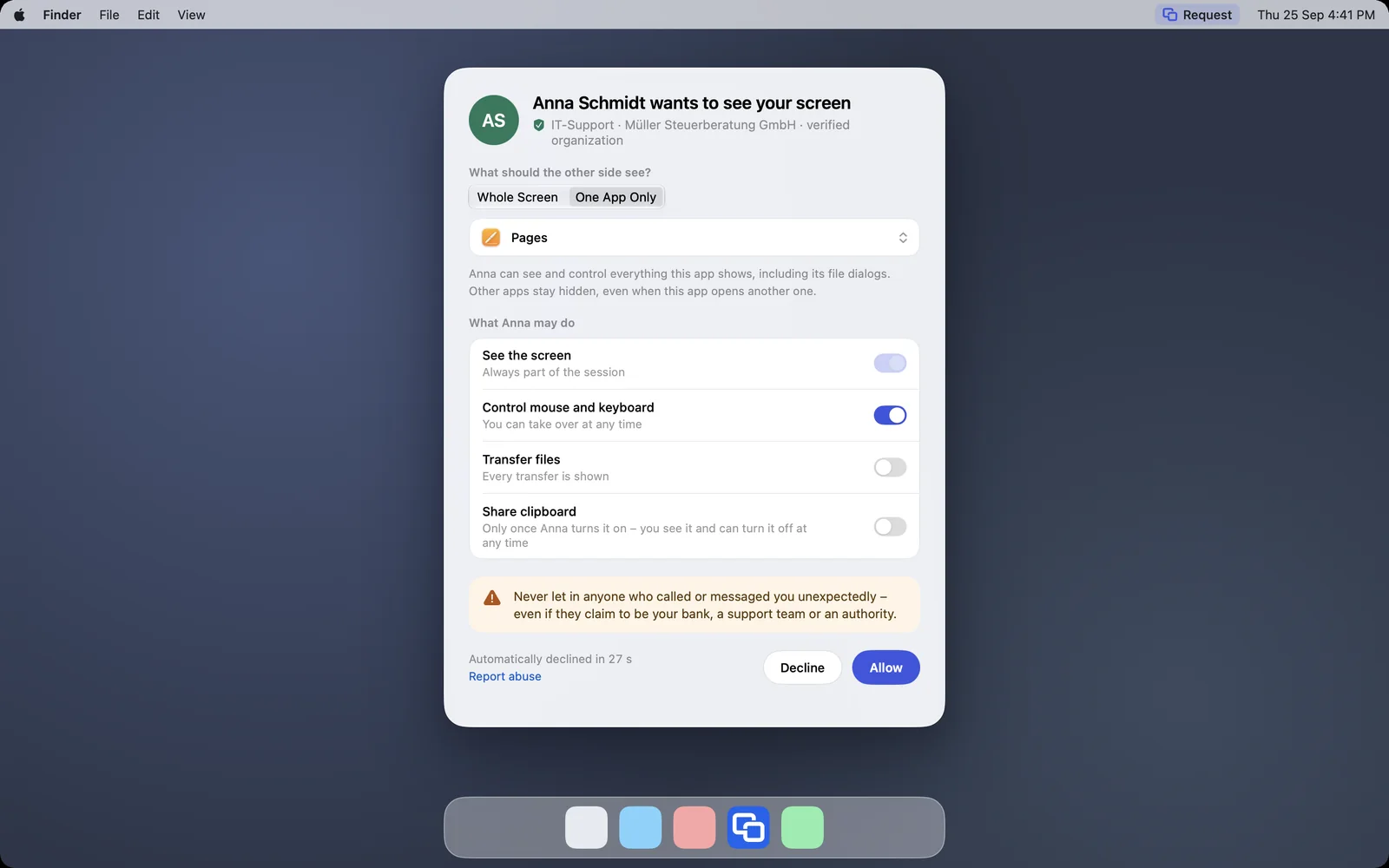
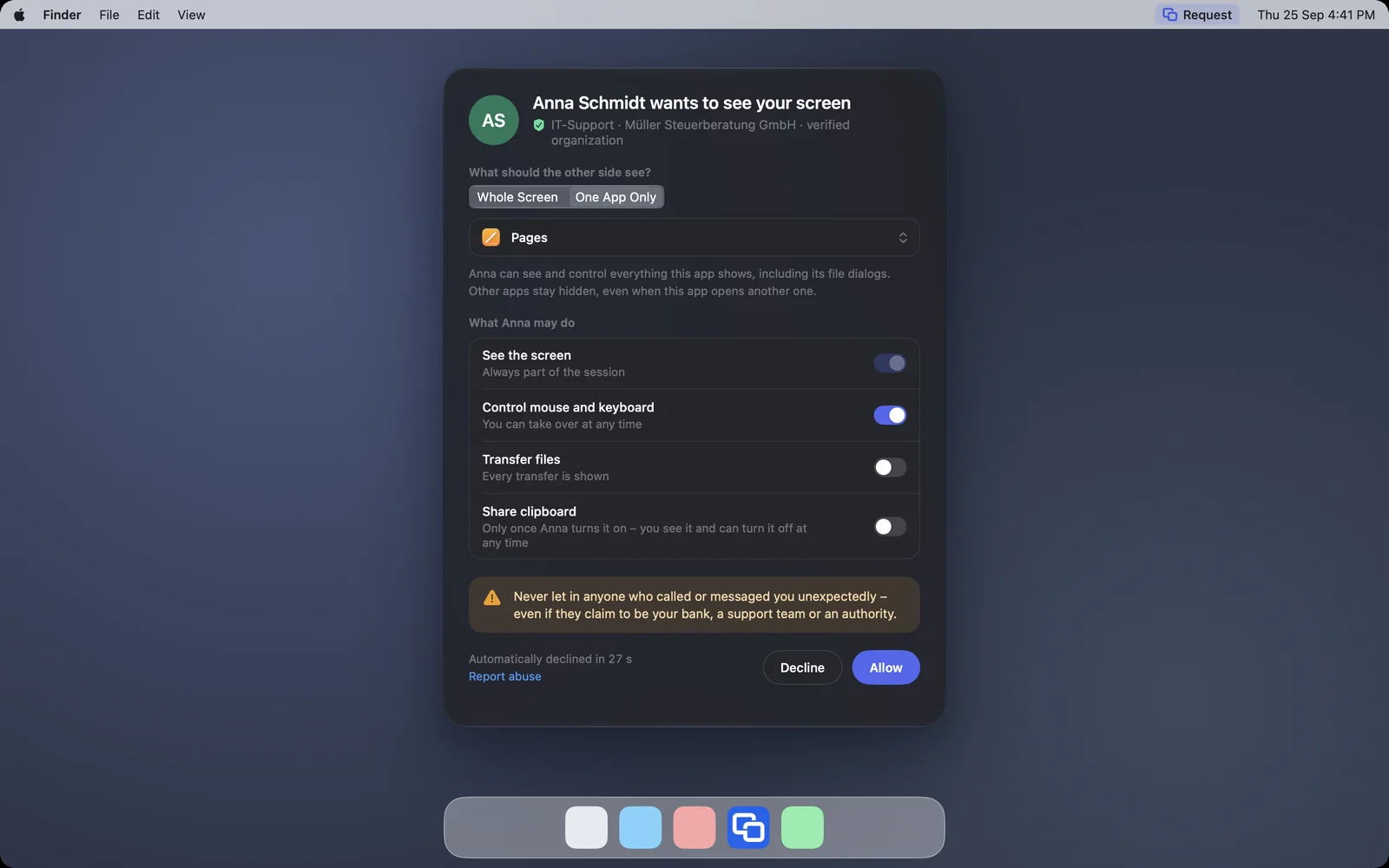
The request with “One App Only” and the chosen app PagesThe request with “One App Only” and the chosen app Pages

Shown: Mac

What you do with it

See it on

Share just one app

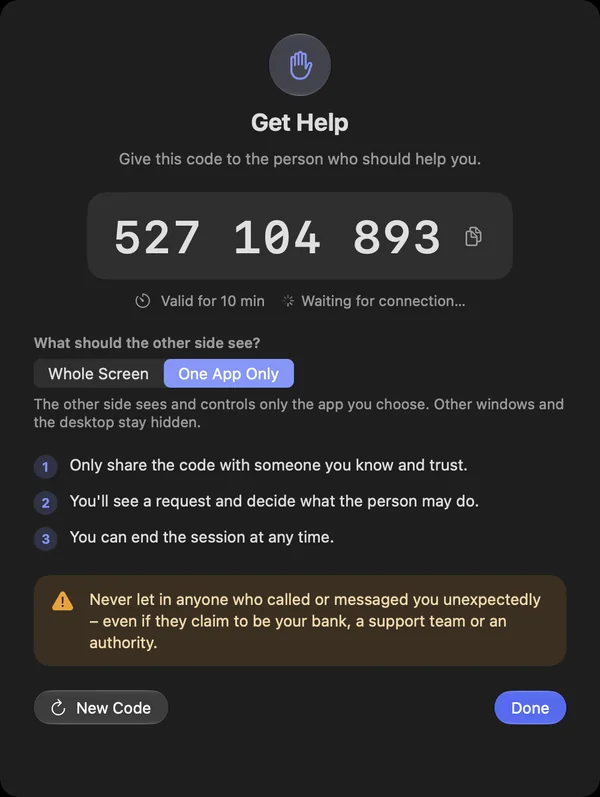
You show just one app instead of the whole screen. With a request you choose „Nur eine App“ under „Was soll die andere Seite sehen?“ and then the app. You can also set this up beforehand with „Hilfe erhalten“ under „Support-Code“.

  • Clicks and keys meant for other apps do not reach you
  • Programs running as administrator and DeskRanger are not in the list
  • Also through the DeskRanger service when the app is not running
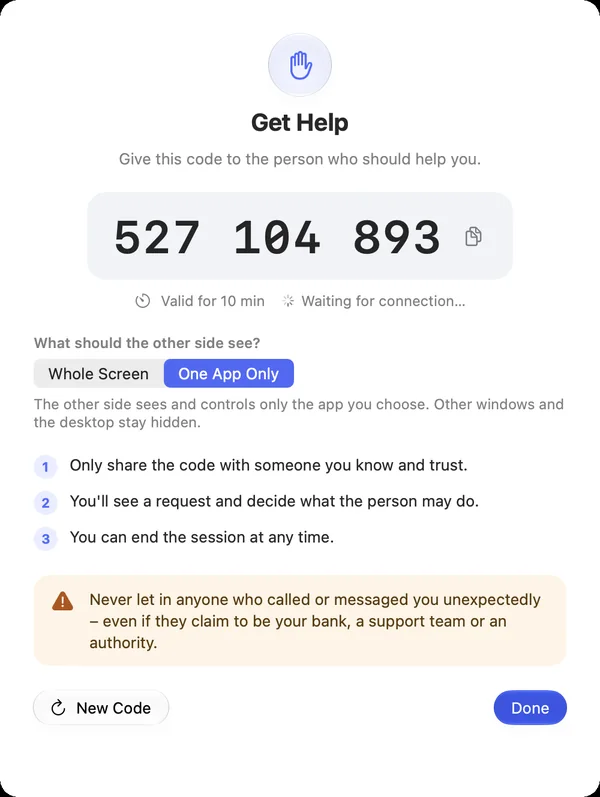
“Get Help” with the code and the choice “One App Only”“Get Help” with the code and the choice “One App Only”

Shown: Mac

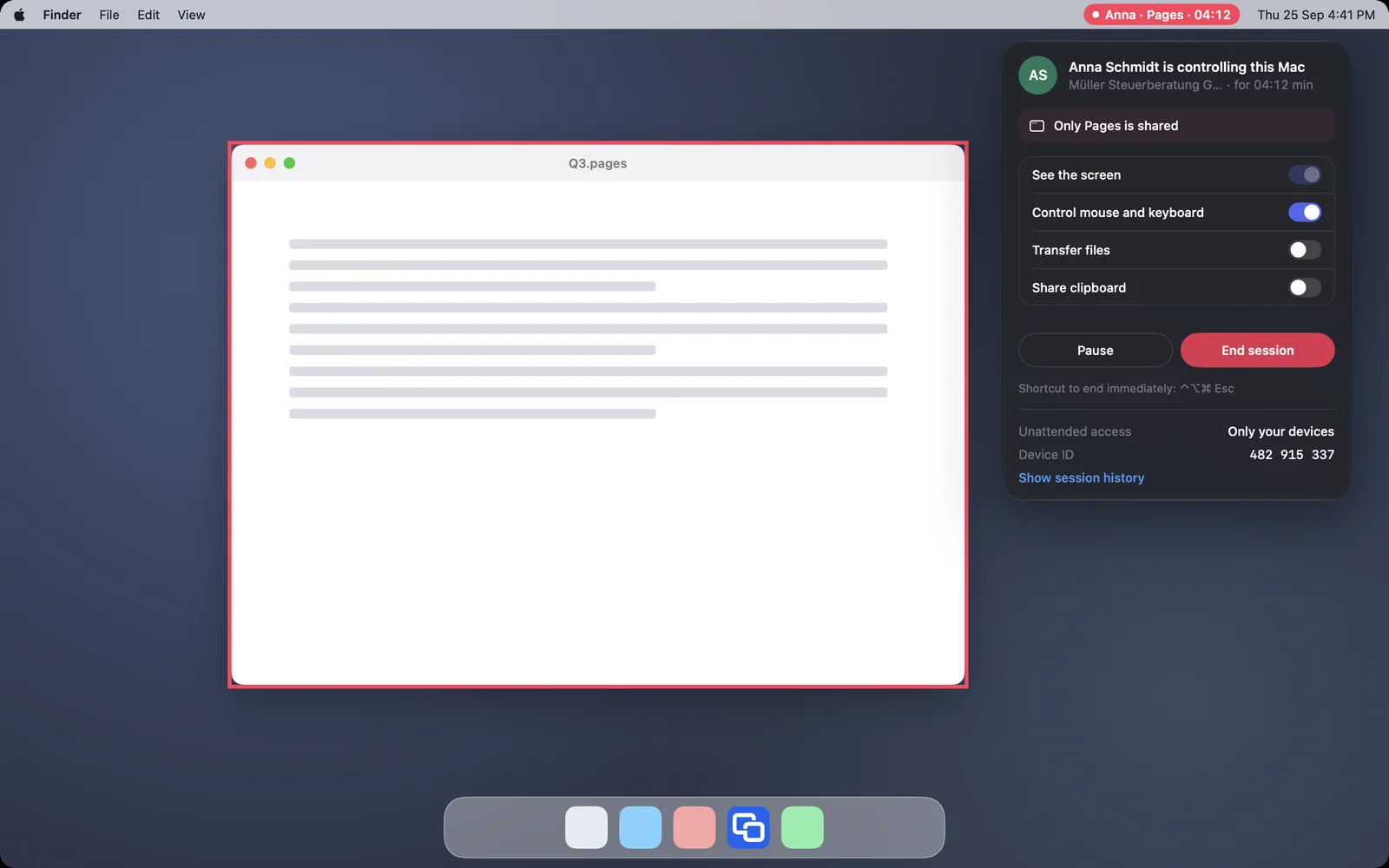
Visible what is shared

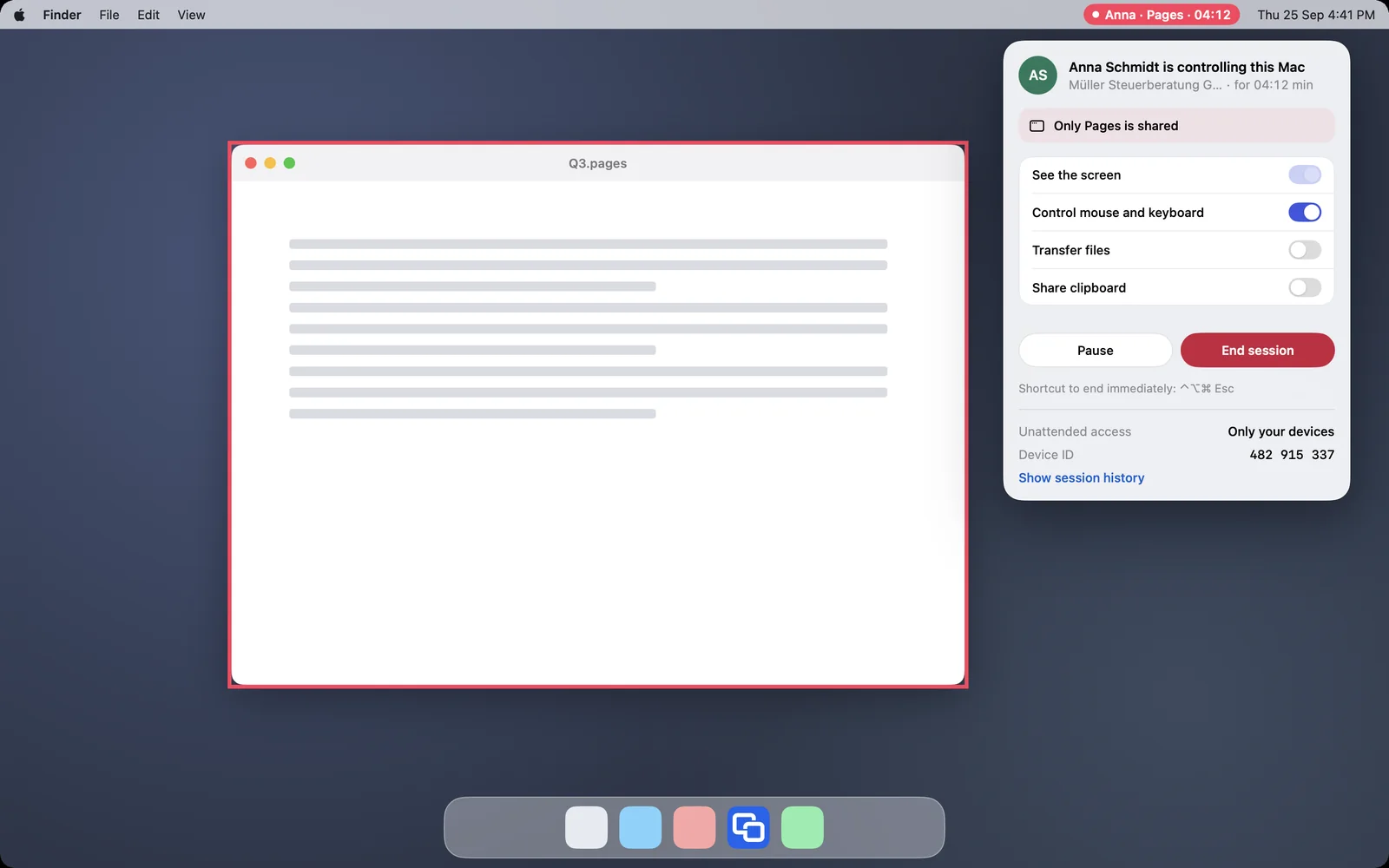
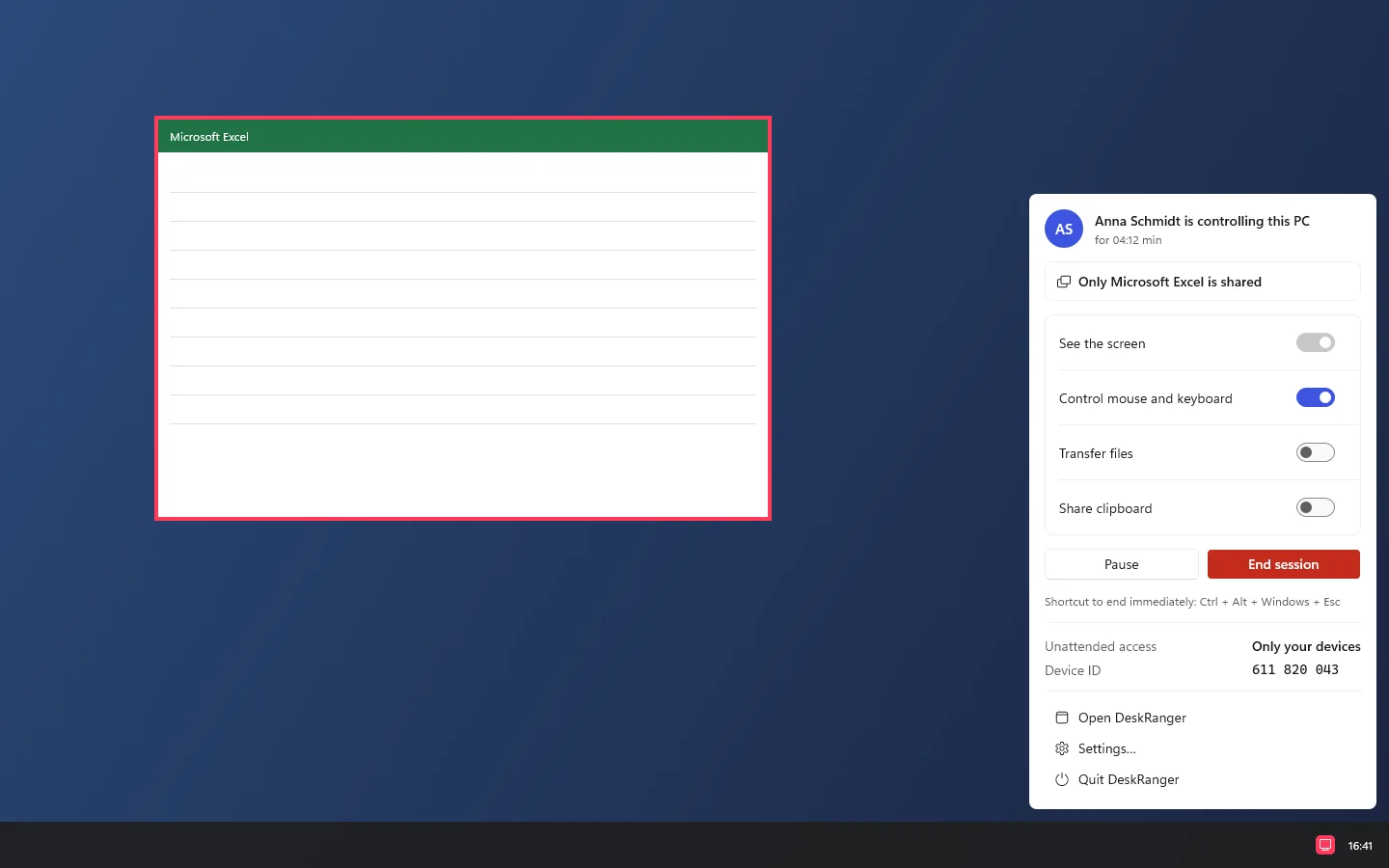
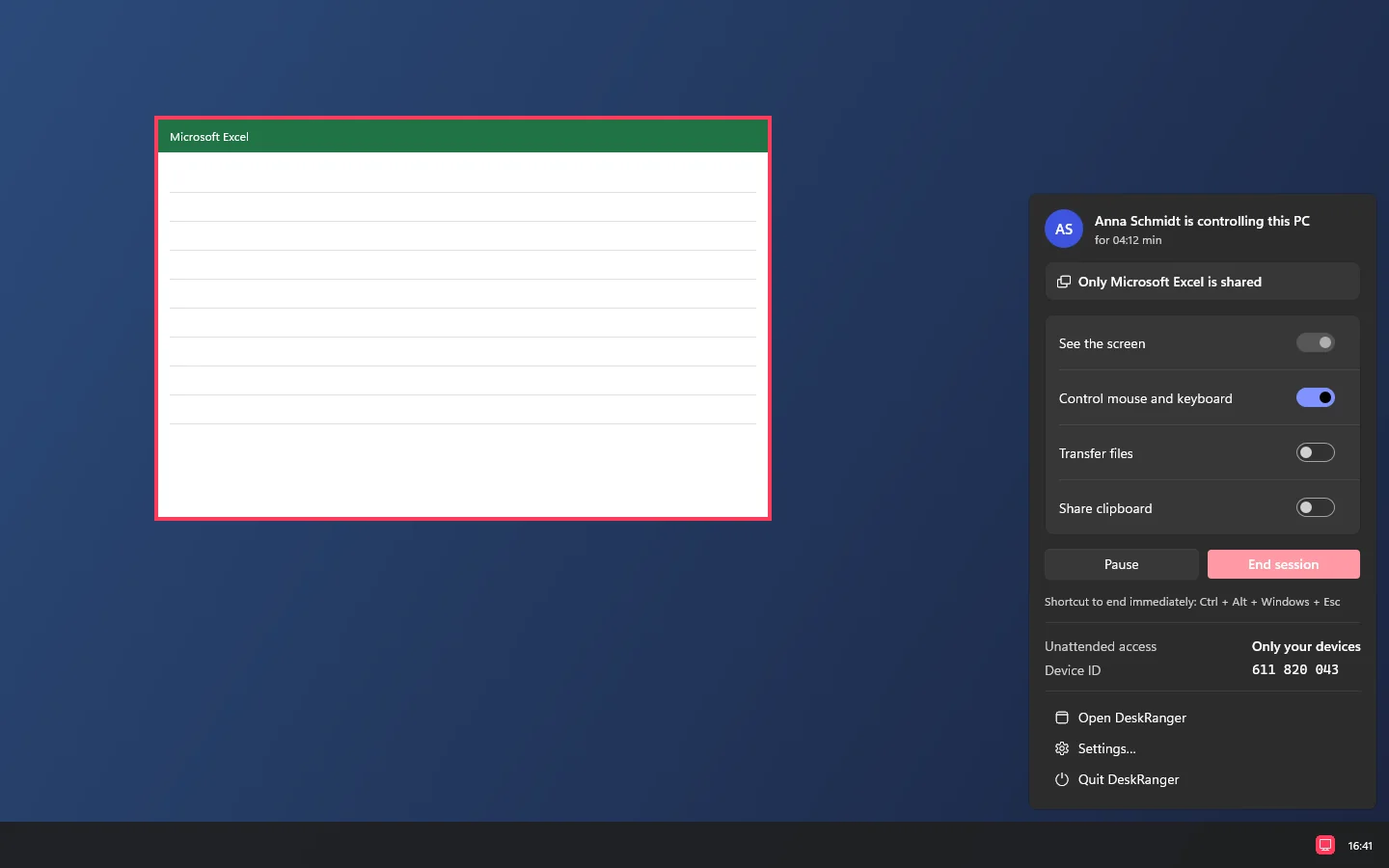
The red frame sits around the shared app’s windows instead of the screen, and the menu names the app. If you switch to another app, the other side’s keys pause.

  • If the app opens another app, it joins only when you add it
  • The clipboard hands over only what you copy in the shared app
  • A further app is named in the request; both count as one session
The red frame around the Pages window, the menu bar names the app, the menu says “Only Pages is shared”The red frame around the Pages window, the menu bar names the app, the menu says “Only Pages is shared”

Shown: Mac

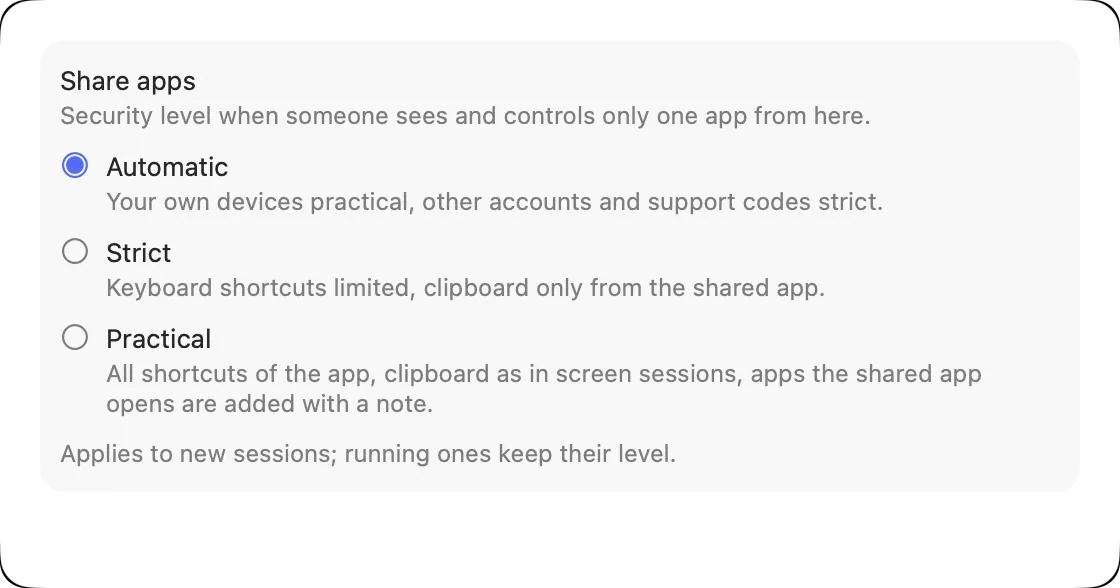
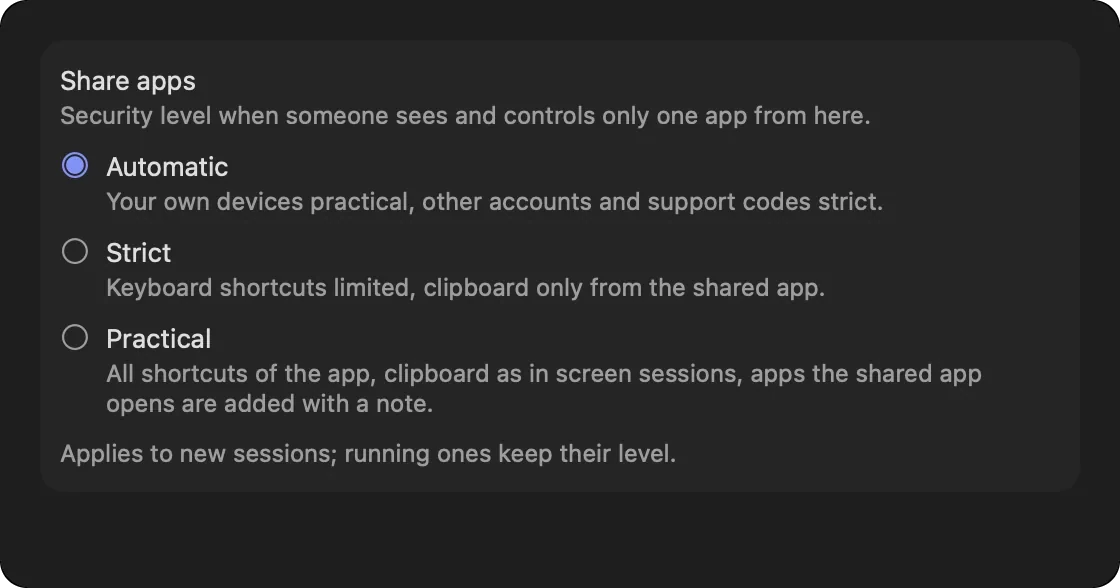
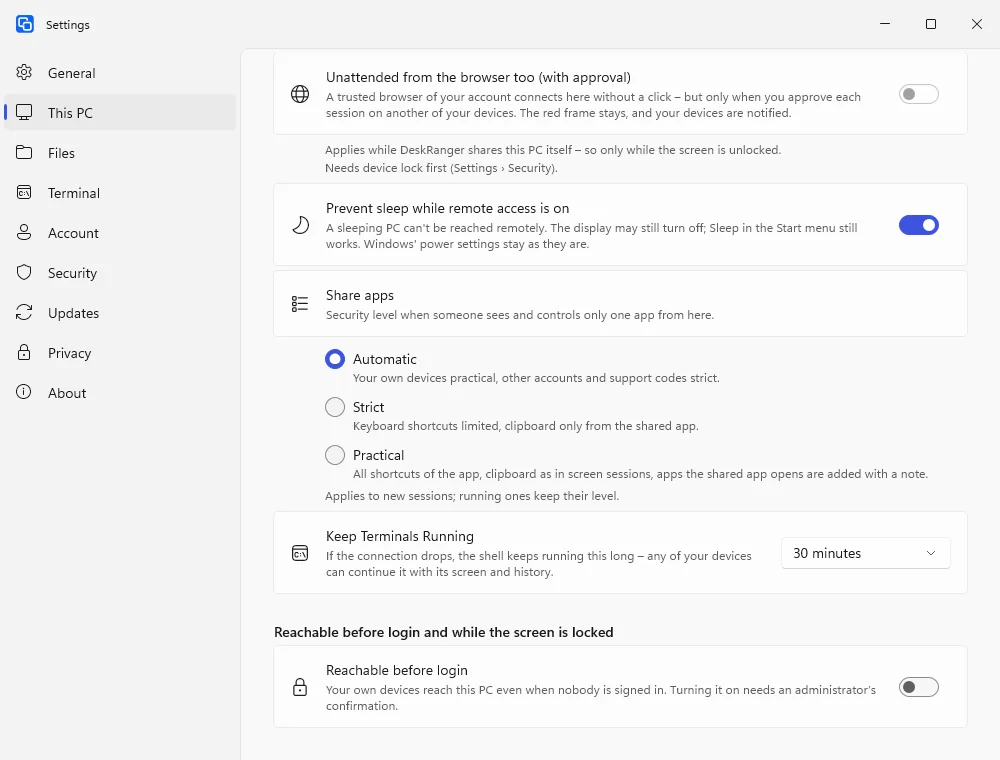
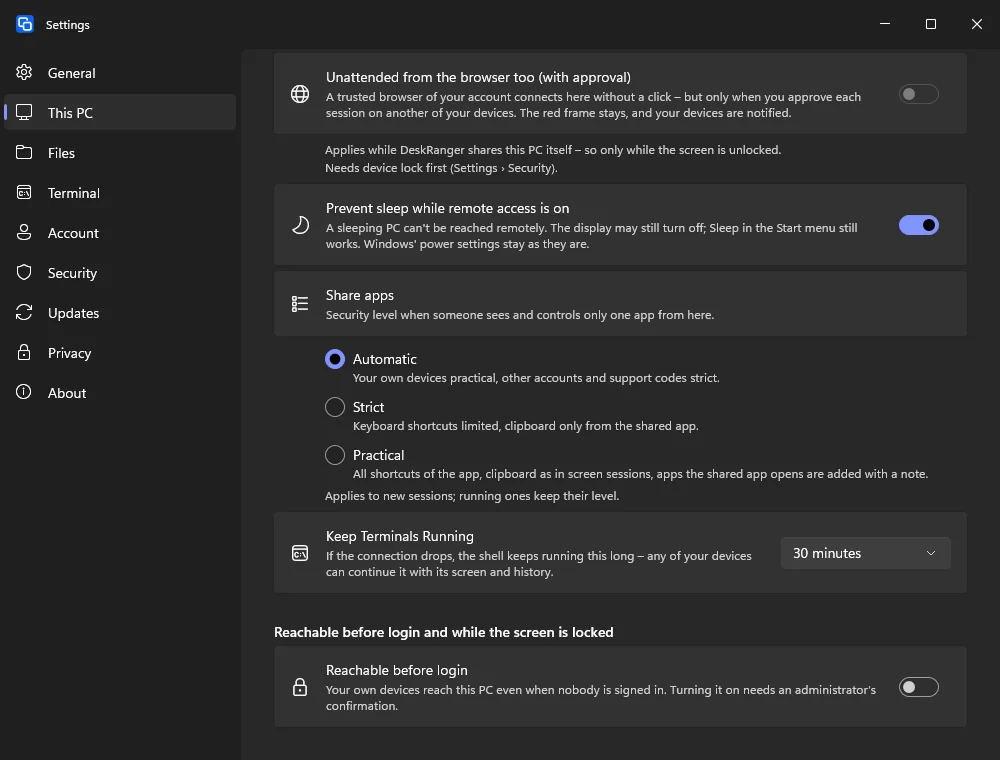
Choose the security level

You decide how strict sharing is: „Automatisch“, „Streng“ or „Praktisch“. „Automatisch“ depends on who connects; for other people „Streng“ applies. With „Praktisch“ all shortcuts and the clipboard get through.

  • With „Streng“ the other side types text and uses shortcuts with one modifier key
  • An open or save dialog belongs to the shared app
Settings › This Mac: “Share Apps” with the levels Automatic (chosen), Strict and Practical, each with one lineSettings › This Mac: “Share Apps” with the levels Automatic (chosen), Strict and Practical, each with one line

Shown: Mac

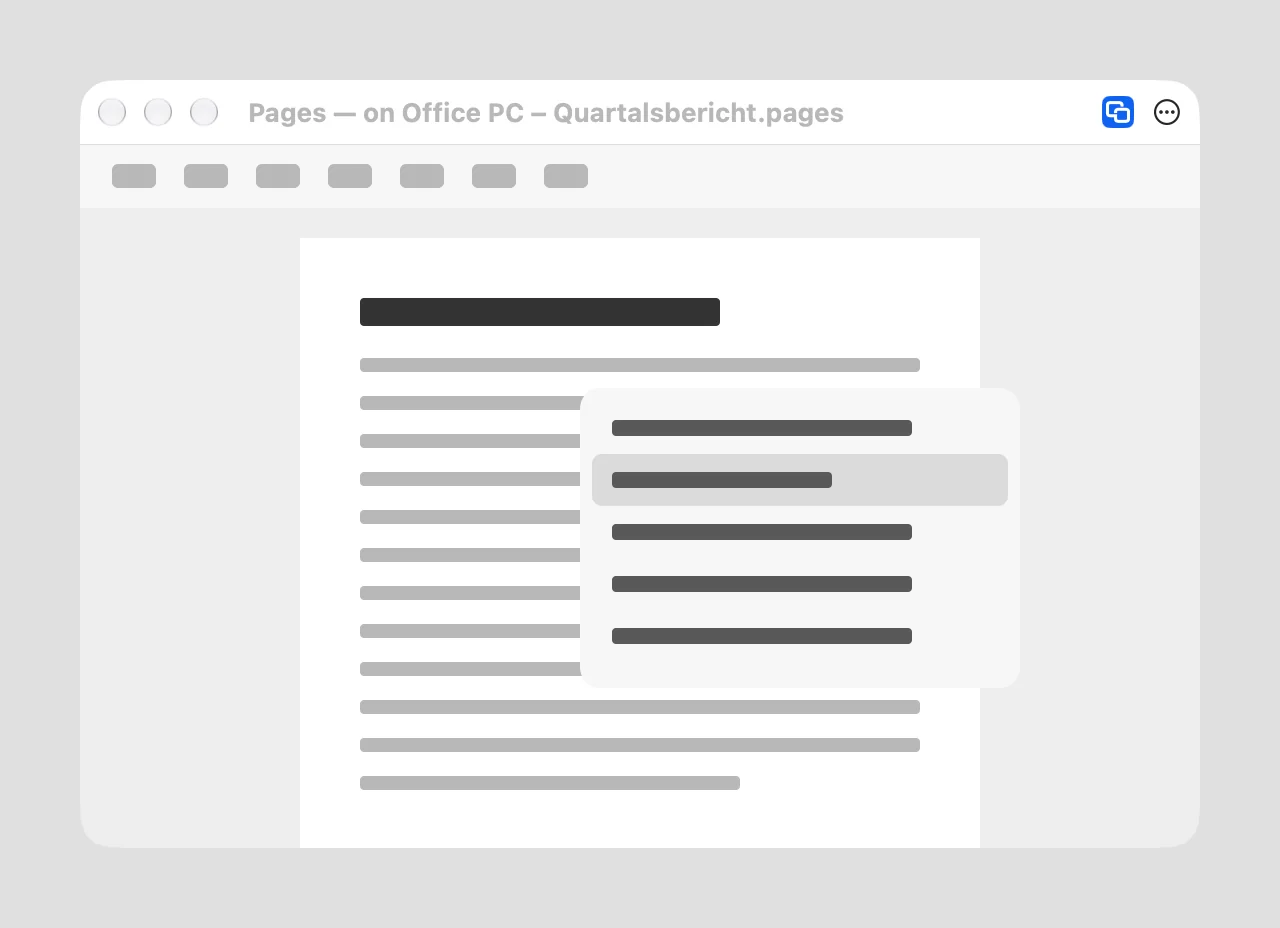
Apps as windows of their own

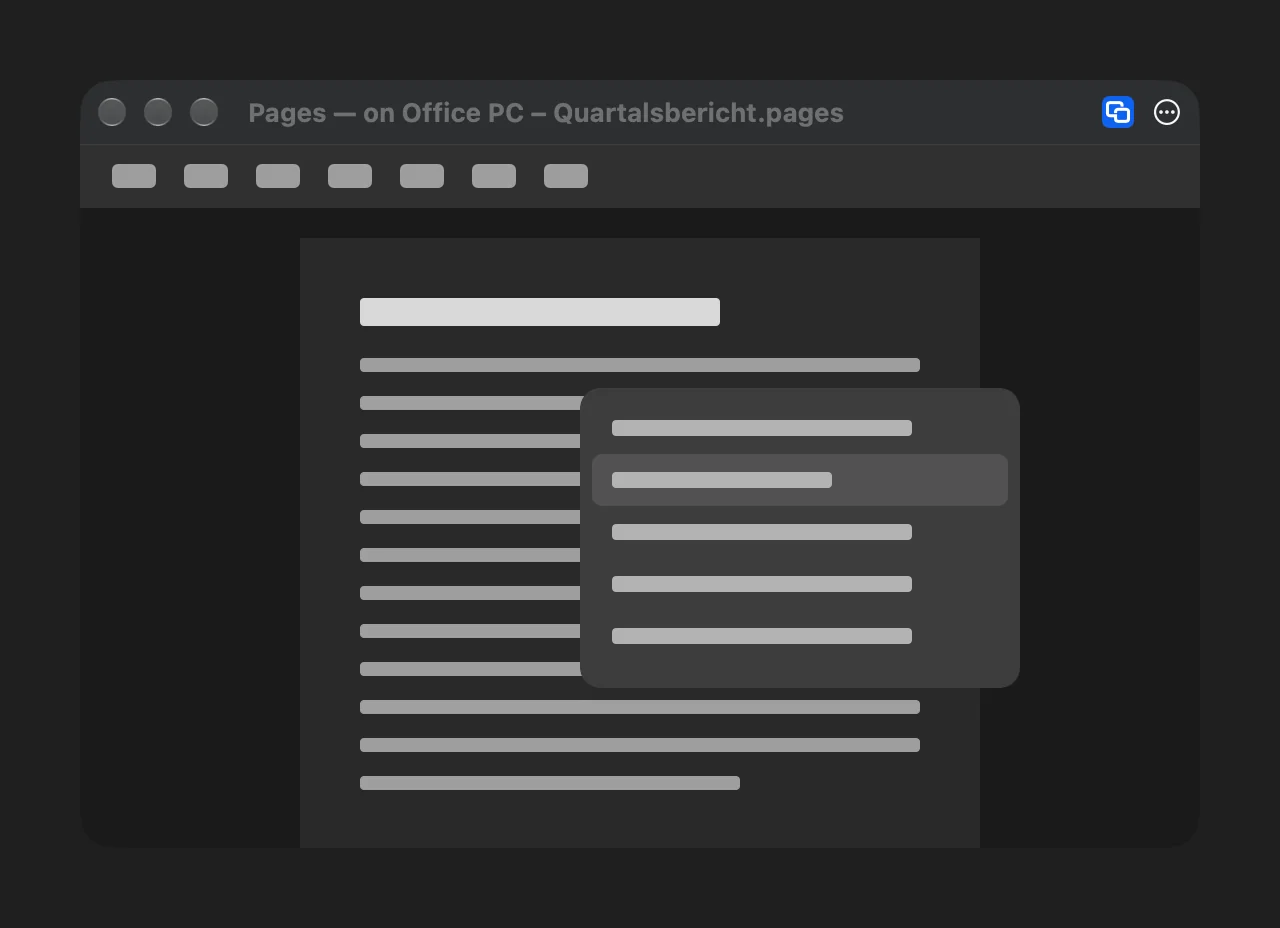
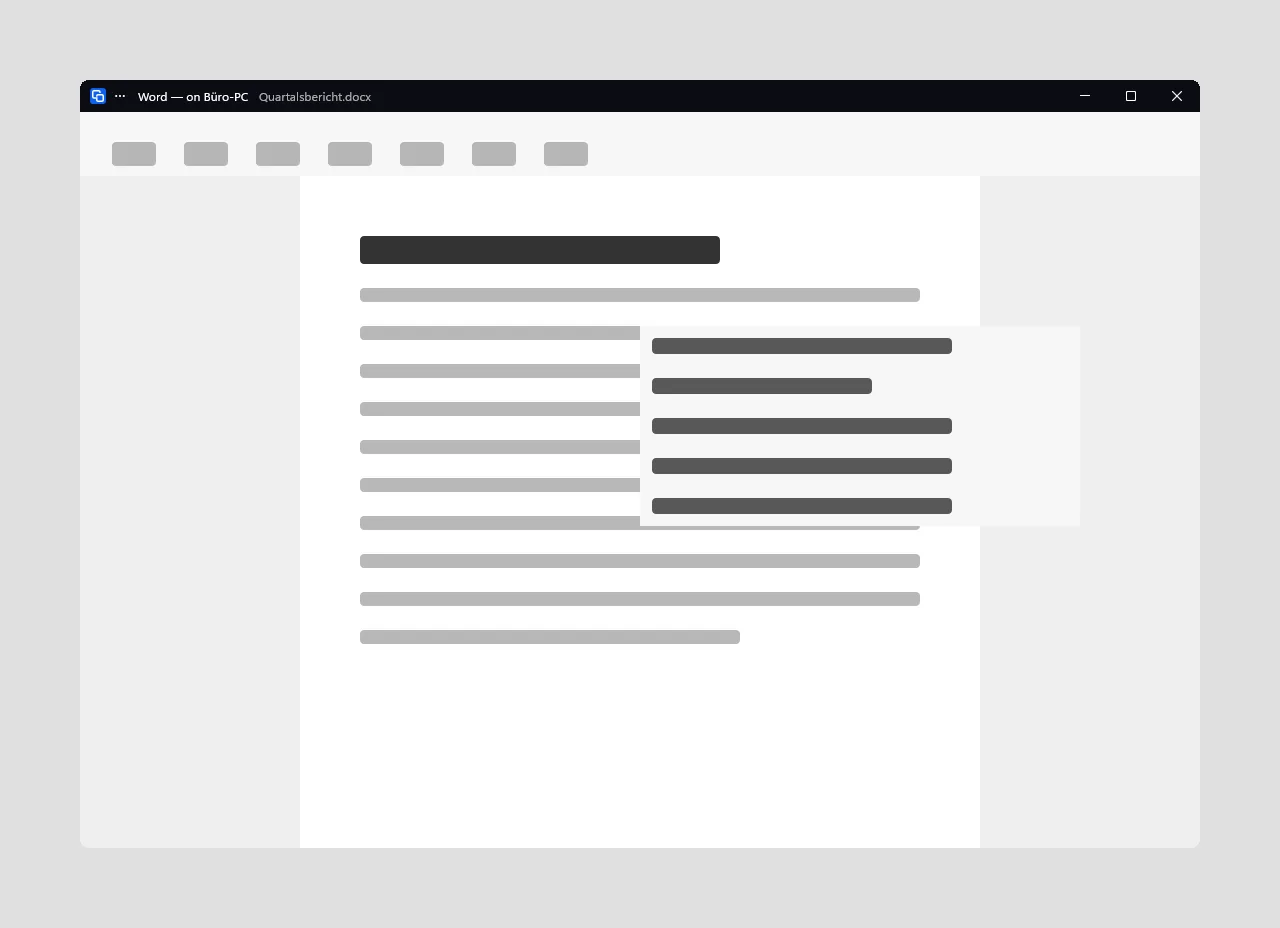
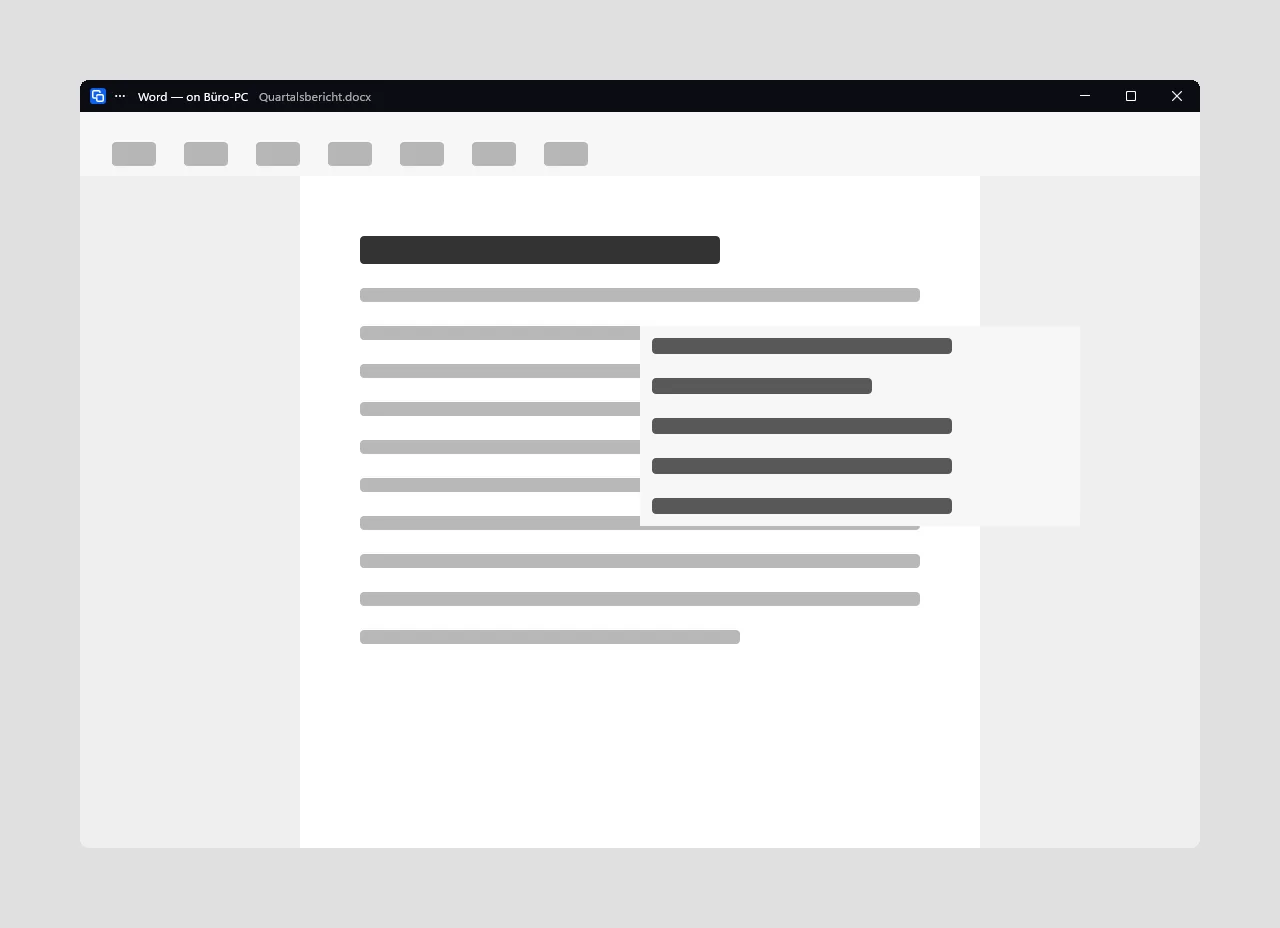
On Mac and Windows you see another device’s apps as windows of their own, such as „Pages — auf Studio“. A DeskRanger mark in the title bar shows where the window comes from. Moving and resizing work as usual.

  • If you close the window it closes on the other device
  • An overview shows the session's apps and windows
A Pages window from the office PC as a window of the Mac: the title “Pages — on Office PC”, the DeskRanger sign in the title bar and a menu of the app over the windowA Pages window from the office PC as a window of the Mac: the title “Pages — on Office PC”, the DeskRanger sign in the title bar and a menu of the app over the window

Shown: Mac

All apps in one place

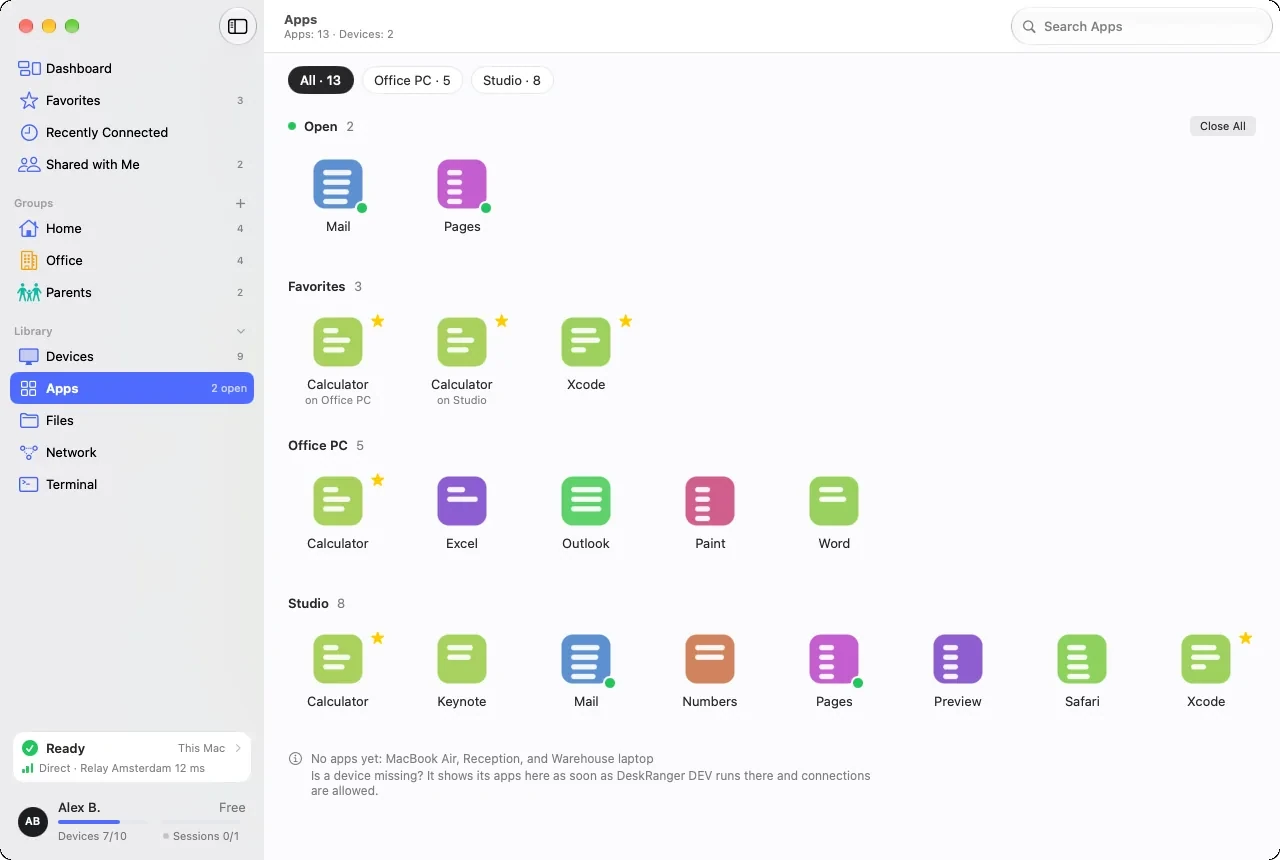
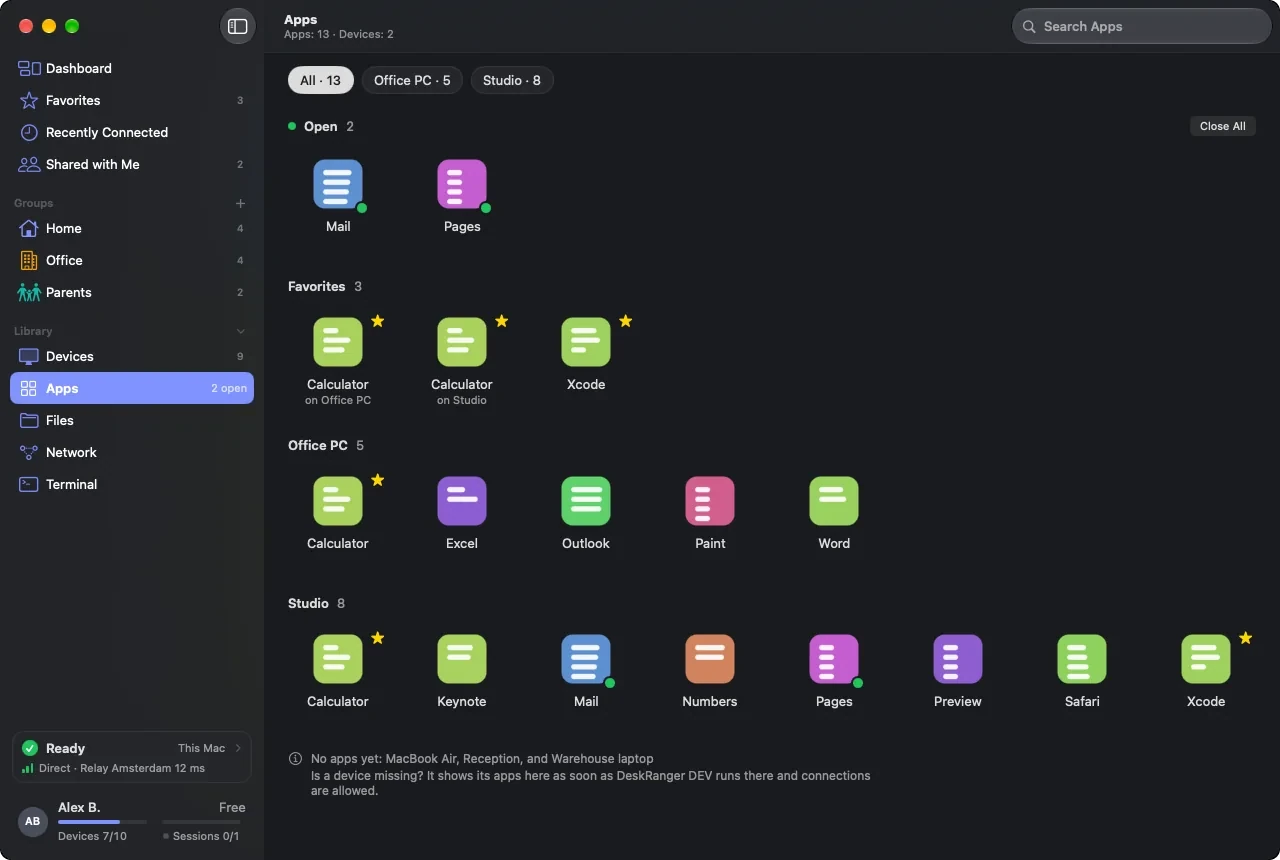
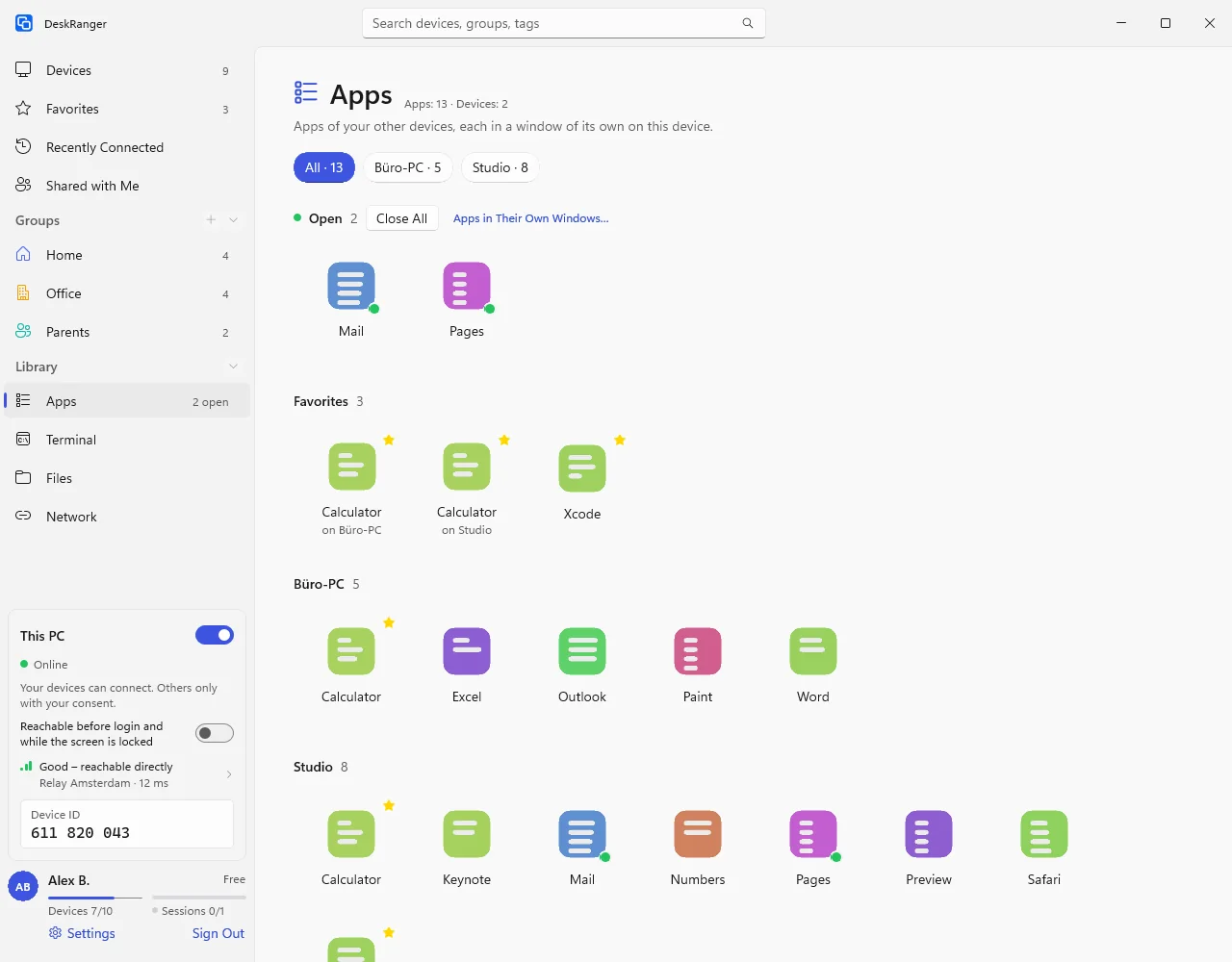
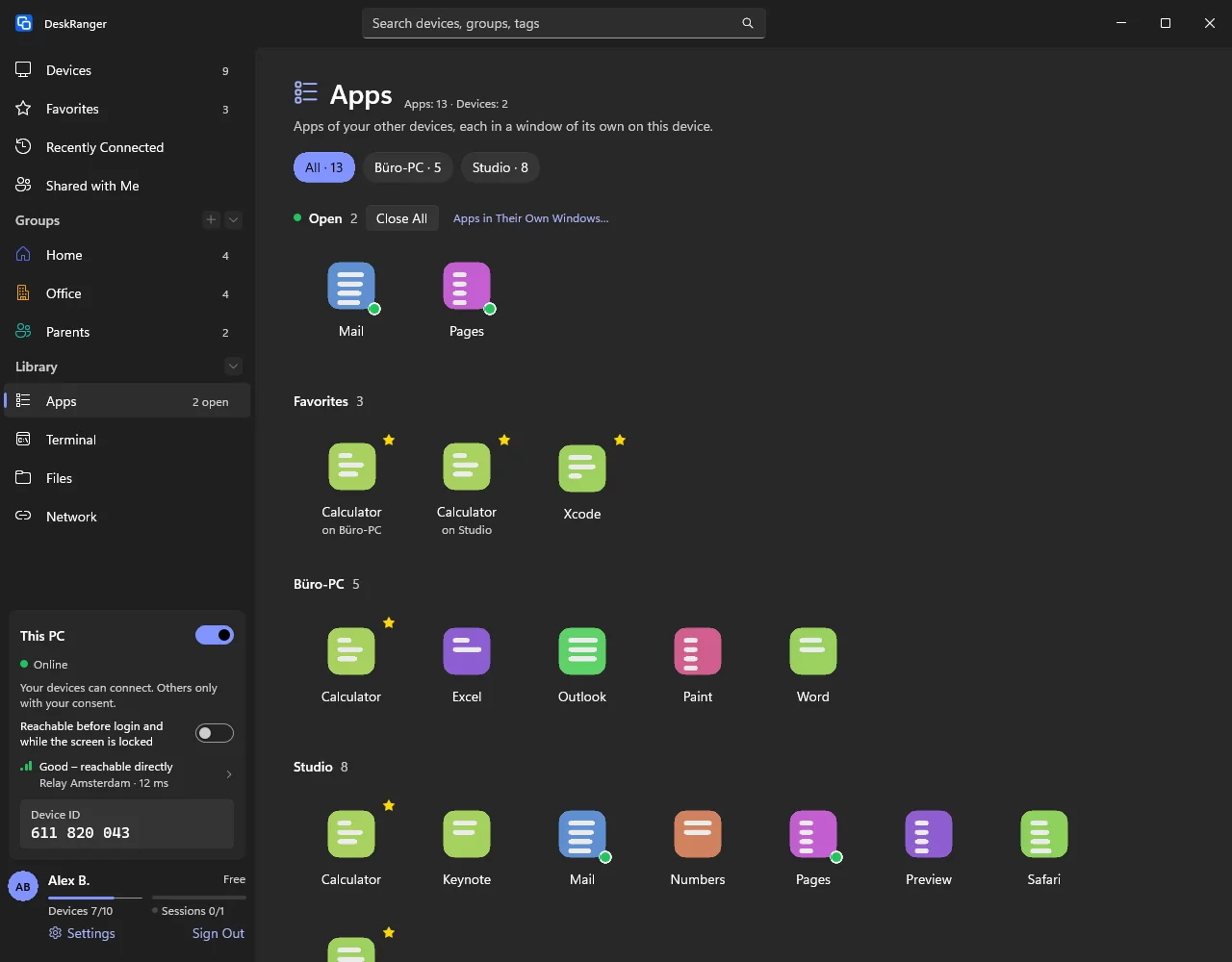
The „Apps“ page shows your devices’ apps in one place: the open ones on top, then favourites and a grid per device. One click opens the app as a window. For a sleeping device the last known apps appear paler.

  • Search by app or device
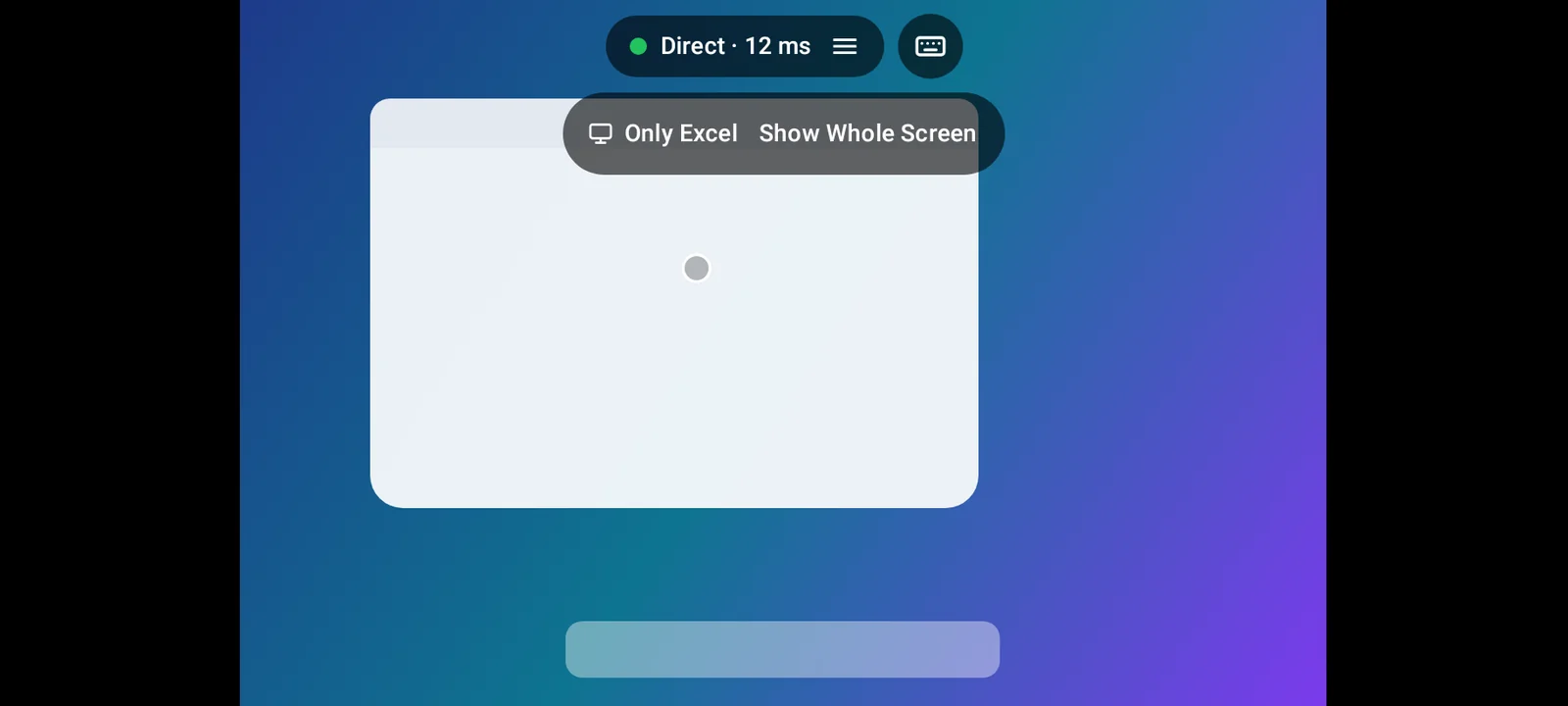
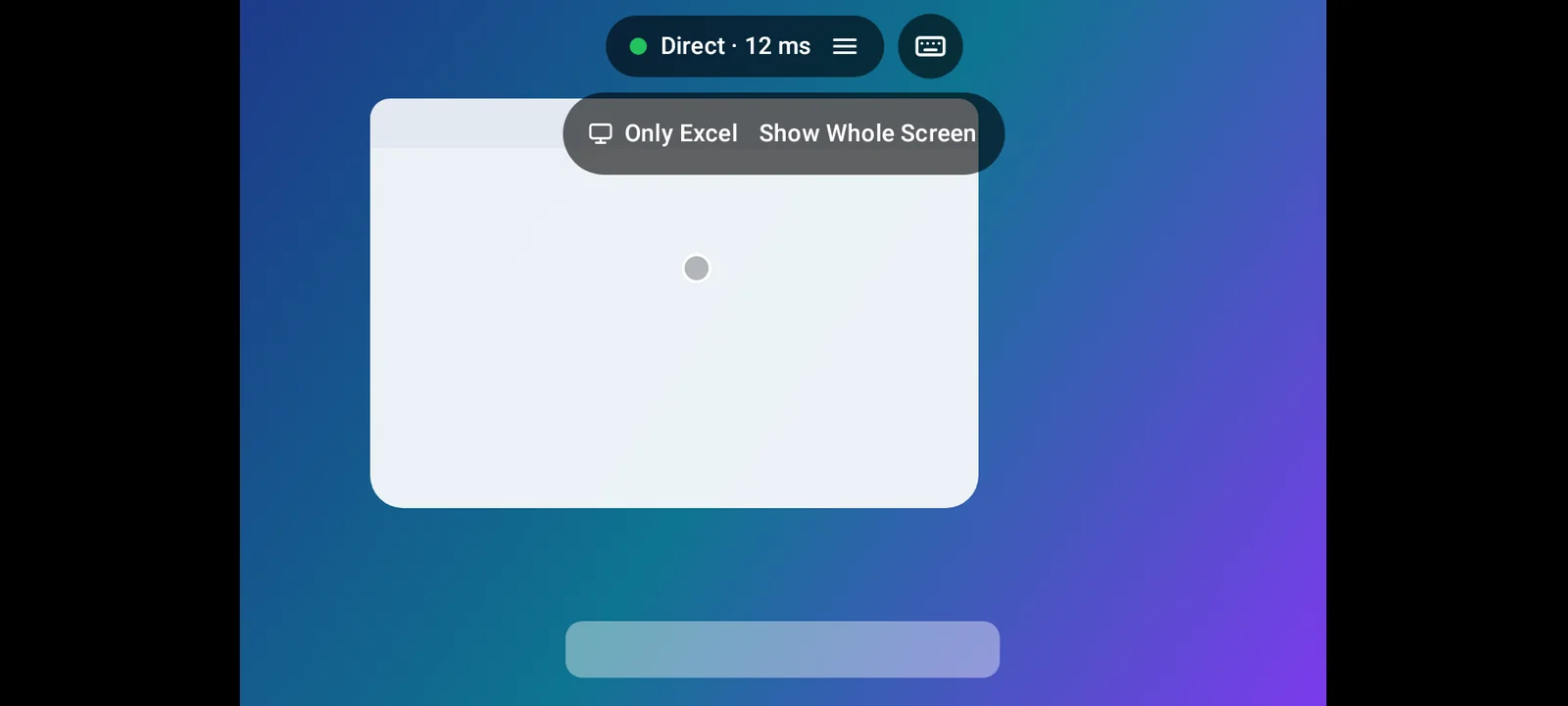
  • On smartphones you see sessions that show only one app
The “Apps” page: the open apps Mail and Pages at the top, favorites below, then one grid each for Studio and Office PC, with one button per device aboveThe “Apps” page: the open apps Mail and Pages at the top, favorites below, then one grid each for Studio and Office PC, with one button per device above

Shown: Mac

Still to come Bientôt

  • Sharing single apps from a Linux computer

Everything step by step, for every platform:

Single apps from afar

Questions fréquentes

Is it available on iPhone or Android?

You can share only from Mac and Windows. A session that shows only one app you can also view on iPhone, iPad, Android, Linux and in the browser.