Help › Functions
Single apps from afar
Share only one app instead of the whole screen. The other side then sees and controls only that app.
With Share Only One App the other side sees only the windows of one app, such as Pages. Other windows, the desktop and notifications stay hidden, even when they lie on top of the app. Clicks outside the app and keys while another app is in front never reach you.
Share one app
You decide which app the other side sees. You do this when you allow a request, or beforehand when you get help.
macOS
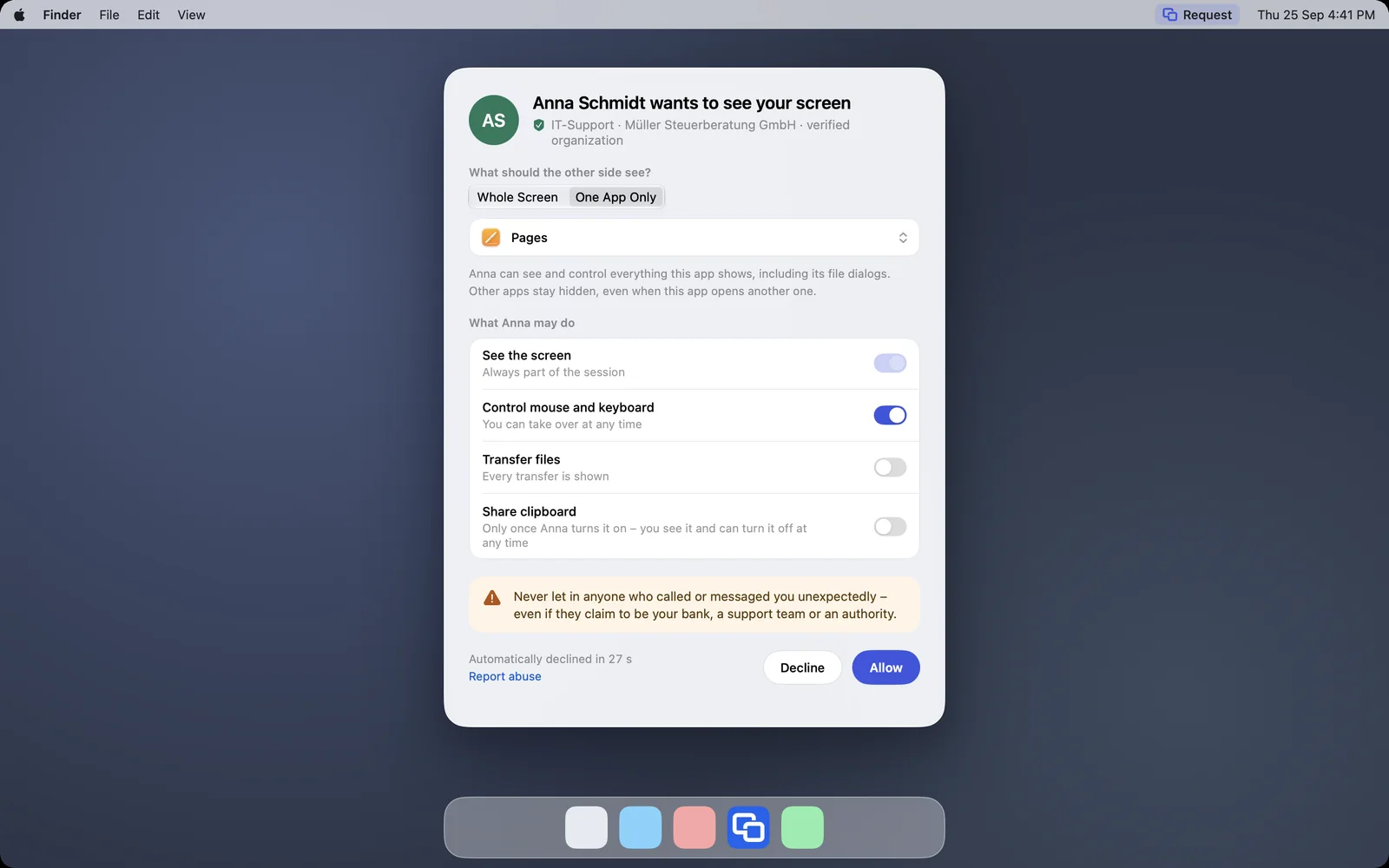
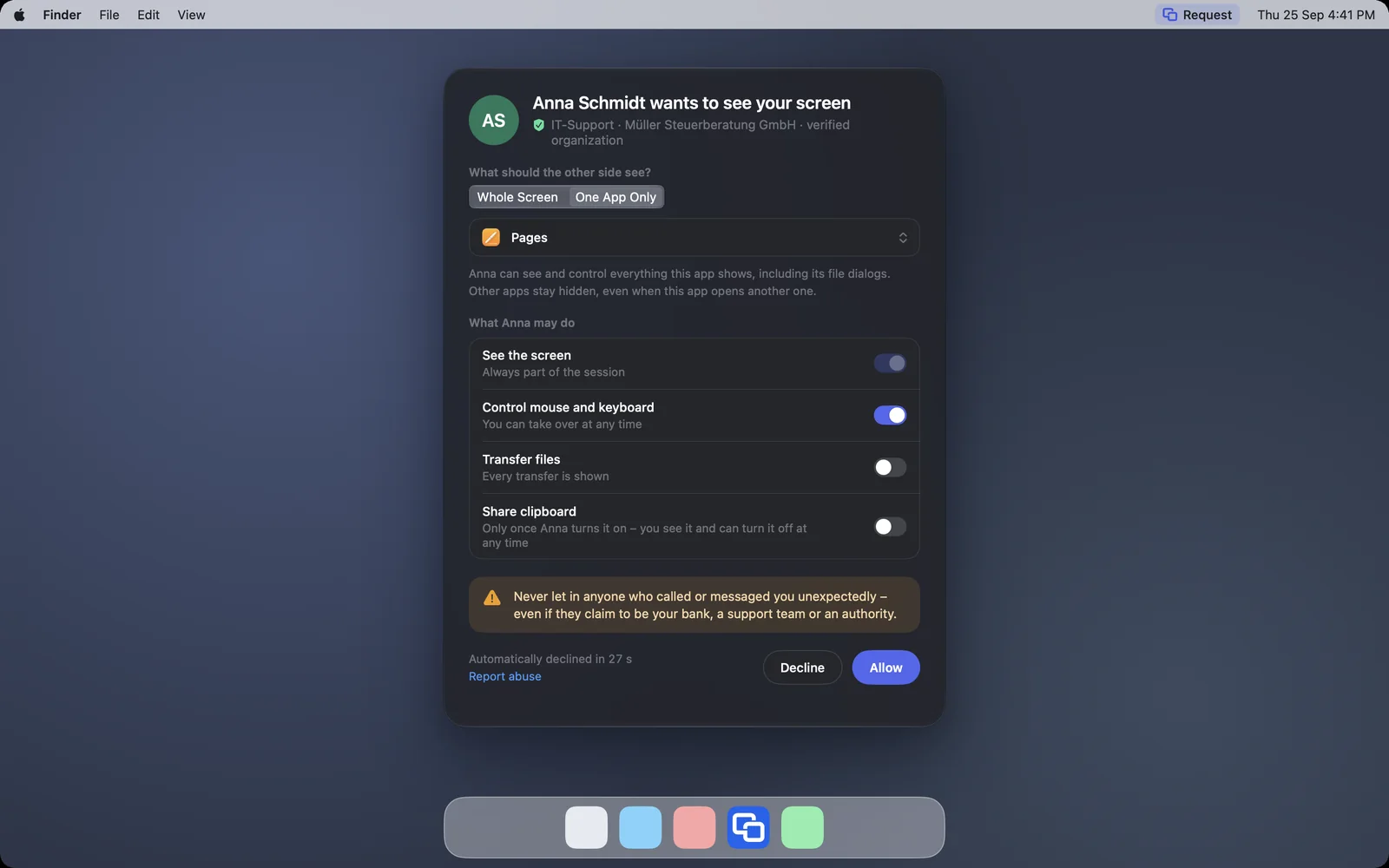
When a request comes in, choose One App Only under What should the other side see? and then the app. If the other side asks for a particular app, it is already selected. You can choose another one. Then click Allow.
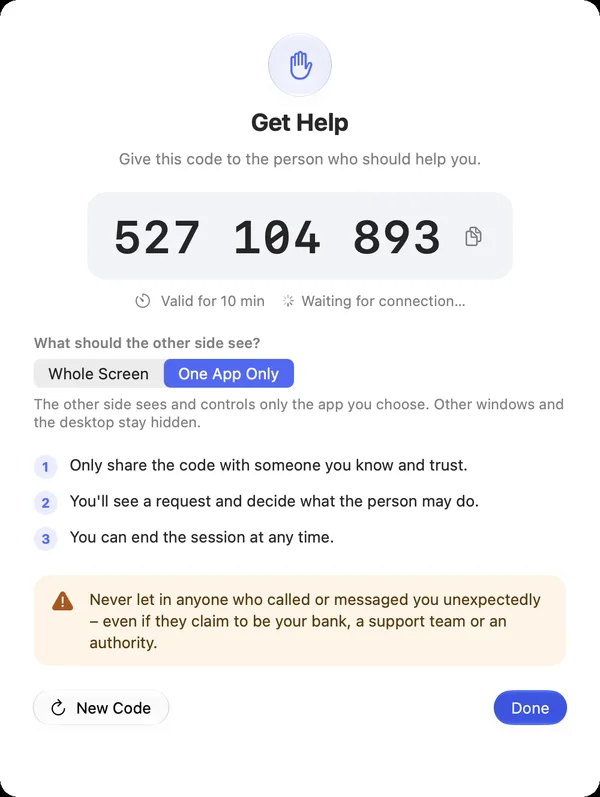
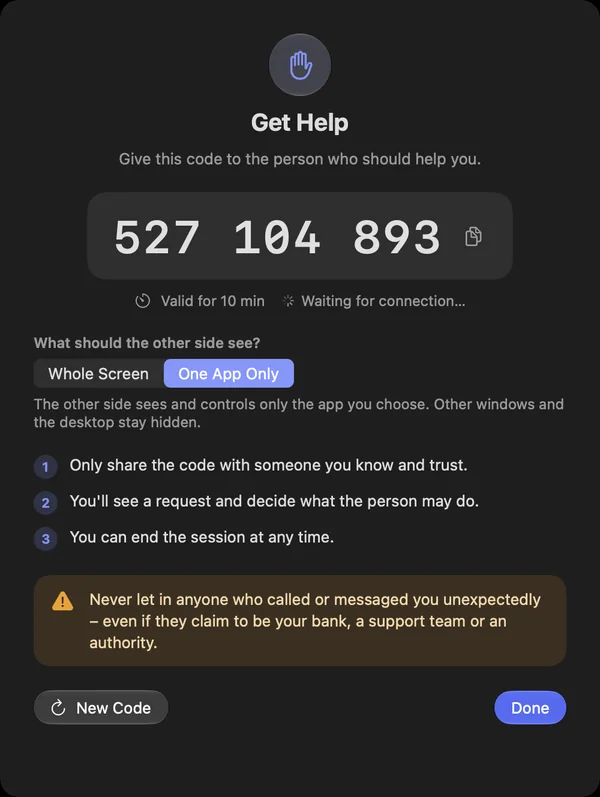
If you want help with one app only, click Share Only One App on the This Mac card. Get Help opens with One App Only. You choose the app when the helper connects.
Windows
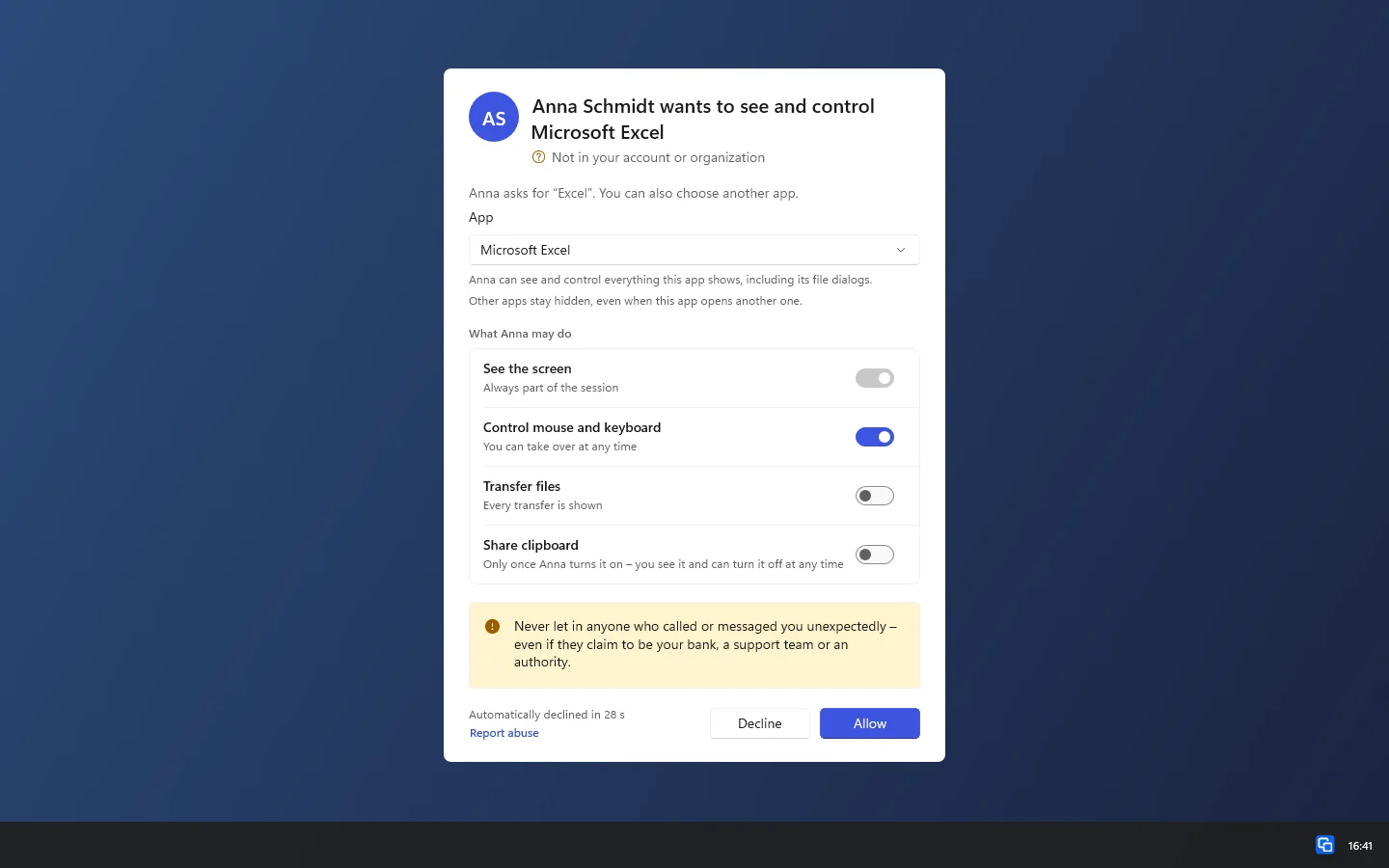
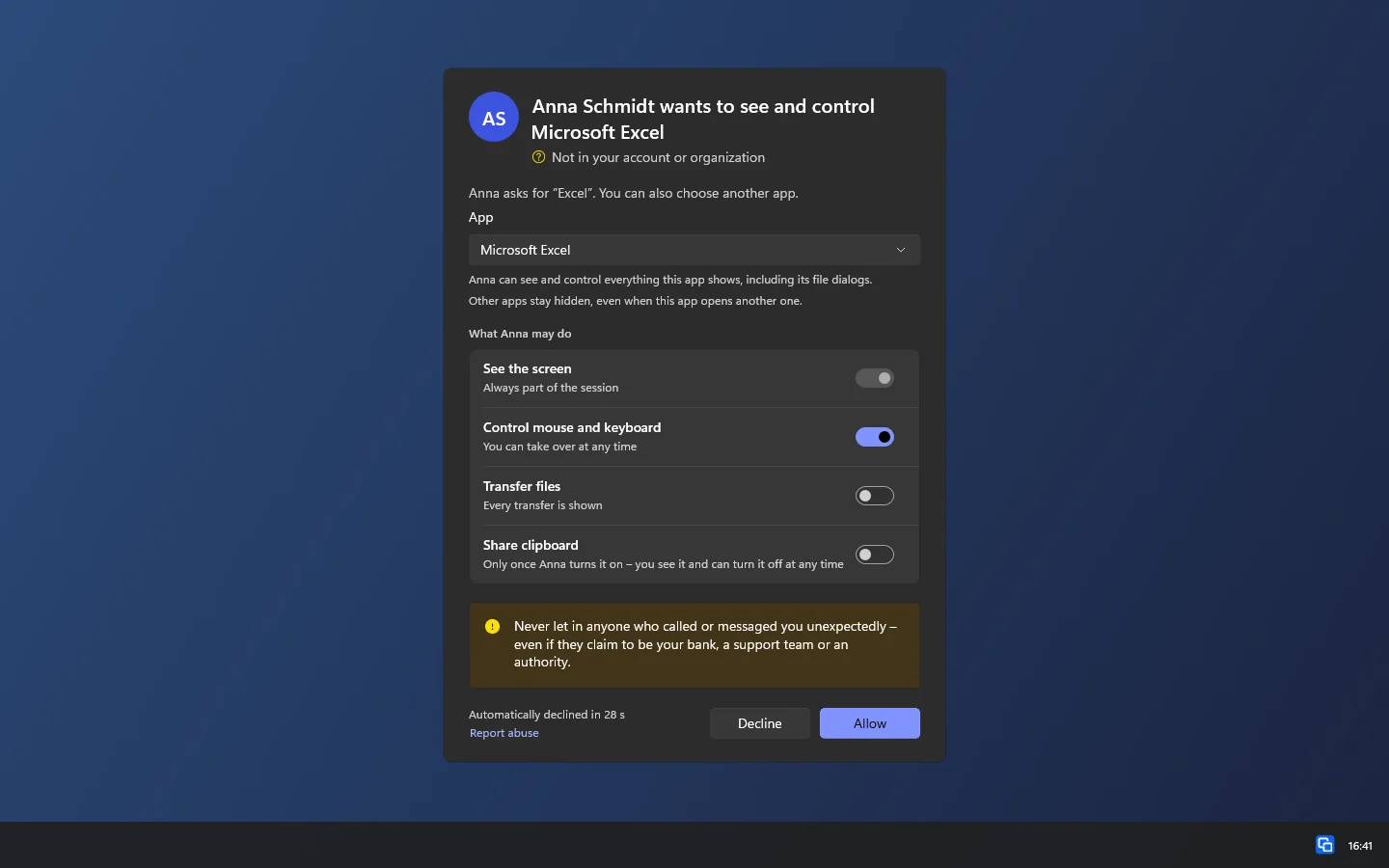
When a request comes in, choose One App Only under What should the other side see? and then the app. If the other side asks for a particular app, it is already selected. You can choose another one. Then click Allow.
If you want help with one app only, click Support Code › Share Only One App in the device list. Get Help opens with One App Only. You choose the app when the helper connects.
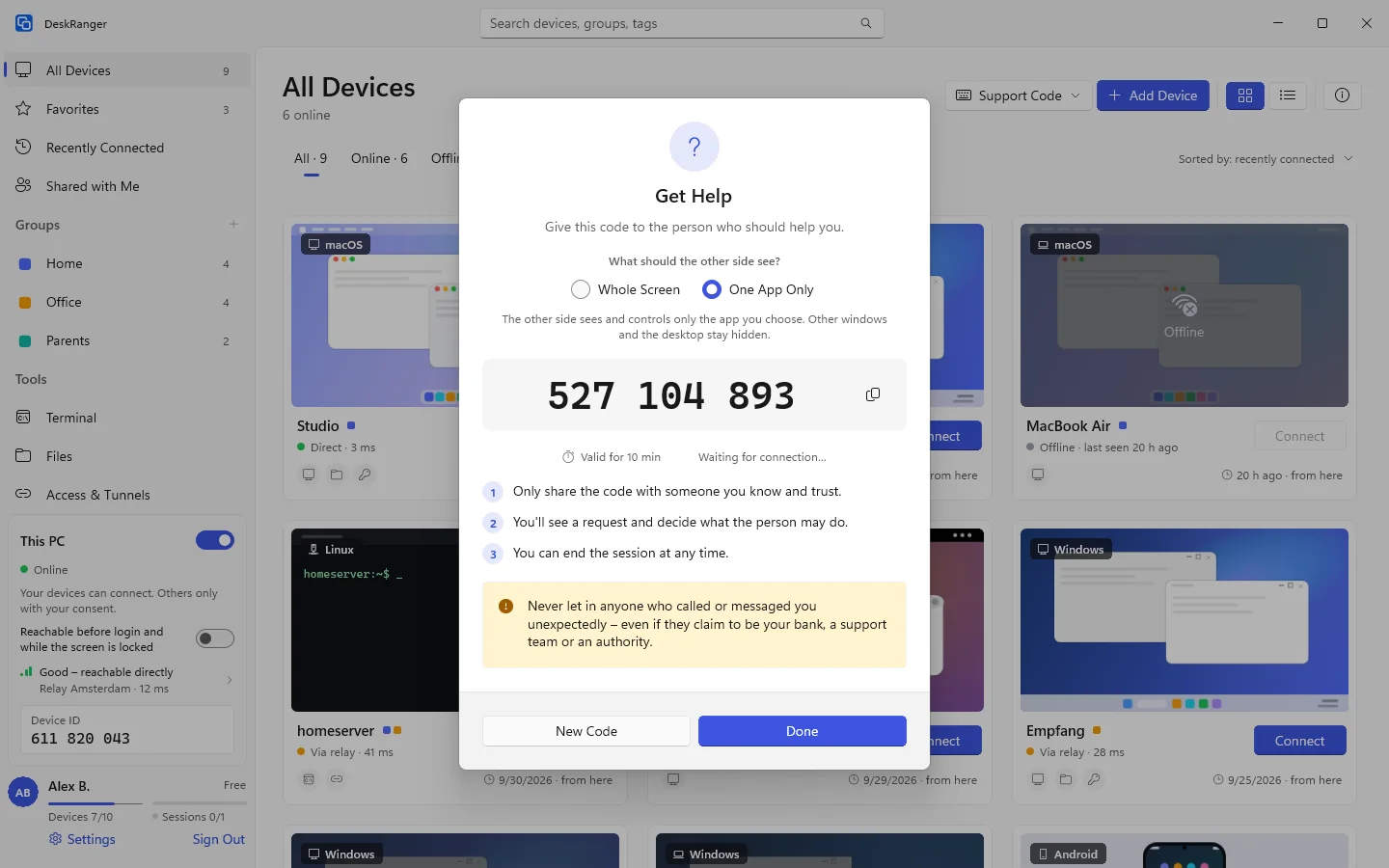
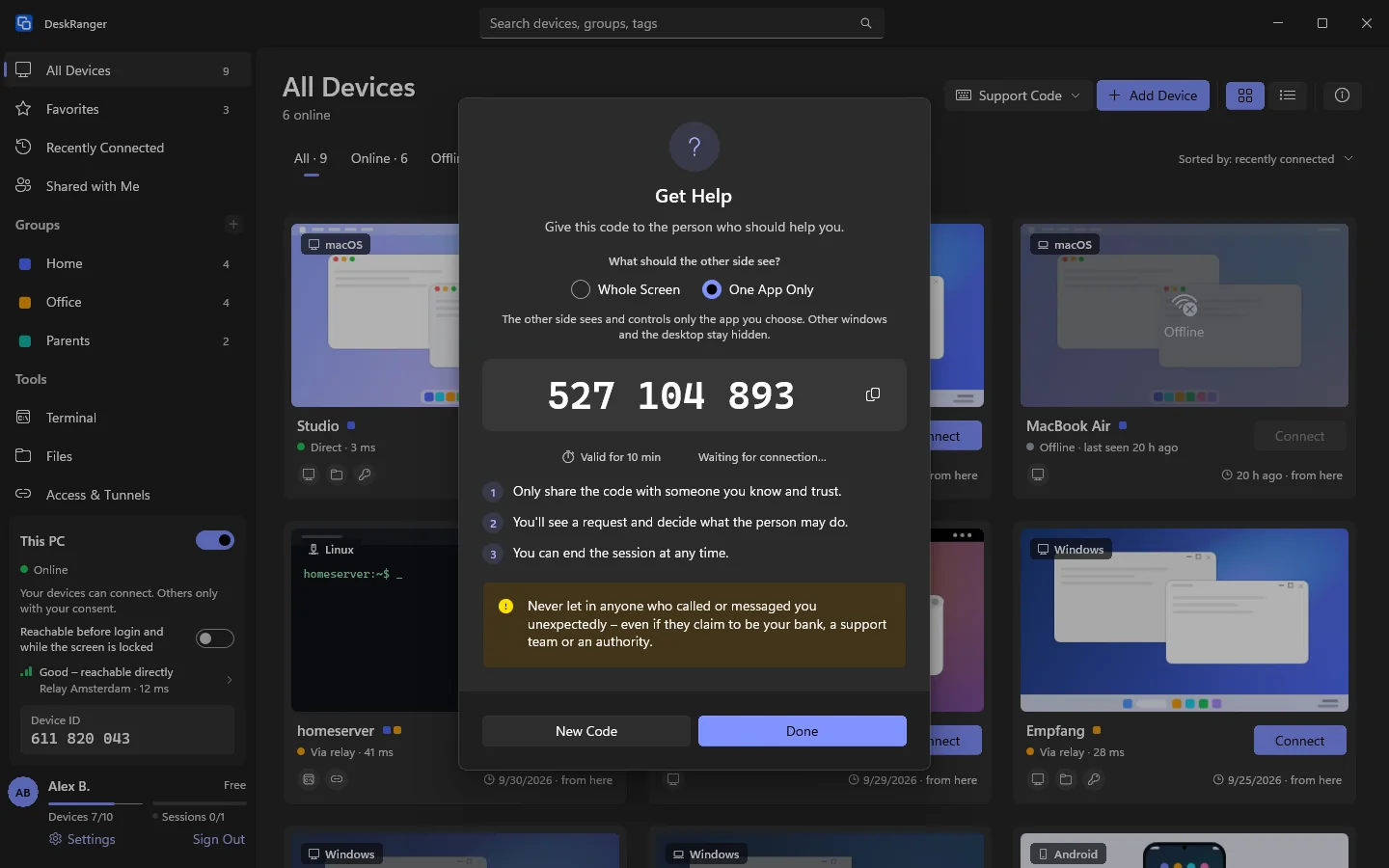
Programs that run as administrator and DeskRanger itself are not in the list. A request that comes through the DeskRanger service (access while the app is not running or nobody is signed in) does not offer One App Only yet. If you share File Explorer, the other side sees only its folder windows, not the taskbar, the desktop or the window switcher.
During the session
The red frame surrounds the windows of the shared app instead of the screen. The menu bar icon names the app. If you switch to another app, the other side's keys pause until the shared app is in front again. If the app opens another app, such as the browser, that app is not added. Only you can add it in the session menu with Also Share ….
If you share the clipboard, the other side only gets what you copy in the shared app. What you copy in another app, such as a password from your password manager, stays with you. This also holds when you switch back to the shared app afterwards.
macOS
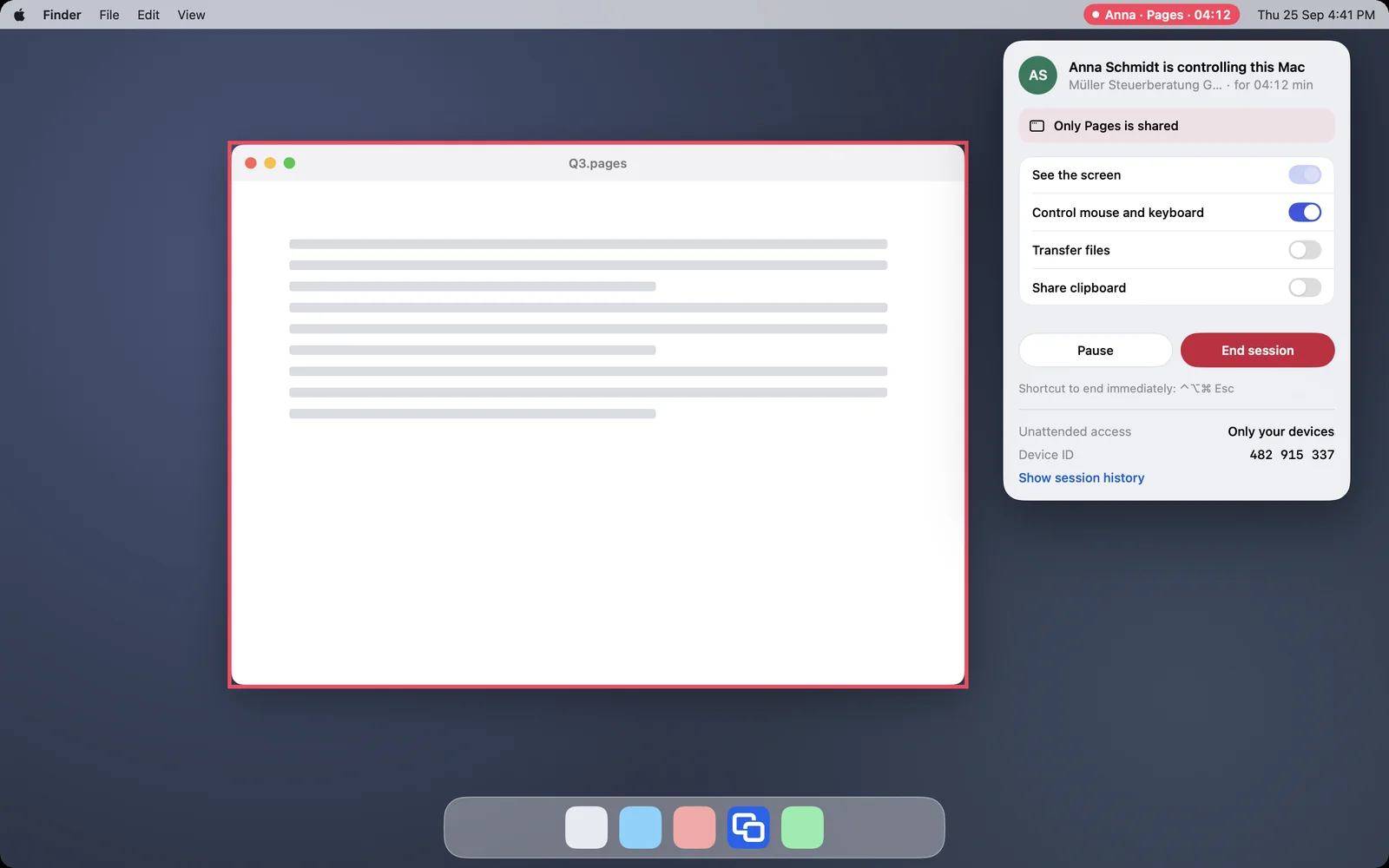
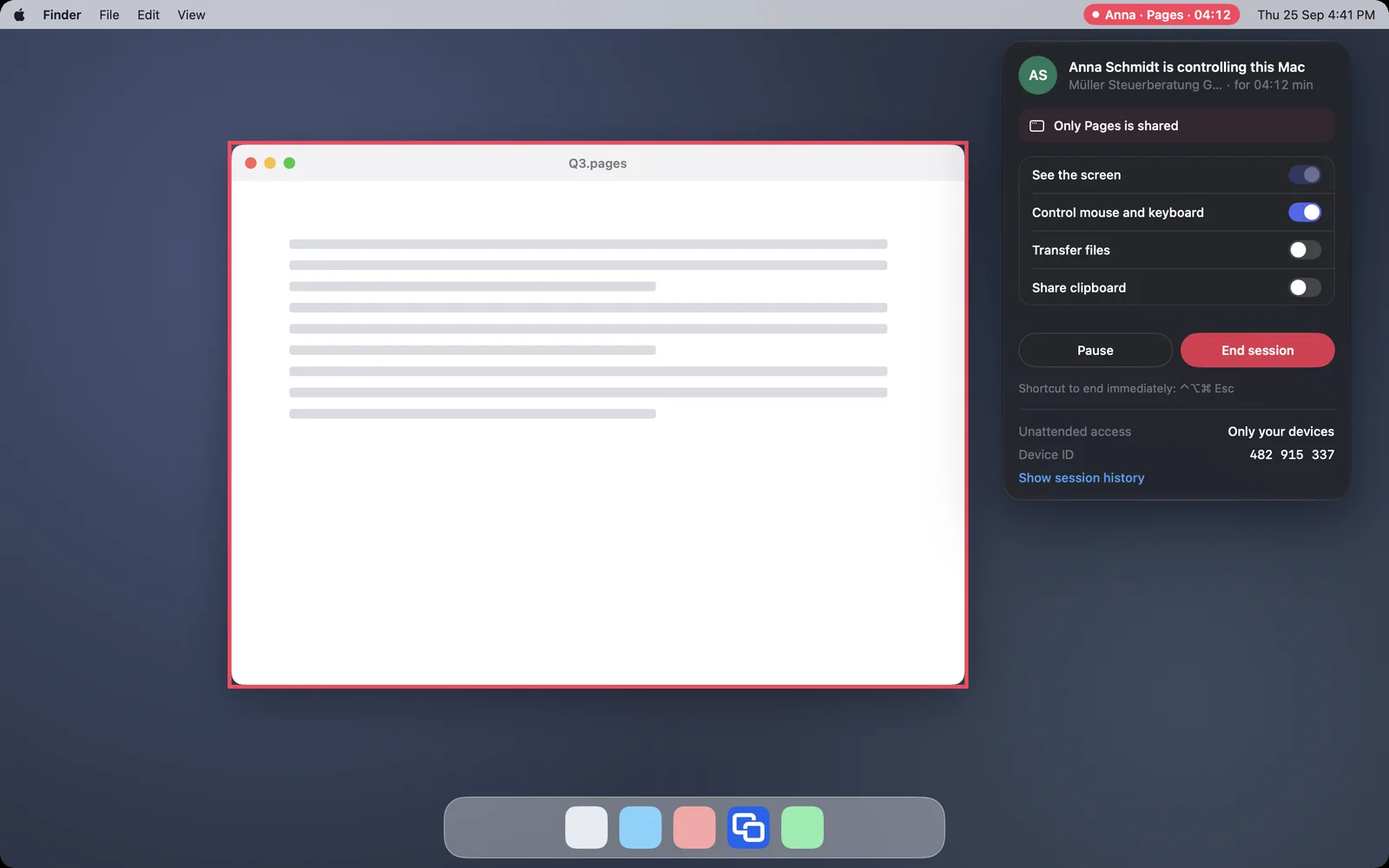
Windows
On Windows the menu in the notification area names the app instead of the menu bar.
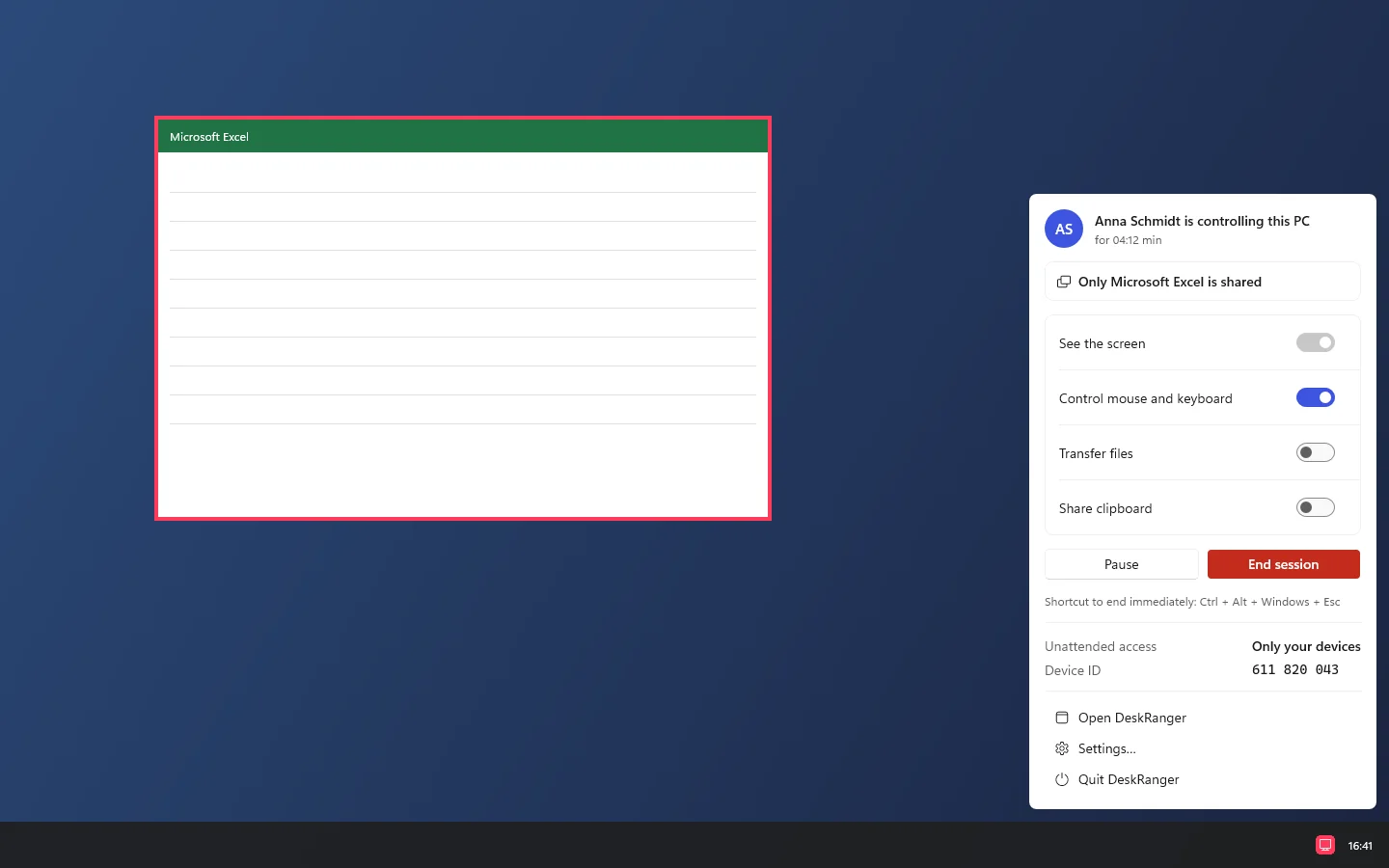
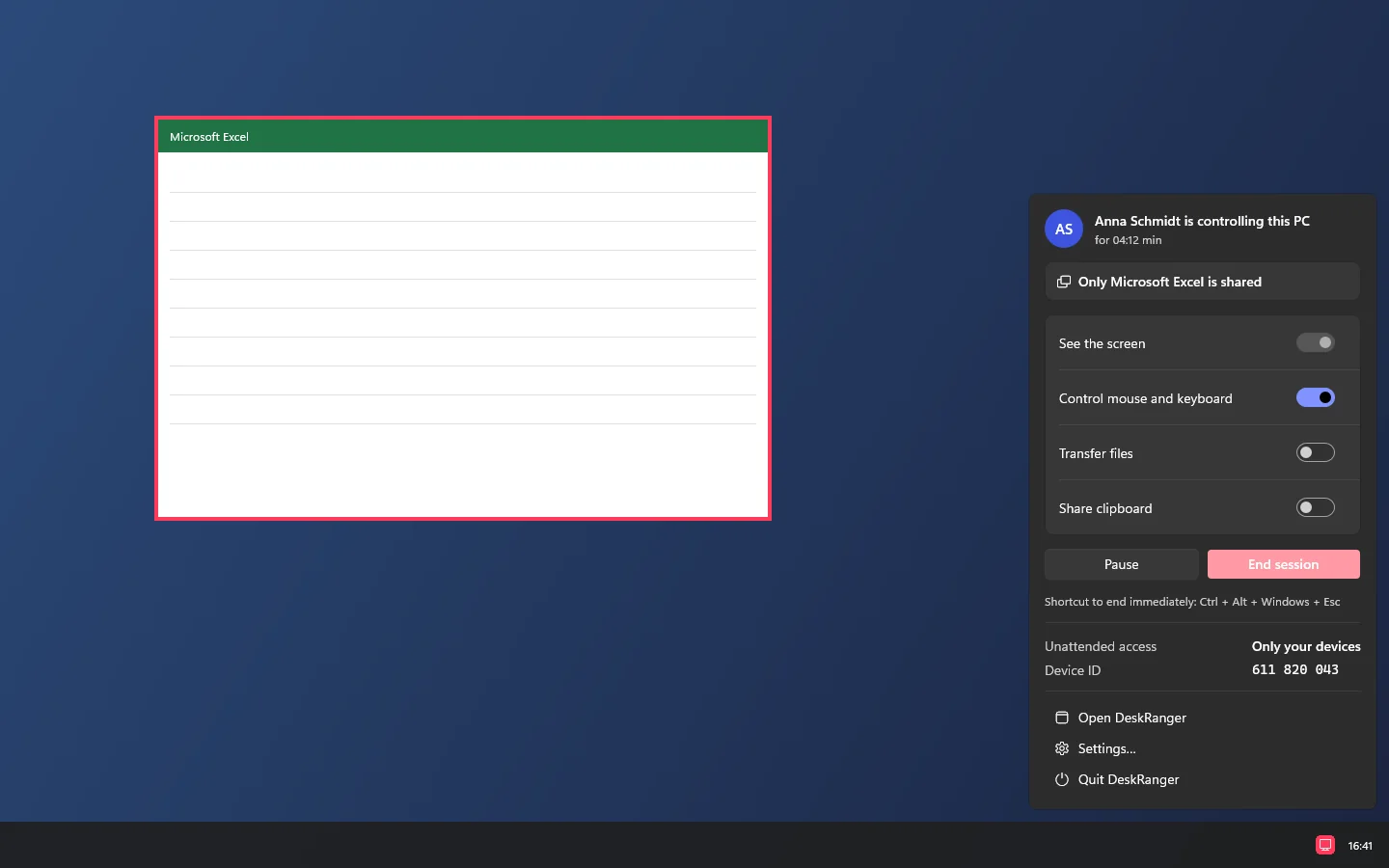
You end it as always in the session menu or with ⌃⌥⌘ Esc.
As the helper
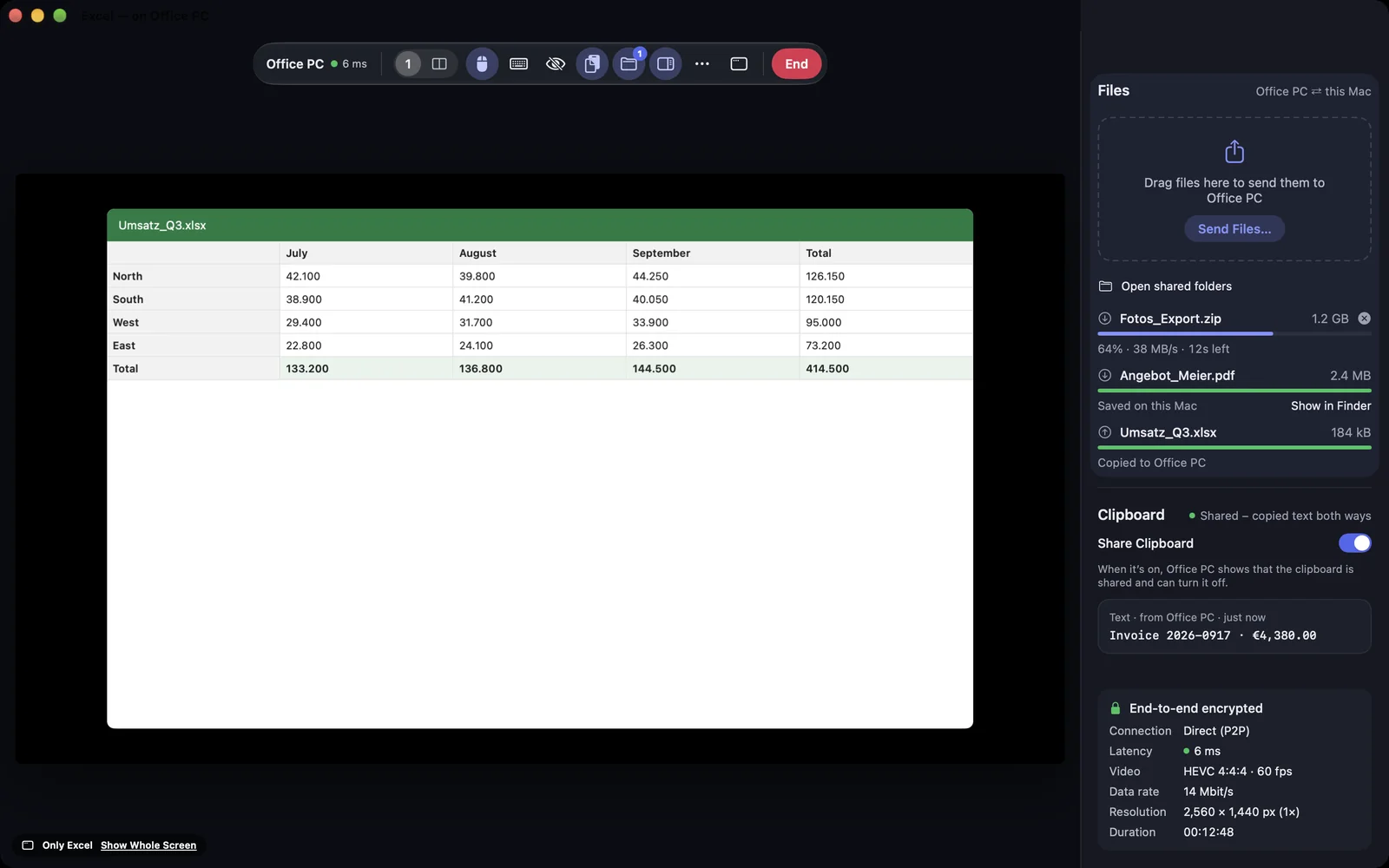
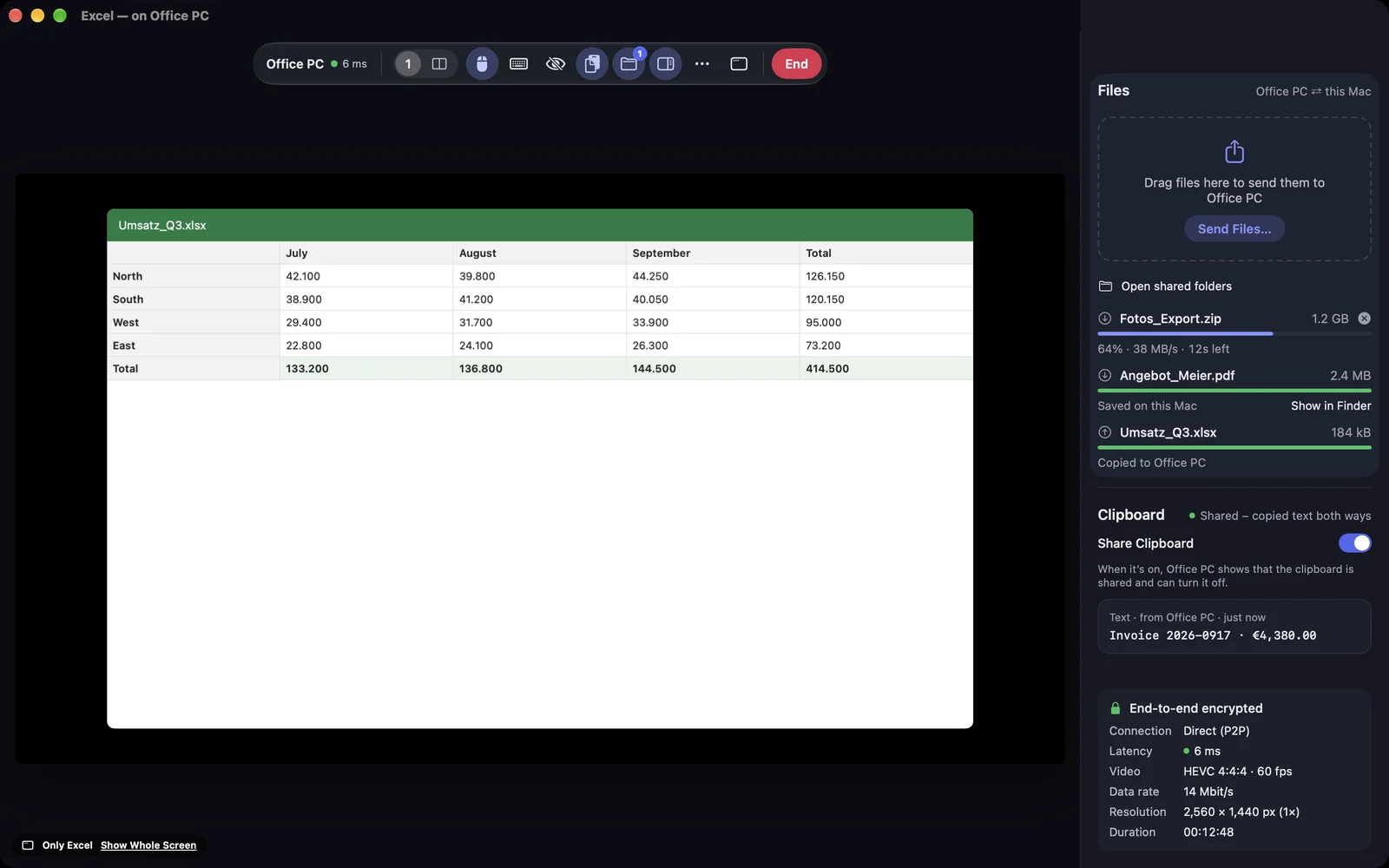
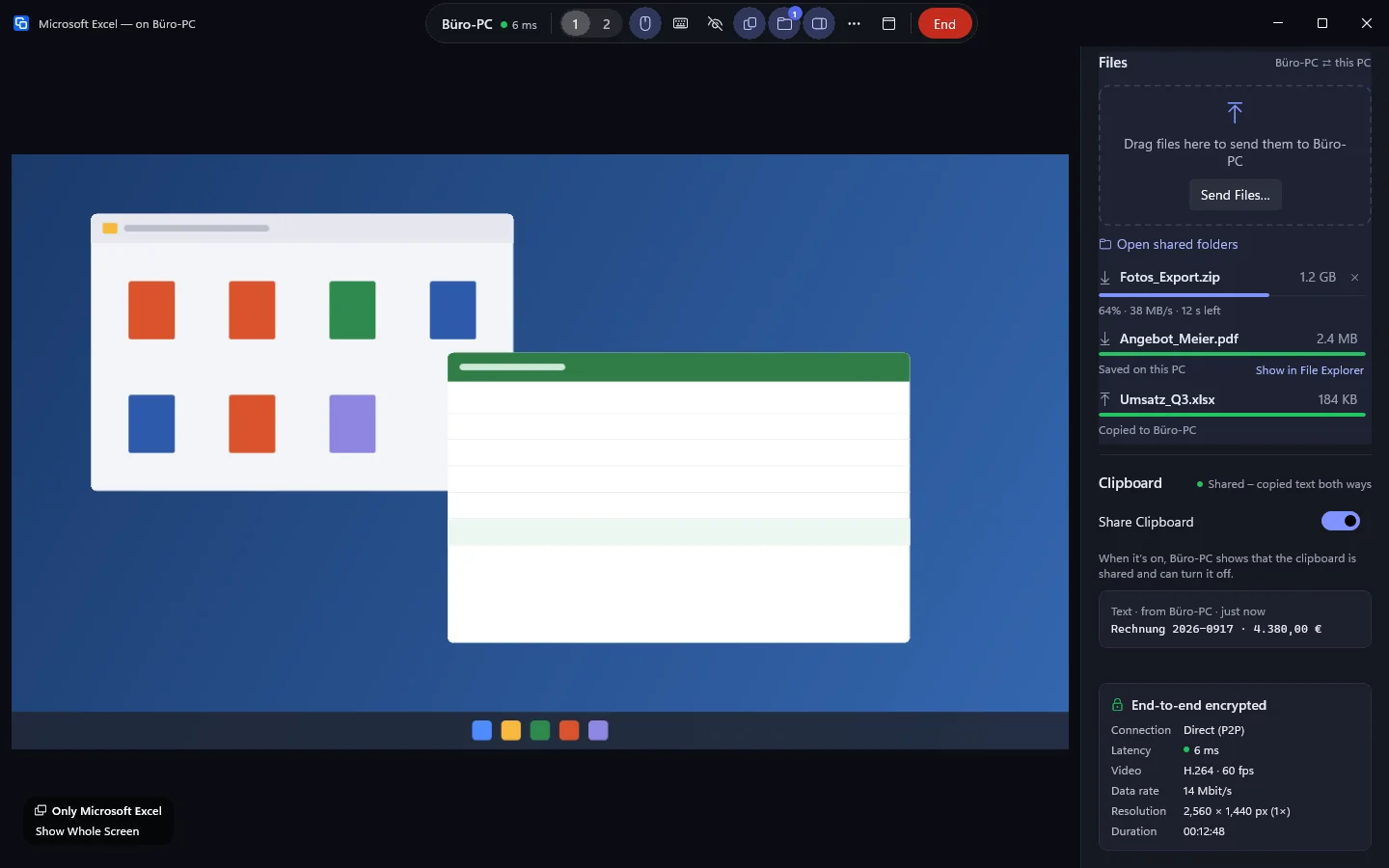
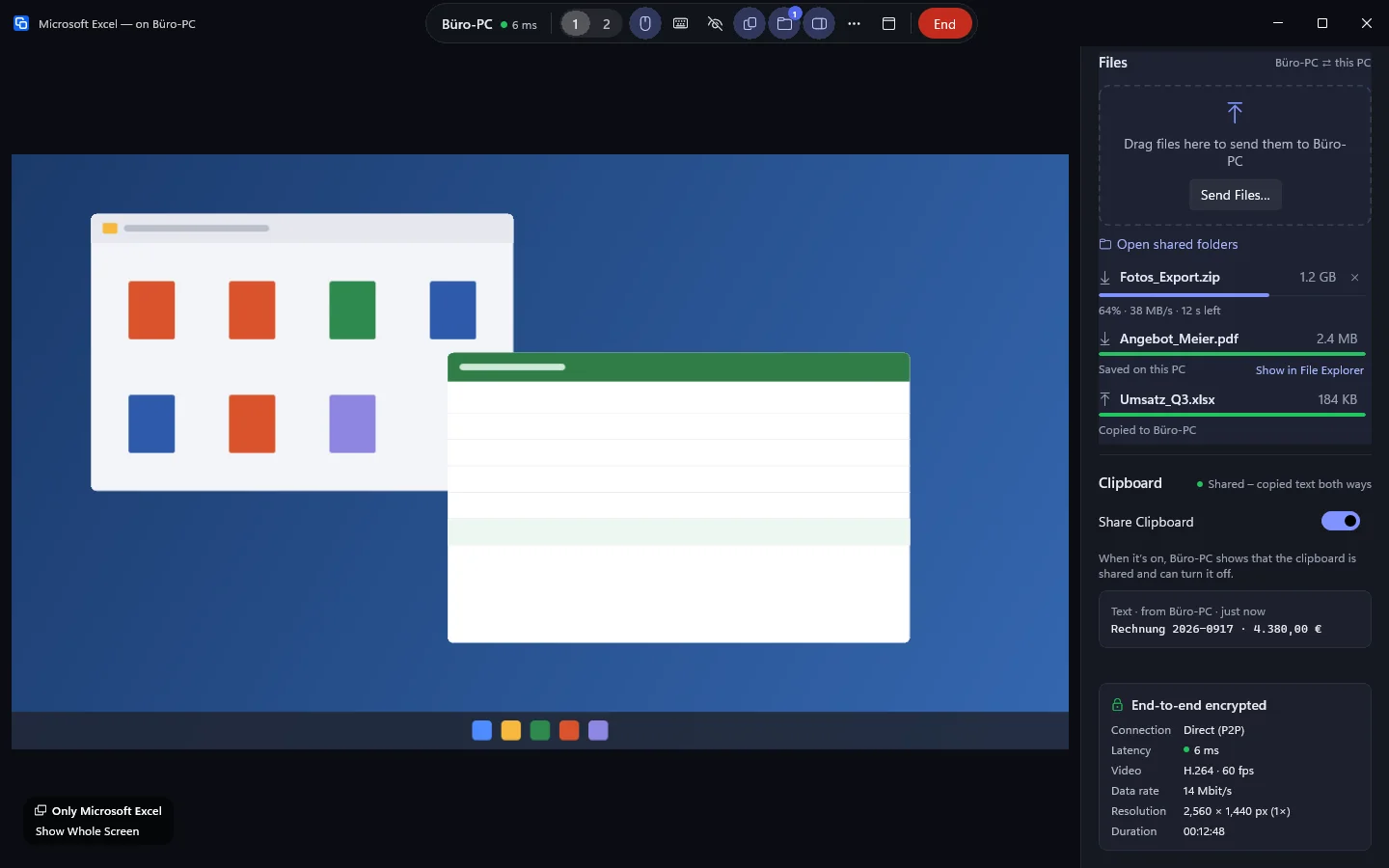
The session window shows only the app, and its title names it: “Pages — on Anna's Mac”. If the app is not in front on the other device, a note says that typing is paused. A click into the app brings it back to the front. With your own devices you can switch to the whole screen with Show Whole Screen. With other people's devices this is not possible.
macOS
Windows
iPhone & iPad
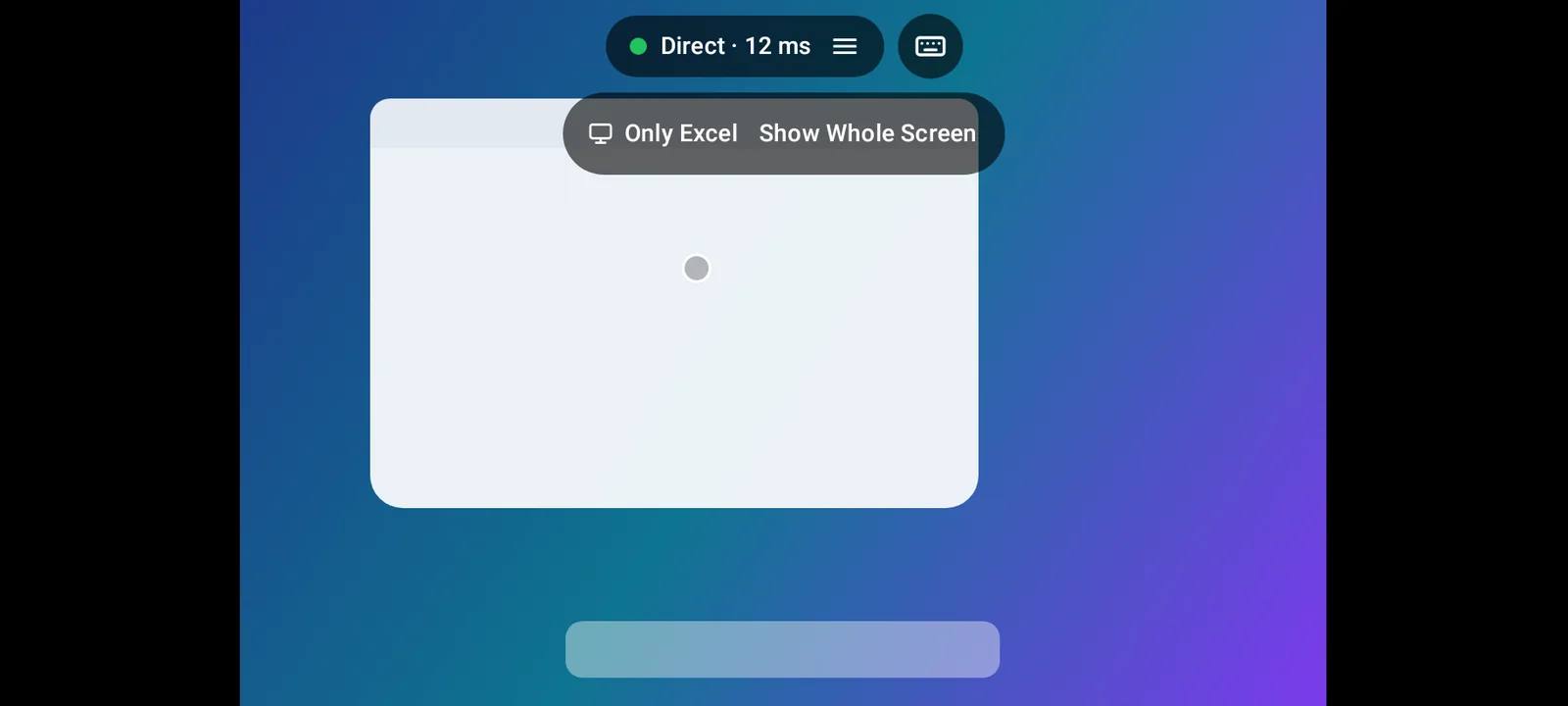
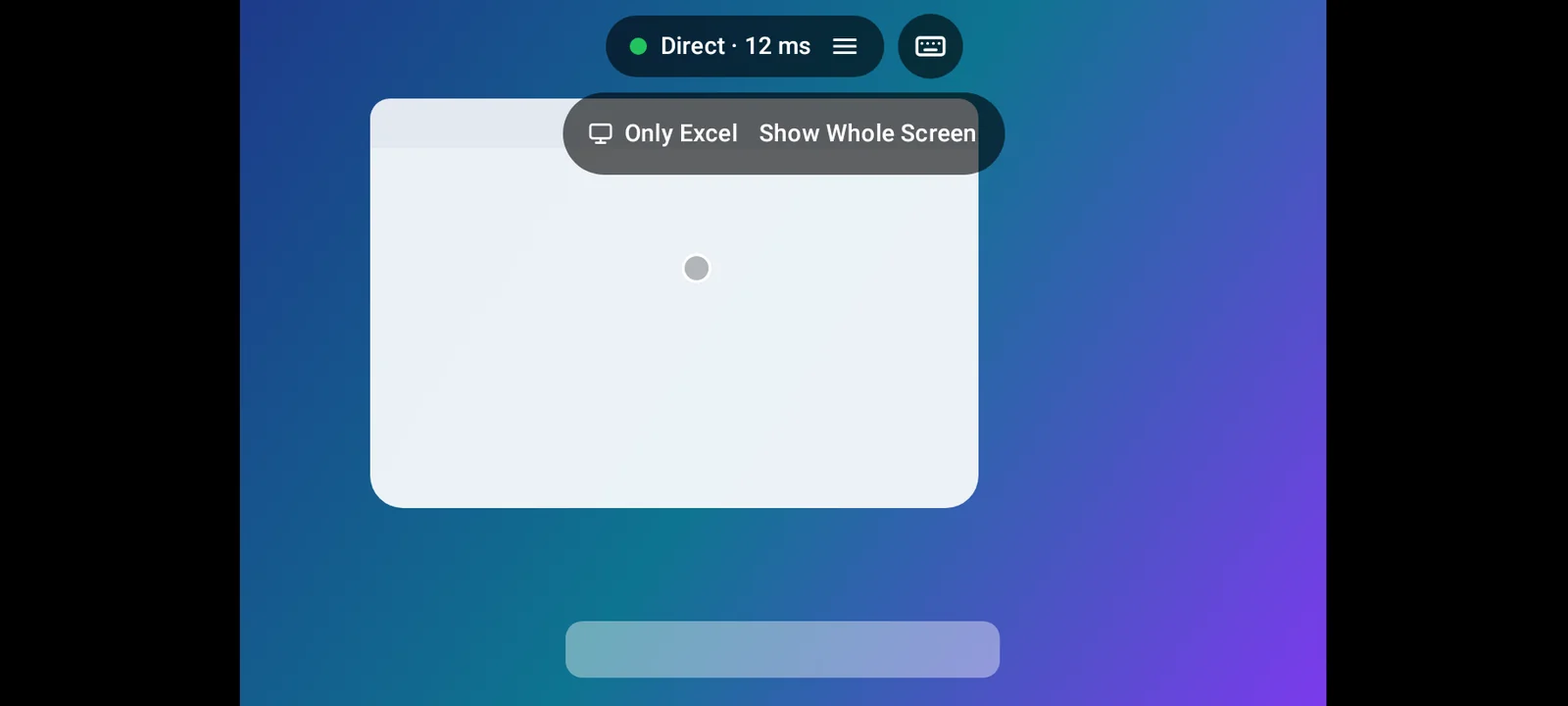
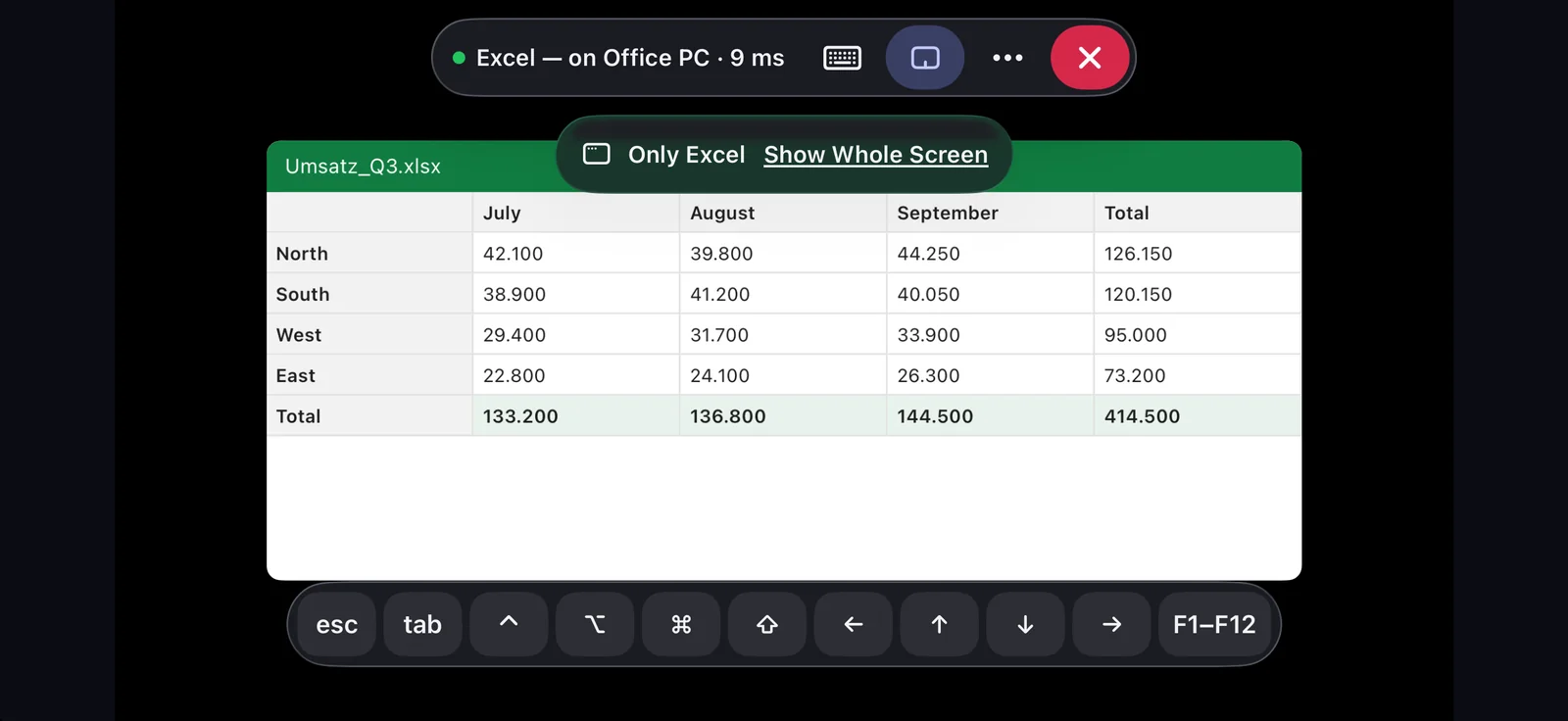
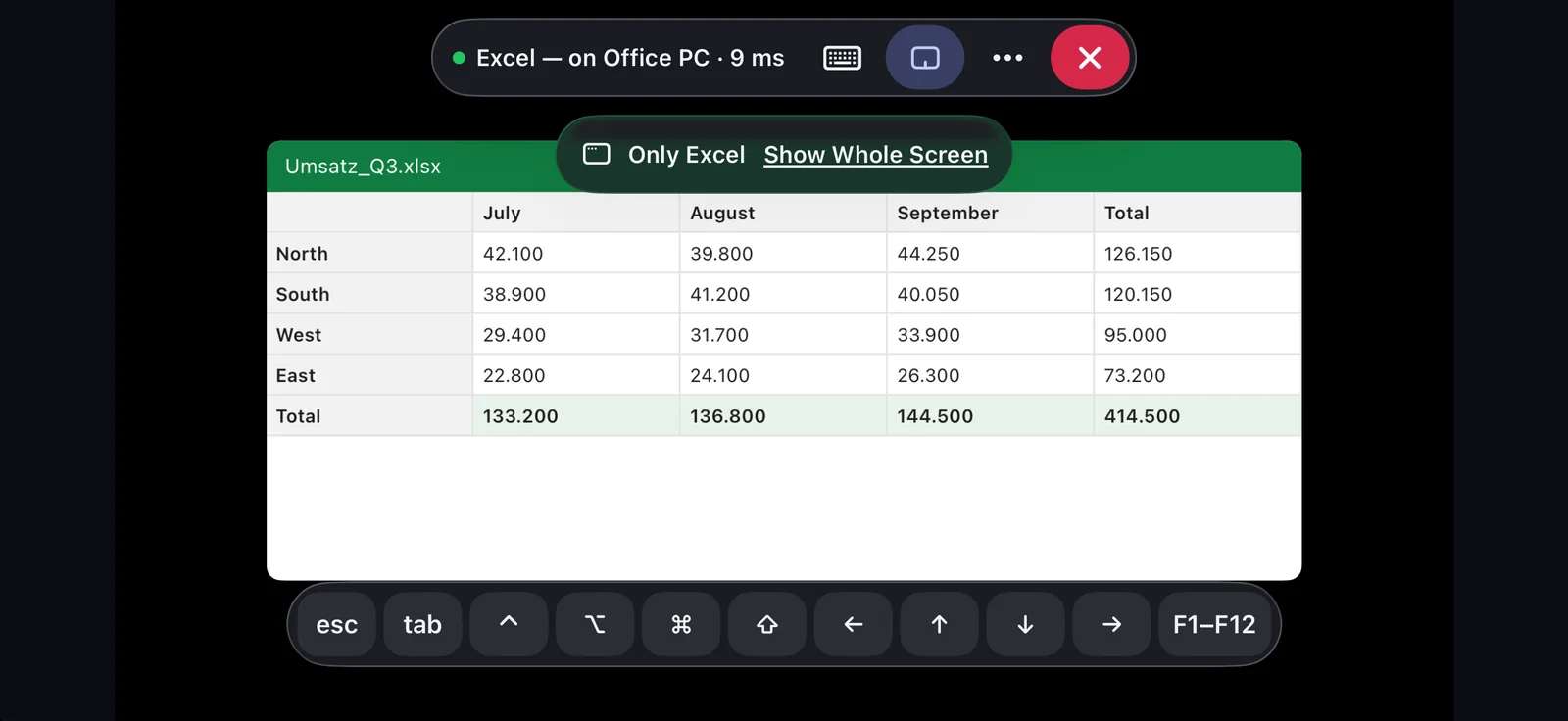
On iPhone and iPad the app fills the screen. The toolbar at the top names it: “Excel — on Office PC”, with “Only Excel” below. If the app is not in front on the other device, a note says that typing is paused. With your own devices you switch to the whole screen with Show Whole Screen, in the ⋯ menu or next to “Only Excel”. Display choice, privacy mode and system actions are missing in such a session.
Web
In the browser the session shows only the app. The header names it, next to “Only Excel” and, when the app is not in front on the other device, the note that typing is paused. With your own devices you switch to the whole screen with Show Whole Screen. Display choice, privacy mode and system actions are missing in such a session.
Android
On Android the app fills the screen. The toolbar names it, with “Only Excel” below. If the app is not in front on the other device, a note says that typing is paused. With your own devices you switch to the whole screen with Show Whole Screen. Display choice, privacy mode and system actions are missing in such a session.