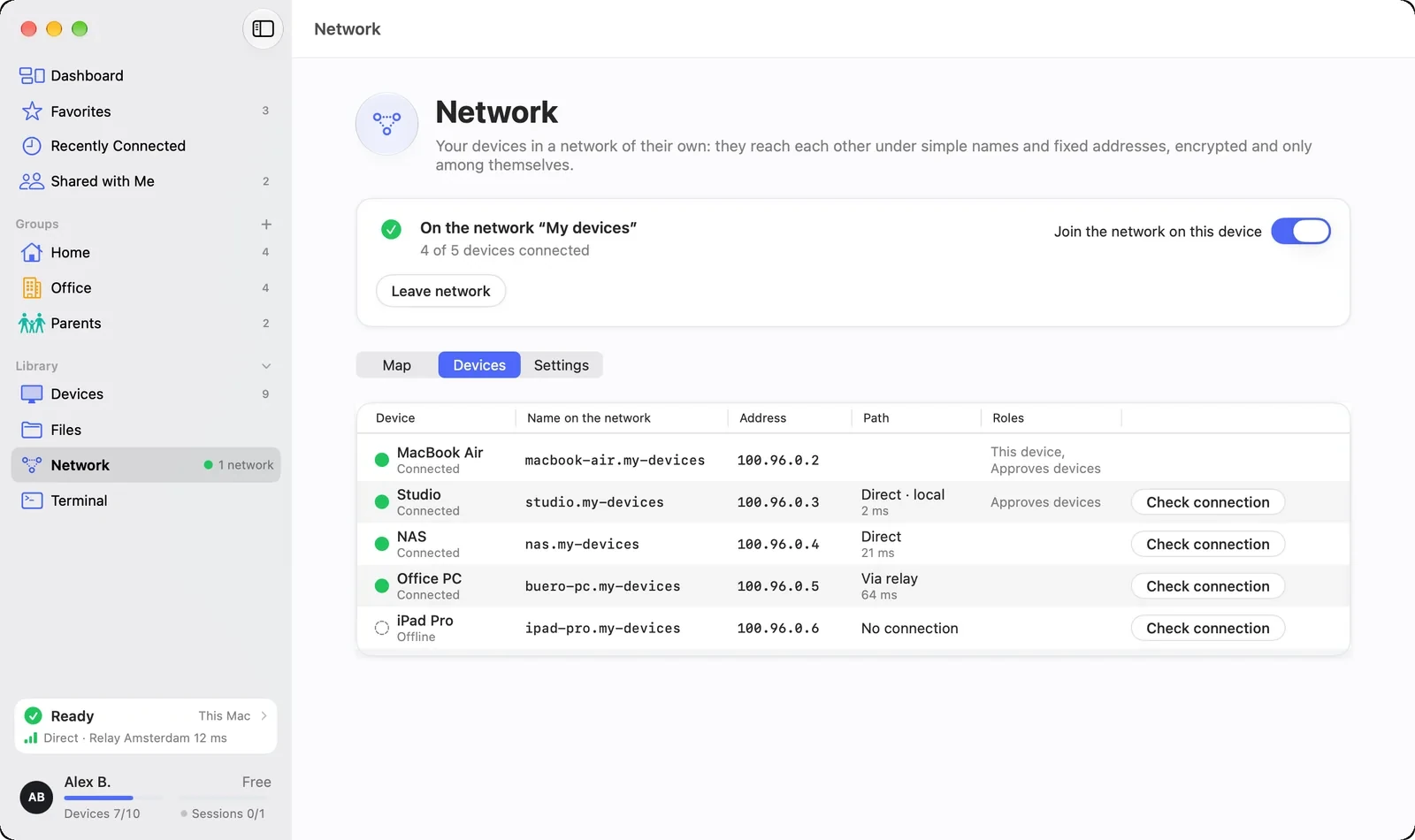
If a computer at home is asleep, another of your devices on the same local network wakes it when you need it. The device list shows which device can be woken.
FreemacOS · Windows · Linux · Android · iOS / iPadOS
MacWindowsLinuxiPhone & iPad In arrivoAndroidBrowser
“Wake” with one click
You wake a sleeping device with one click: if another device on its local network can wake it, the device list on the Network page says “Sleeping · wakeable”. “Wake” in the device’s panel asks that other device to do it.
Then it says “Waking …”, or “Did not wake” if it fails
An access to a sleeping device wakes it even without the button
Two switches per computer
You decide per computer on the Network page under “Wake”: “Wake on access” (off at first) lets another device on the same network wake this computer when somebody from your network accesses it. “Wake devices on the local network” (on at first) lets this computer wake your sleeping devices.
On the Mac, “Wake for network access” must be on in the system settings
On the Windows PC the network adapter must allow “Wake on LAN”
The choice stays saved on this computer
From your phone, too
On iPhone, iPad and Android “Wake” appears in the network page’s device list under the sleeping device. A phone only asks another device; it wakes no devices itself and cannot be woken this way.
A sleeping Android device is woken by DeskRanger itself when you connect
In a remote session “Wake” works there only at the device itself
Reachable again after waking
After sleep or a network change DeskRanger reconnects by itself.
If loading the device list fails, DeskRanger keeps trying
A second device of your own that is on the same local network and allows waking. On the sleeping device “Wake on access” and the system’s setting must be on.
Can I wake a phone?
A phone cannot be woken this way. DeskRanger does wake a sleeping Android device by itself when you connect.