Control

Remote desktop

See and control your computers and phones from afar: from a Mac, Windows PC, Linux computer, iPhone, iPad, Android device or in the browser. One bar with the same parts on every platform.

FreemacOS · Windows · Linux · Android · iOS / iPadOS · Web
The Compact viewThe Compact view

Shown: Mac

What you do with it

See it on

One bar, the same everywhere

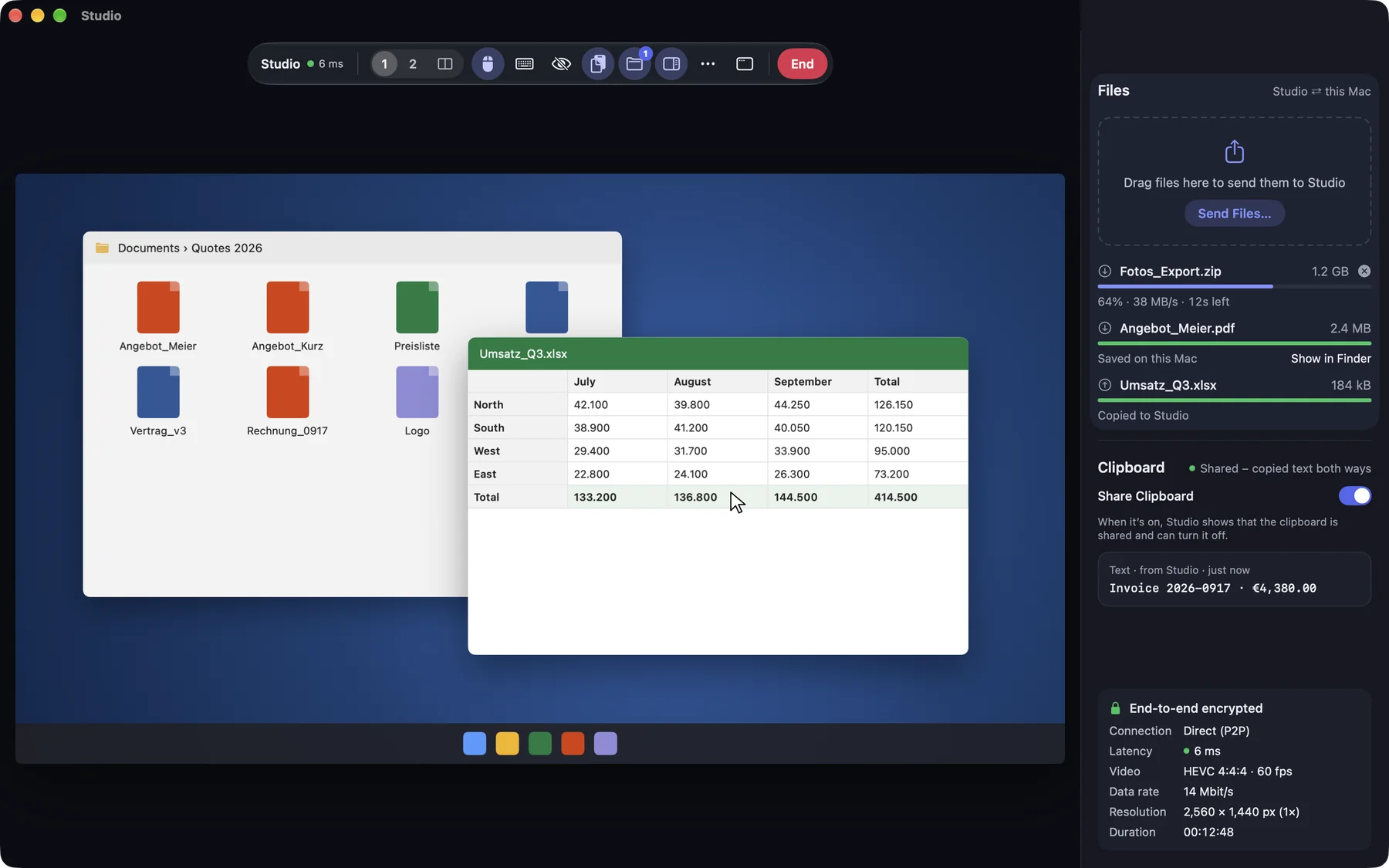
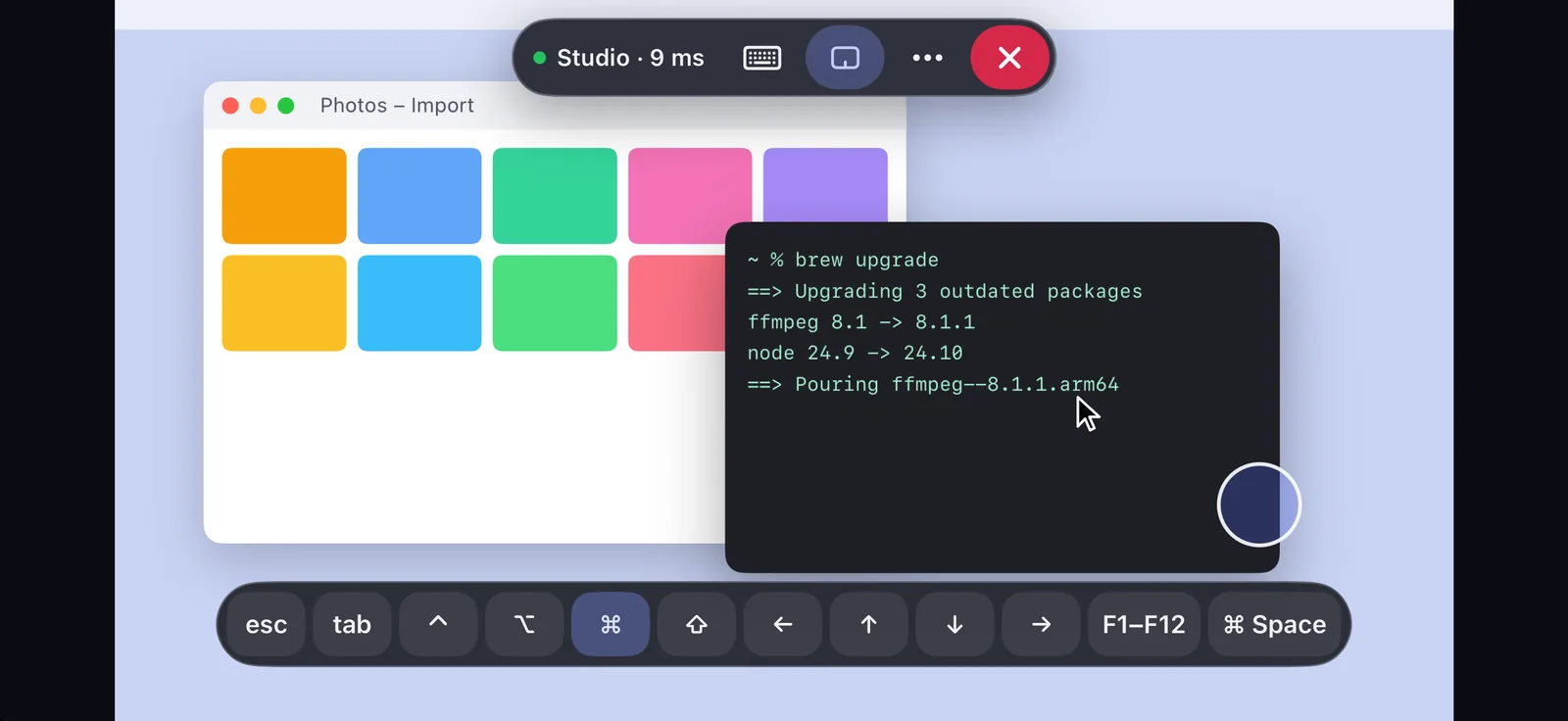
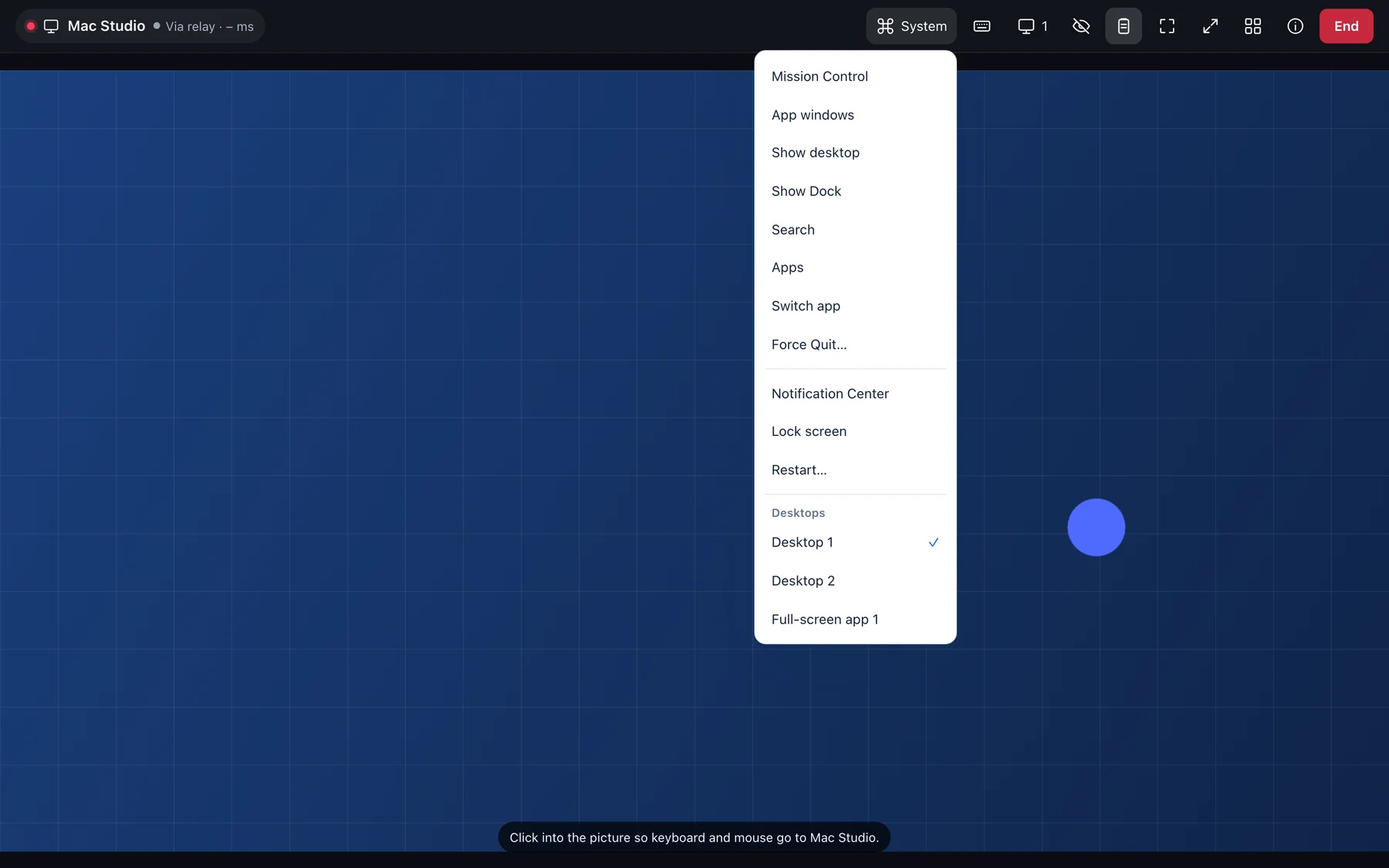
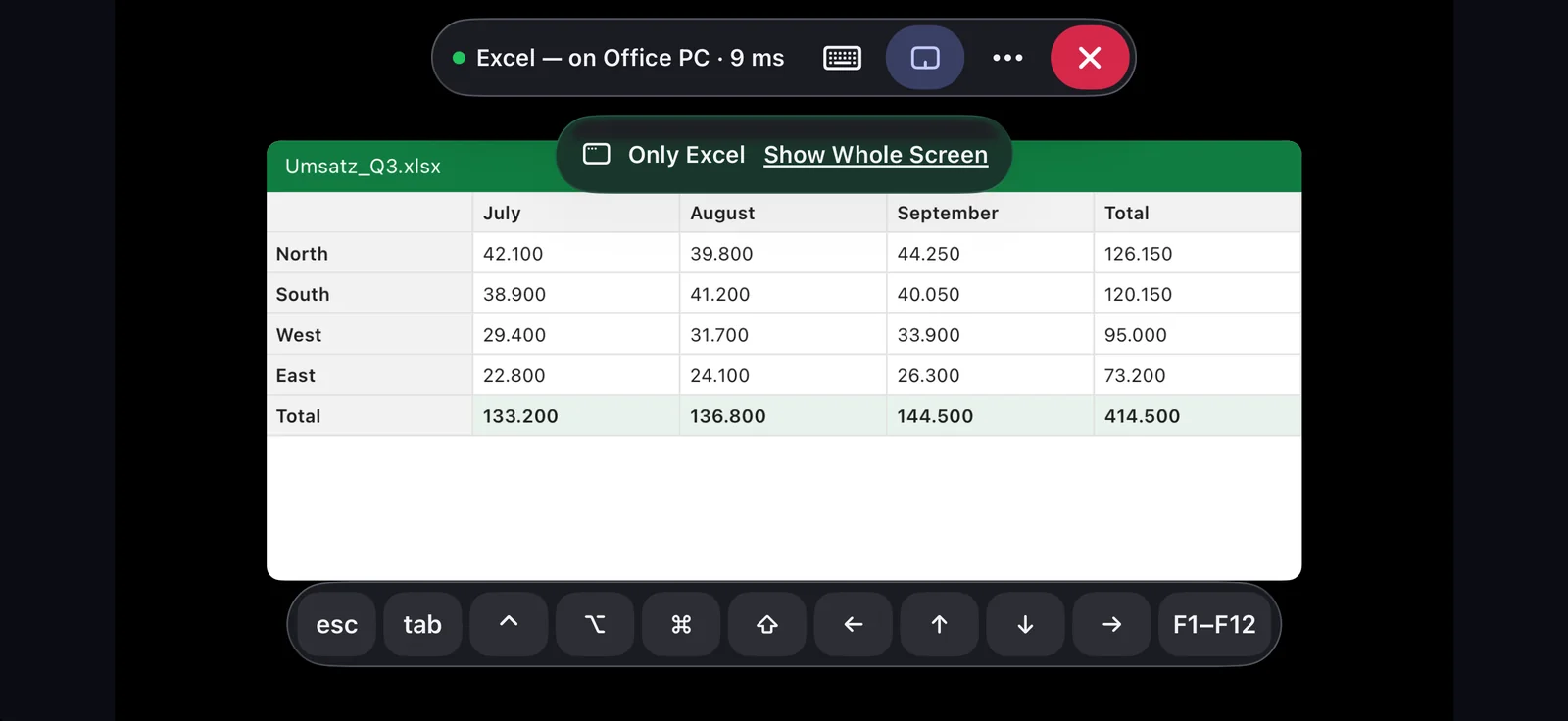
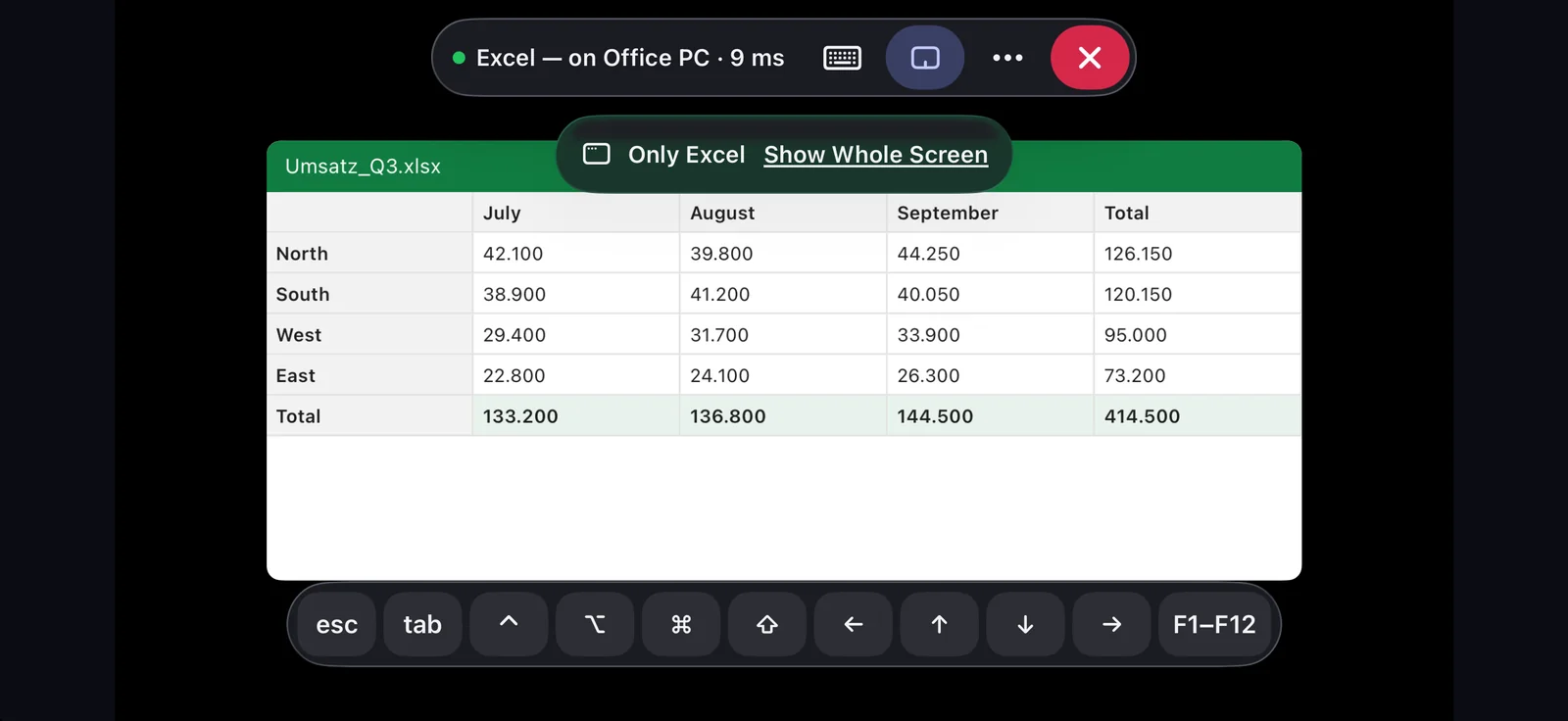
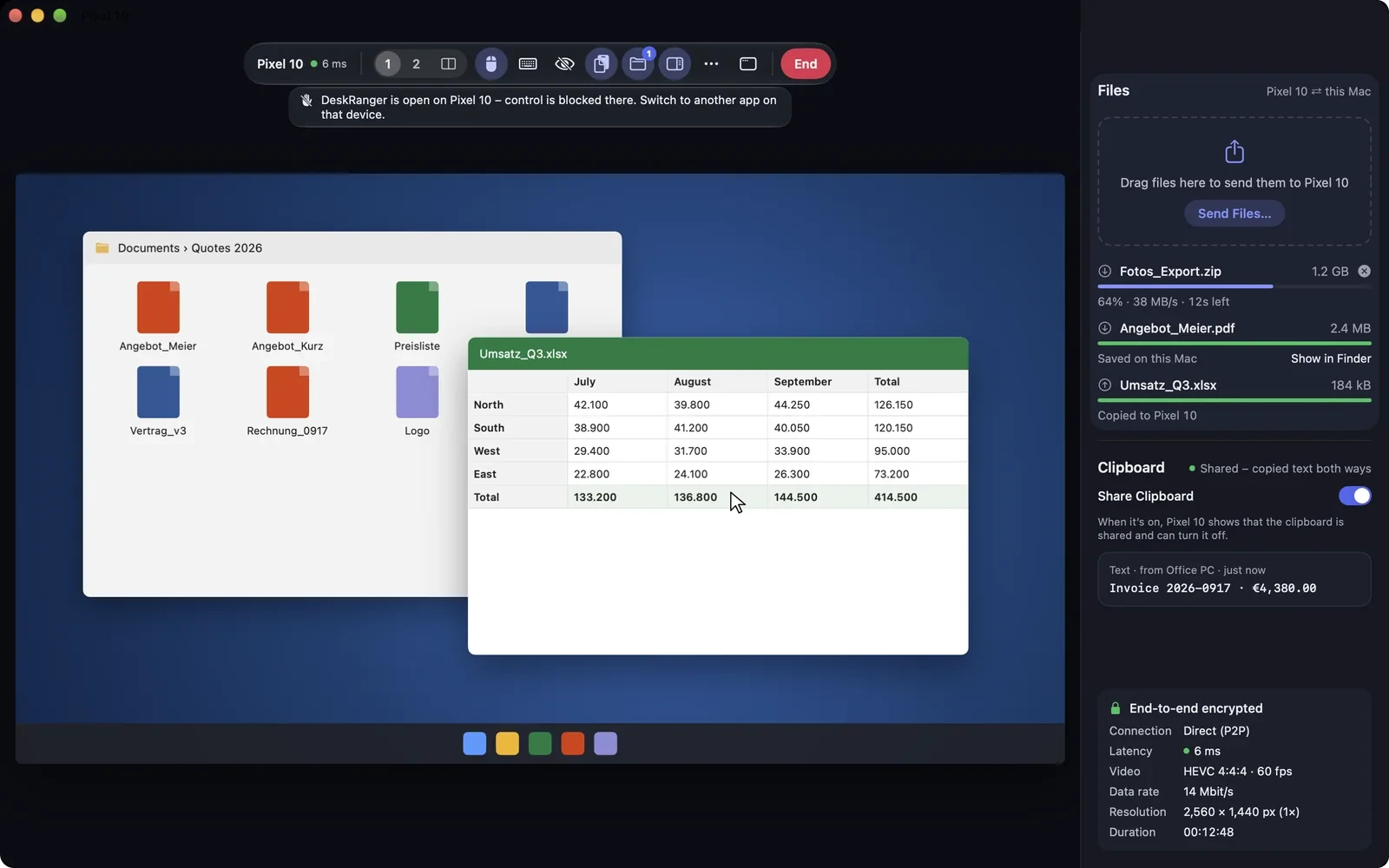
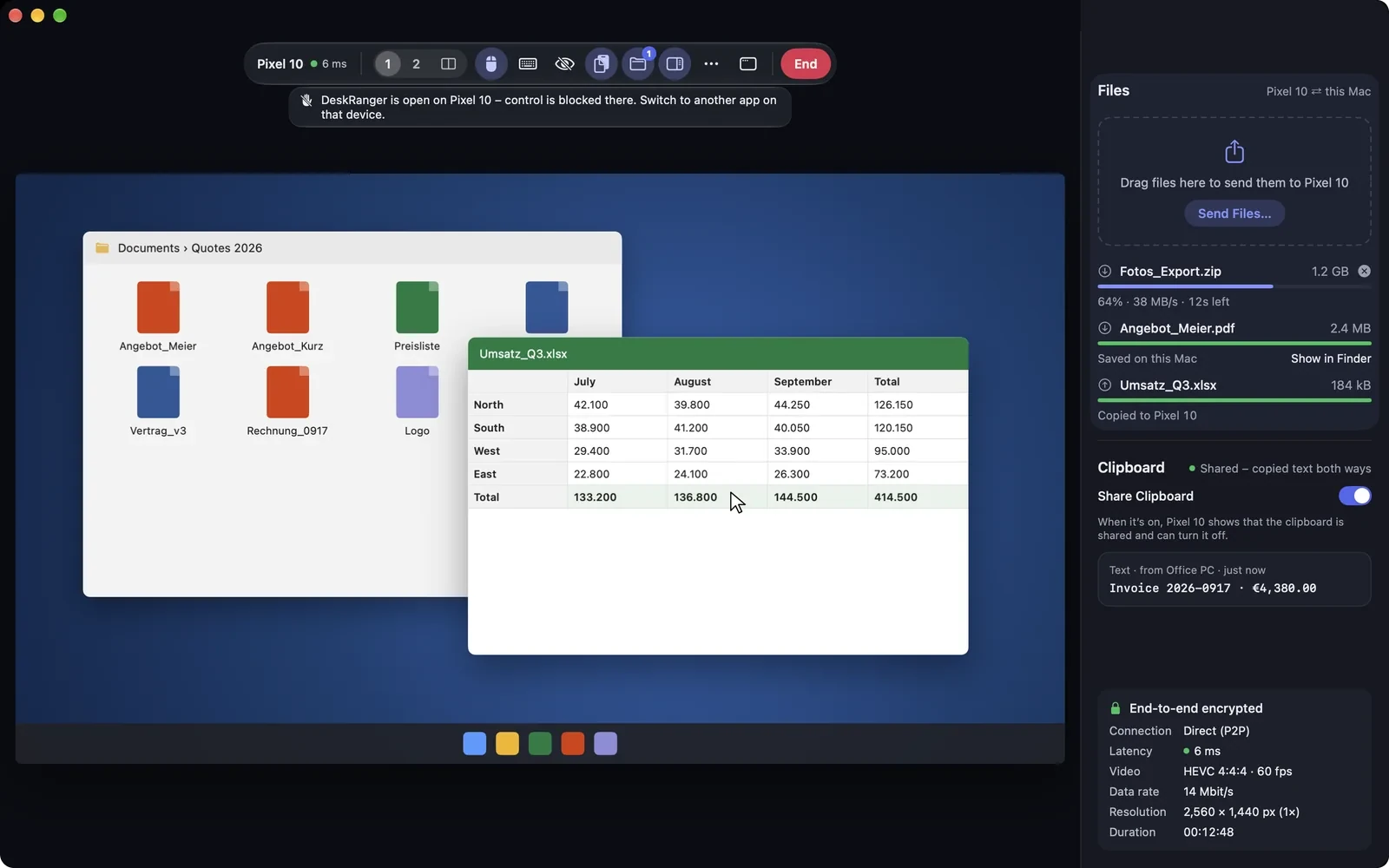
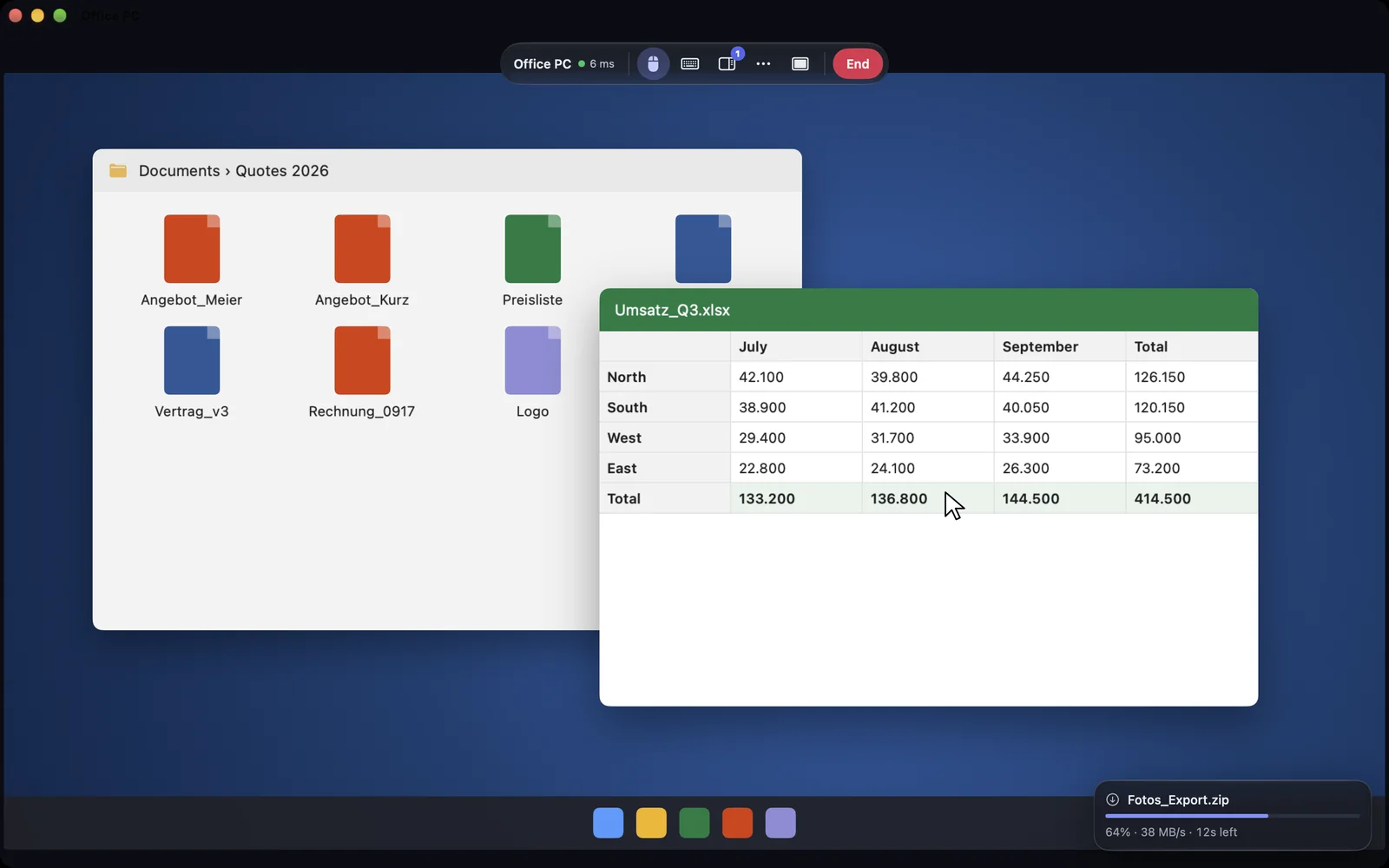
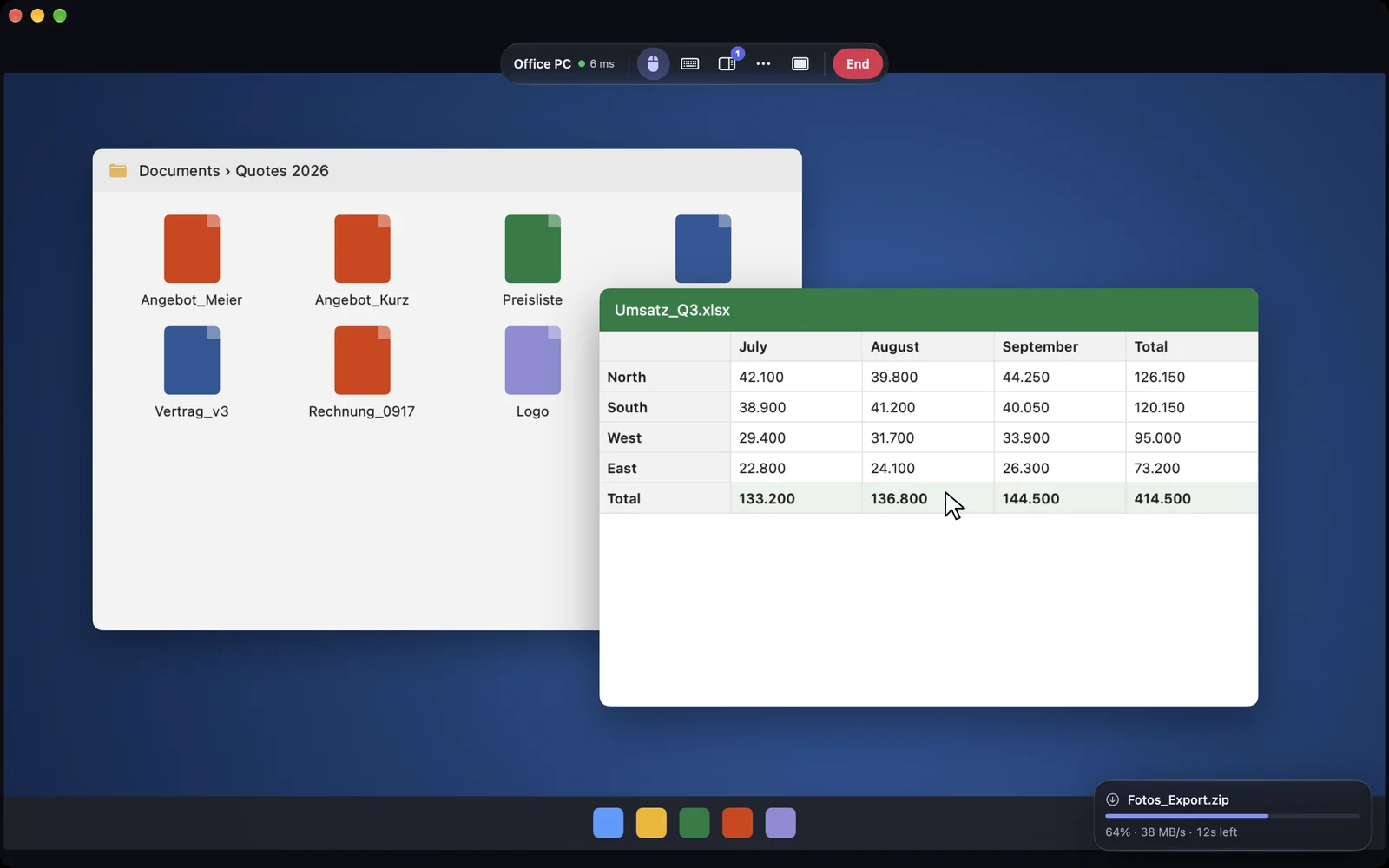
At the top of the session window you always find the same parts: device name with connection dot, display, Steuern, Tasten, Austausch, Ton, Mehr, full screen and end session. In a wide window, words stand next to the icons.

  • The command palette finds every command in everyday words
  • On Mac and Windows every session has its own window
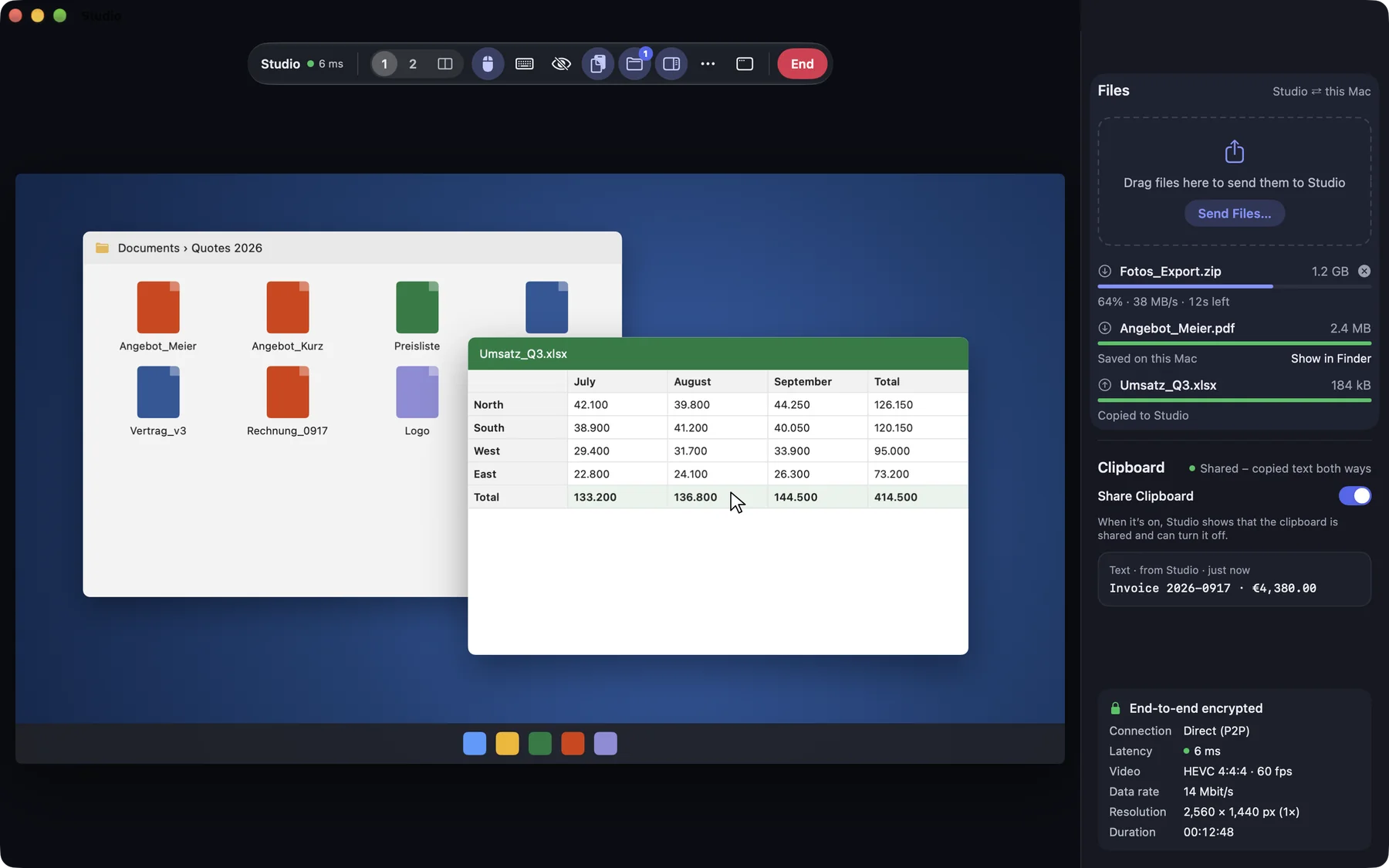
A running session with toolbar and side panelA running session with toolbar and side panel

Shown: Mac

The other system's keys

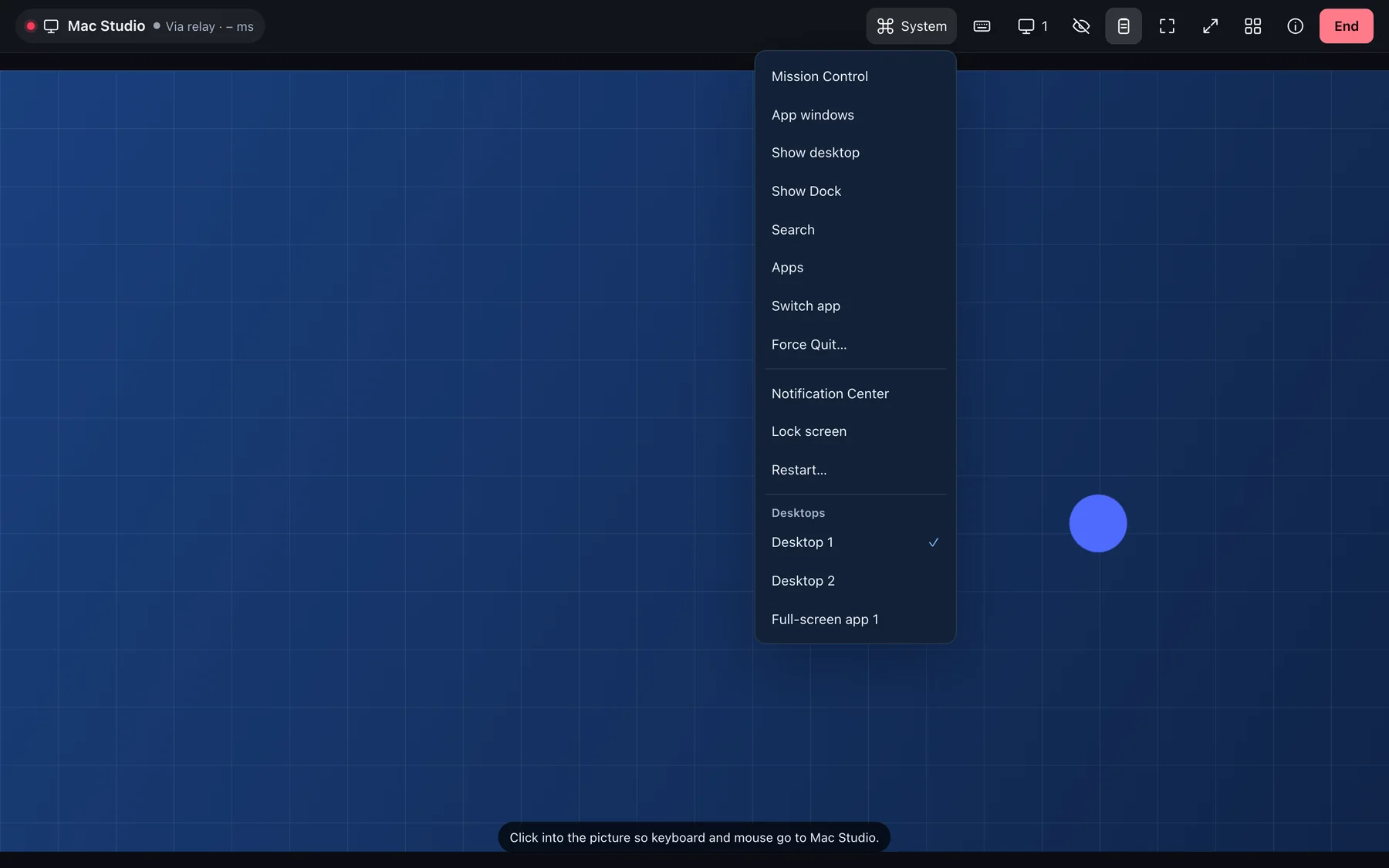
„Tasten“ opens six large fields for the other device’s system: Mission Control and Spotlight on a Mac, Start menu and Task Manager on a Windows PC, or Settings and Files on a Linux computer. The keys that work there are named under each field.

  • System commands such as „Neu starten …“ and „Ausschalten …“ ask first
  • Screenshot of the active window, saved on the other device
  • DeskRanger types a saved password straight in, without the clipboard
  • Between a Mac and a PC you choose which key stands in for the command key
The Compact viewThe Compact view

Shown: Mac

Operate with your finger

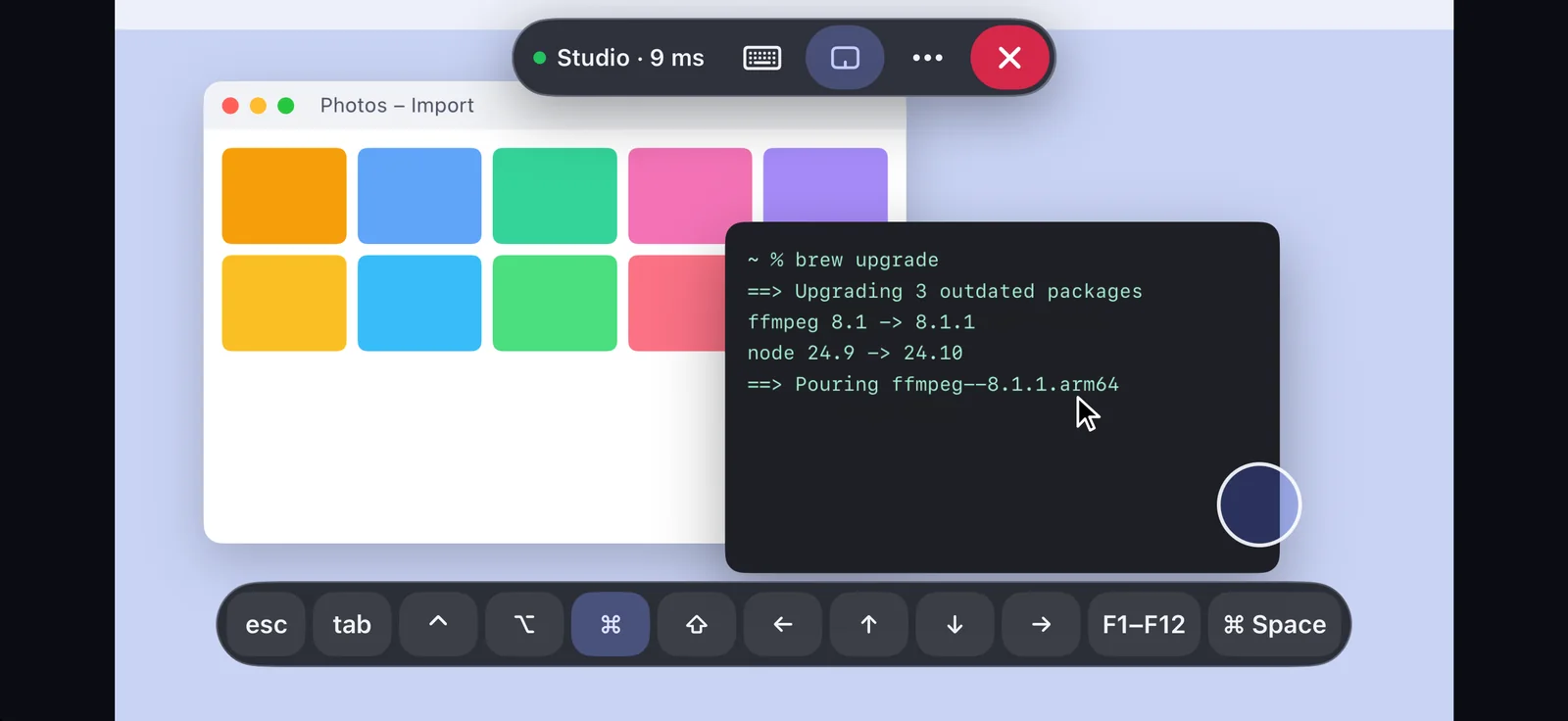
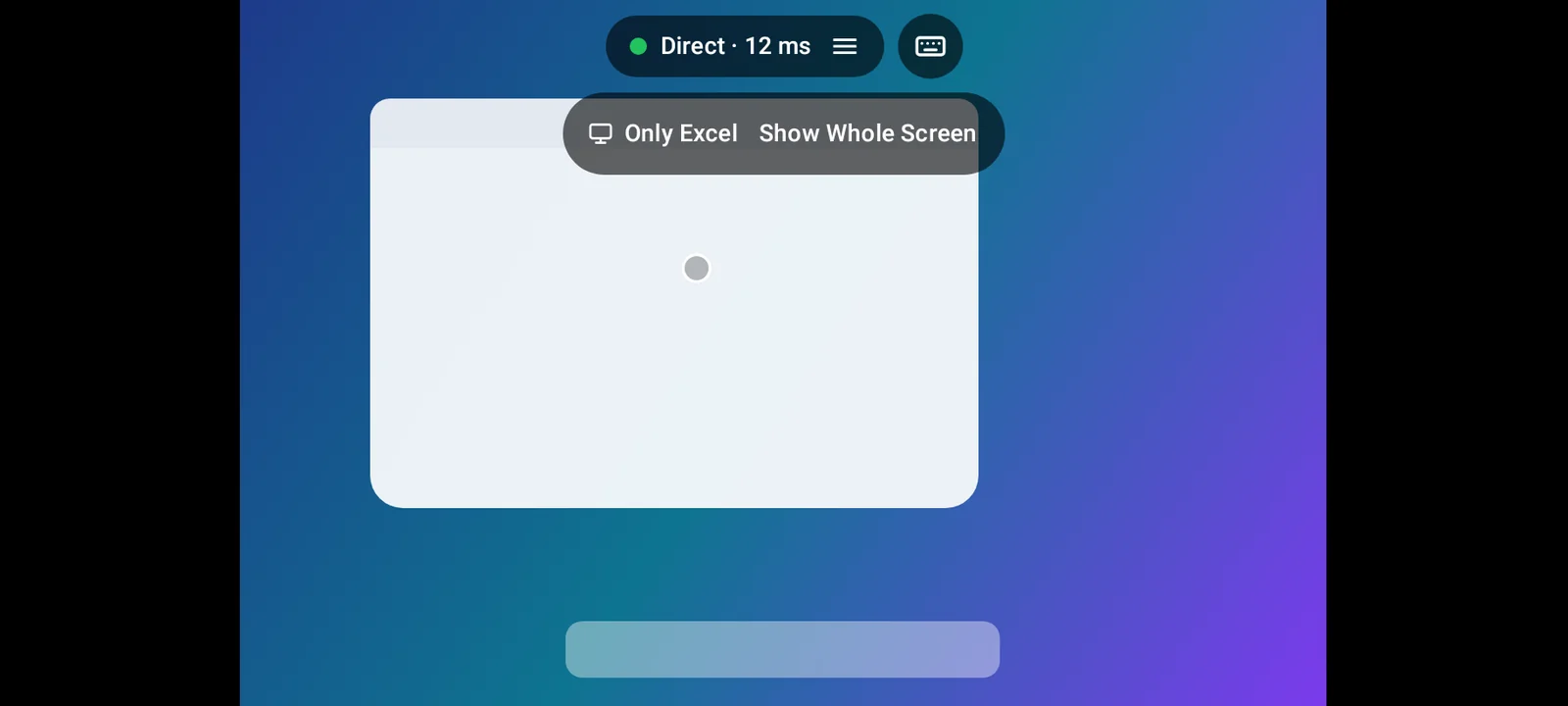
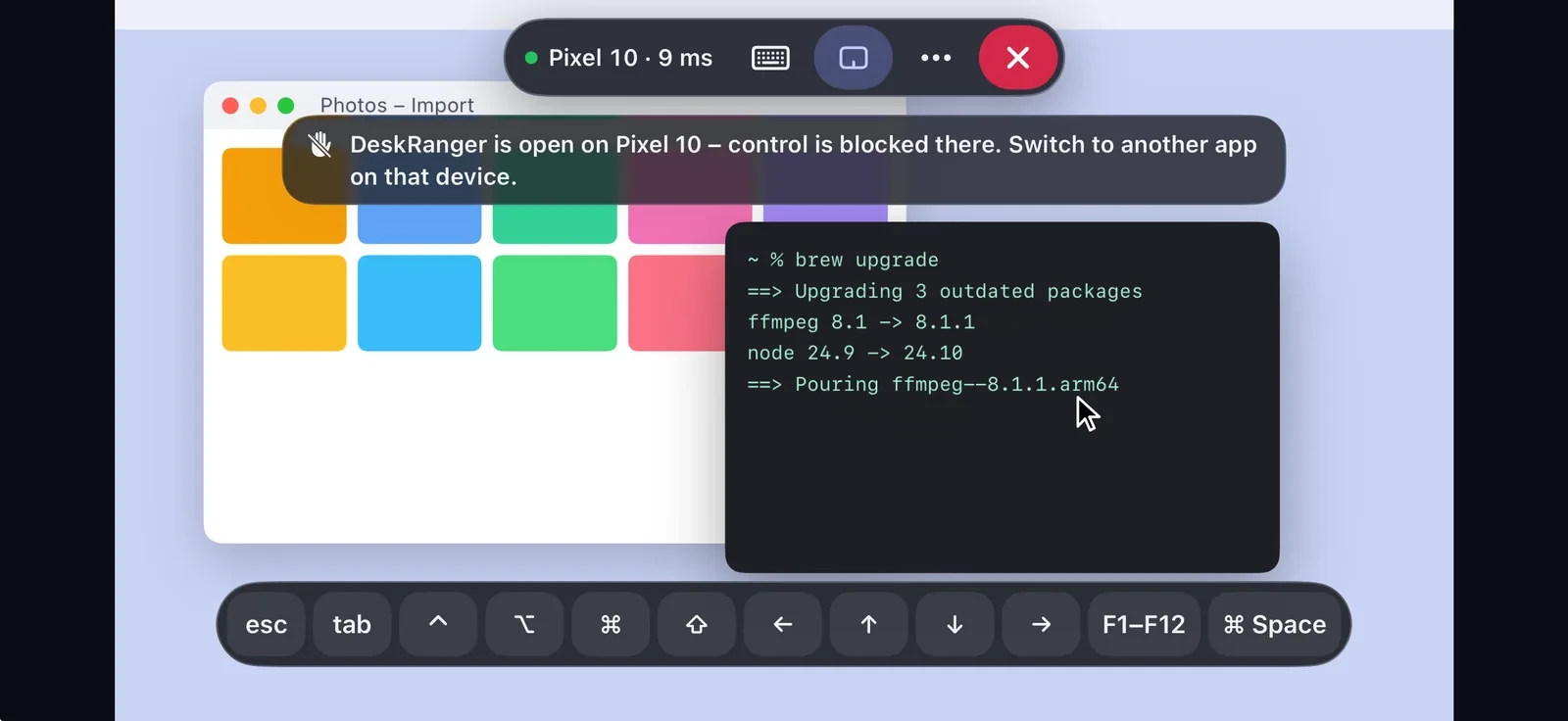
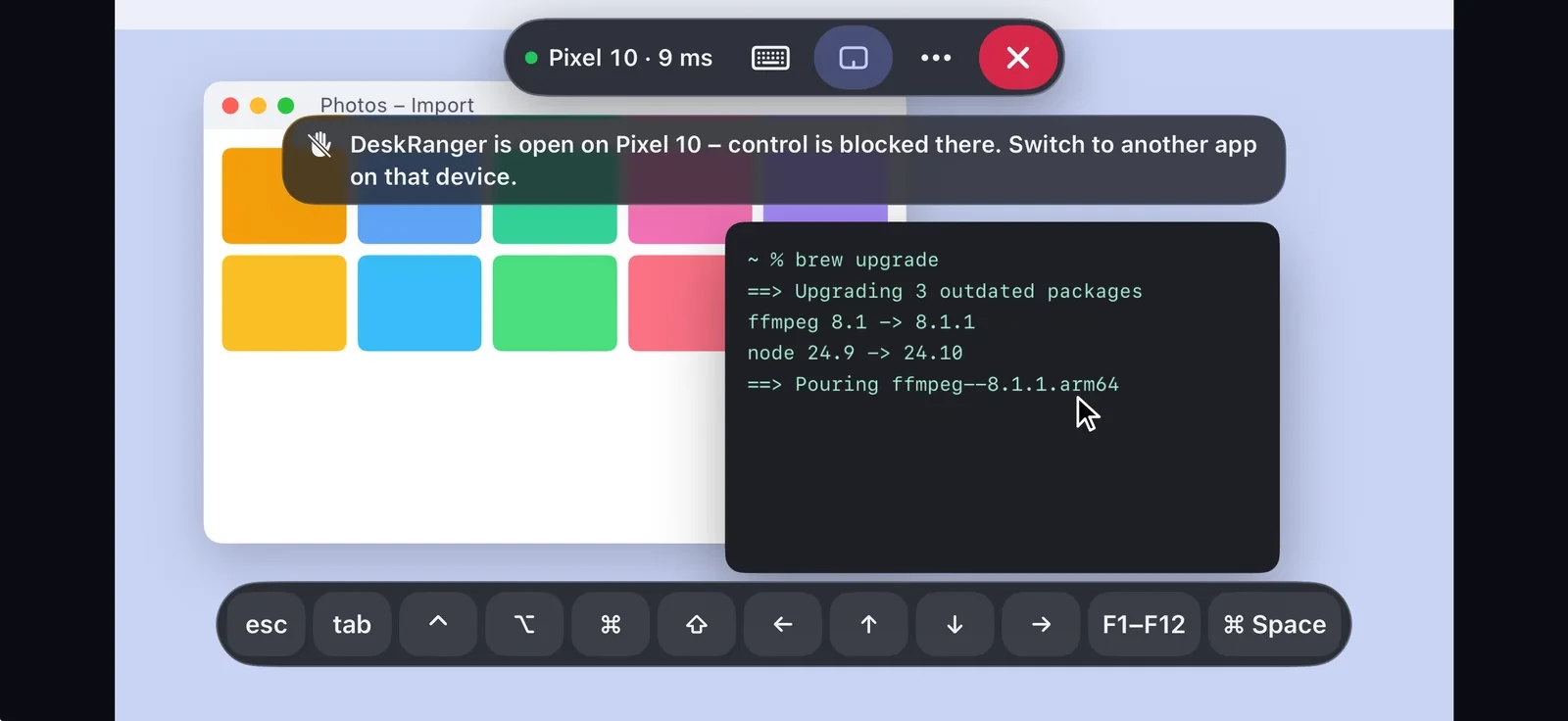
On iPhone, iPad and Android phones a key bar sits above the on-screen keyboard. It shows the keys with the names the other device uses. On the iPad your pointer follows the other device's shape.

  • Zoom with two fingers as usual
  • The command search finds scaling, desktops and more
  • A shared iPhone or iPad you can watch; iOS does not allow control
The Compact viewThe Compact view

Shown: Mac

You see how it is going

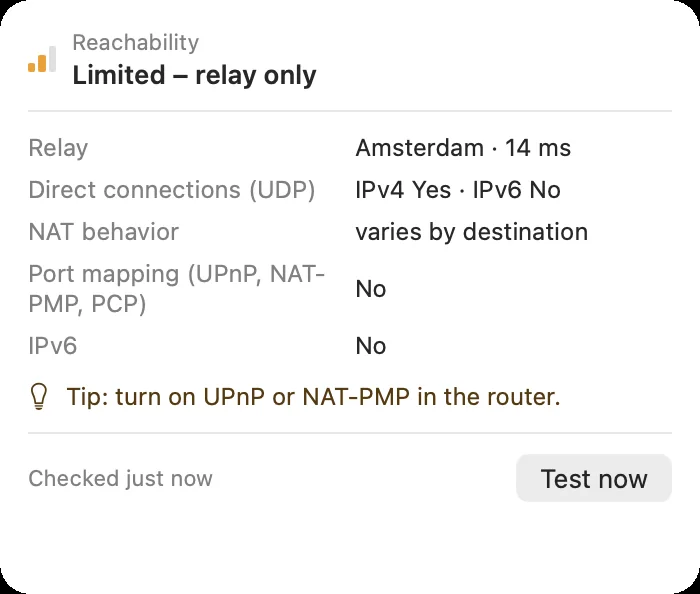
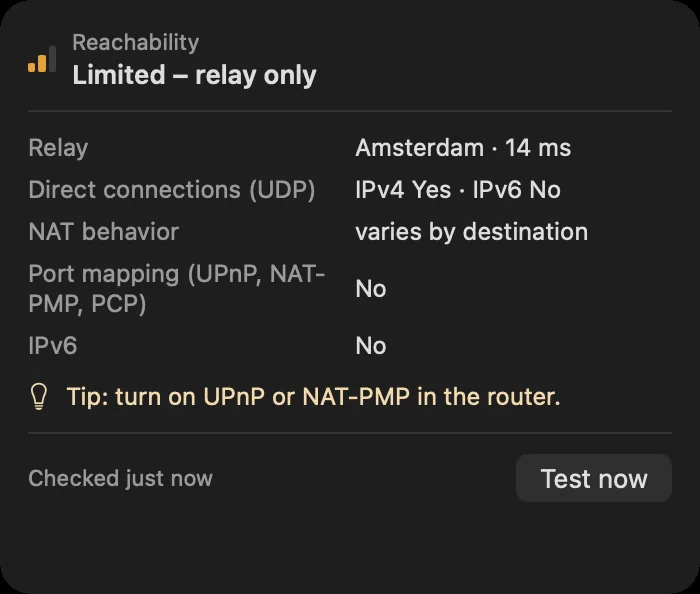
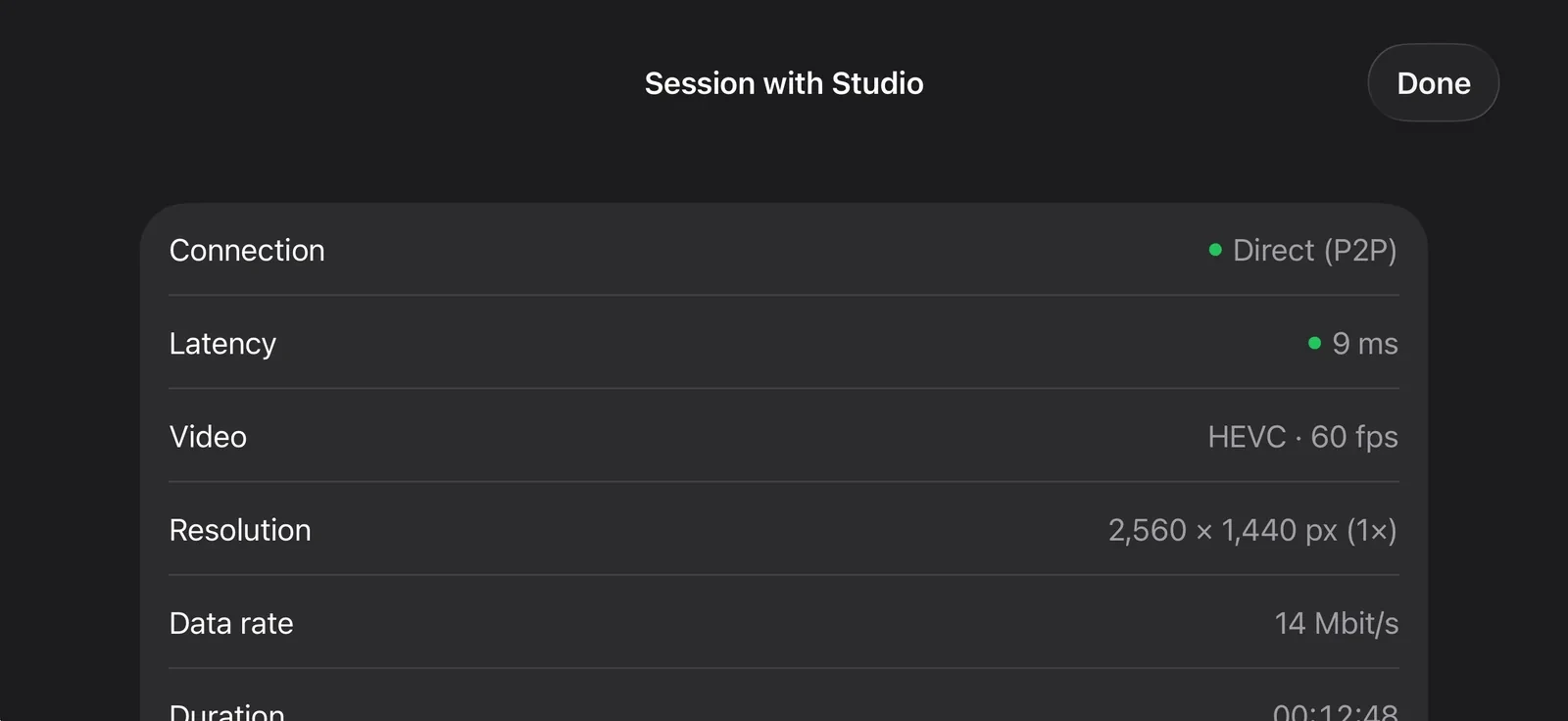
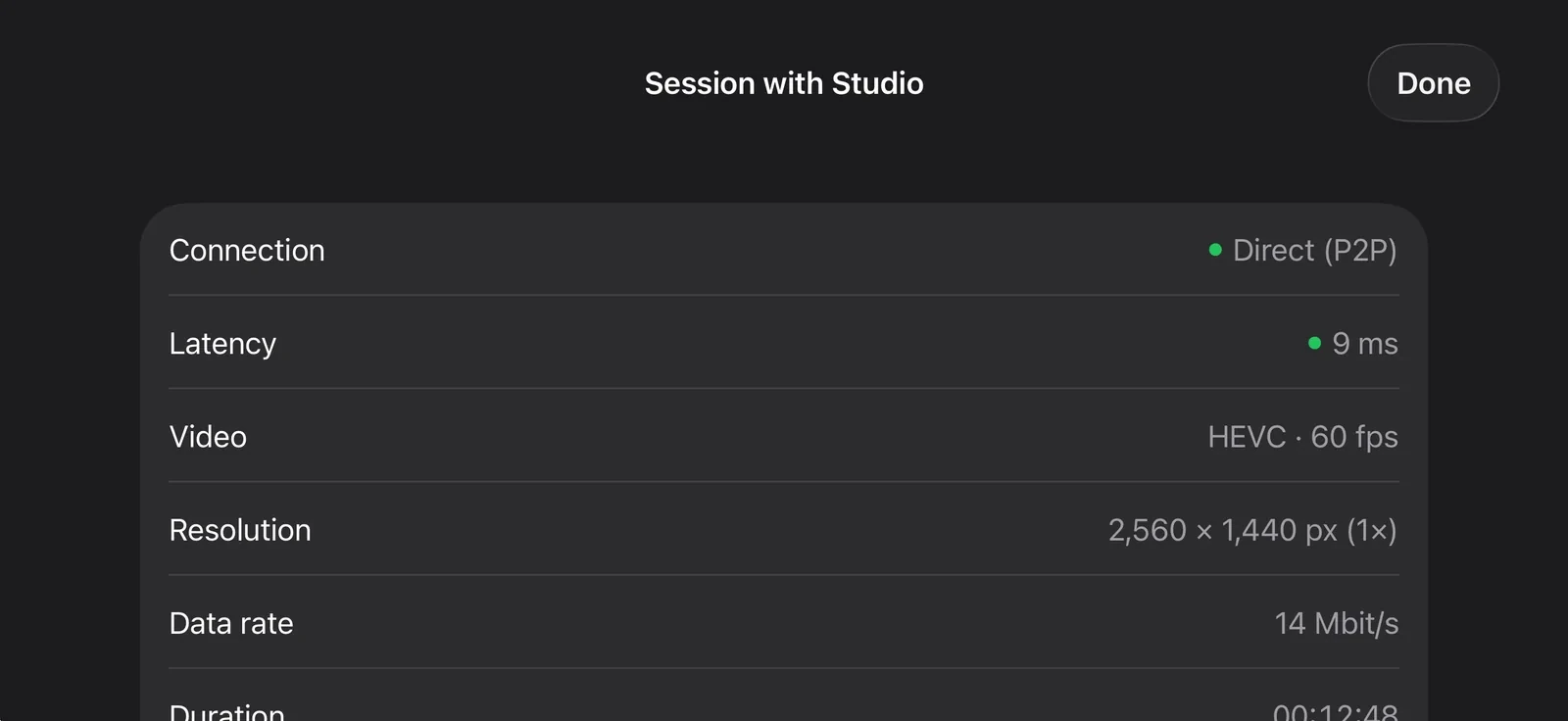
The dot next to the device name shows quality: green, yellow or red. The details say whether the session runs directly or through a relay. Both are end-to-end encrypted.

  • „Daten sparen“ sends less picture, automatically on a phone on mobile data
  • If the connection drops briefly, the same session carries on without a new consent
  • If part of the picture is lost, only the missing part follows
Connection details: direct or through a relay, end-to-end encryptedConnection details: direct or through a relay, end-to-end encrypted

Shown: Mac

Notices instead of riddles

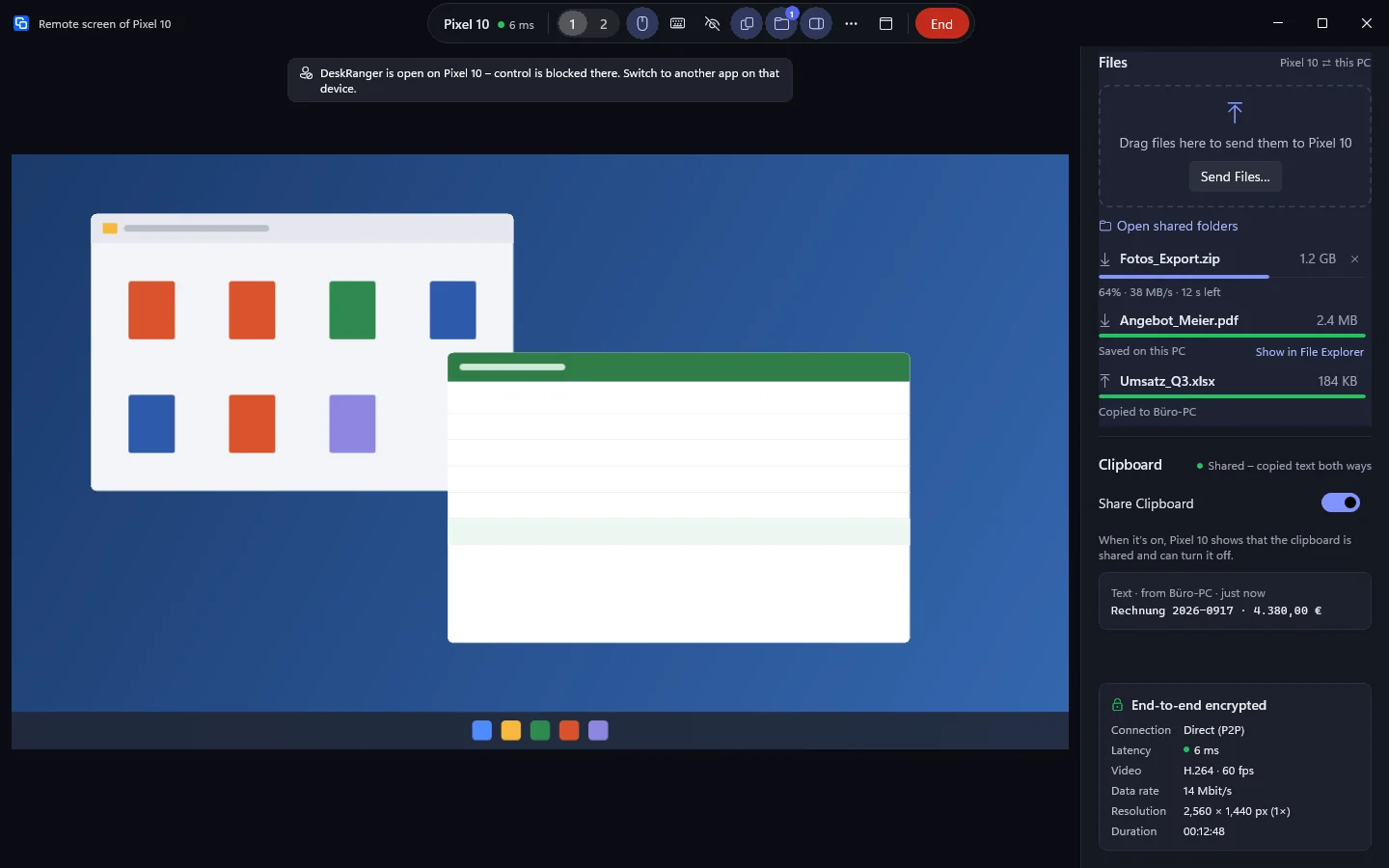
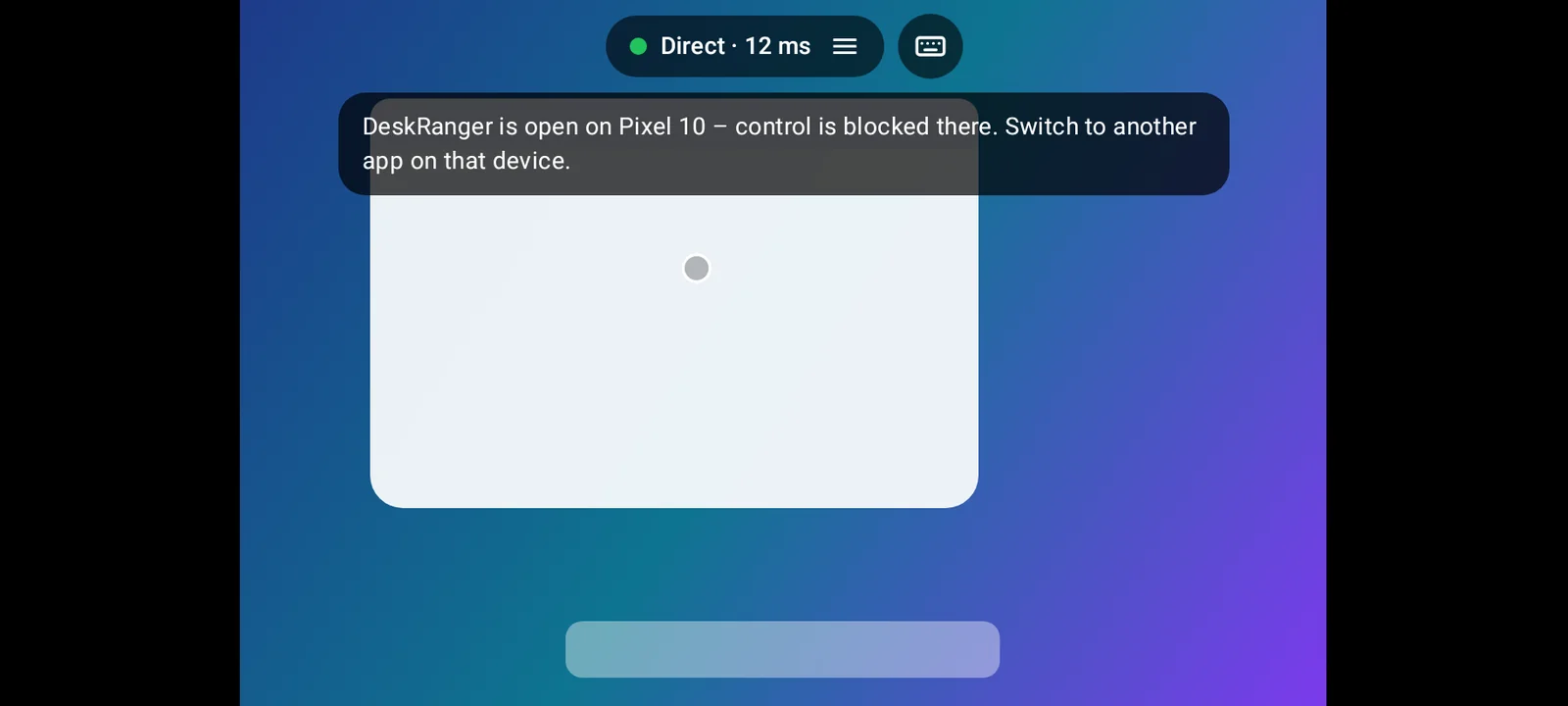
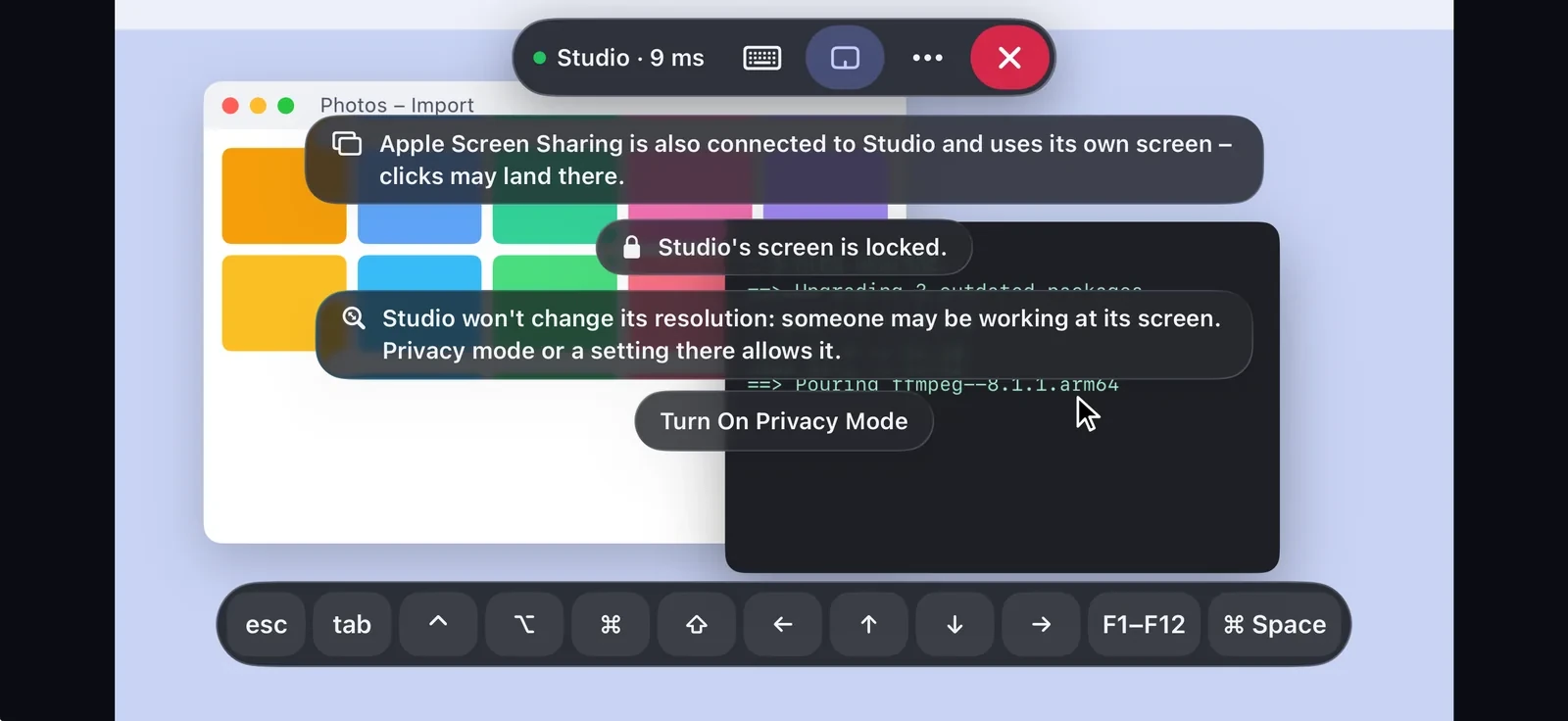
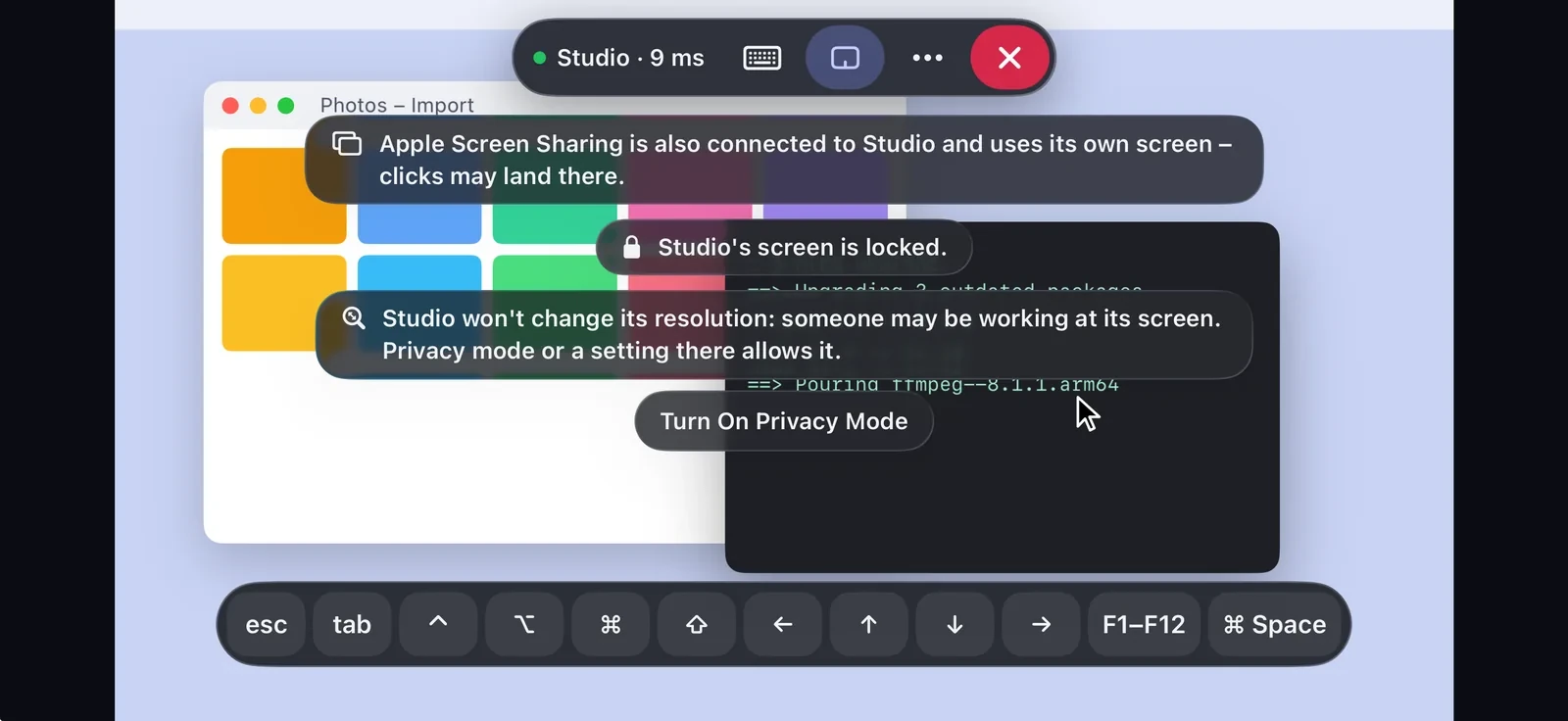
When the other device reports something it appears above the picture: locked screen, login window or a waiting prompt. If clicks do nothing, the session says why, but never names a window.

  • If someone signs in or out there, your session carries on
  • In „Aktive Sitzungen“ you see and end all sessions of your account
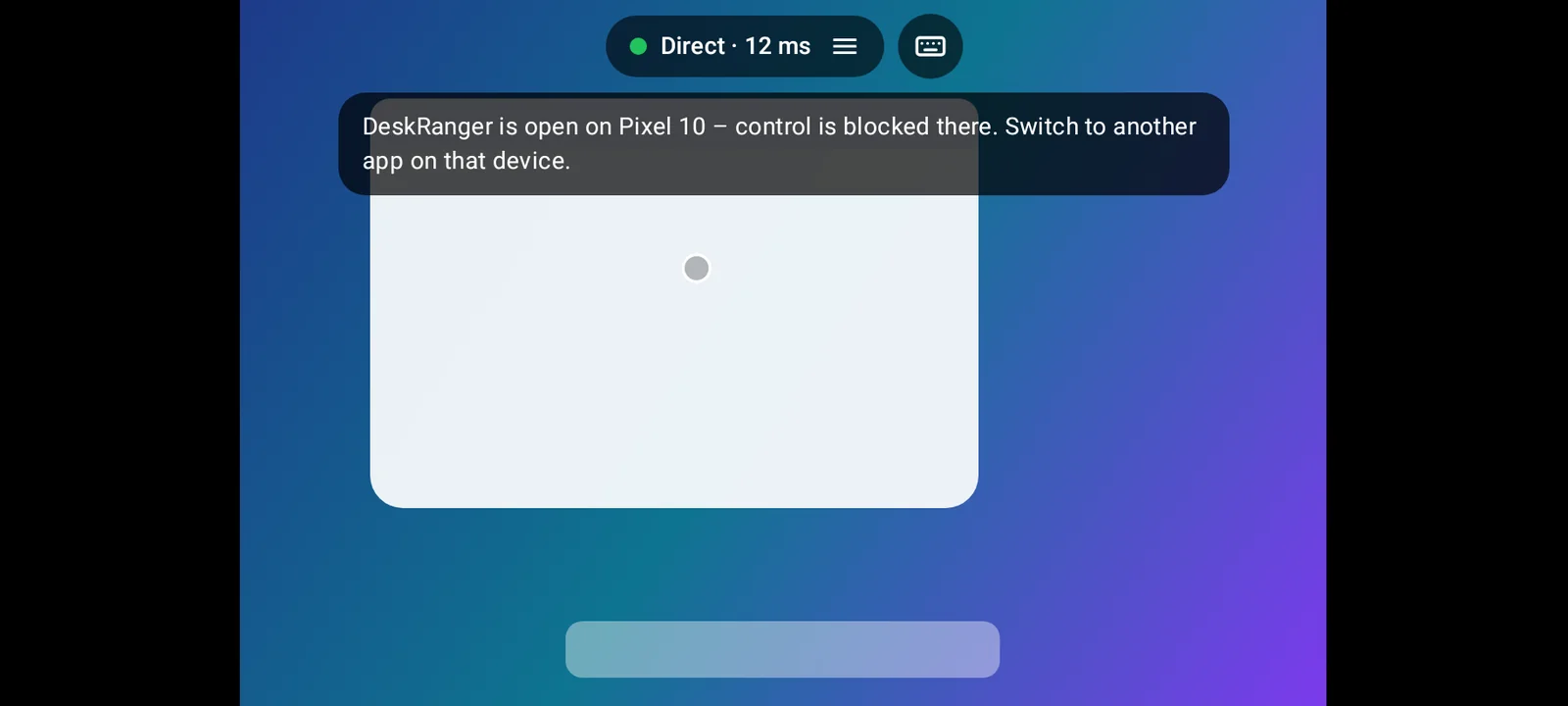
A session with an Android phone: over the picture the note that DeskRanger is open there and control is blockedA session with an Android phone: over the picture the note that DeskRanger is open there and control is blocked

Shown: Mac

Sound too

Hear what the other device plays, if the person there allows it. On your own devices sound runs from the start.

  • More on the page „Sound in sessions“

Still to come In arrivo

  • „Austausch“ in the Linux session bar: files and clipboard

Domande frequenti

Does someone at the other device have to accept the session?

Not for your own devices if you switched on „Eigene Geräte ohne Nachfrage verbinden“. Always for other people and support codes. Every session is recognisable by the red frame and the menu bar or tray indicator.

Does it work in the browser too?

Yes, in the web console. Remote access in the browser belongs to Pro, also in Early Access. With a free account you sign in to the console and see your devices.