Control

Access your own devices

One switch is all it takes: your Mac, Windows PC or Linux computer stays reachable, even after a restart. Your own devices do not ask.

FreemacOS · Windows · Linux
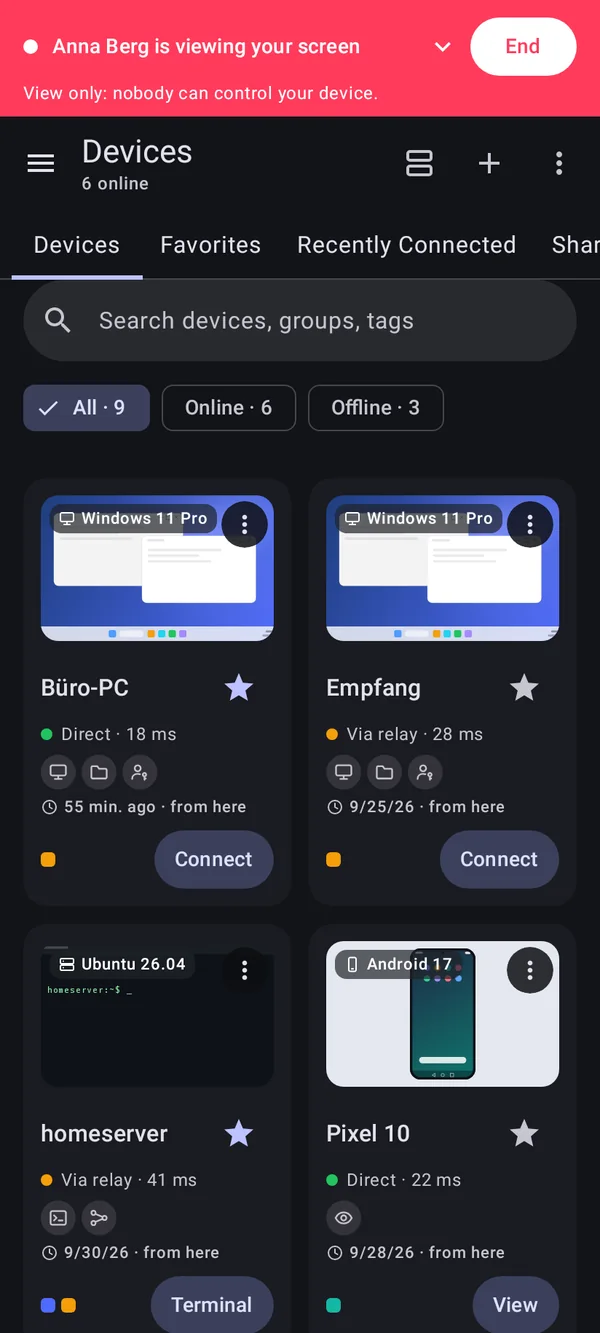
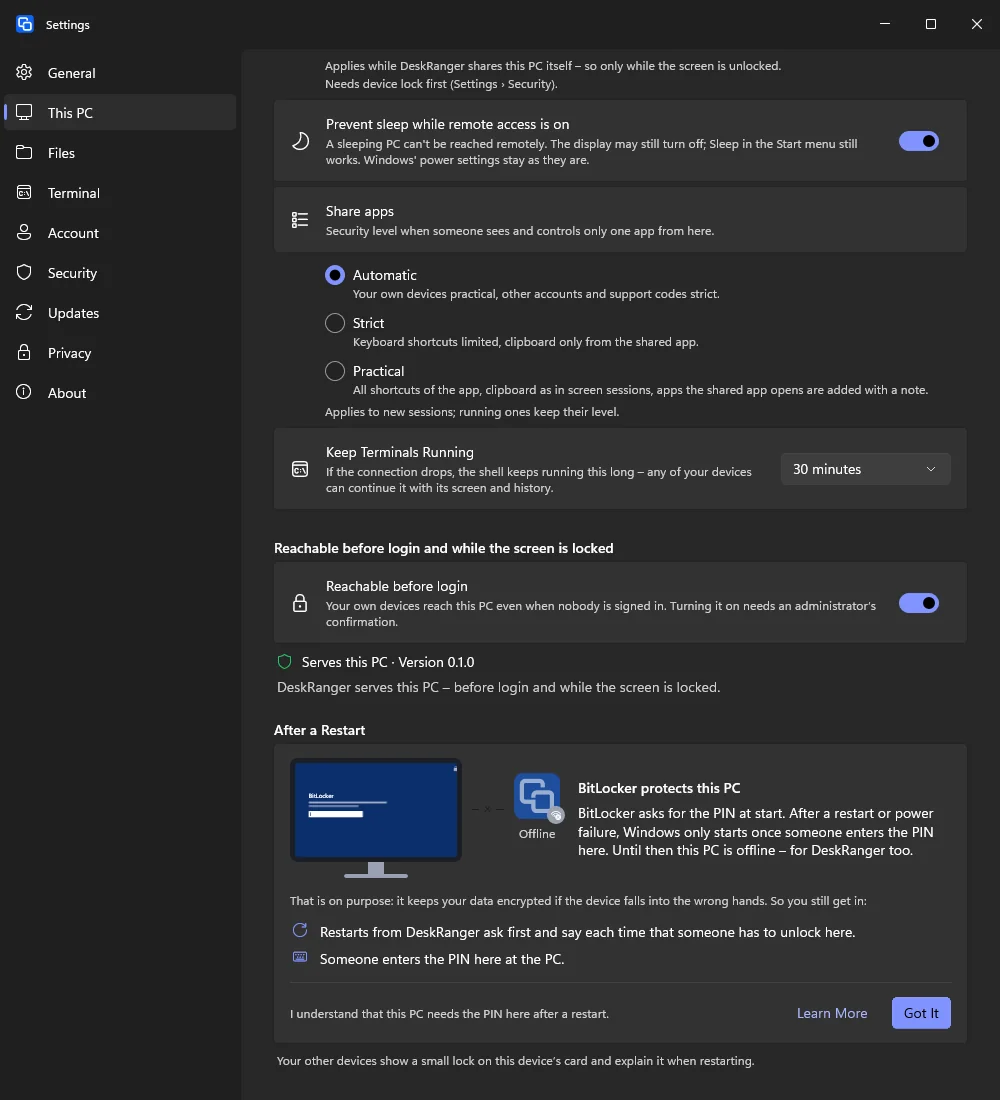
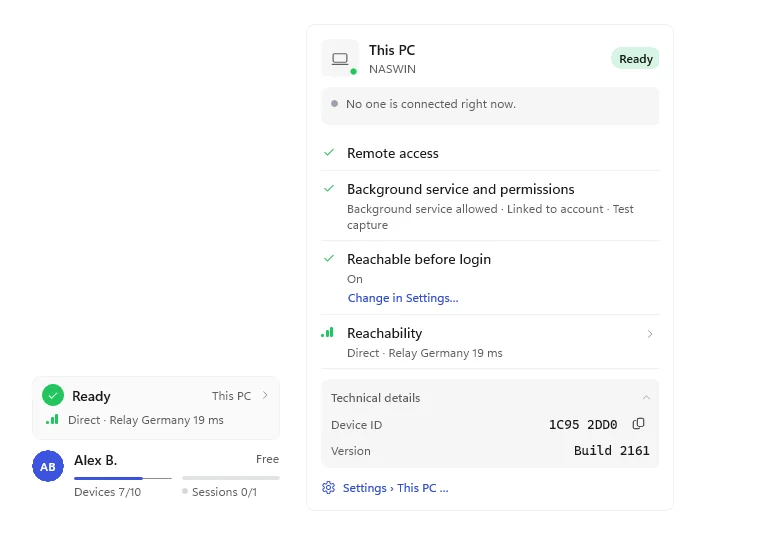
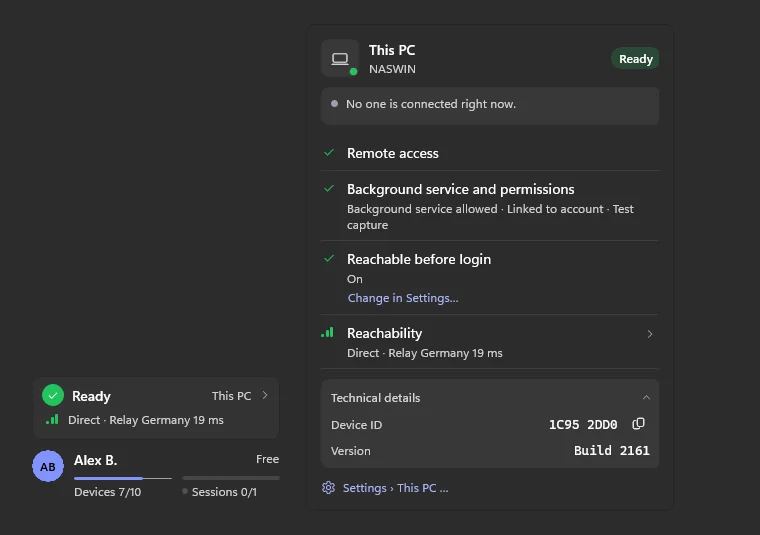
The bubble of the “This Mac” field (“This PC” on Windows): who is connected, everything that is in order, and the technical detailsThe bubble of the “This Mac” field (“This PC” on Windows): who is connected, everything that is in order, and the technical details

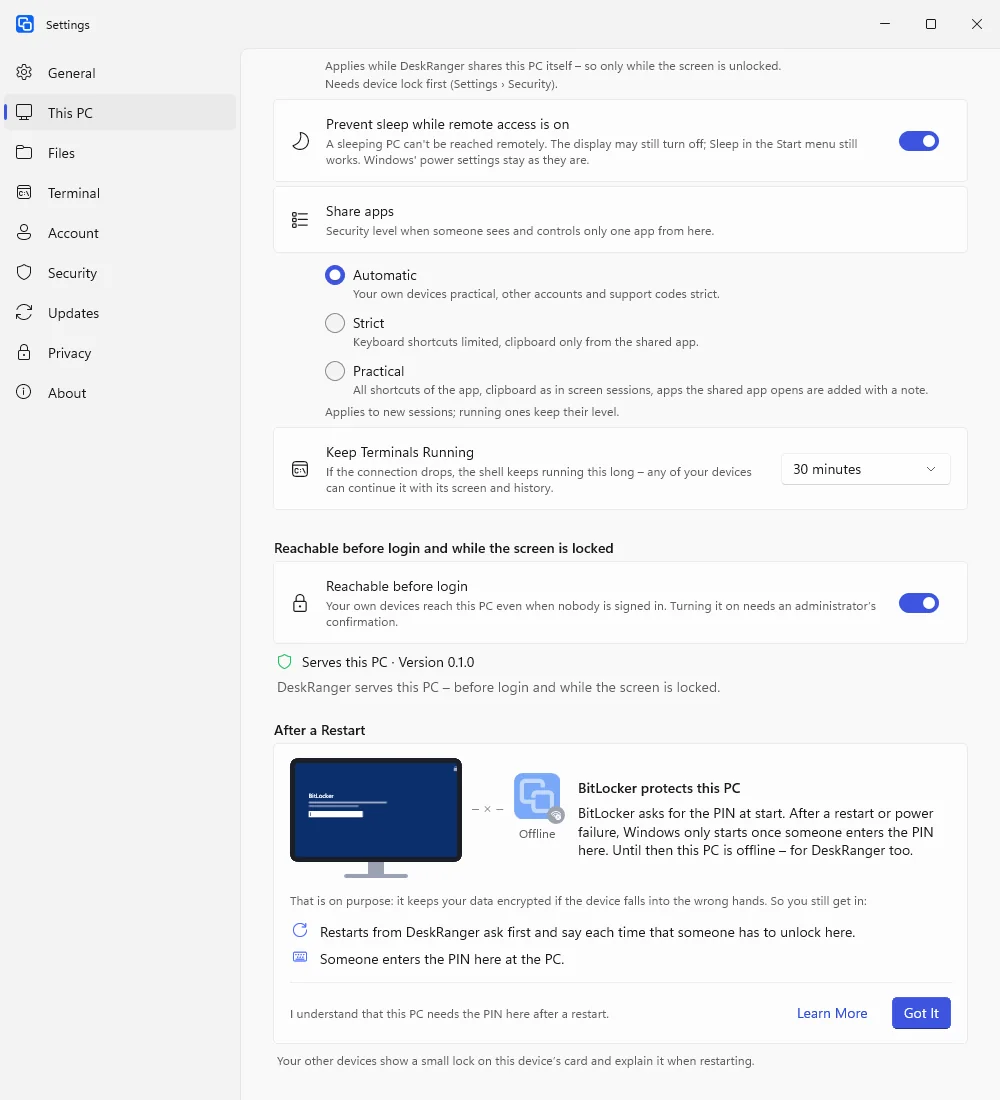
Shown: Windows

What you do with it

See it on

One switch, one checklist

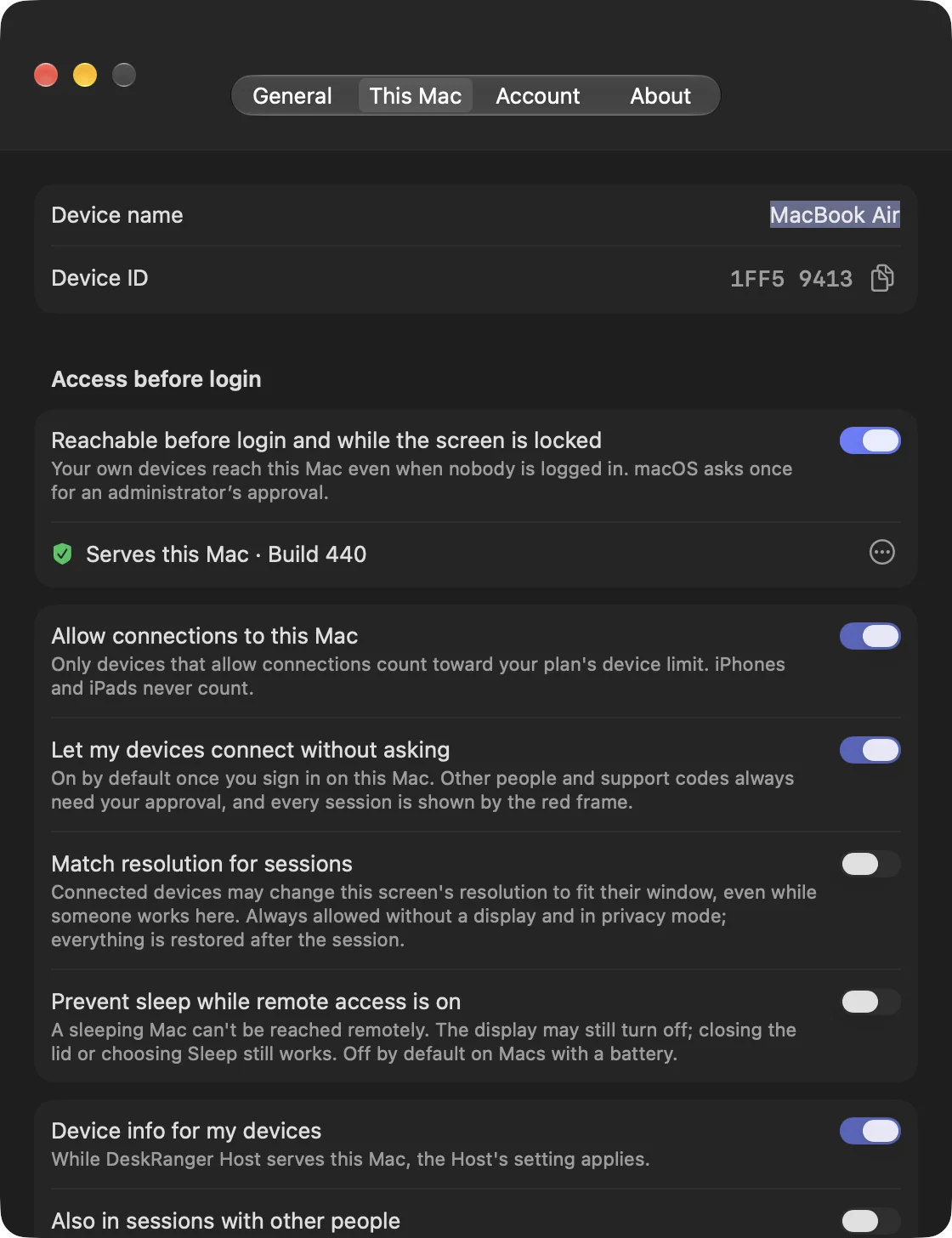
You reach your device even before sign-in and with a locked screen: under „Dieser Mac“ or „Dieser PC“ switch on „Auch vor der Anmeldung und bei gesperrtem Bildschirm erreichbar“. The system asks once for an administrator, then the checklist rows turn green by themselves.

  • The field at the bottom of the sidebar shows whether you are ready
  • You do not need to sign out and in again
  • Linux: the card „Dieser Computer“; one administrator prompt switches the service on
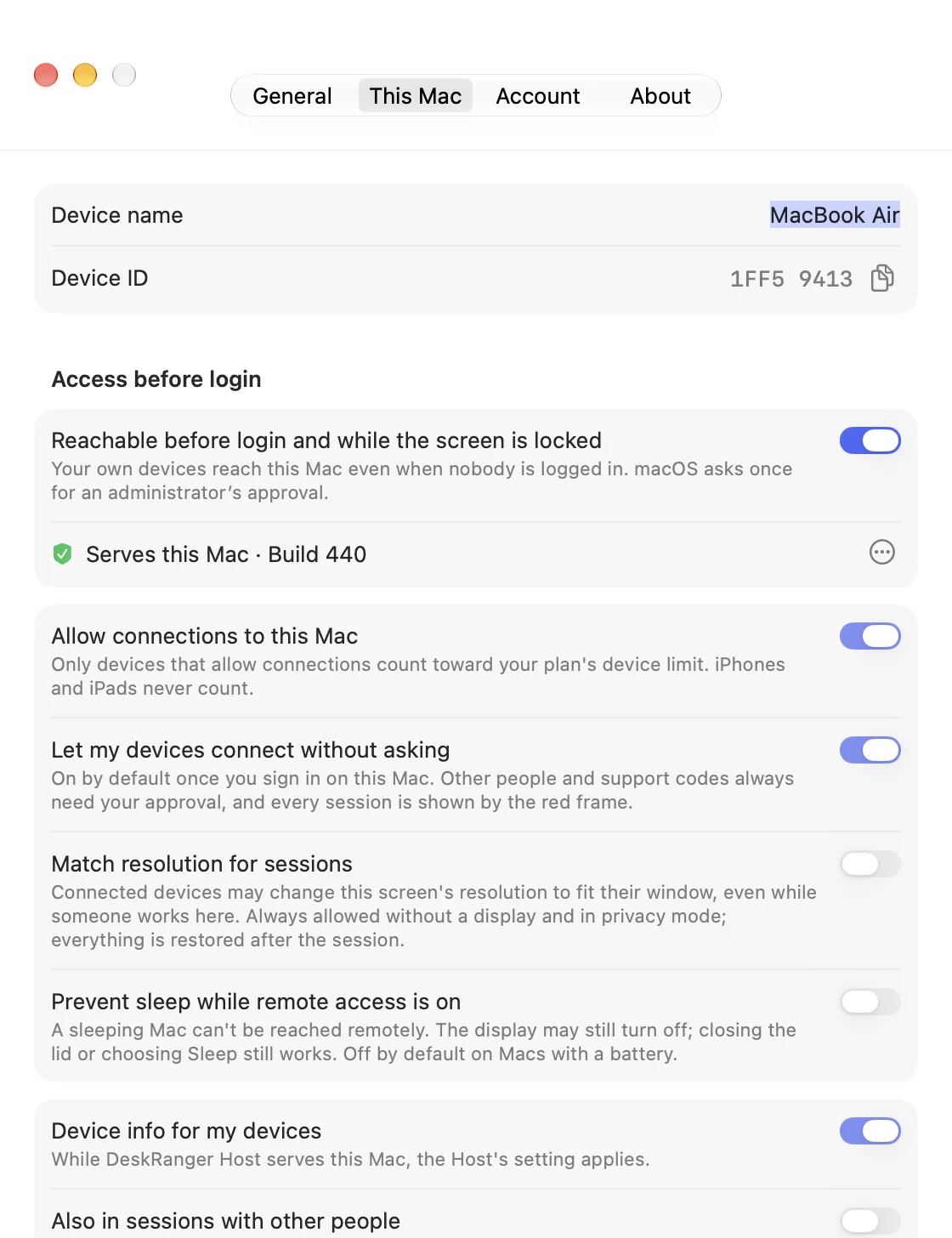
The switch “Reachable before login and while the screen is locked”The switch “Reachable before login and while the screen is locked”

Shown: Mac

Your own devices do not ask

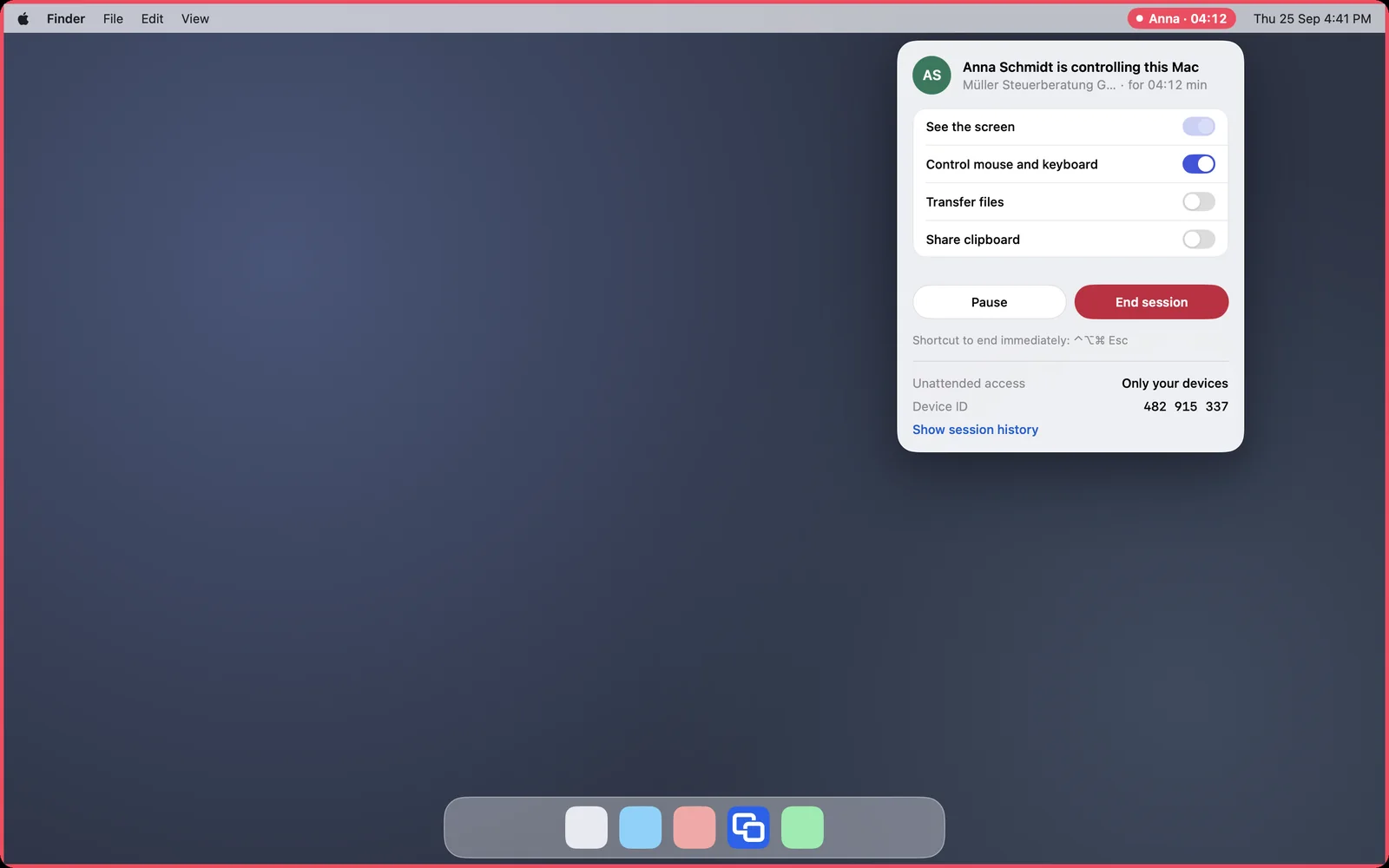
Being signed in with your account counts as the owner's permission. „Eigene Geräte ohne Nachfrage verbinden“ is on from the start. Other people and support codes always need a consent.

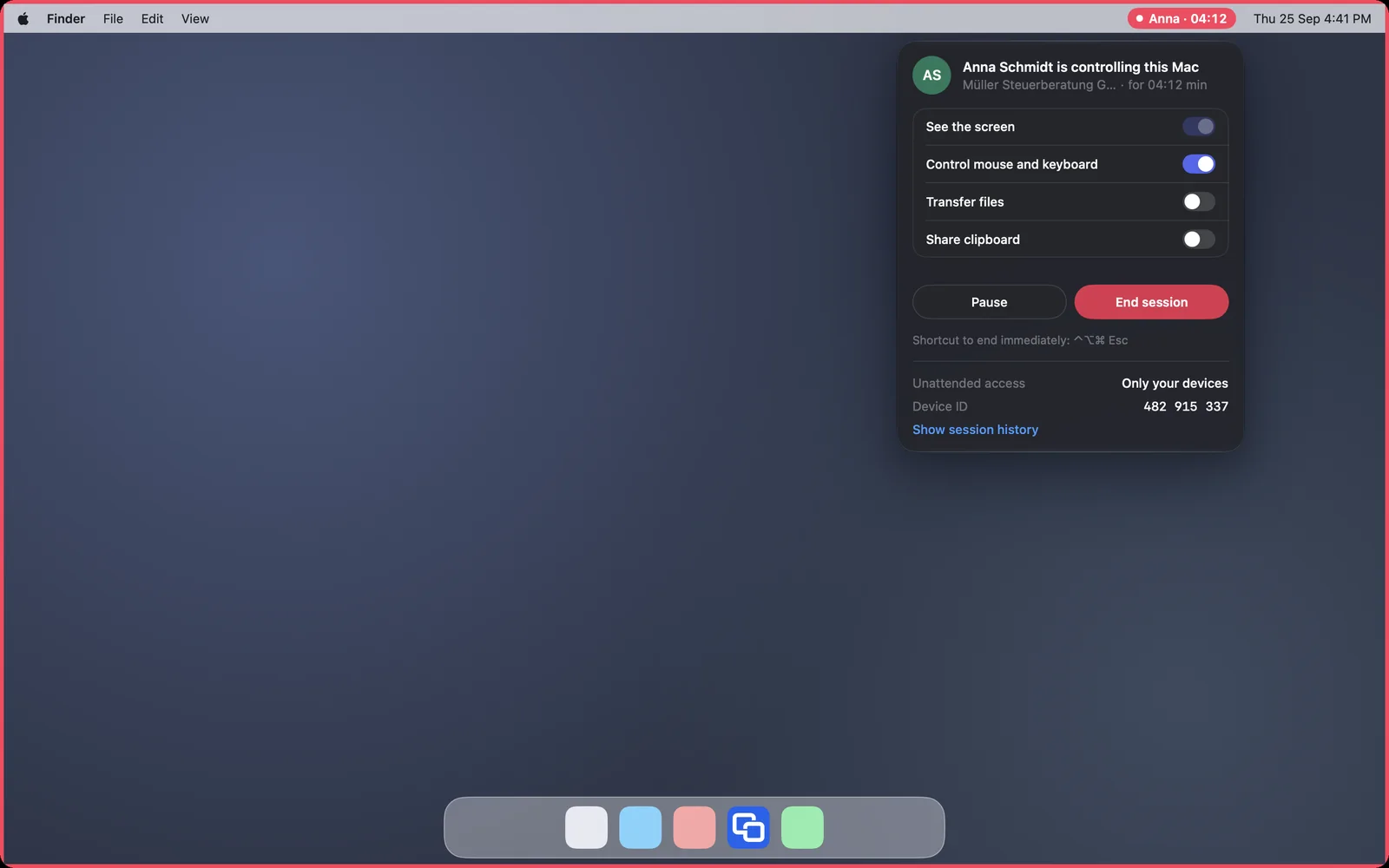
  • Every session is recognisable by the red frame and the indicator with a name
  • Switching off takes effect at once and never asks
  • With the switch off, someone at the device confirms every connection
The Mac during a session: red menu bar indicator and red frameThe Mac during a session: red menu bar indicator and red frame

Shown: Mac

Even before sign-in

On Mac and Windows you reach the device at the login window and when the screen is locked. If someone signs in or out there, your session carries on. After a restart a Windows PC is back a few seconds after boot.

  • Linux on GNOME (Ubuntu 24.04, Zorin OS): the service is online right after a restart
  • On Linux Terminal and Files work before sign-in, the screen after
  • DeskRanger only has to run as a service, not as an open app
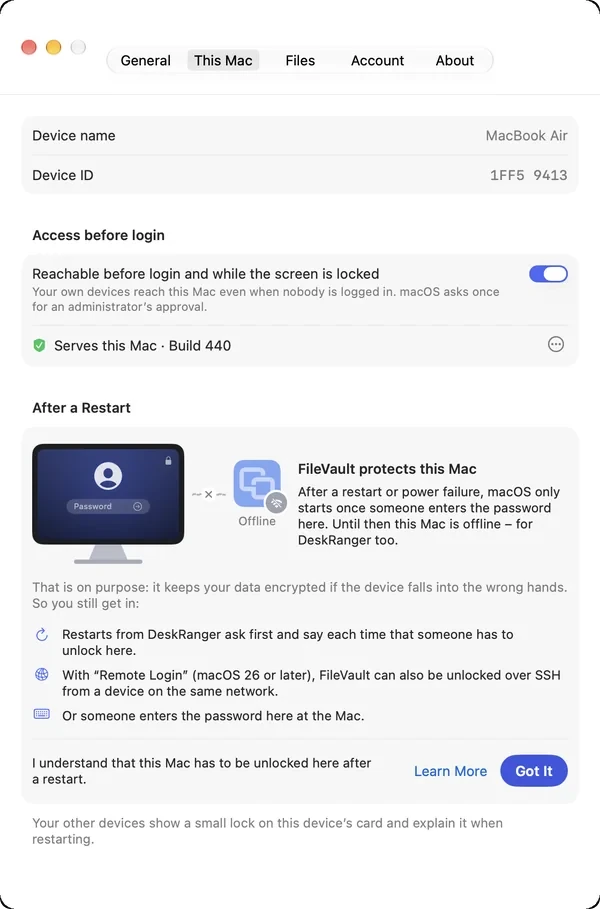
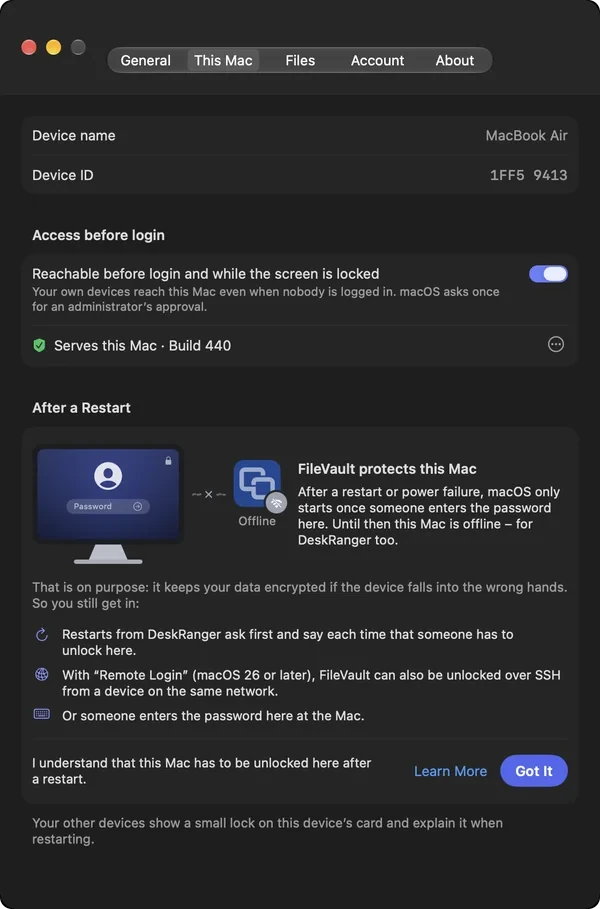
Settings › After a Restart: FileVault or a BitLocker PIN explained, with “Got It”Settings › After a Restart: FileVault or a BitLocker PIN explained, with “Got It”

Shown: Mac

Restart from afar

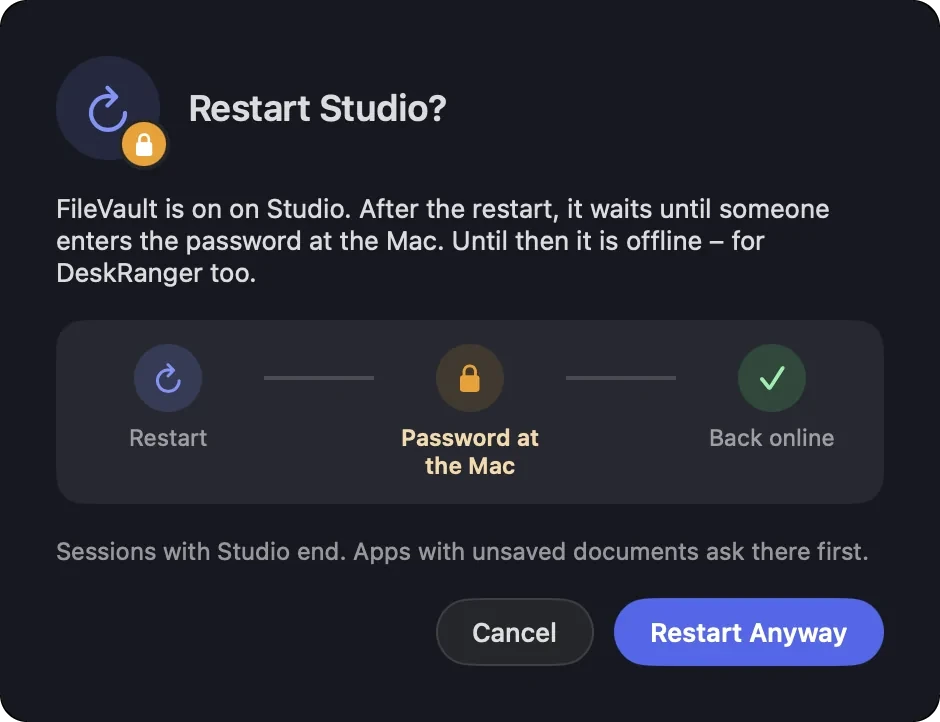
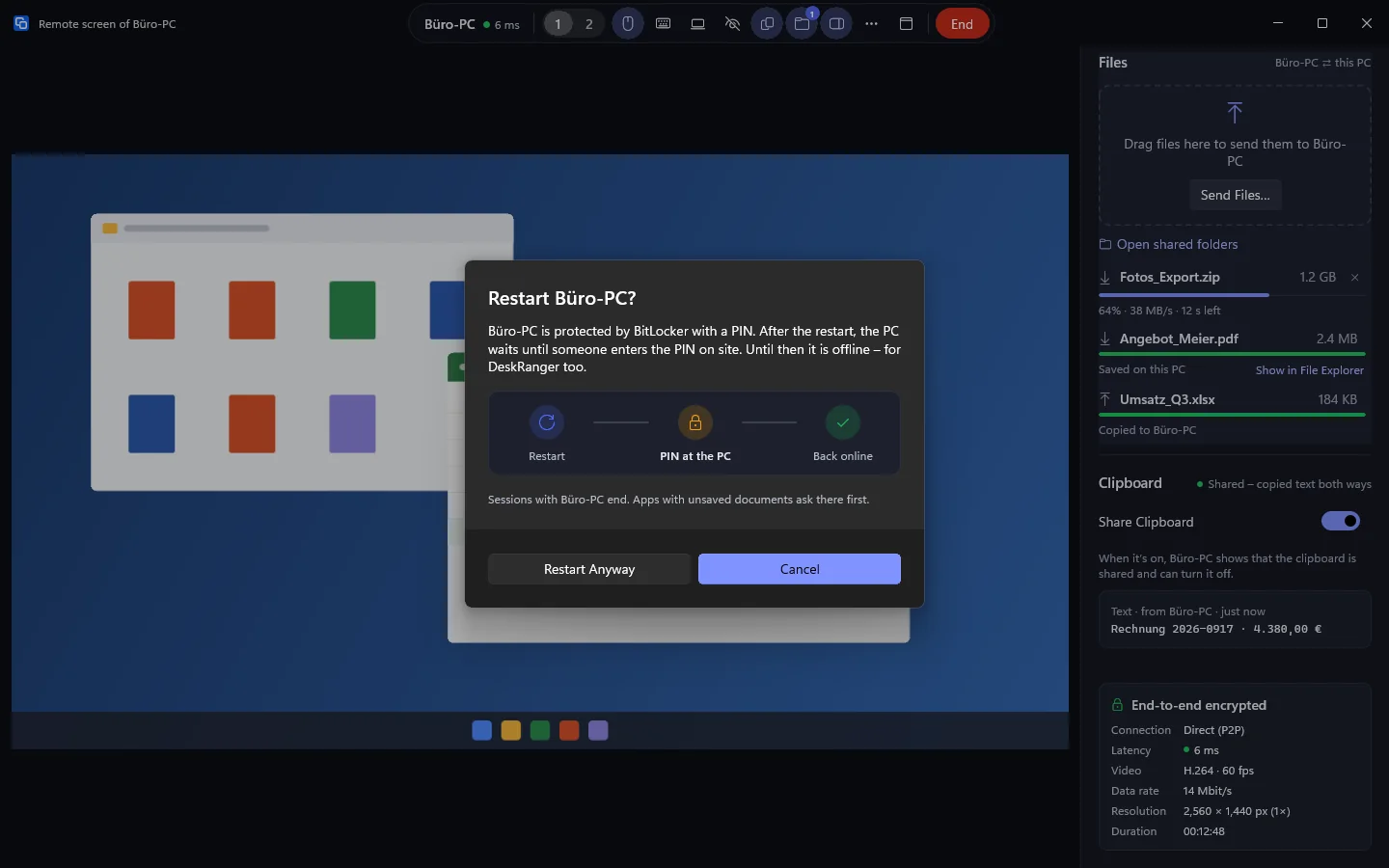
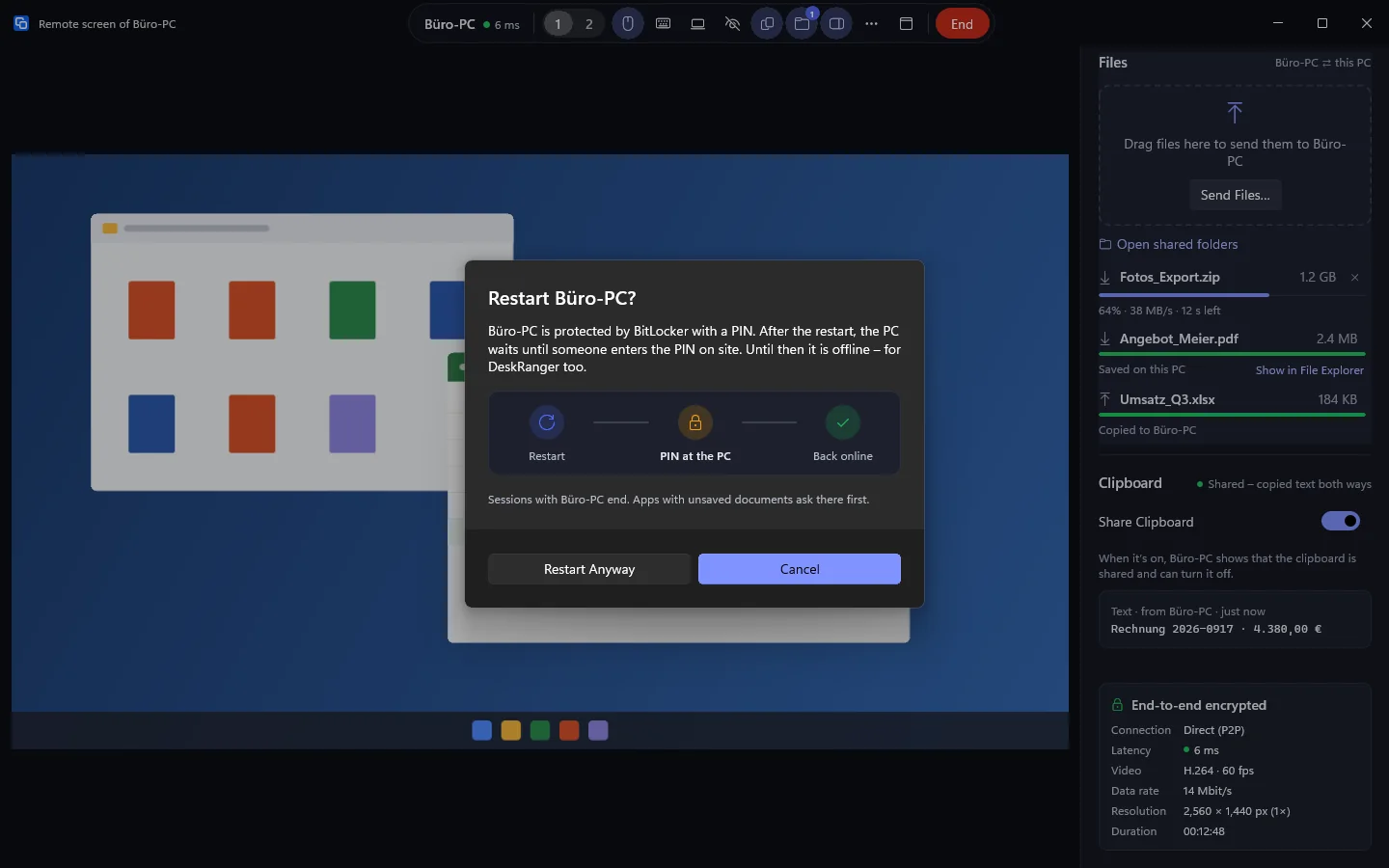
„Neu starten …“ from a session asks first and shows the steps. If FileVault, BitLocker with a PIN or disk encryption on Linux protects the device, it waits for someone on site after the restart. That is intended: your data stays encrypted.

  • The card shows a small lock and says what the device is waiting for
  • With BitLocker on the TPM alone Windows starts by itself
  • „Nach einem Neustart“ in the settings explains it with a picture
“Restart Studio?” with the steps Restart, Password at the Mac, Back online“Restart Studio?” with the steps Restart, Password at the Mac, Back online

Shown: Mac

Linux server without a screen

You sign a server without a screen in with a code: you start the sign-in on the server and confirm it on a device already in your account. The server needs no app for it.

  • You reach Terminal and Files without an SSH port
  • The service runs as a system service and starts by itself after every restart

From the browser too

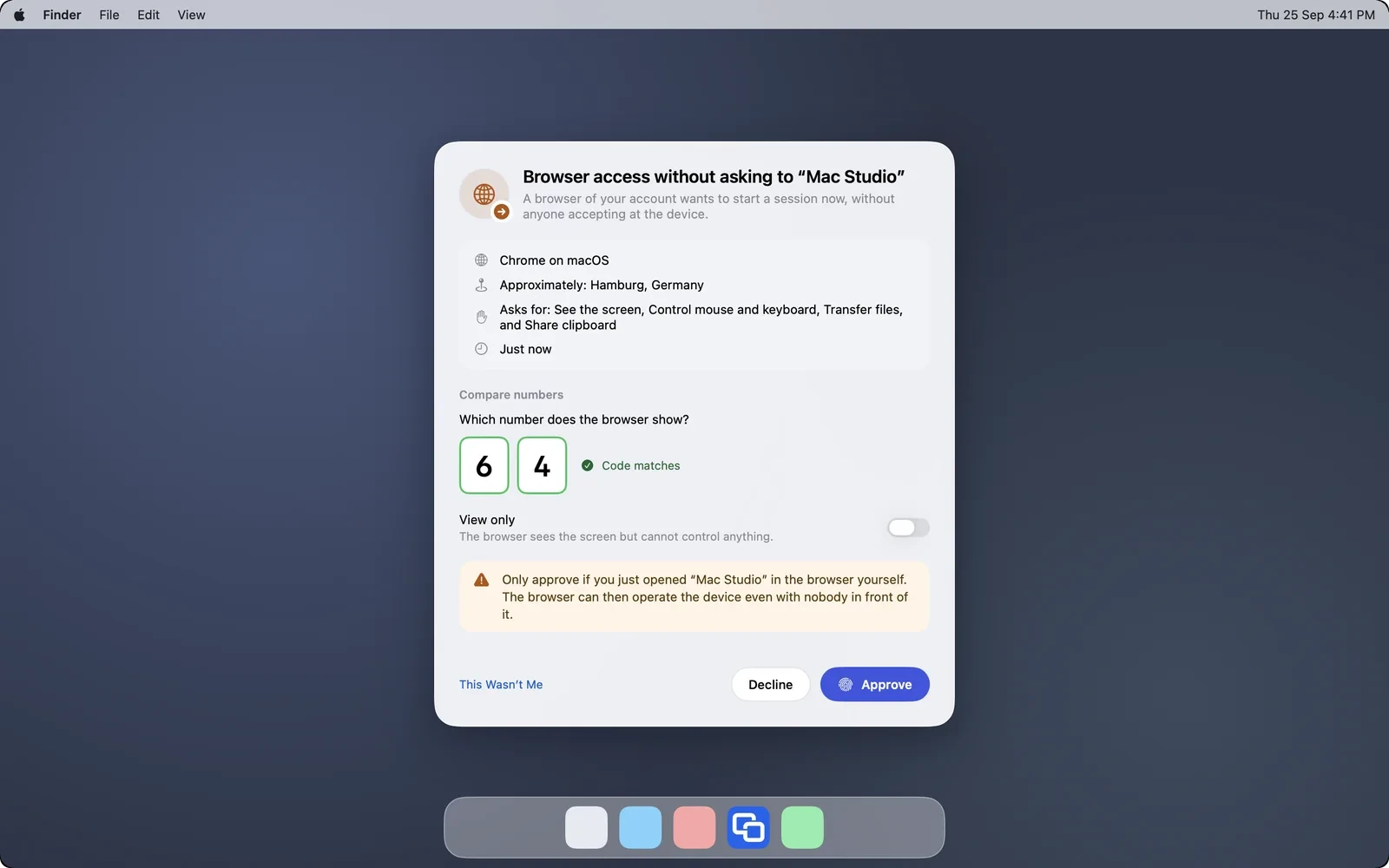
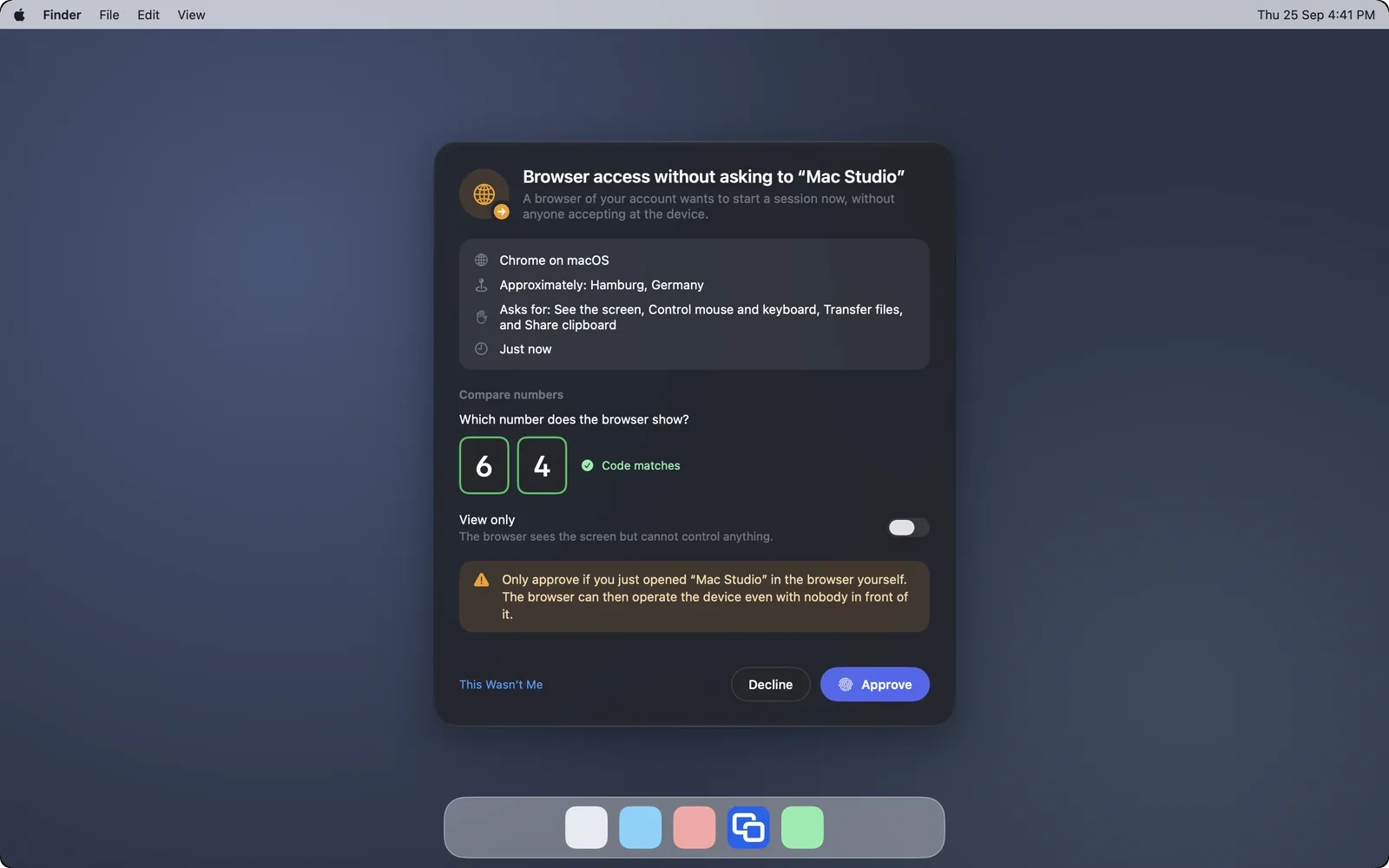
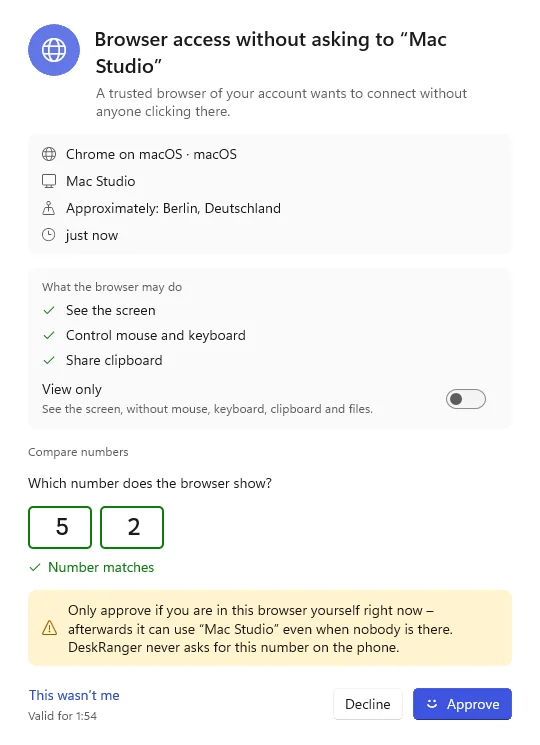
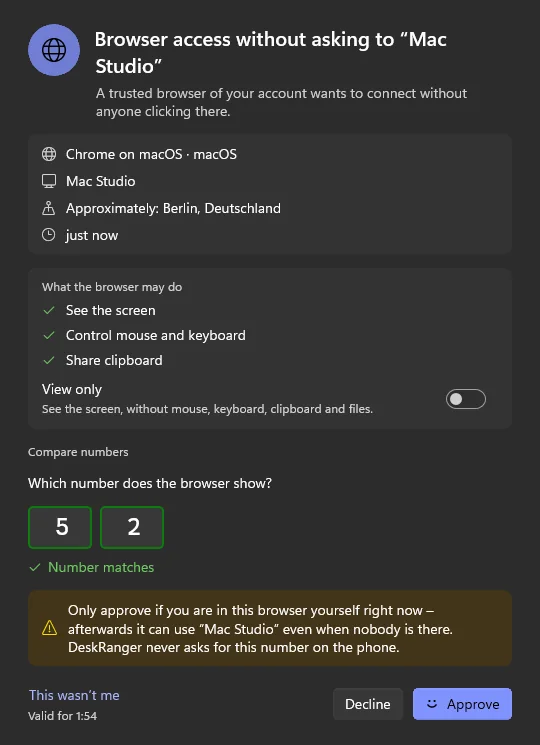
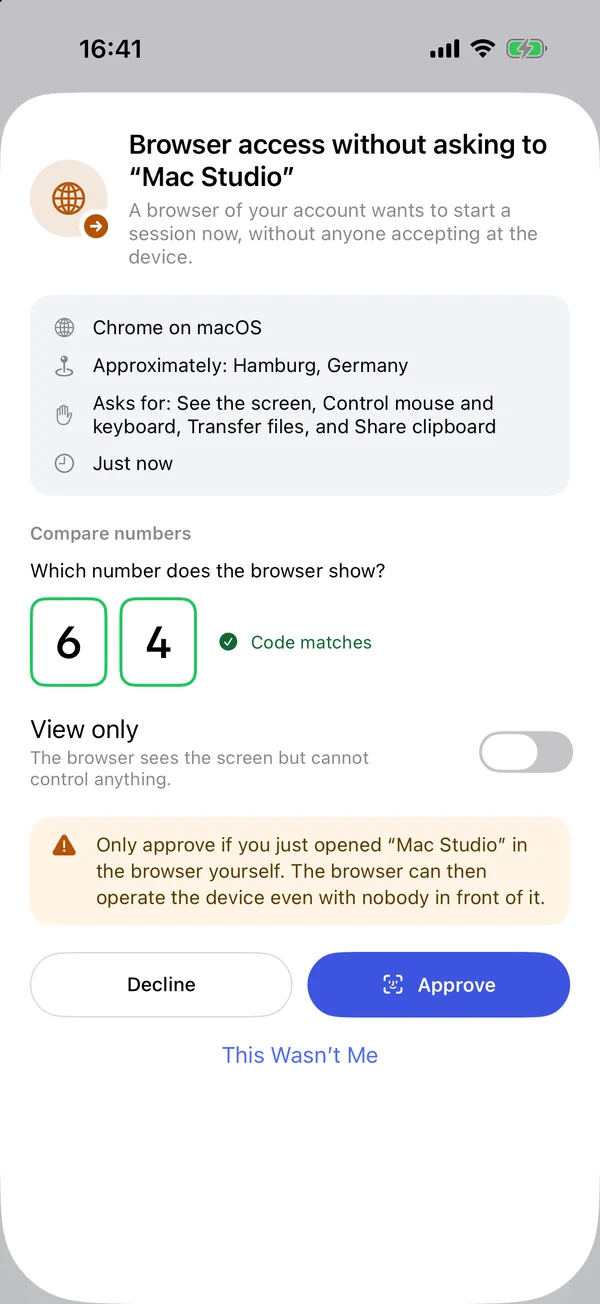
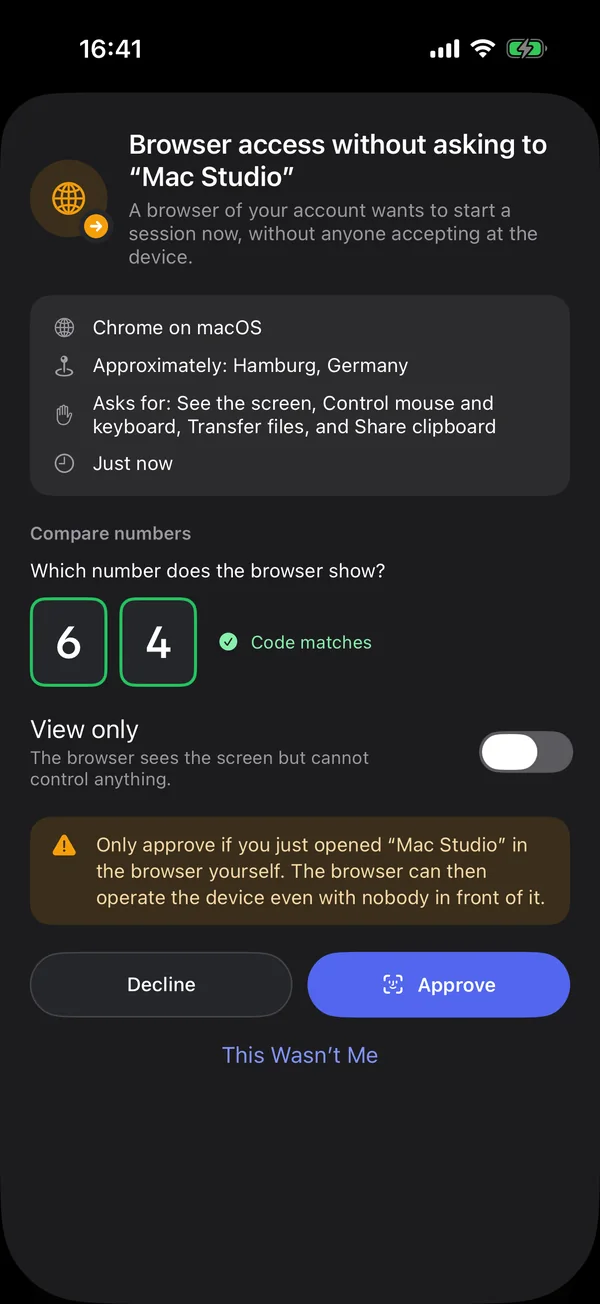
With DeskRanger Secure an own computer can be reachable from the browser without anyone clicking there. You approve every single session on another of your devices. The switch „Unbeaufsichtigt auch aus dem Browser (mit Freigabe)“ is off at first.

  • You type two digits from the browser at the device and confirm
  • Remote access in the browser needs Pro
Another own device approves a browser session on “Mac Studio”: the browser, the approximate place, the requested permissions and the typed numberAnother own device approves a browser session on “Mac Studio”: the browser, the approximate place, the requested permissions and the typed number

Shown: Mac

Everything step by step, for every platform:

Connect to one of your devicesInstall DeskRanger

Domande frequenti

Does it work with my phone too?

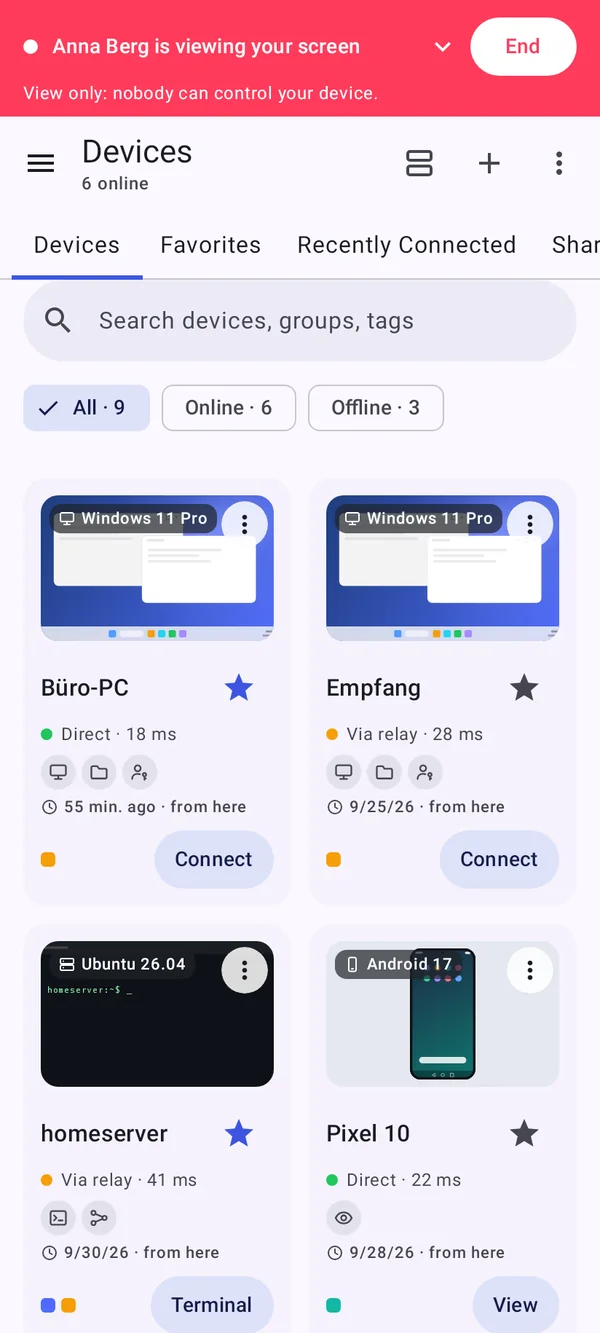
Only to a limit. An Android device cannot be reached without a prompt: Android asks for screen capture in every session. An iPhone or iPad shares its screen for viewing.

What if my Mac is encrypted with FileVault?

After a restart it waits at the unlock screen until someone enters the password. Until then it is offline, also for DeskRanger. That protects your data.