Help › Functions
The session: view, displays, connection
What you can set during a session and what the indicators mean.
View
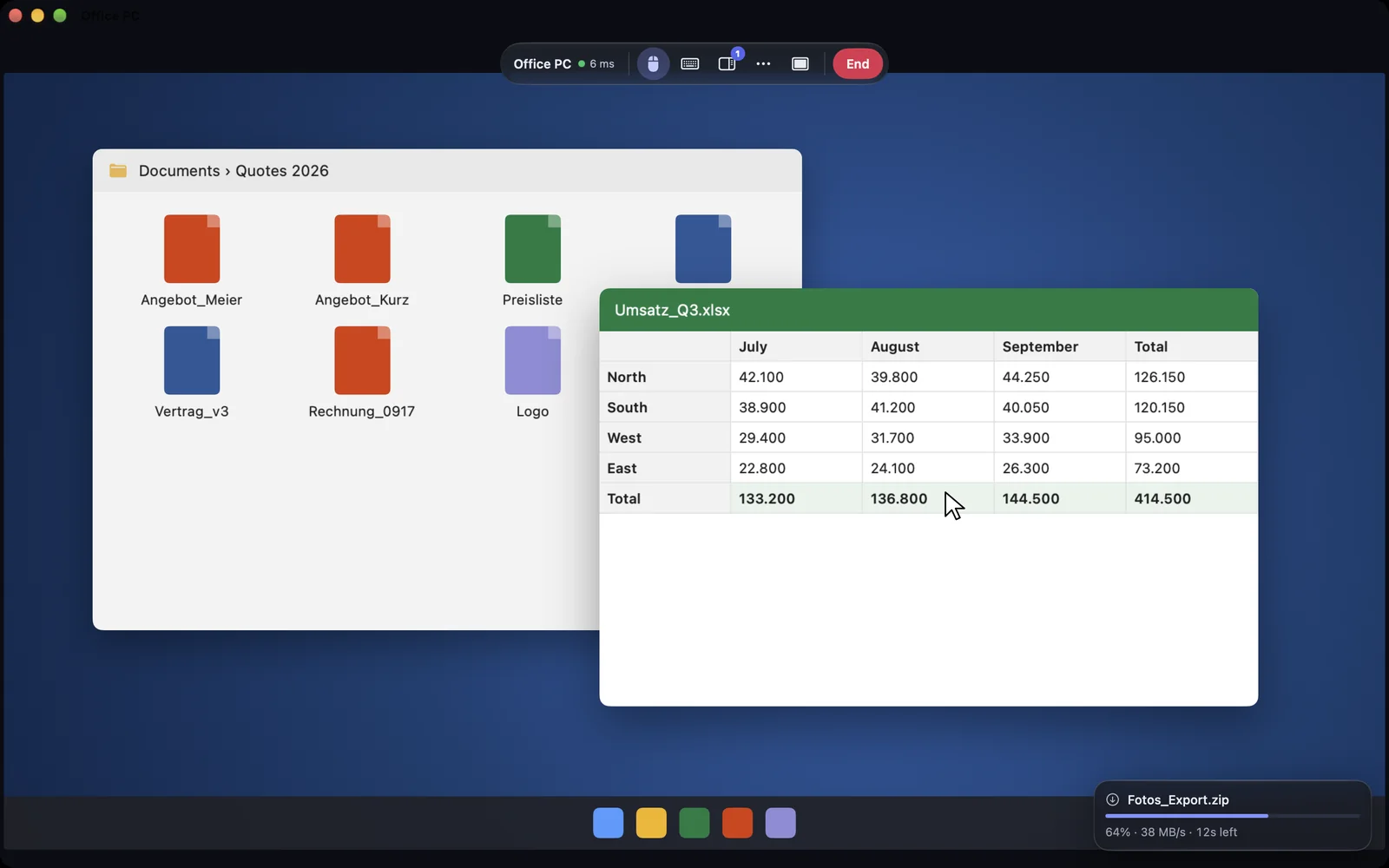
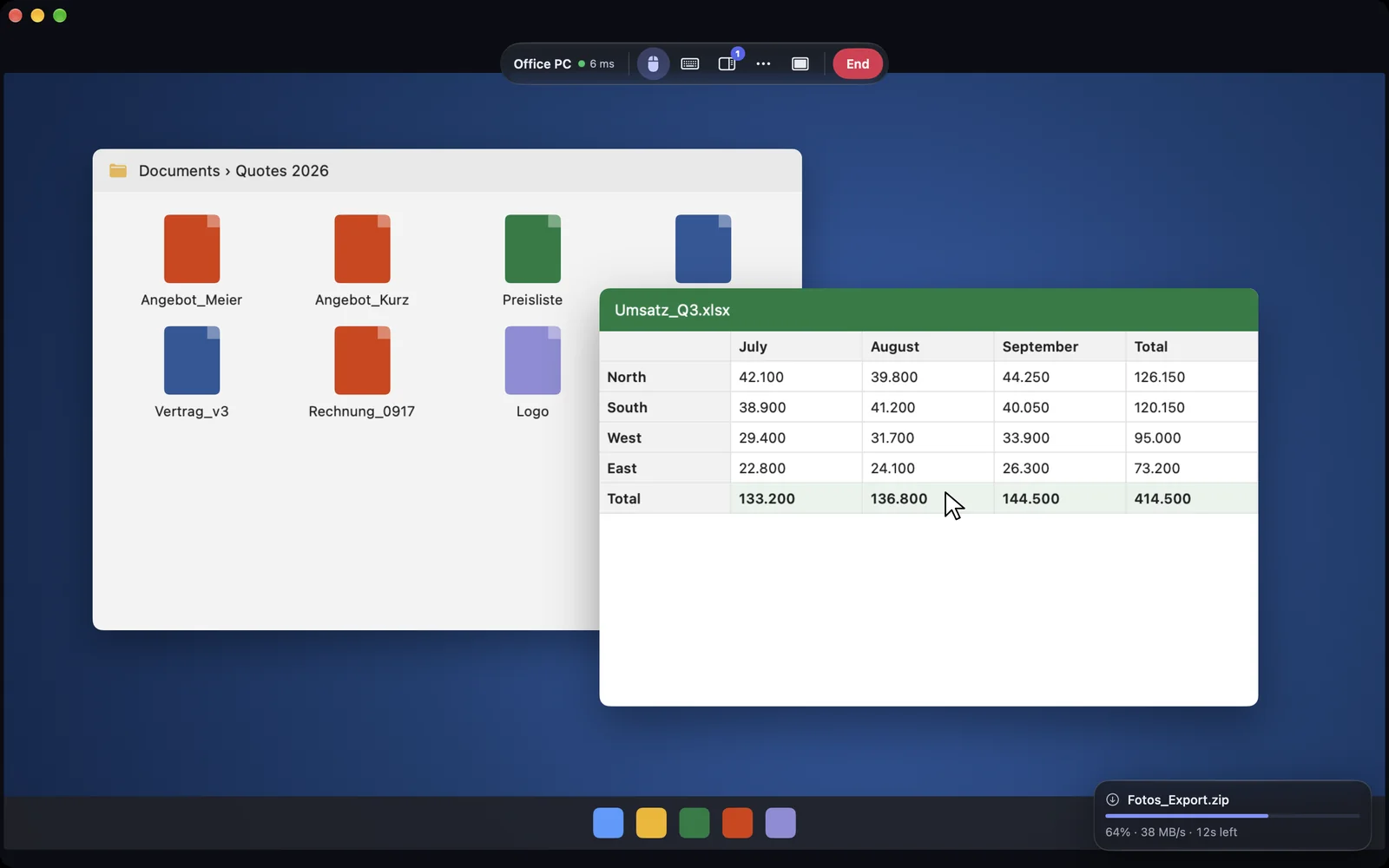
Under View you choose Standard, Compact or Full Screen.
macOS
The shortcuts are ⌃⌥⌘1, ⌃⌥⌘2 and ⌃⌥⌘3. In full screen, ⌃⌥⌘F shows the toolbar.
For the size there is Fit to Window, Actual Size and Match Window. With the last one, the other Mac sets its resolution to your window.
Windows
This function is coming soon to Windows.
iPhone & iPad
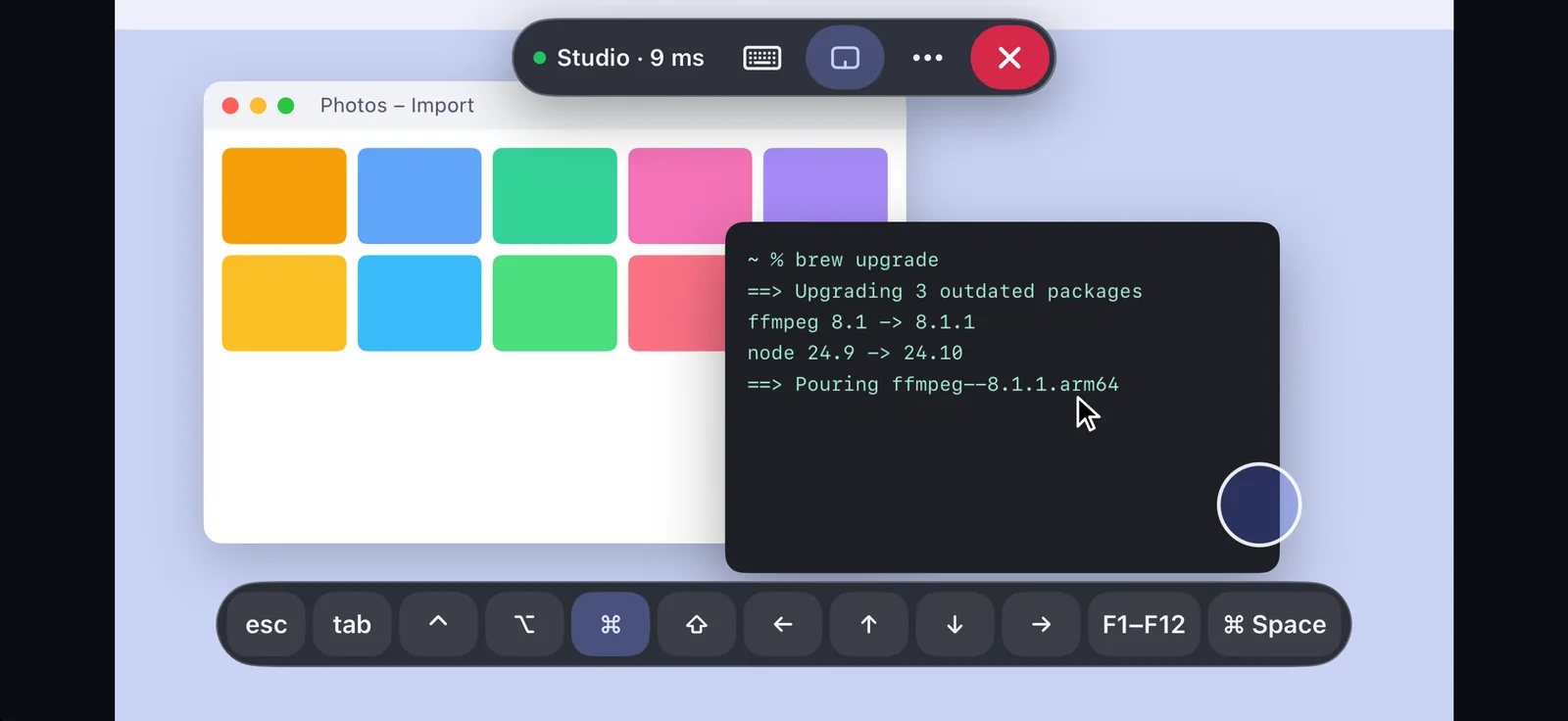
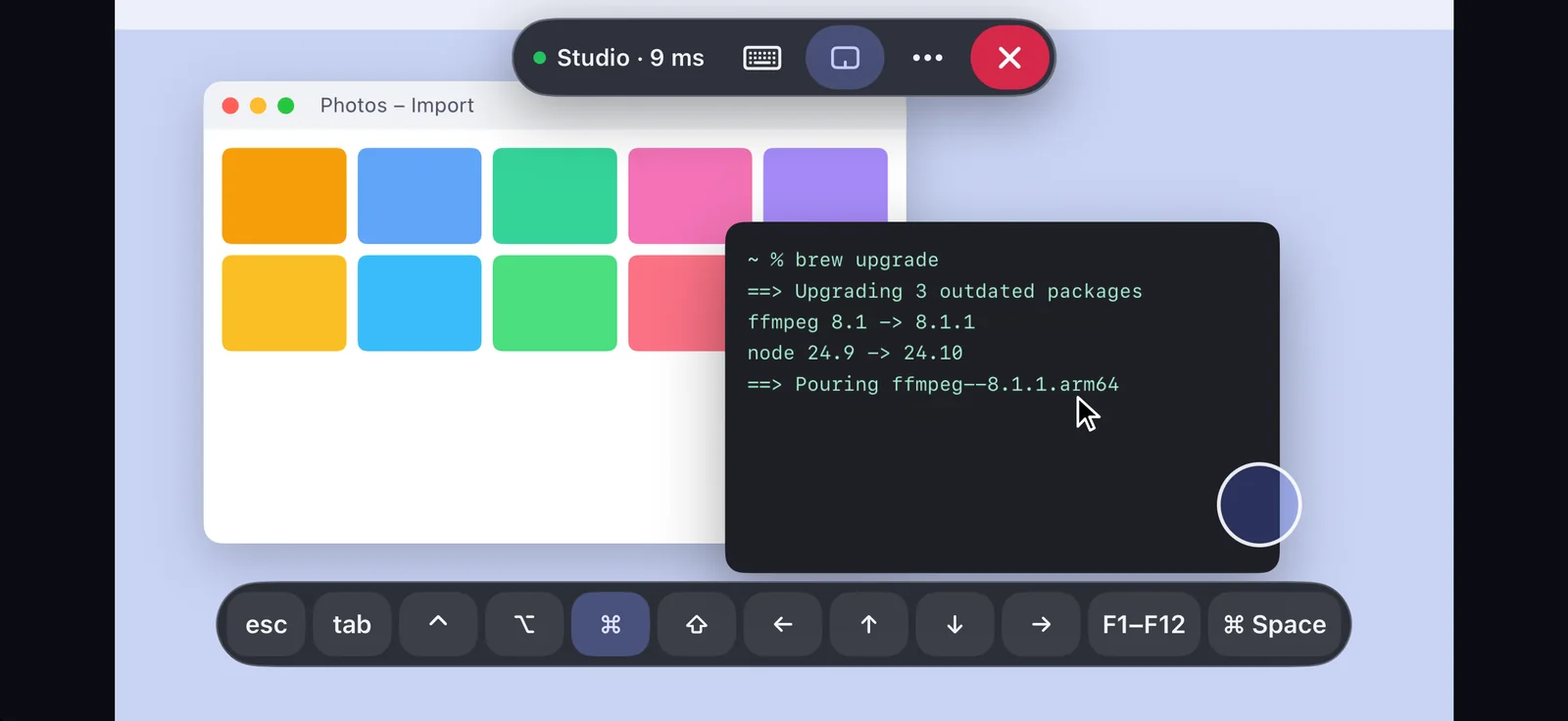
On iPhone and iPad the session fills the screen. The Standard, Compact and Full Screen views are not available there yet.
Web
In the browser there is one view, plus the browser’s full screen mode.
Several displays
If the other device has several displays, you pick one of them or All displays. Next Display moves on, on the Mac also with ⌃⌥⌘D. The browser does not offer this choice yet.
The connection
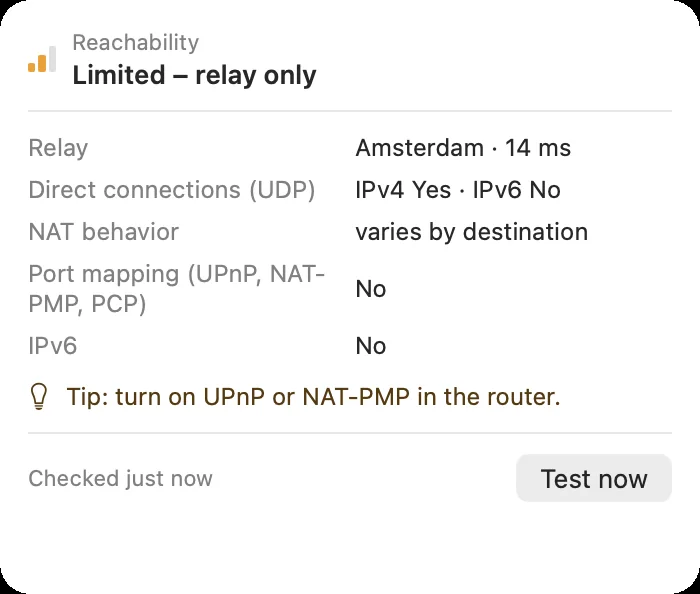
The dot next to the device name shows the quality: green for Good connection, yellow for Fair connection, red for Poor connection. The details say whether the session runs Direct (P2P) or Via relay. Both are end-to-end encrypted. Why a relay sometimes?
When the connection drops
If the connection drops briefly, for example when switching to mobile data, DeskRanger continues the same session. Nobody at the other device has to agree again. If that does not work, you see Connection ended and can Reconnect.
All sessions at a glance
Under Active Sessions you see every session of your account and can end each one. A chain through your own devices counts as one session.