Help › Getting started
Install DeskRanger
Which edition you get on which device, and what happens on the first start.
DeskRanger is in early access. Public downloads will follow; until then you get the apps on request through the downloads page.
macOS
- Request early access on the downloads page. You get the app “DeskRanger” for macOS 26 or later.
- Put DeskRanger directly into the Applications folder. Only there can the Mac later be reachable before login, too.
- Open DeskRanger and sign in, or create an account.
- Under Set up DeskRanger you grant two permissions so others may see and control your Mac: Screen Recording and Accessibility. Open System Settings opens the right place.
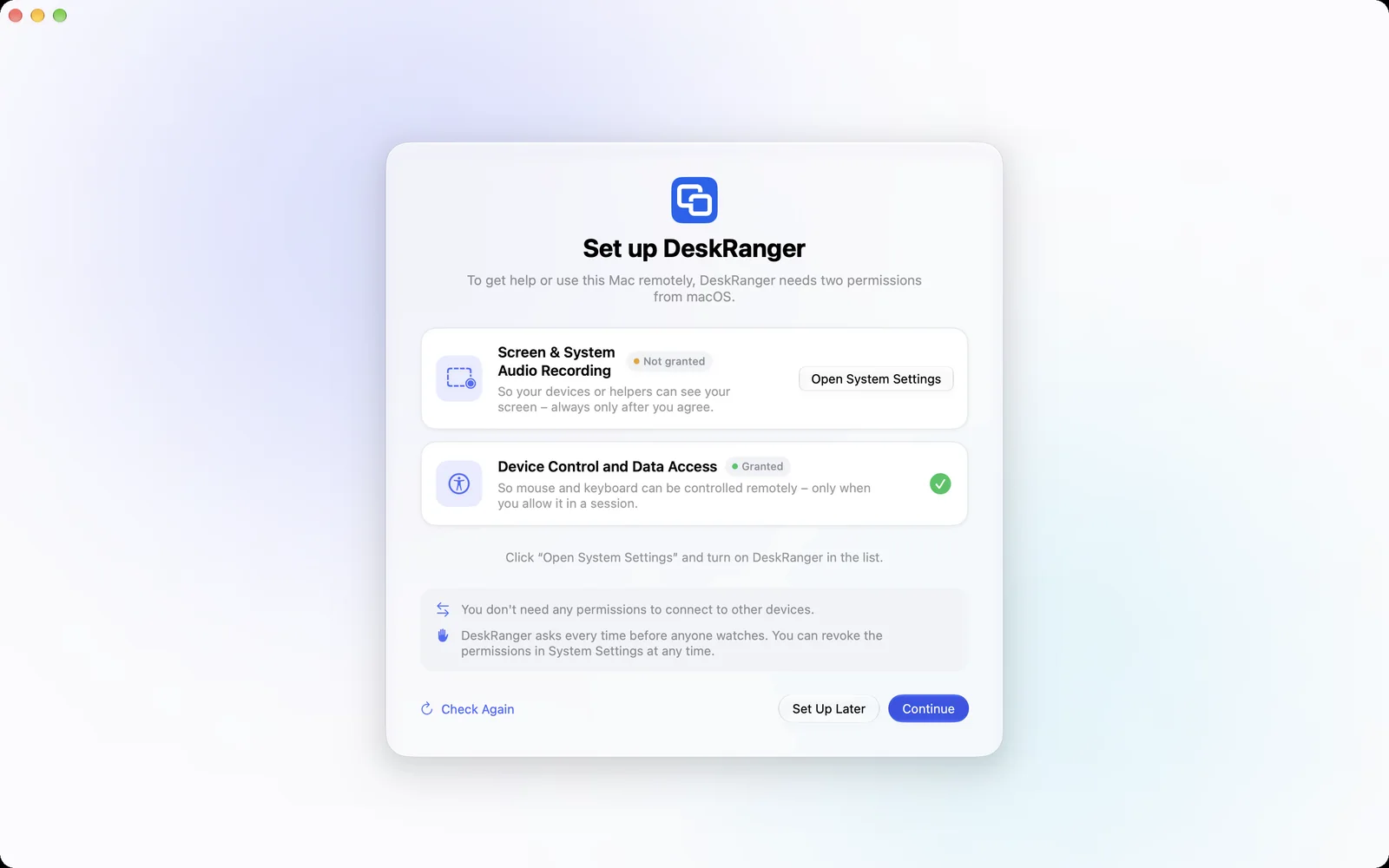
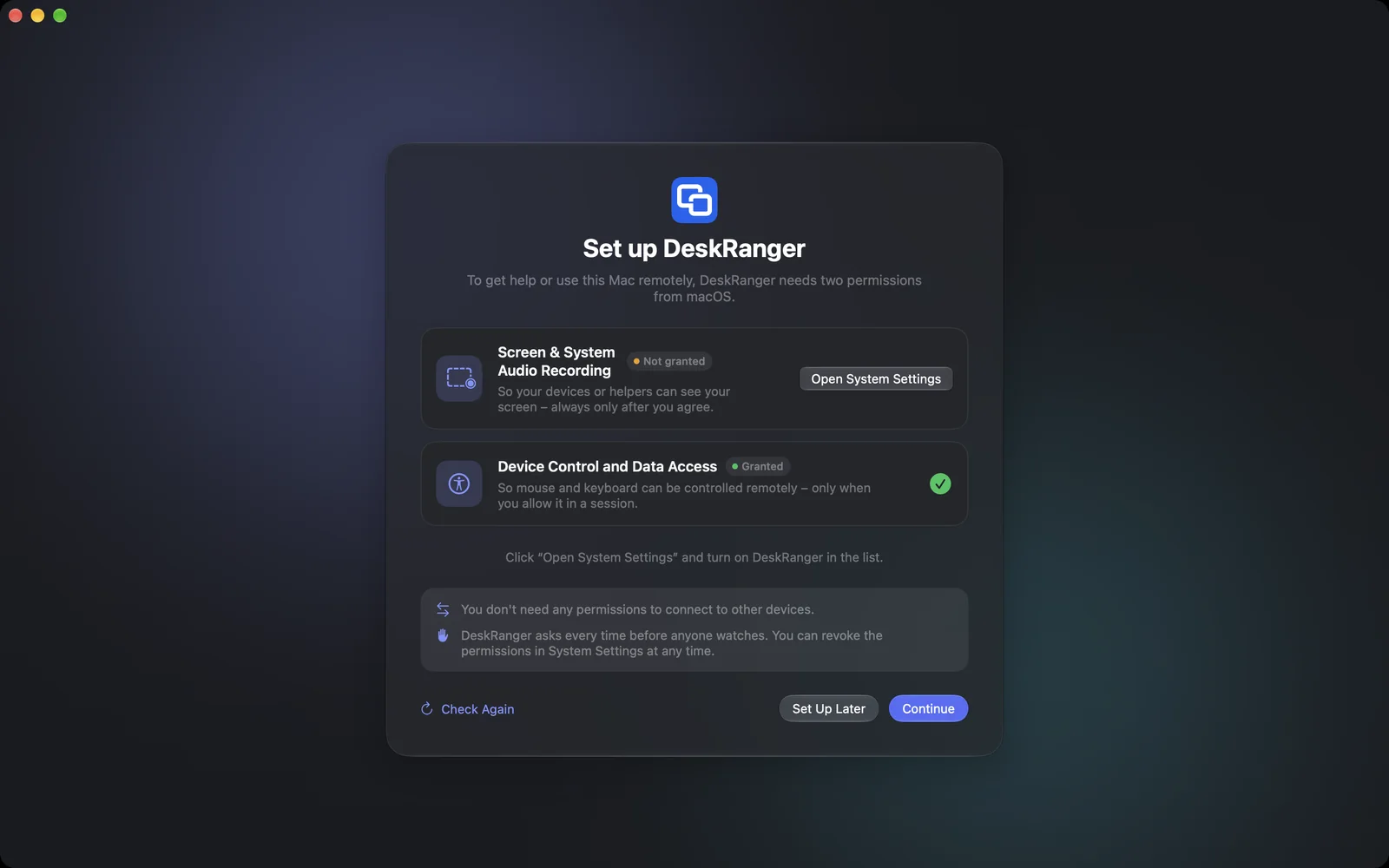
If you only want to reach other devices, you need no permissions. You can also postpone them with Set Up Later.
Reachable before login
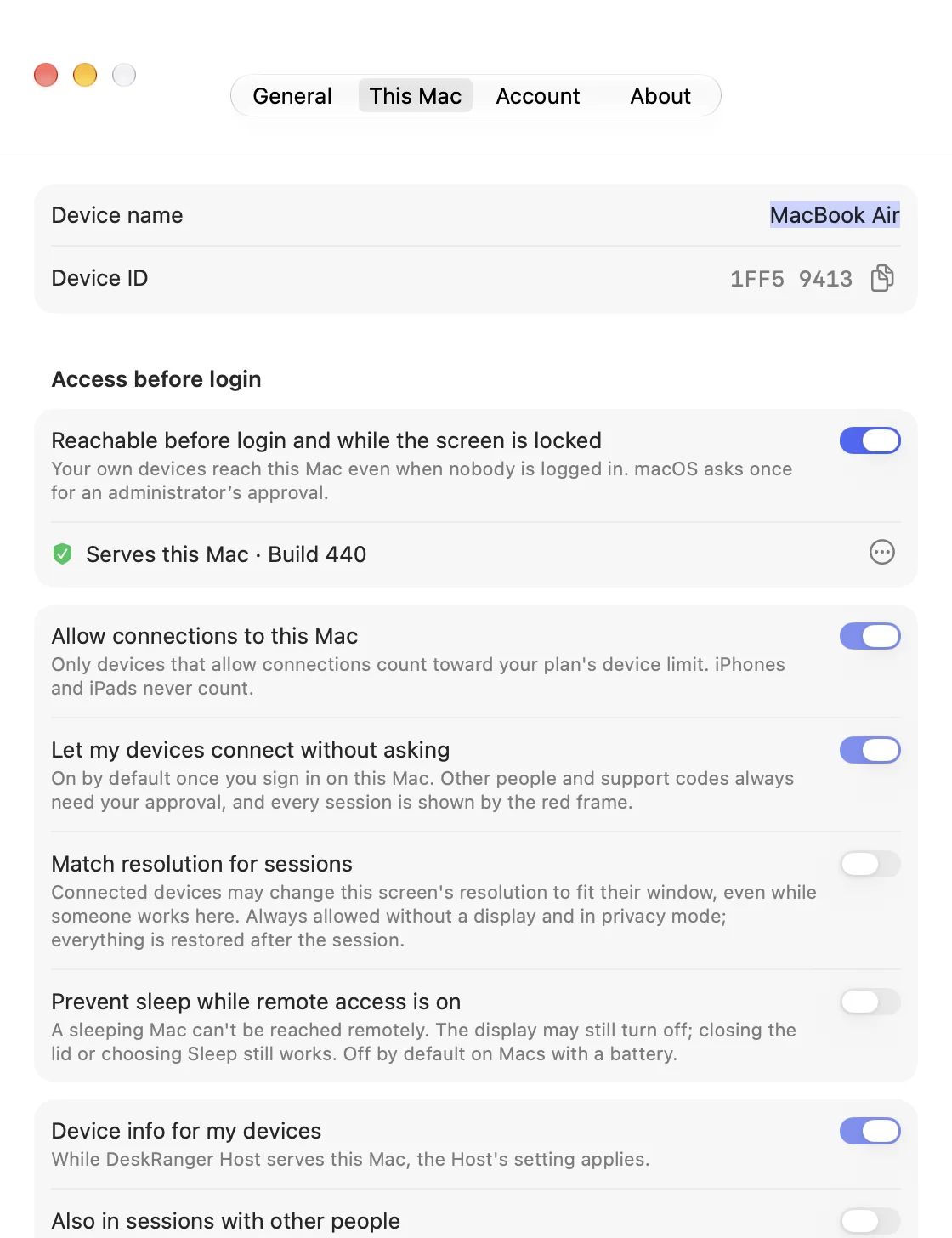
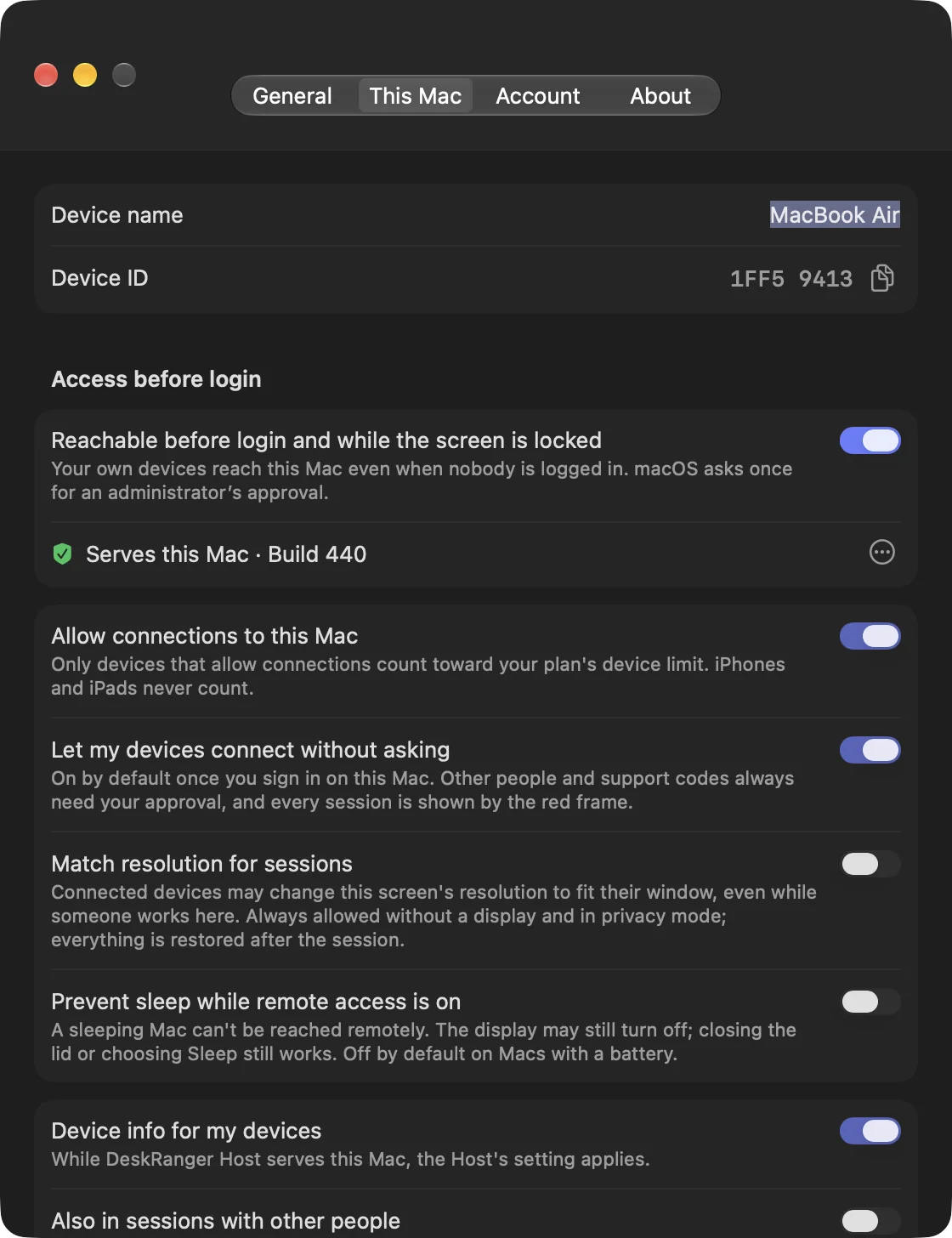
The switch Reachable before login and while the screen is locked keeps your Mac reachable after a restart, at the login window and while the screen is locked. macOS asks once for an administrator’s approval. A checklist in DeskRanger shows what is still missing.
Windows
DeskRanger for Windows is in the works. An installer for x64 and ARM64 is planned, for Windows 11 and Windows 10 22H2. More on the Windows page.
iPhone & iPad
- DeskRanger for iPhone and iPad is currently available as a beta through TestFlight. Ask for an invitation on the downloads page.
- Install TestFlight from the App Store, open the invitation and install DeskRanger. You need iOS or iPadOS 26.
- Open DeskRanger and sign in with your account.
Web
The web console needs no installation: click “Sign in” at the top of the website. It runs in current versions of Chrome, Edge, Safari and Firefox, but not in a private window, because the browser may not keep the device key there.
DeskRanger could not open its protected storage. Click Try Again. If that does not help, restart the Mac and open DeskRanger again.