Standard is convenient and trusts our sign-in and our servers: your account decides which devices belong. With DeskRanger Secure only your own devices decide: a new device waits until one of your trusted devices confirms it.
Until then the new device sees no devices, no groups and no names
At Standard a new device signing in with a password needs an e-mail code or your confirmation
Only your devices decide
Your devices keep a signed list of trusted devices. Only a trusted device or your recovery key can extend it, and only they can switch DeskRanger Secure off again.
Not covered: sessions with other people, where the person at the device decides
Whoever holds a trusted device plus its password counts as you for DeskRanger
Switched on in four steps
You switch it on in four steps: confirm, check the device list, print the recovery key and type two blocks of it as a check. On the first device of a new account DeskRanger offers it once, with “Later” as an equal choice.
With Touch ID, Face ID or screen lock you type nothing of your account
On a Windows PC Windows Hello asks for face, fingerprint or PIN at the end
With DeskRanger Secure two-factor sign-in is on, too
Approve a new device
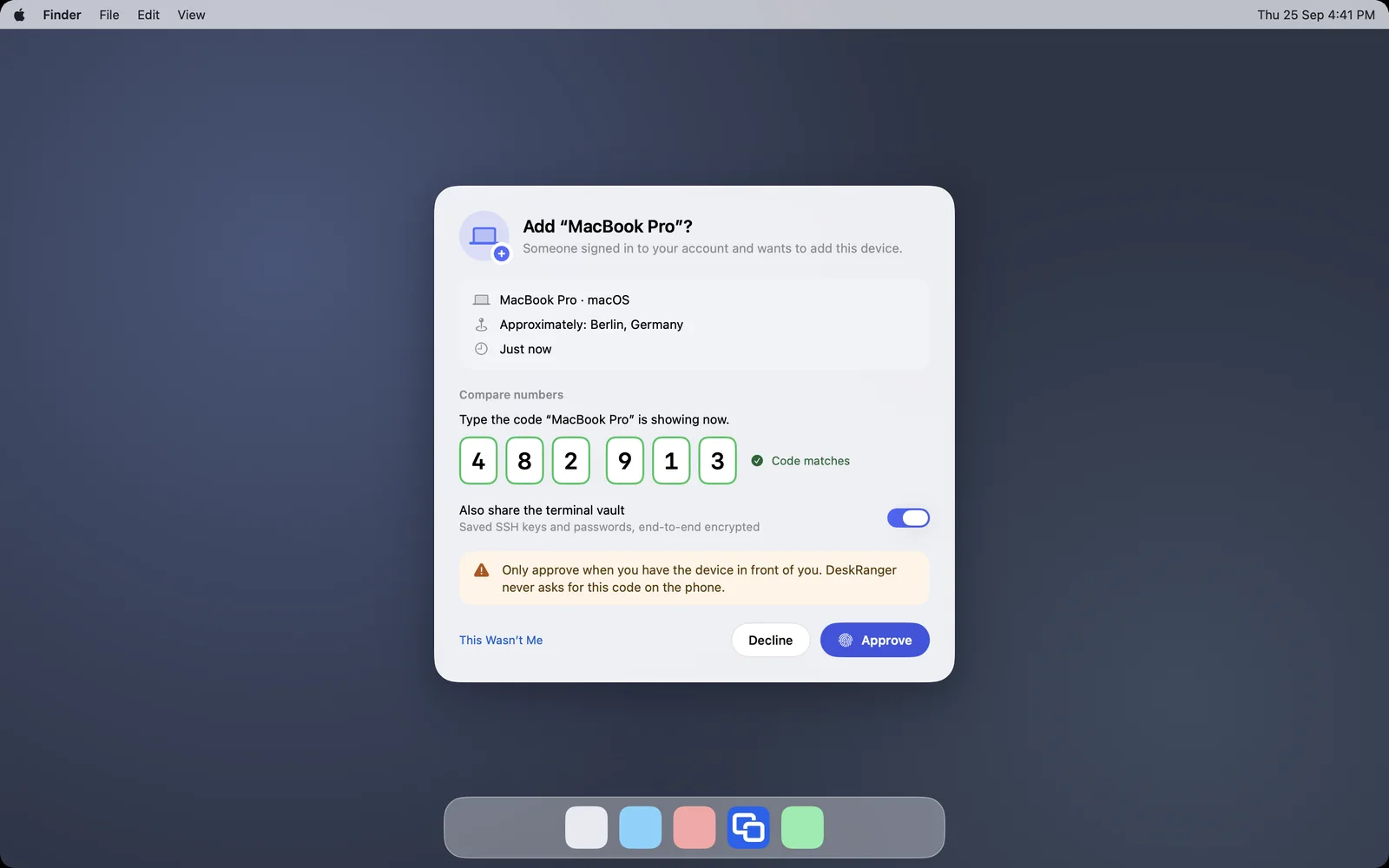
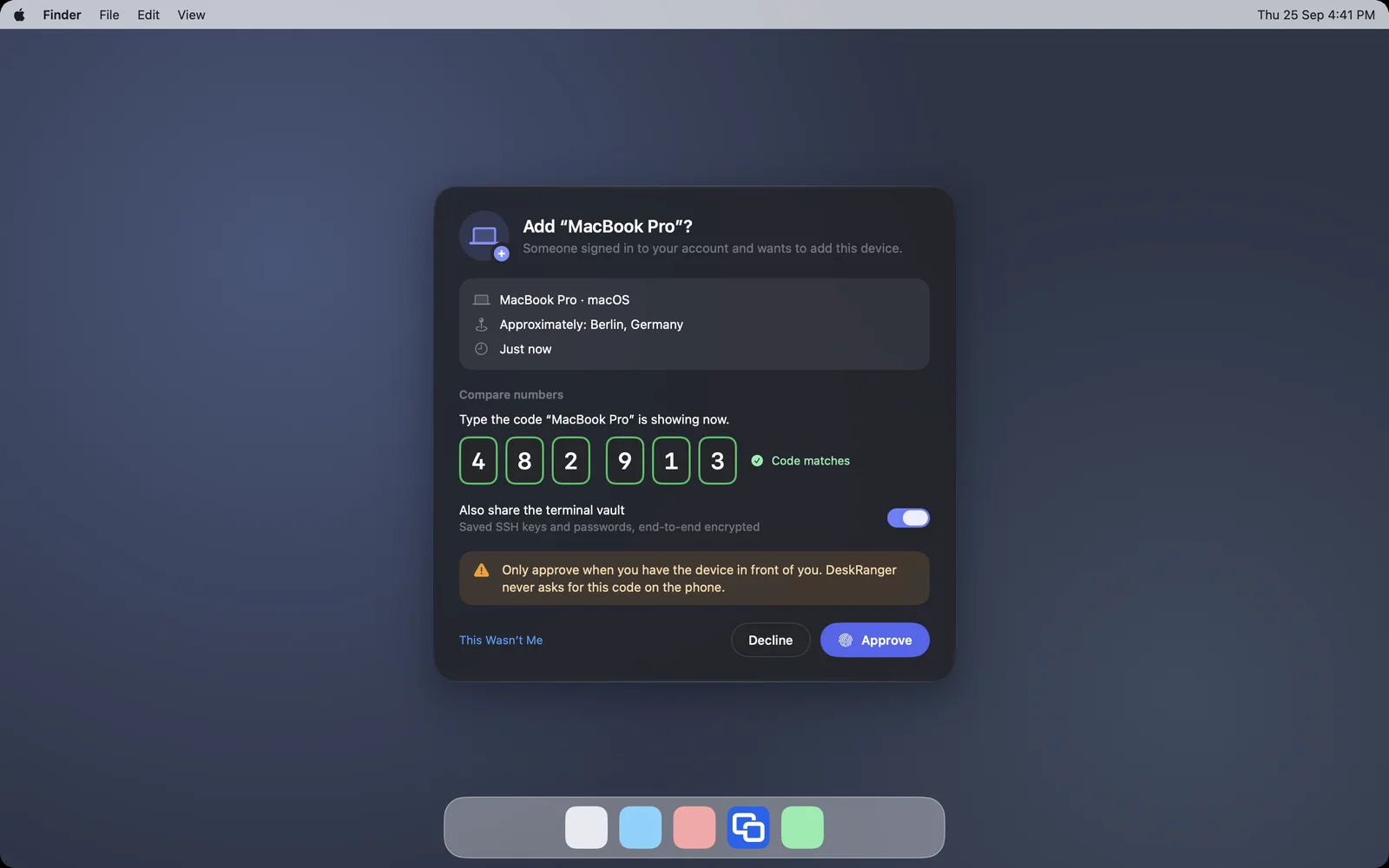
The new device waits and shows a six-digit code. On a trusted device the request appears with device, approximate place and time; you type the code and confirm with Touch ID, Face ID, Windows Hello, the screen lock or the device password.
Approve only if the device is in front of you; DeskRanger never asks by phone
If the place does not fit you, choose “That was not me”
The place comes from the IP address on our server; neither is stored
The recovery key
If you no longer have a trusted device at hand, you approve a new device with the recovery key. It consists of 28 characters in 7 groups and a QR code. We do not keep it and cannot restore it.
Keep it apart from your devices
All your devices get a message; create a new key right away
You remove a trusted device in “Security”, for all devices
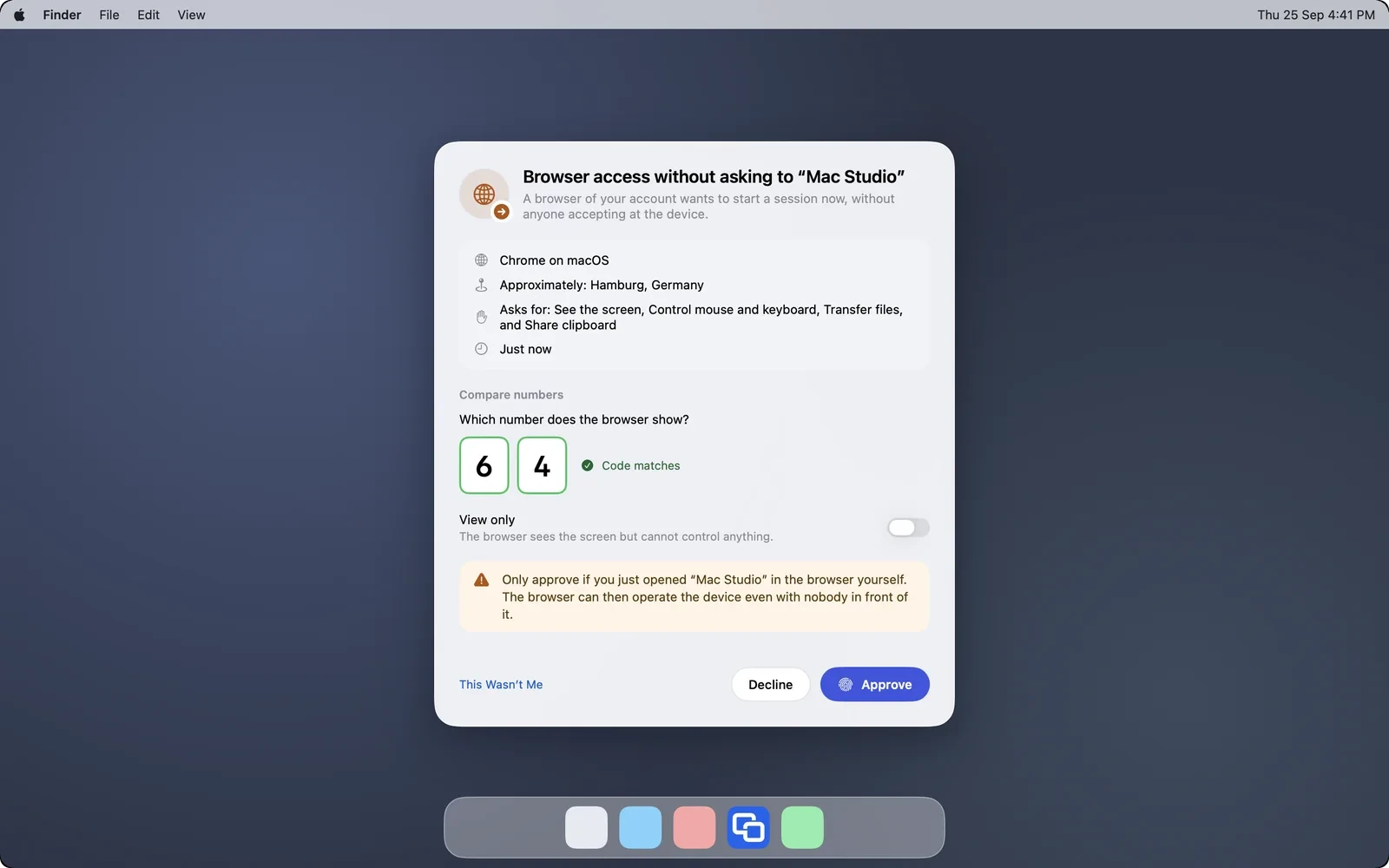
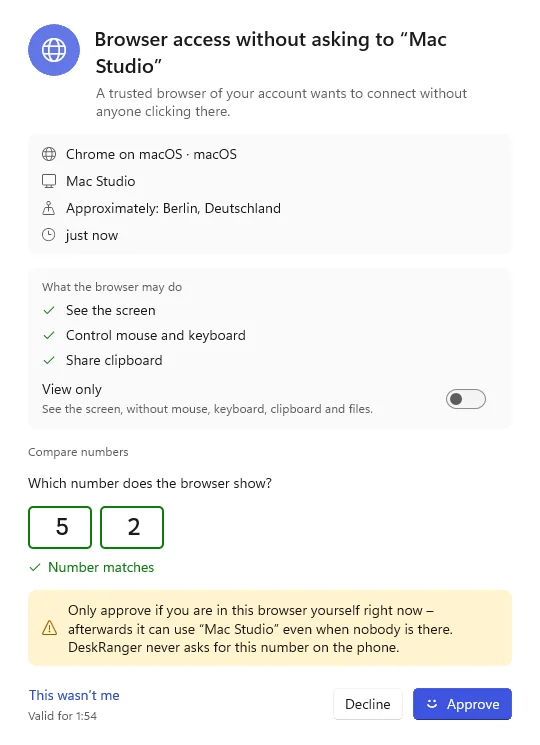
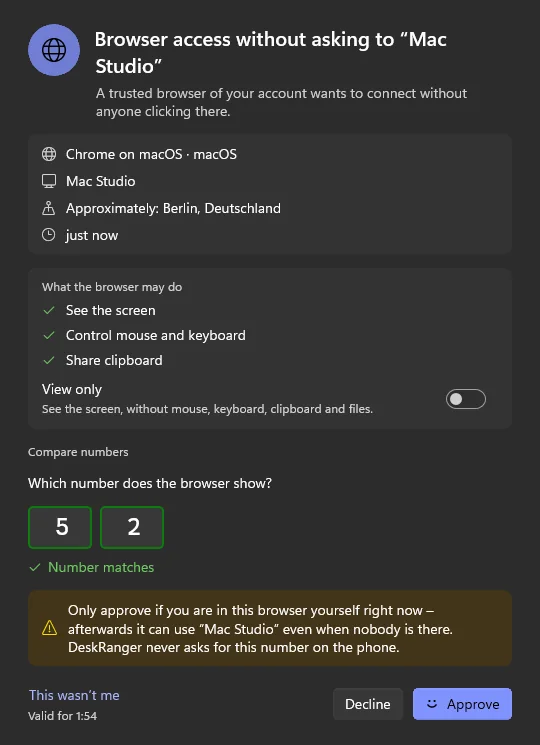
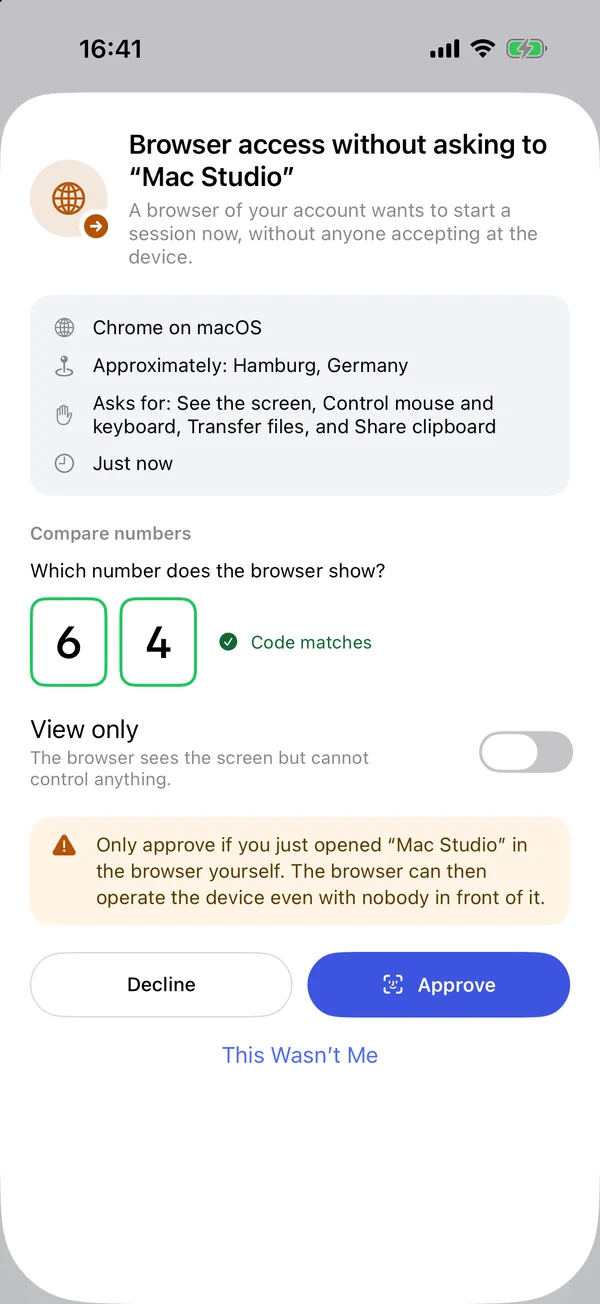
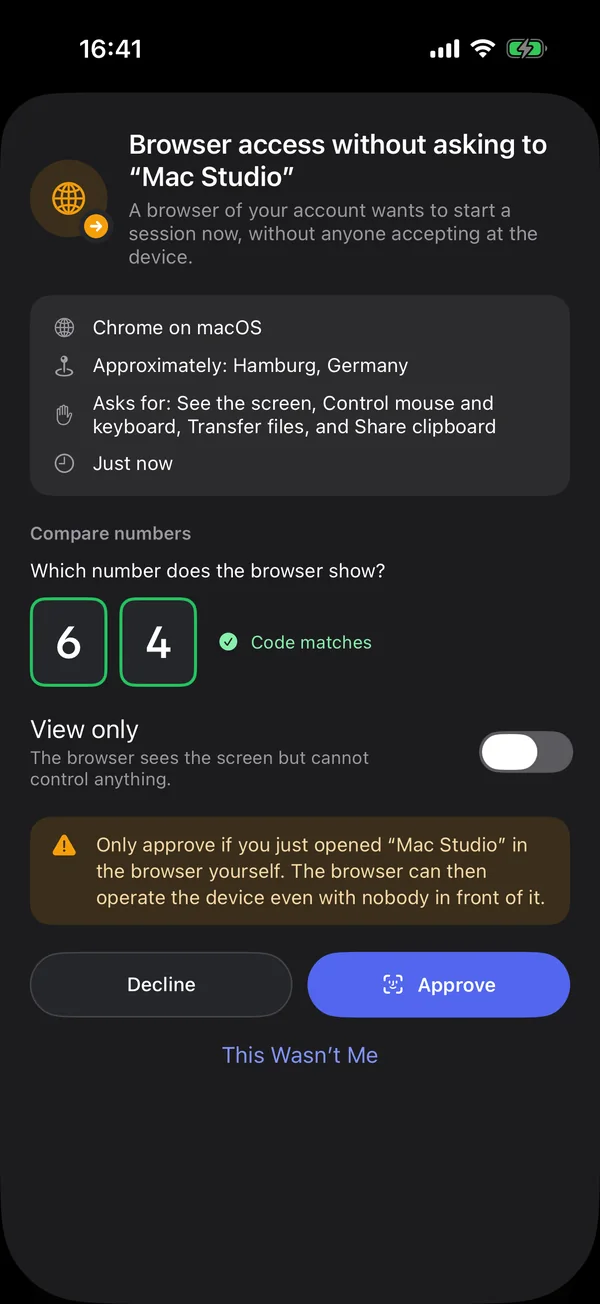
Browser access with no click at the device
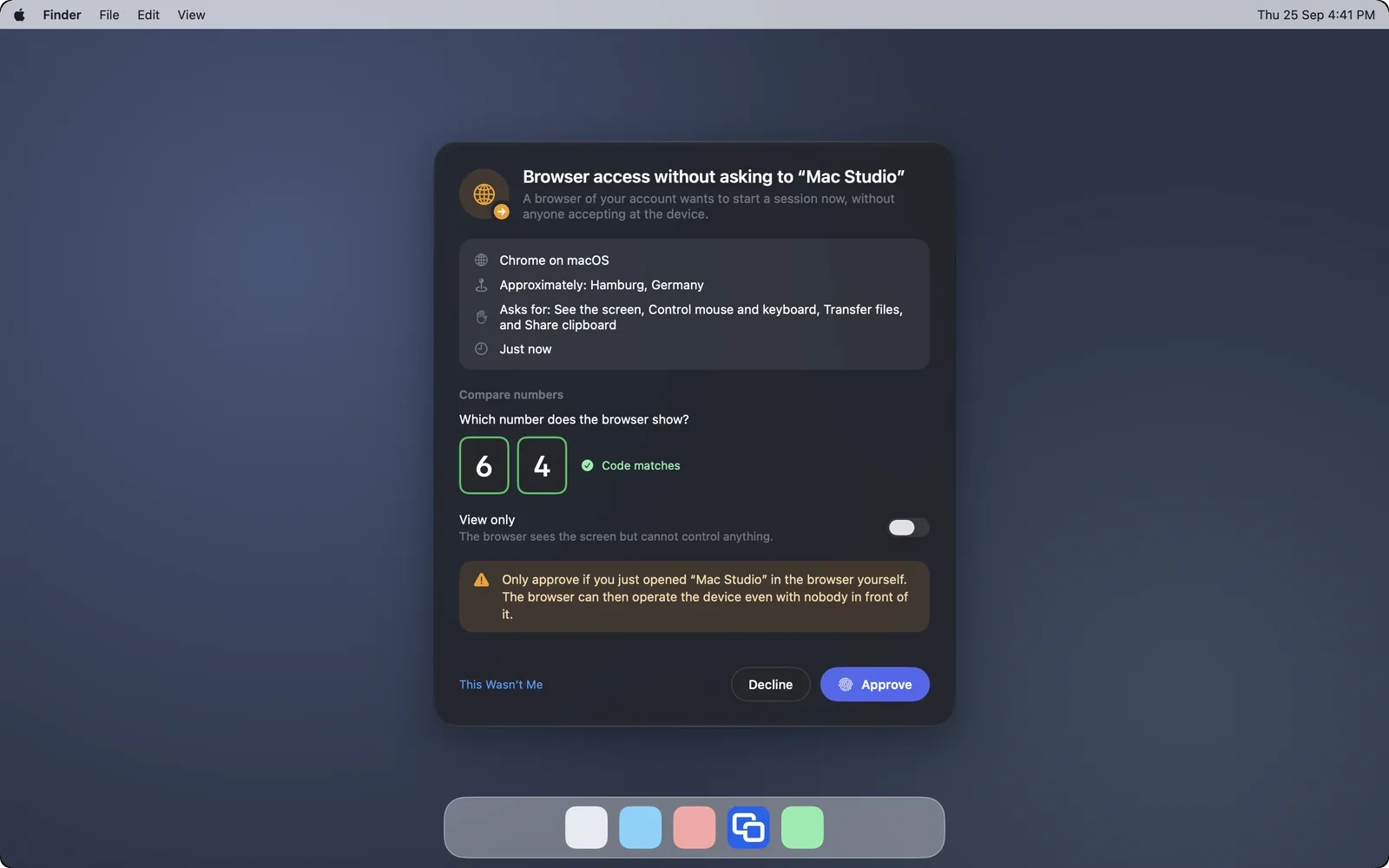
With DeskRanger Secure you reach an own computer from the browser without anyone clicking there, such as a Mac without a screen or a locked computer. You still approve every session on another of your devices.
You choose once which devices a trusted browser reaches without a click