Help › How & why
Device lock
New devices need the approval of a device you already trust. A stolen password alone is not enough – and not even we can add a device to your account.
New devices need the approval of a device you already trust. A stolen password alone is not enough.
Without device lock, any device that signs in with your password joins your account; your other devices then show New device in your account. With device lock, a new device waits until one of your trusted devices approves it. Until then it sees no devices, no groups and no names, and your devices do not let it in. Device lock is free.
What it protects – and what not
- A stolen password is no longer enough to reach your devices.
- Not even us: your devices keep a signed list of the trusted devices that only a trusted device or your recovery key can extend. Even someone who takes over our servers cannot slip a device in or turn device lock off.
- Not covered are sessions with other people, for example through a support code: there, as always, the person at the device decides. And whoever holds a trusted device together with its device password counts as you for DeskRanger.
You turn device lock on in a DeskRanger app under Security. You get a recovery key to print along the way. With device lock, two-factor sign-in is on too.
macOS
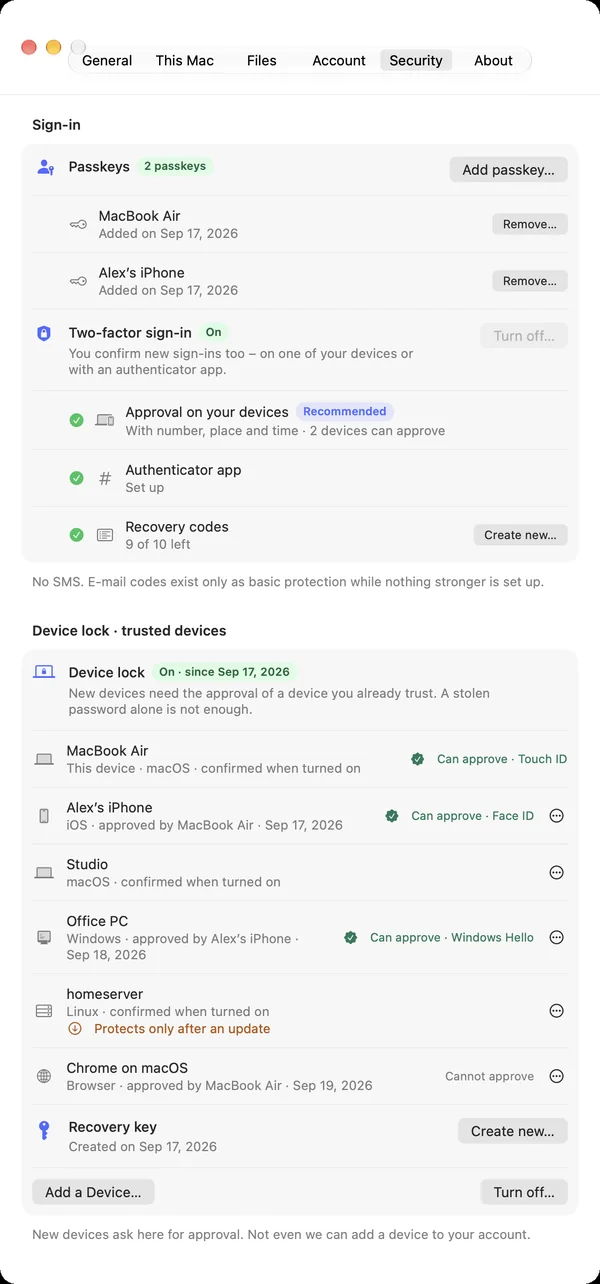
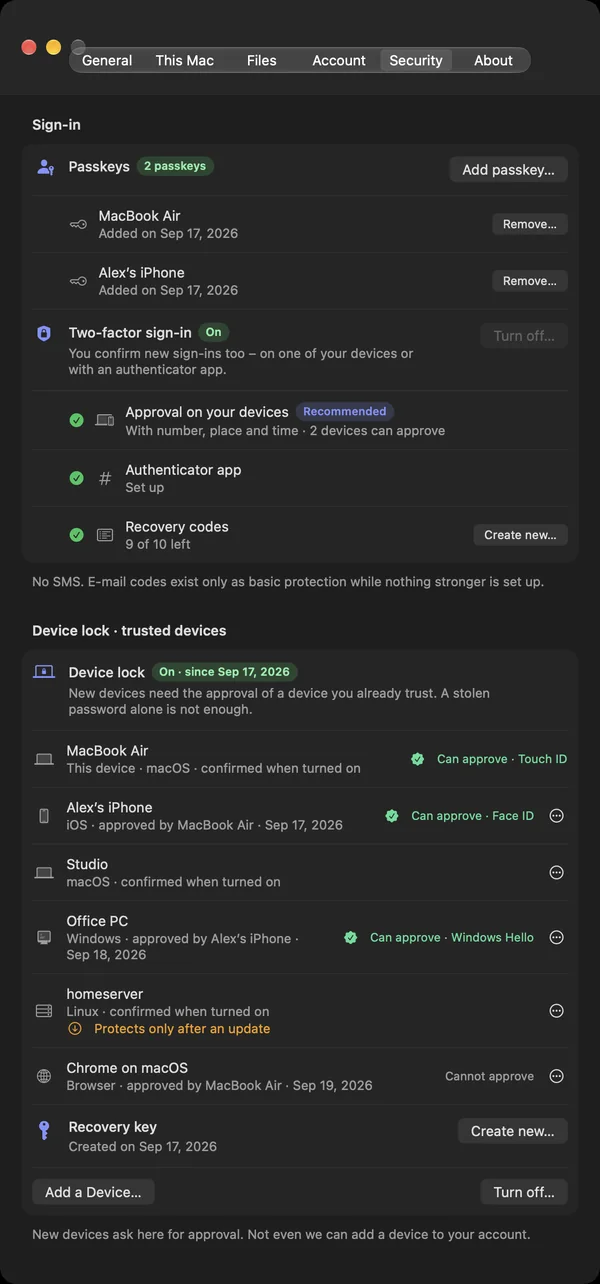
Settings (⌘,) › Security › Device lock › Turn on…. It takes four steps:
- Confirm it’s you with your password or a passkey.
- Which devices are yours? Every device of your account is ticked. Untick a device you don’t recognize: it will be removed. A device whose key has changed or that was removed before is not ticked. Only tick it if you’re sure it’s yours.
- Your recovery key: print it with Print… or save it as a PDF.
- Check your key: type the key from the printout and turn device lock on with Touch ID.
Windows
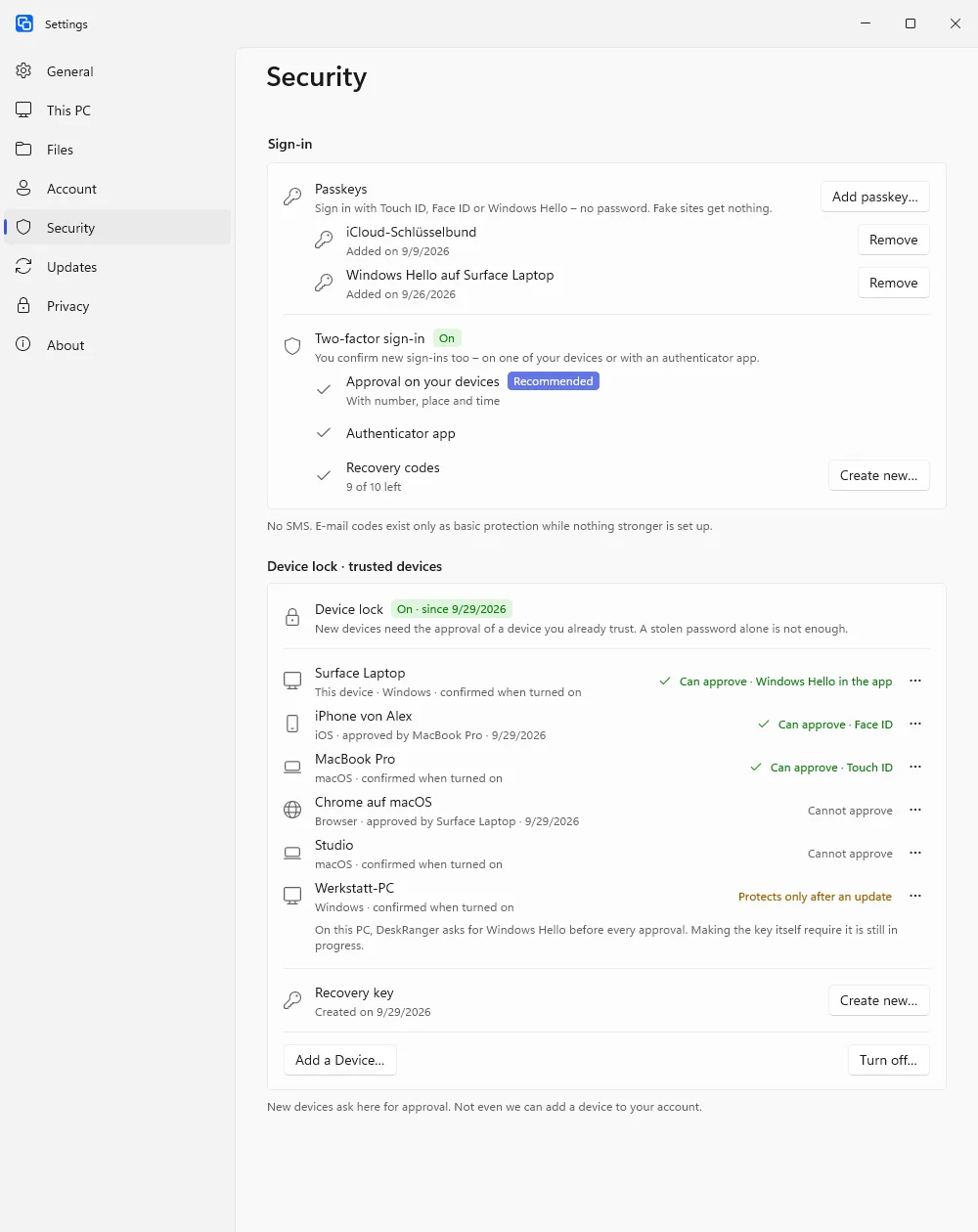
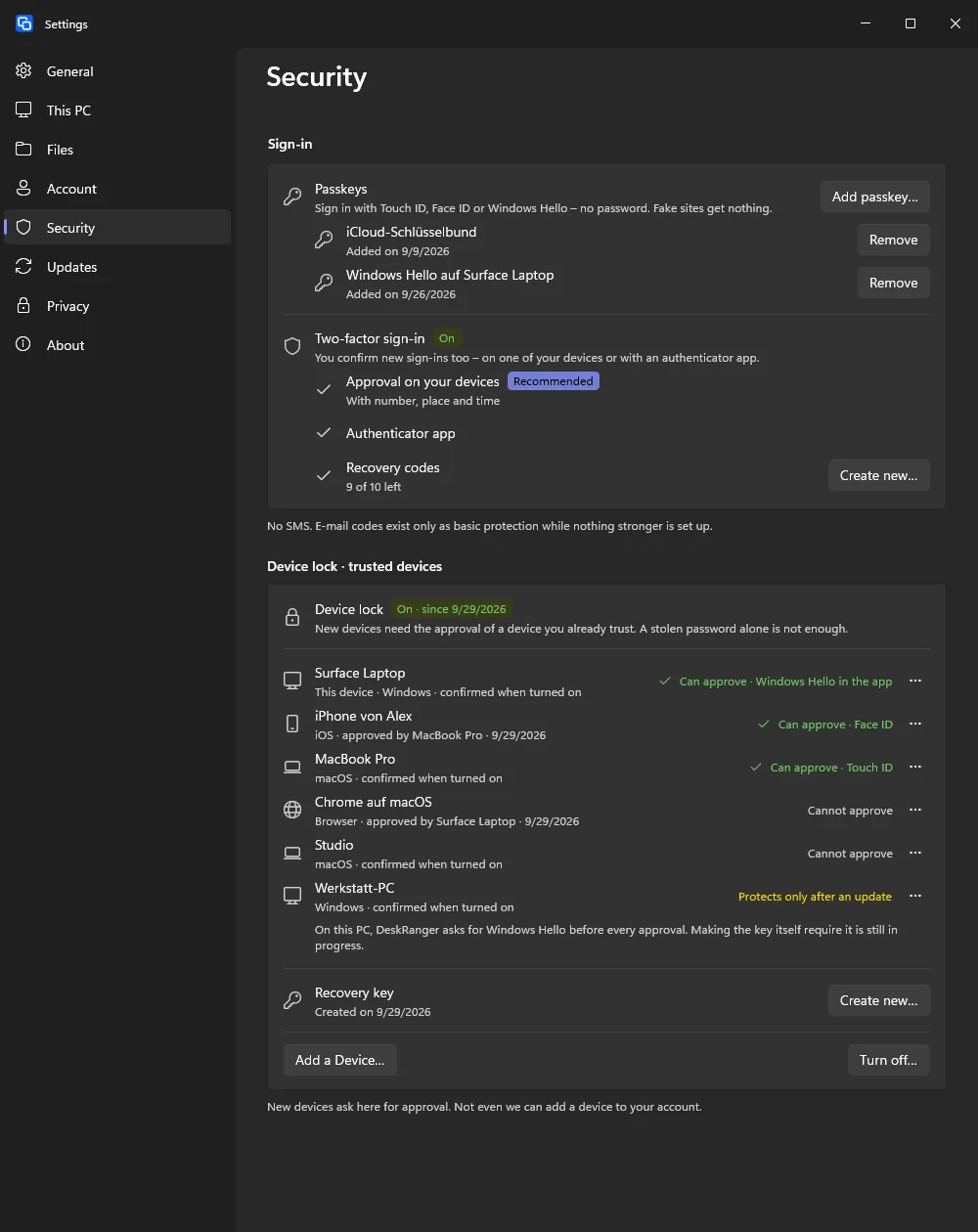
In the settings under Security, choose Turn on… next to Device lock. In four steps you confirm your password, check the list Which devices are yours?, print the recovery key and type it back as a check. A device whose key changed or that was removed before is not ticked in the list. At the end Windows Hello asks for your face, fingerprint or PIN.
For a Windows PC the list says Windows Hello in the app: DeskRanger asks for Windows Hello before every approval. Making the PC's key itself require Windows Hello is still in progress.
iPhone & iPad
This function is planned for iPhone & iPad.
Approving a new device
- Sign in on the new device. It shows that it is waiting for approval.
- Open DeskRanger on a device you already trust. The request shows up there with the device, the approximate place and the time.
- The new device now shows a six-digit code. Type it on the trusted device and confirm with Touch ID, Face ID, Windows Hello or the device password.
Only approve when you have the new device in front of you. DeskRanger never asks for this code on the phone.
macOS
A trusted Mac shows A new device wants to join your account as a notification and above the device list. View… opens the request; type the code and choose Approve. If you don’t recognize the request, choose This Wasn’t Me.
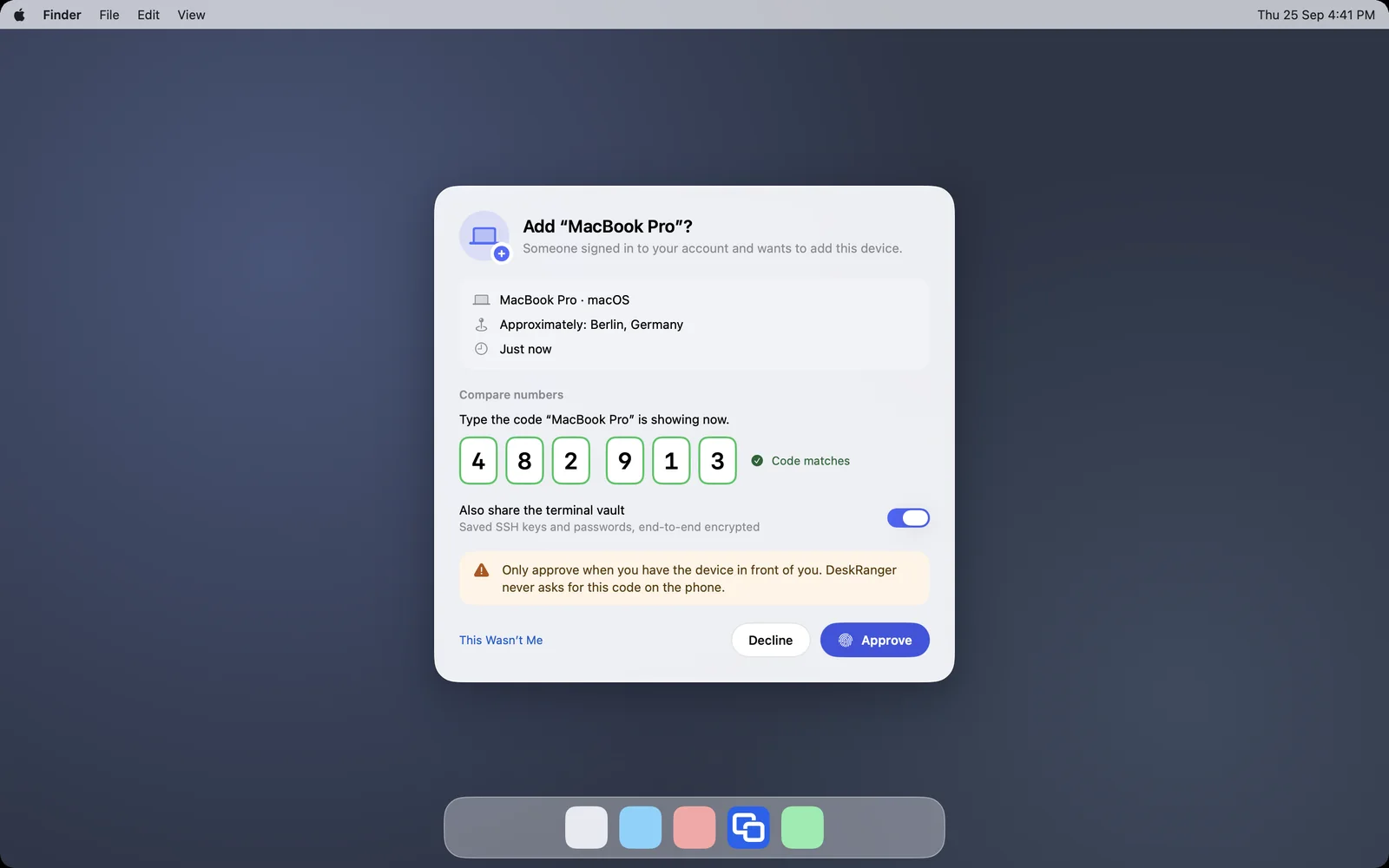
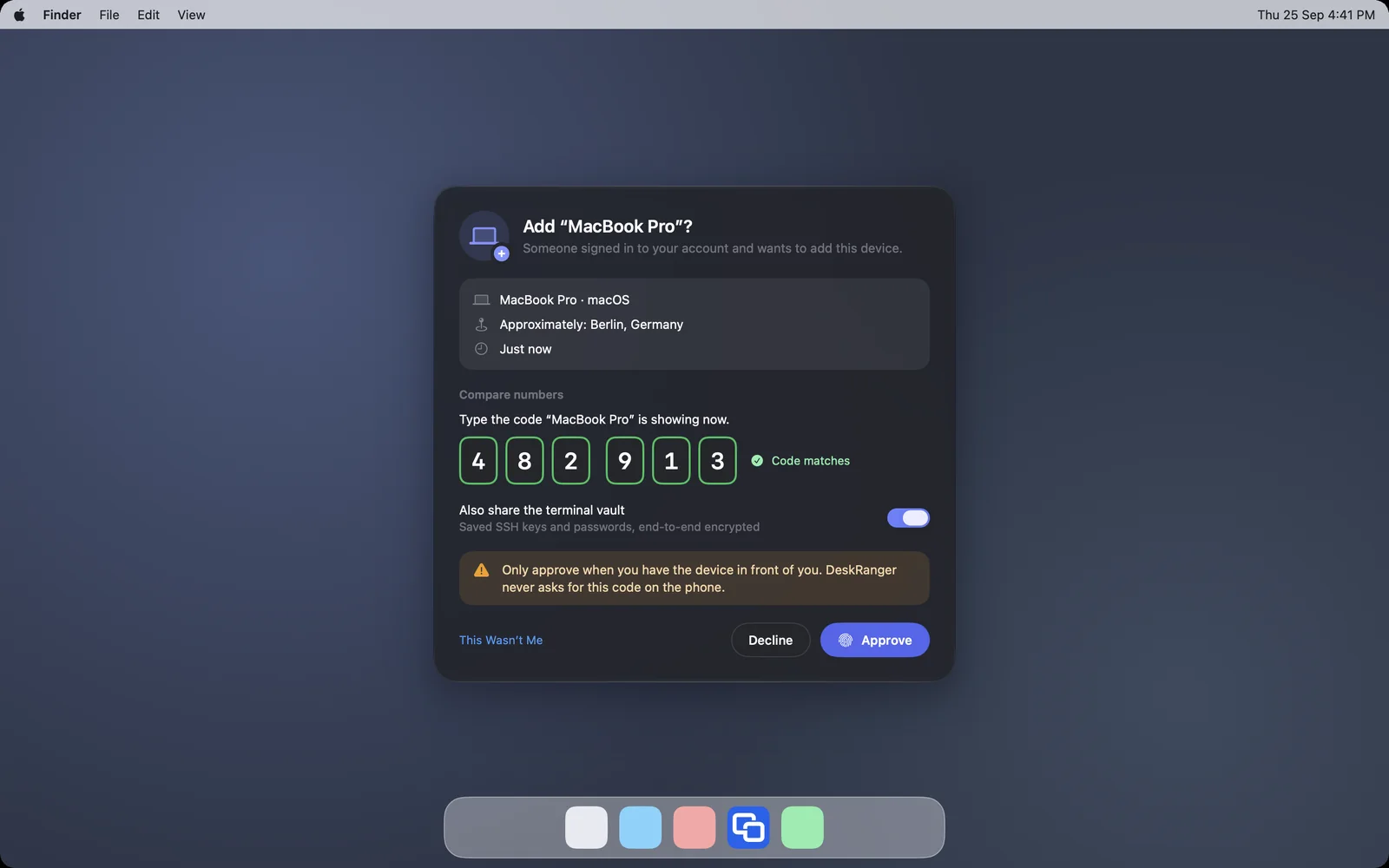
A new Mac shows This device is waiting for approval until it is approved, and then the code. No trusted device at hand? It offers No trusted device at hand? Approve with recovery key.
After the approval the new Mac names the device that approved it. If that wasn’t you, choose No, That Wasn’t Me: the Mac then takes itself out of your account again. Change your password afterwards.
Windows
On a Windows PC the request arrives as the notification A new device wants to join your account; it is also listed under Security. A click opens a window of its own. Only once the typed code matches can you choose Approve; Windows Hello then asks. Approving works only with the PC's own mouse and keyboard, not from a running session.
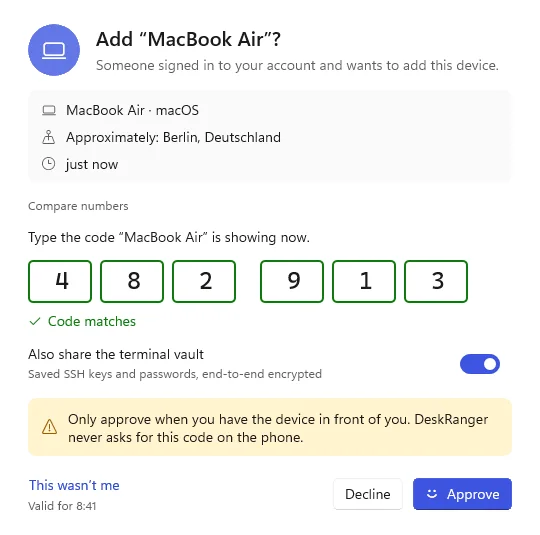
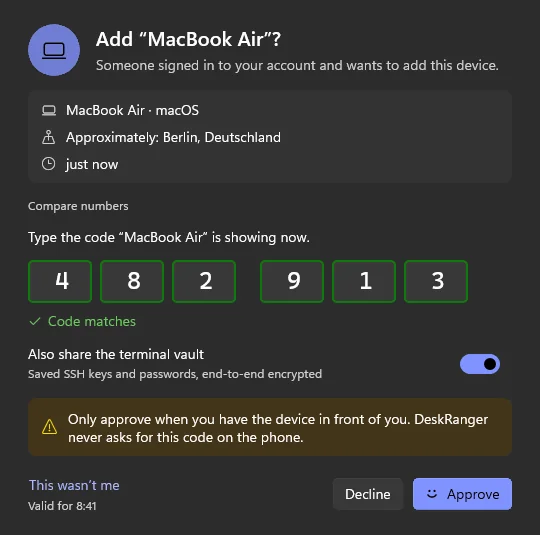
When the PC itself waits for approval, DeskRanger shows This device is waiting for approval instead of your devices and, once a trusted device has opened the request, the code.
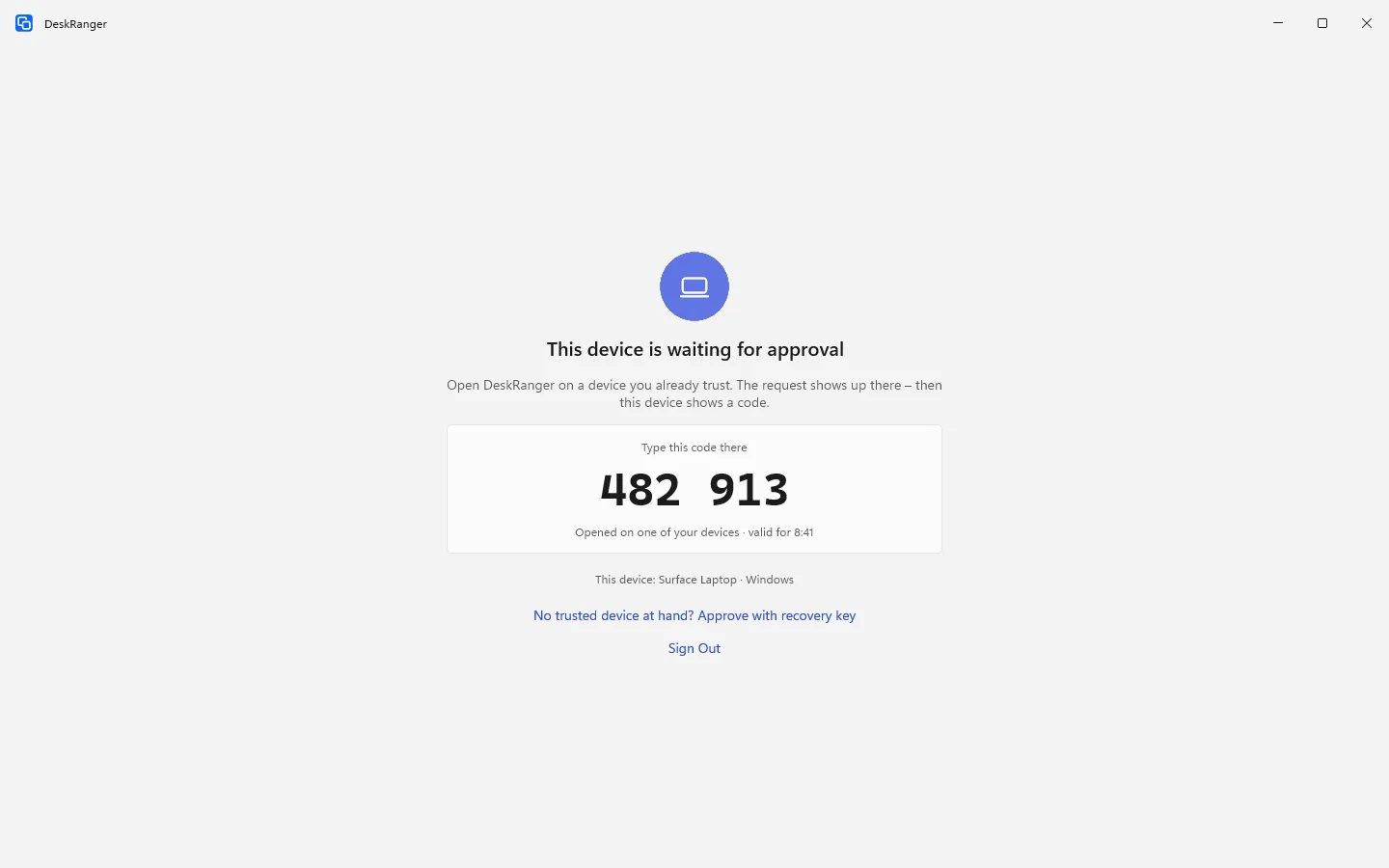
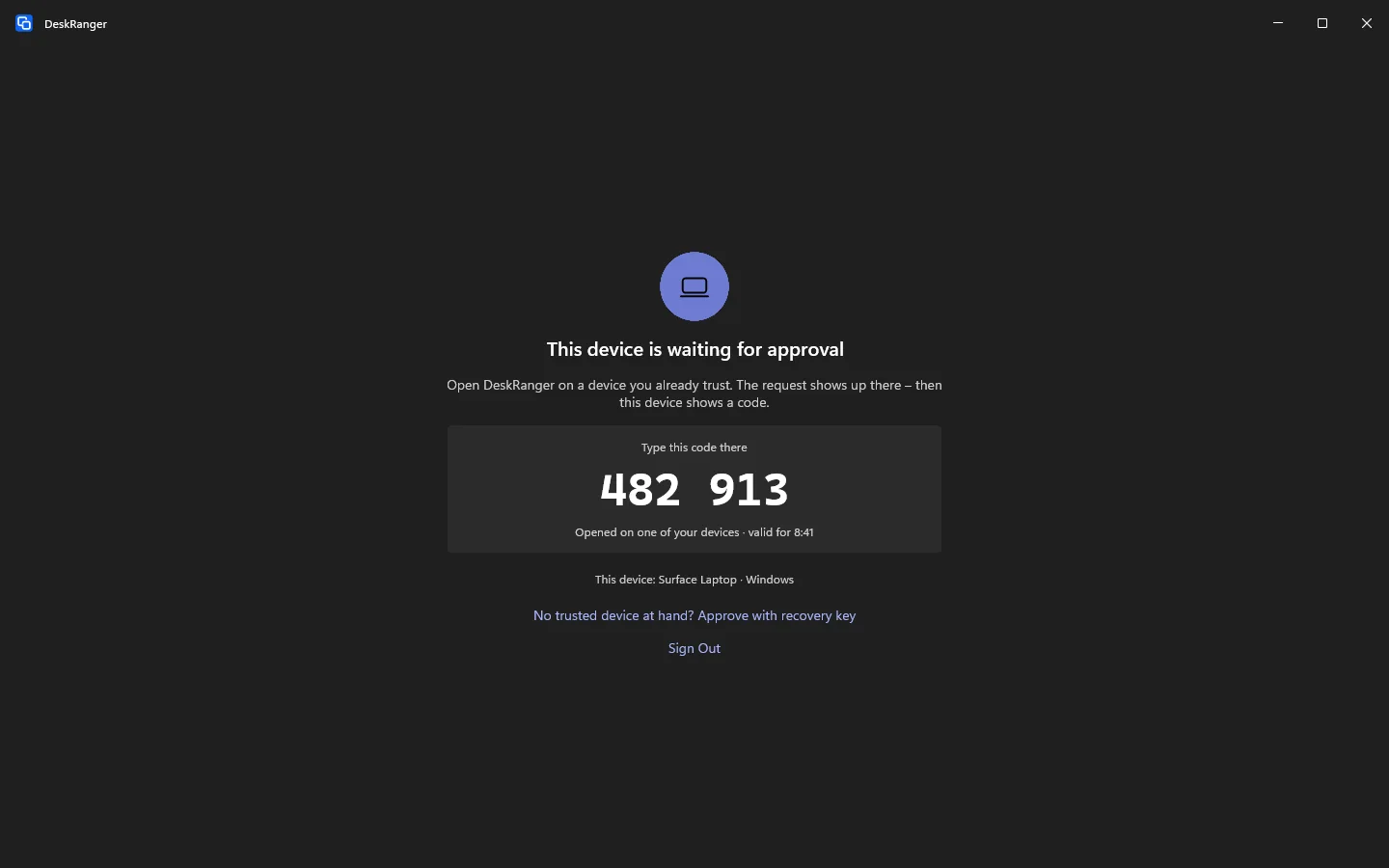
After the approval the PC names the device that approved it. If that wasn’t you, choose No, That Wasn’t Me: the PC then takes itself out of your account again and signs out. Change your password afterwards.
If the PC is also reachable before sign-in, its service is a device of its own and needs an approval too. Security then shows This PC’s service is waiting for approval with the code you type on a trusted device.
iPhone & iPad
This function is planned for iPhone & iPad.
Web
For DeskRanger a browser is a device of its own. With device lock on, the web console shows Approval needed instead of your devices after you sign in. With Ask for approval the browser asks your apps; it then shows This browser is waiting for approval and, once an app has opened the request, the code. If the browser should count only briefly, for example on someone else’s computer, tick Not my computer – the approval lasts only 12 hours first. Withdraw request withdraws the request.
The browser itself never approves anything, and you never type the recovery key into a browser. Under Security the console shows whether device lock is on; turning it on or off works only in an app.
The approximate place
Every request shows roughly where it comes from, for example “Berlin, Germany”. If the place doesn’t fit – a city or country you aren’t in right now –, don’t approve and choose This wasn’t me.
Our service works the place out from the requesting device’s IP address when the request arrives, on our own server and without asking anyone else. We store neither the address nor the place: it is only part of the open request. It is approximate: on a mobile network, through a VPN or a company network it often shows the provider’s location. If no place can be determined, the request names none.
IP geolocation by DB-IP: database “IP to City Lite”, licence CC BY 4.0, cut down by us to city and country.
The recovery key
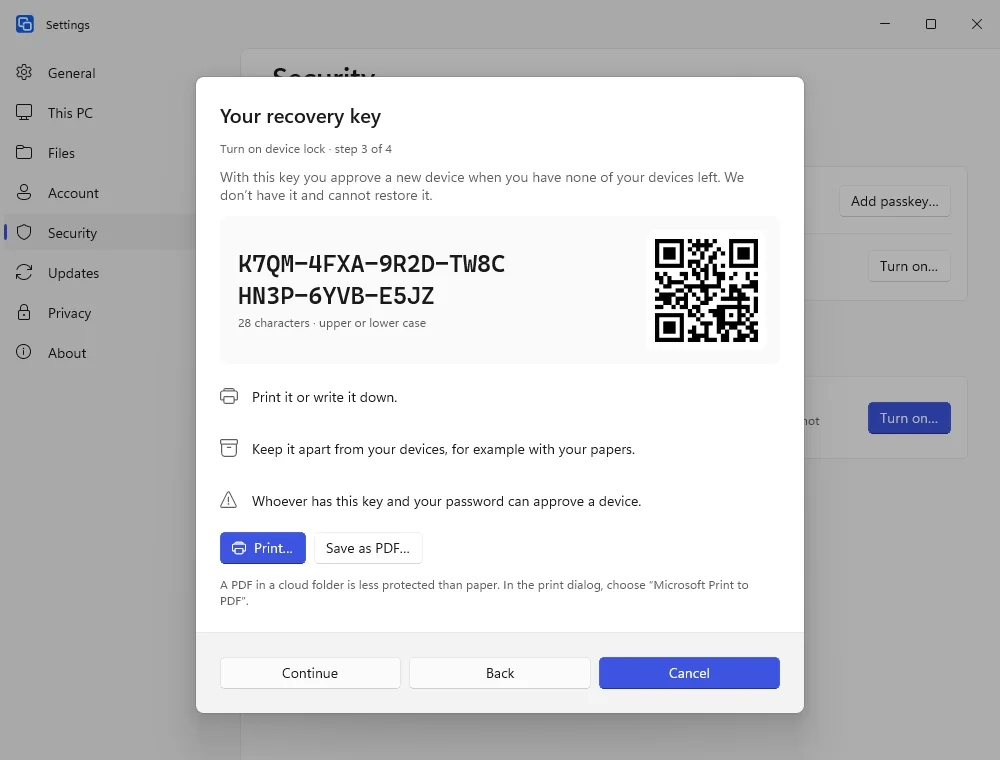
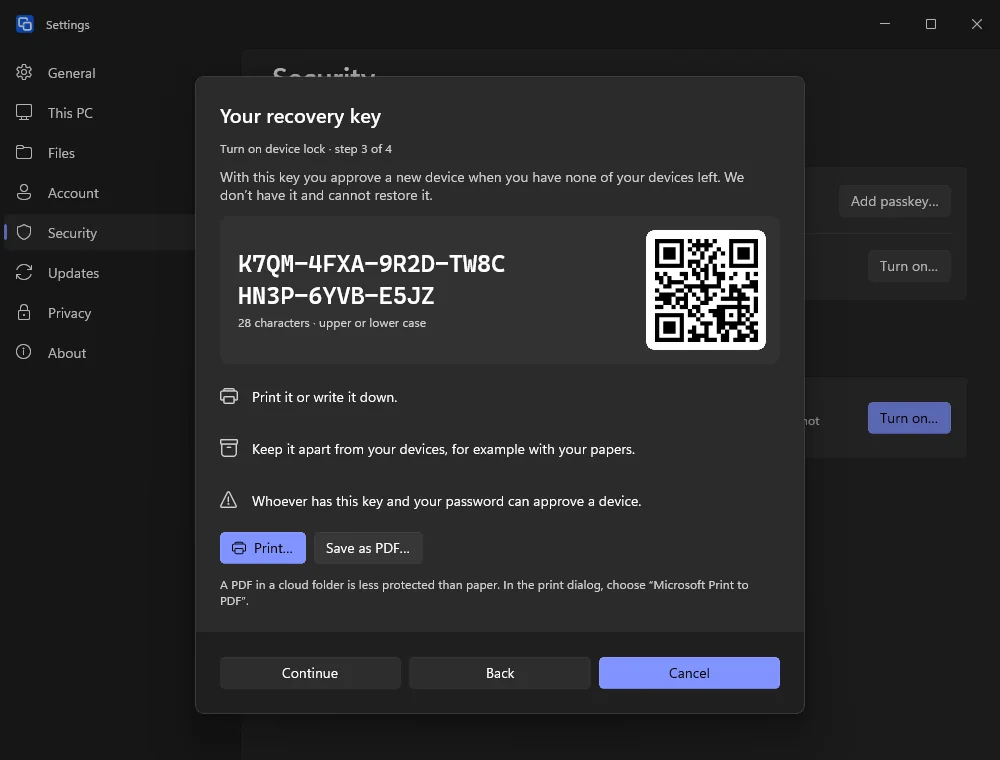
When none of your trusted devices is at hand, the recovery key approves a new device. It has 28 characters in 7 groups and a QR code. When you turn device lock on, you print it and type it back once as a check. We do not keep it and cannot restore it. Keep it apart from your devices; whoever has it and your password can approve a device. After an approval with the key all your devices get a notice, and you best create a new one right away.
macOS
You create a new key under Security at the Recovery key with Create new…. The old one then stops working on every device.
Windows
Print… opens Windows' print dialog; to keep the key as a PDF, choose “Microsoft Print to PDF” there. A PDF in a cloud folder is less protected than paper. On a new PC, choose No trusted device at hand? Approve with recovery key and type the seven groups.
iPhone & iPad
This function is planned for iPhone & iPad.
Removing devices and turning it off
You remove a trusted device in an app under Security. That applies on all your devices, and the device can no longer connect or approve anything. If you remove a device in the web console, our service blocks it at once; an app then asks you to confirm the removal for all devices.
Only a trusted device or your recovery key can turn device lock off – not even we can do that for you. All your devices then get a notice.
macOS
Under Security, open the device’s menu and choose Remove…. Turn off… turns device lock off with Touch ID on this Mac or with the recovery key.
Windows
Under Security, “…” next to a device opens Remove…. Turn off… asks how you confirm: With Windows Hello on this PC, or with the recovery key.
iPhone & iPad
This function is planned for iPhone & iPad.
Lost every device
- With the recovery key: use it to approve a new device.
- Without the key: you can start device lock over after 7 days. Until then your e-mail address and all signed-in devices get a notice. Old devices follow the new start only when someone confirms it there. Your terminal vault is lost then.
macOS
A Mac that doesn’t know about the new start yet shows Device lock was started over under Security. Choose Accept… only if you started over yourself. Otherwise choose Don’t Accept and change your password right away.
If two versions of your trusted-device list don’t match, it shows The device list doesn’t add up. Resolve… shows what the other version changed: devices it removed are ticked and are removed here too – only untick a device that is surely yours. Devices only it added stay out. Keep This List keeps this Mac’s list. If the other version replaced the recovery key, create a new one afterwards.
Windows
A PC that doesn’t know about the new start yet shows Device lock was started over under Security. Choose Accept… only if you started over yourself. Otherwise choose Don’t Accept and change your password right away.
If two versions of your trusted-device list don’t match, it shows The device list doesn’t add up. Resolve… shows which devices the other version removed – this PC removes the ticked ones too – and which only it added; those stay out. You confirm Keep This List with Windows Hello.
iPhone & iPad
This function is planned for iPhone & iPad.
If it doesn’t work
None of your trusted devices has opened the request. Open DeskRanger on one of them; on iPhone or iPad requests show up when you open the app. The request is valid for 10 minutes; after that choose Send again.
A wrong code was typed three times on the trusted device. Make sure you type this device’s code, and choose Send again.
This web console cannot have the browser approved as a device, for example because the browser is too old for it. You see your devices in every DeskRanger app.
A running connection – a session, a terminal or access through the device – ends at once when one of the two devices is no longer trusted: it was removed, its approval expired (for example a browser on someone else’s computer), or the lists of your trusted devices don’t match. Which devices belong, you see on a trusted device under Security. A removed device connects again only after you approve it anew.
With device lock, only devices that both know each other as trusted connect. Either this device is not approved yet or was removed, or the other device is not trusted here. Which devices belong, you see on a trusted device under Security; you approve a new device there.
Access through one of your devices – remote desktop or SSH – runs only through a device that device lock knows as trusted on both sides. Approve the access device, or choose a trusted device in the access settings.