You sign in with Touch ID, Face ID, Windows Hello or the screen lock of your Android device, without a password at all. A passkey belongs to deskranger.app: a fake site cannot do anything with it.
A passkey is a complete sign-in
Set up with “Add passkey” in the settings
In the web console “Sign in with a passkey” is above the form
Second factor, strong to weak
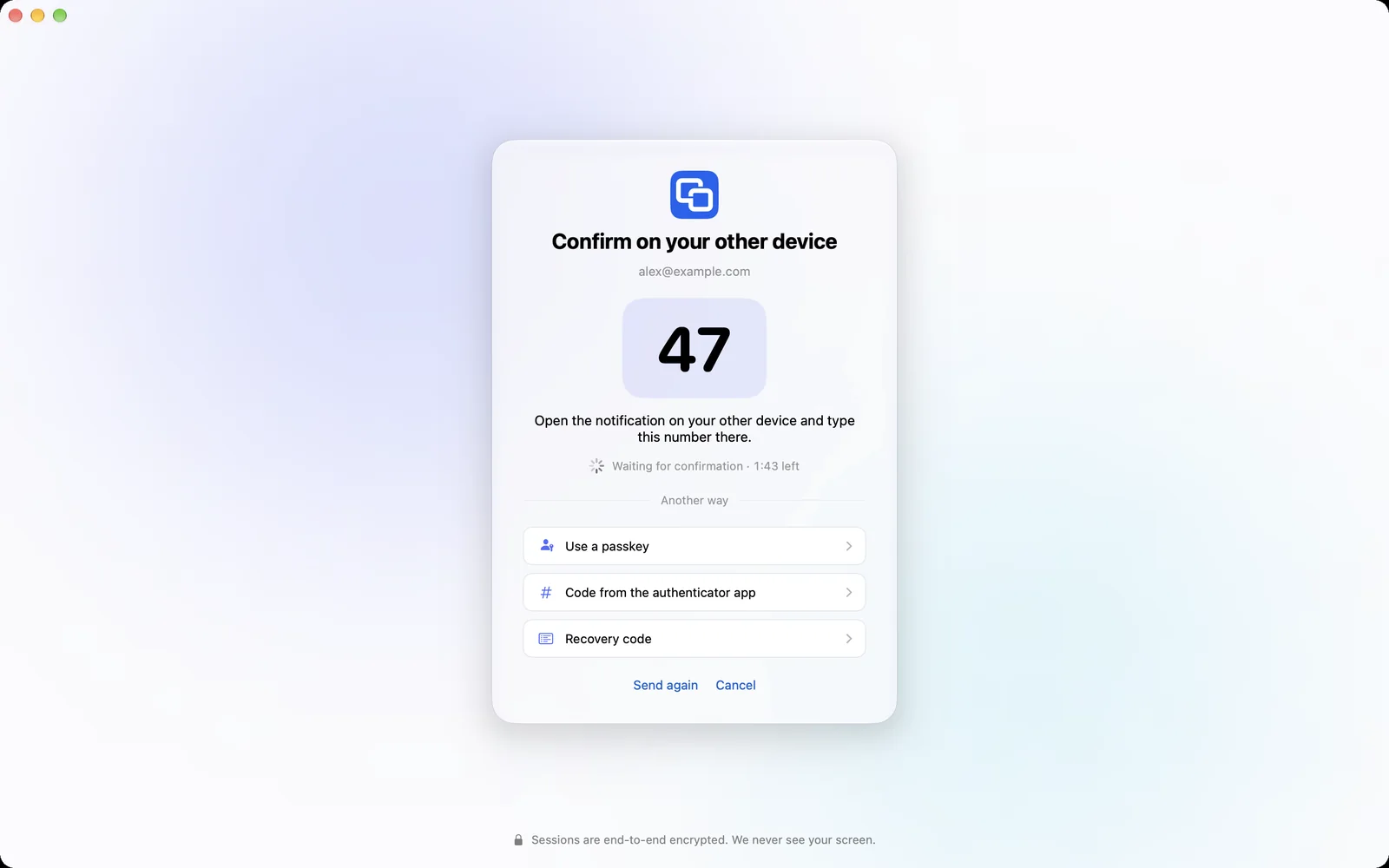
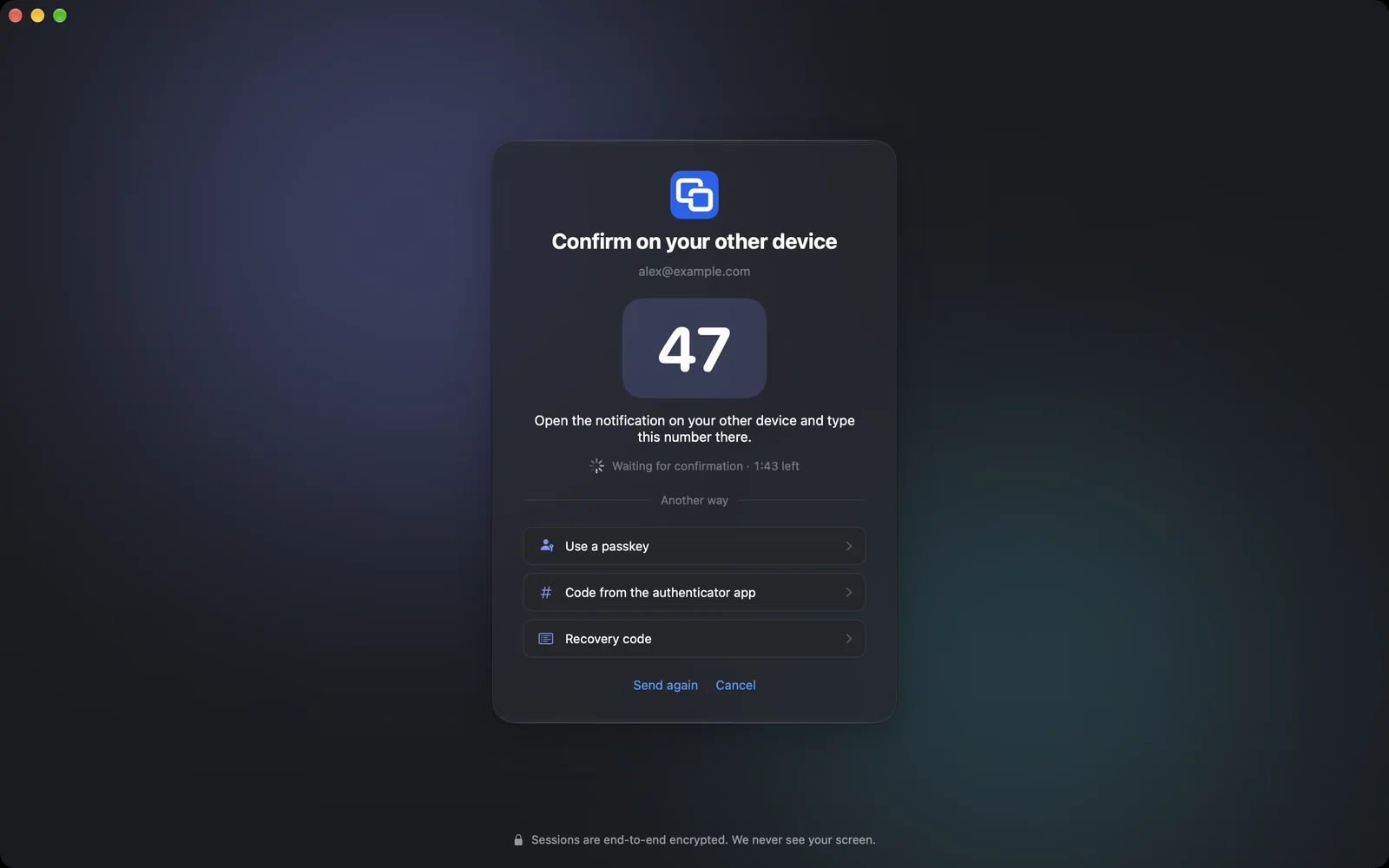
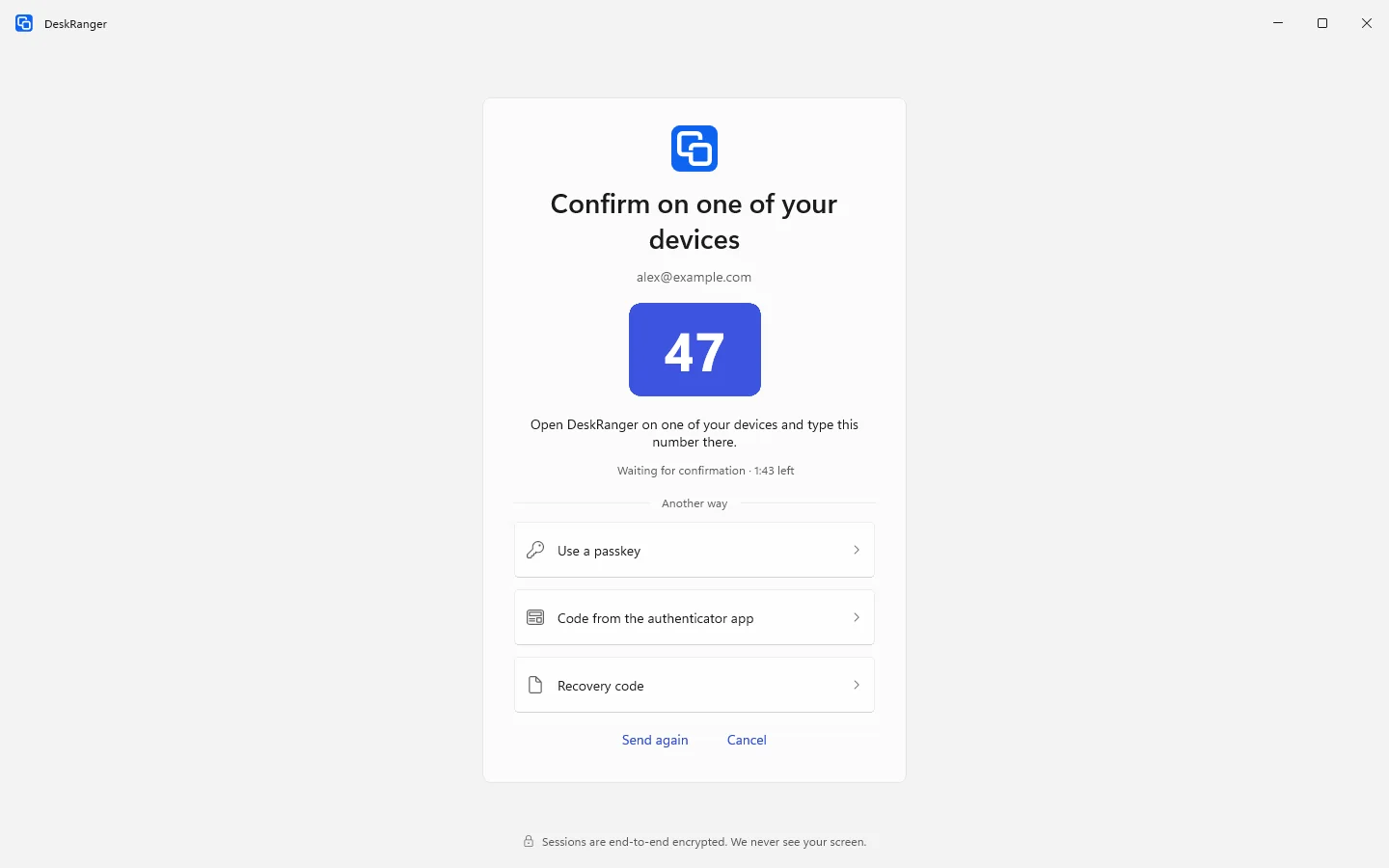
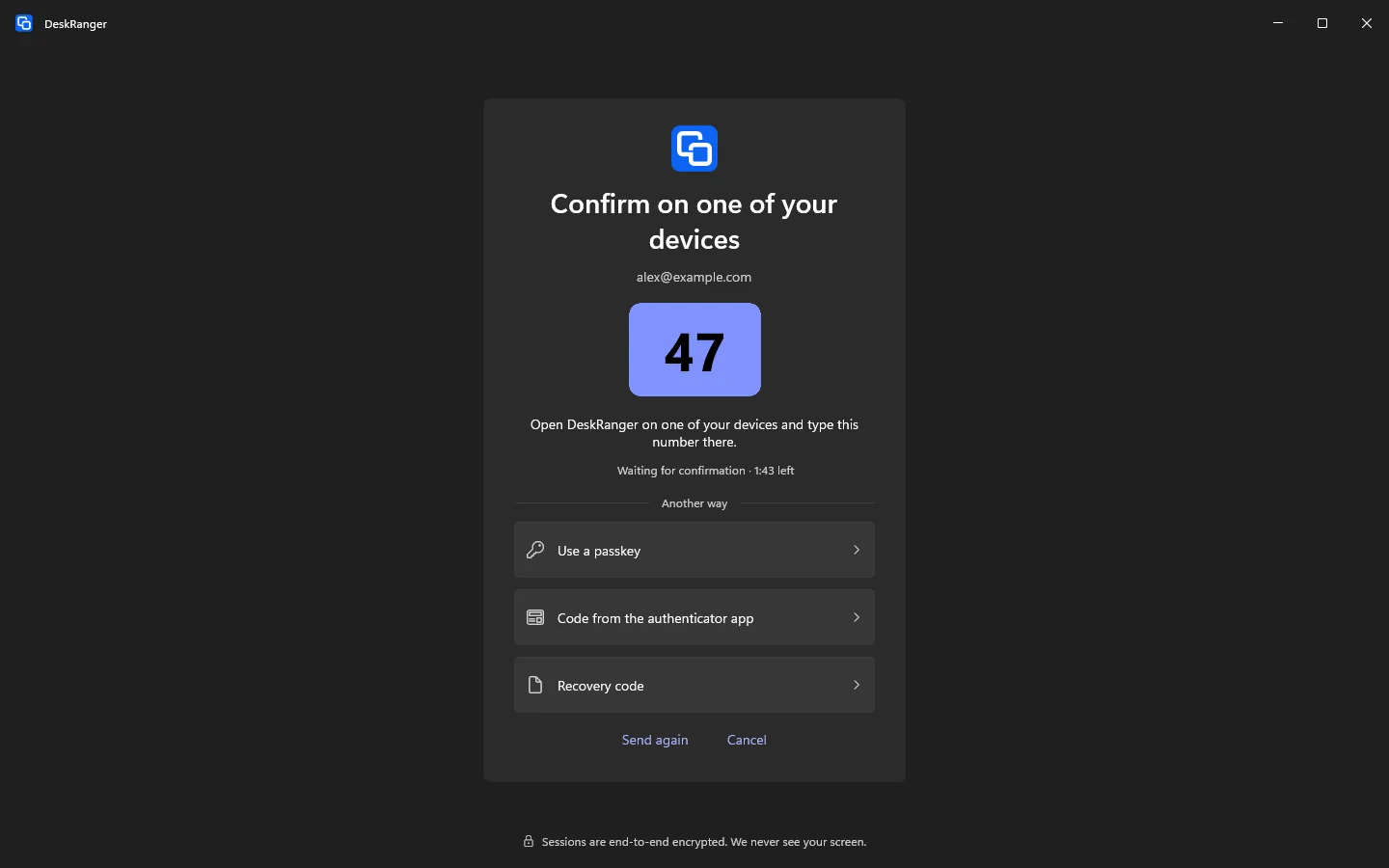
After the password you confirm the sign-in once more: with a number you type on another of your devices, with a code from an authenticator app or with one of ten recovery codes.
The request shows device or browser, approximate place and time
iPhone, iPad and Android notify you of the request even with the app closed
Every recovery code works once; you can create new ones at any time
DeskRanger never asks for a number or code on the phone
Without set-up: code by e-mail
If you have set up none of them, you can choose the basic protection: at every new sign-in we send you a six-digit code by e-mail. It is valid for 10 minutes and only for that one sign-in. There are no codes by SMS.
Apple counts as complete; with Google and Microsoft we ask again when the second factor is on
Never enough for Secure, switching off two-factor or deleting the account
Confirm before important changes
Before you change your e-mail address or password, delete the account or change passkeys and two-factor sign-in, DeskRanger asks once more. It then applies for 5 minutes and only for that one change.
On a trusted device Touch ID, Face ID or Windows Hello is enough
Phone gone: remove it from another device or sign in with a recovery code
Nothing left: a 7-day wait, with notices beforehand and a chance to cancel
Sign in a server without a screen by code
A server or NAS without a screen signs in with a code: you start deskranger login --code there, the device shows an eight-character code, and you confirm it in DeskRanger on your Mac, Windows PC, iPhone, iPad or Android phone.