Help › How & why
Two-factor sign-in and passkeys
So that a stolen password alone is not enough: passkeys, the approval on your devices, an authenticator app and recovery codes.
With Two-factor sign-in you confirm a new sign-in in addition to the password. Someone who only knows your password, for example from a data leak, then cannot get into your account. Everything here is free.
The ways, from strong to weak
- Passkeys. You sign in with Touch ID, Face ID or Windows Hello, without any password. A passkey belongs to deskranger.app: a fake site gets nothing from it. A passkey is a complete sign-in.
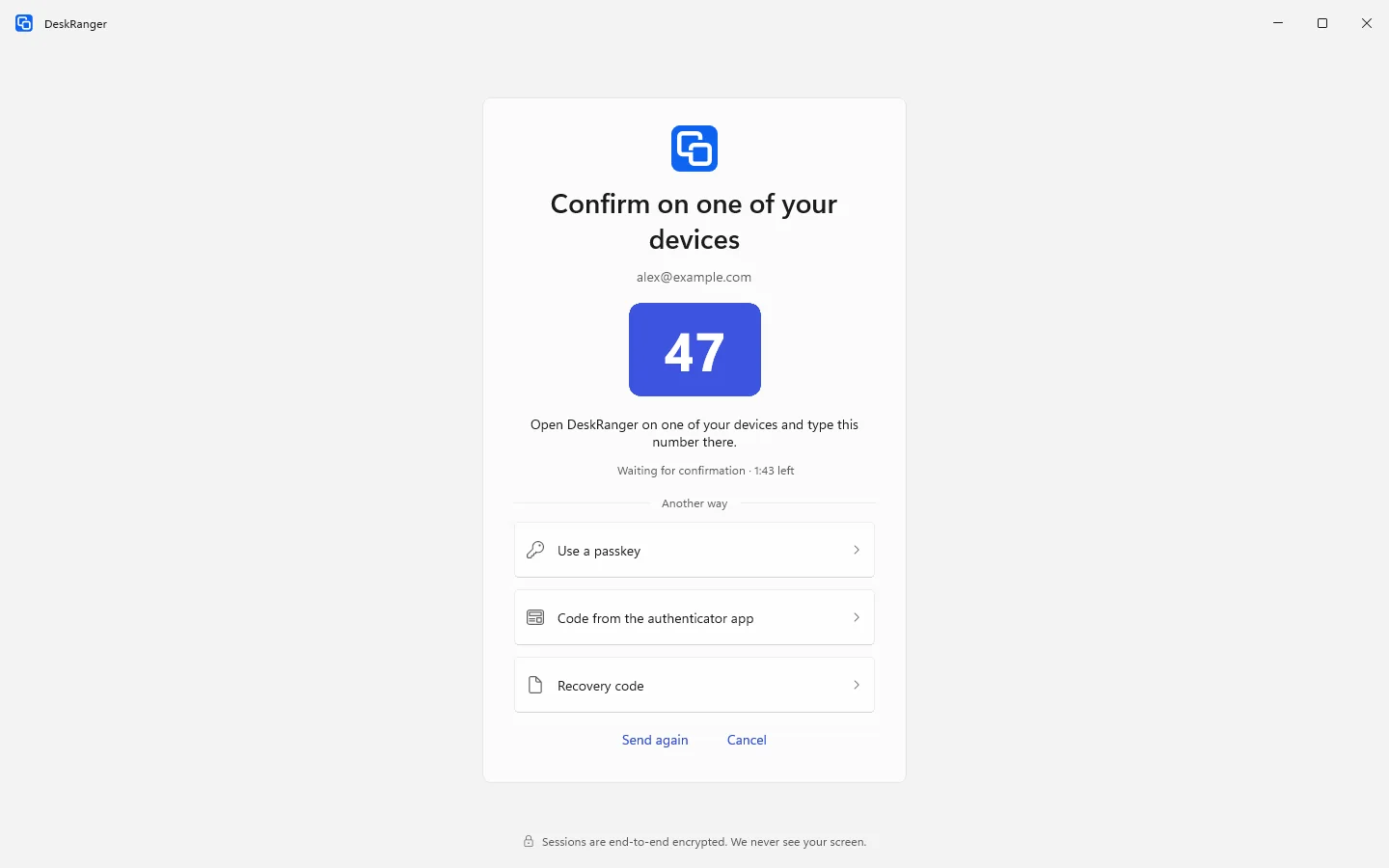
- Approval on your devices. The sign-in shows a number, for example 47. On one of your devices with DeskRanger you open the request and type this number. The request also shows which device or browser is signing in, roughly where and when.
- Authenticator app. A six-digit code from an app on your phone, even without DeskRanger on it.
- Recovery codes. Ten codes to print, each valid once. You get them when you turn two-factor sign-in on, and you can create new ones at any time.
DeskRanger never asks for a number or a code on the phone. If someone calls you about it, it is a scam: type nothing and decline the request on your device.
macOS
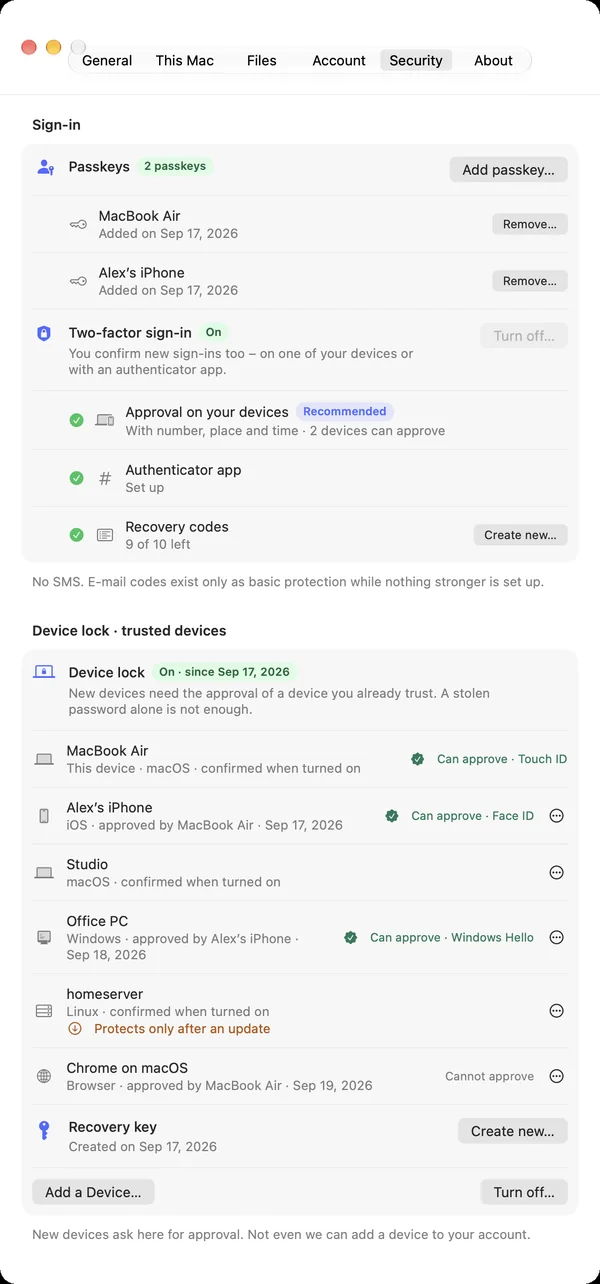
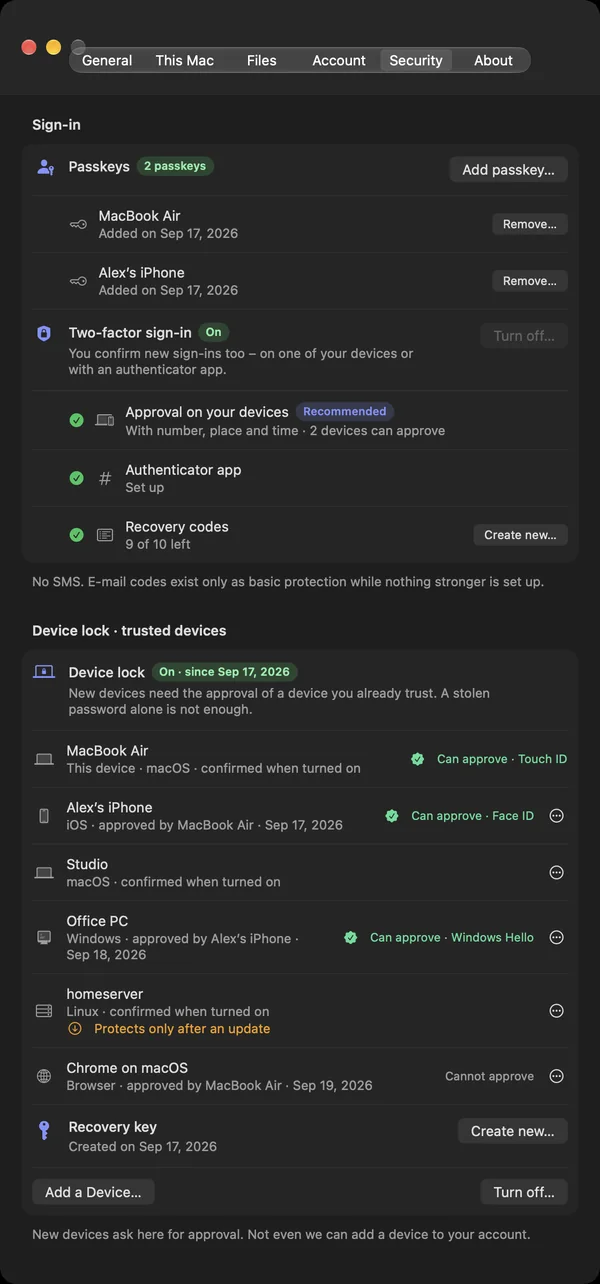
Settings (⌘,) › Security › Two-factor sign-in › Turn on…. With a second DeskRanger device, Approval on your devices applies at once; otherwise you set up an Authenticator app. DeskRanger then shows your Recovery codes once. You create a passkey with Add passkey….
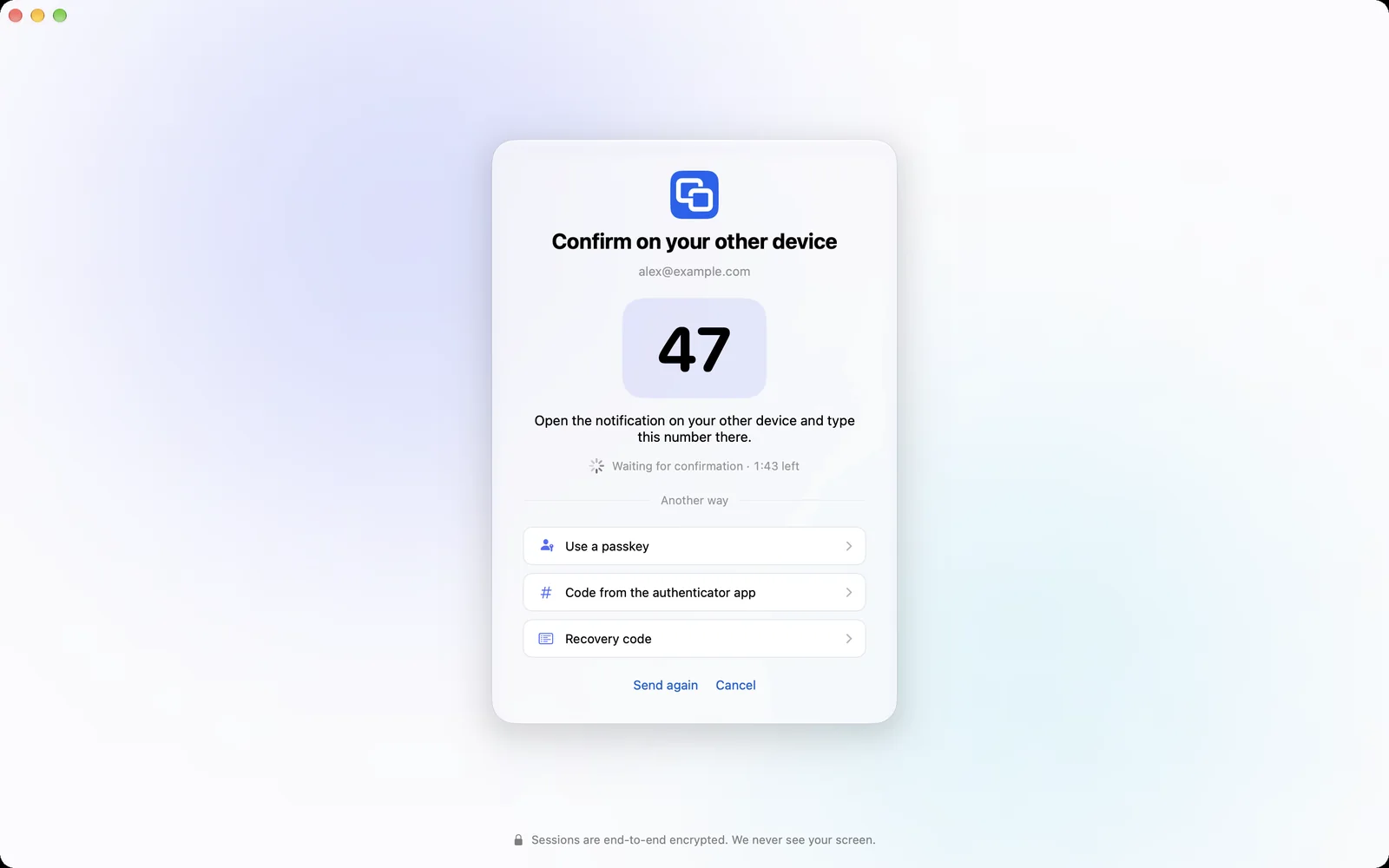
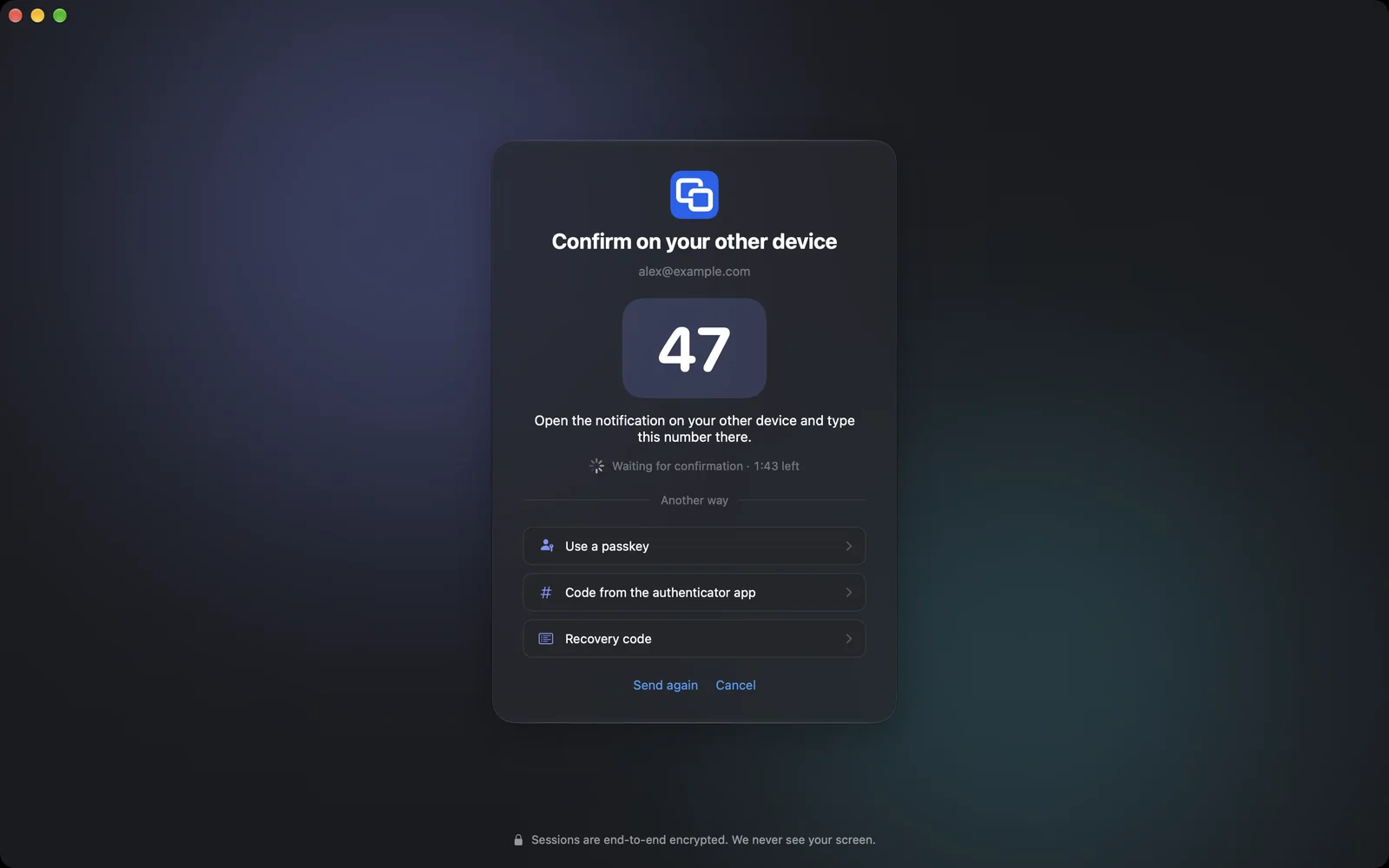
When you sign in, the Mac shows the number after the password, and you type it on your other device; Another way lists the other ways. If the Mac is already trusted, it confirms the sign-in itself with Touch ID.
Windows
In the settings under Security you turn on Two-factor sign-in, set up an Authenticator app and create new Recovery codes. Add passkey… opens Windows' passkey window: Windows Hello, a phone or a security key.
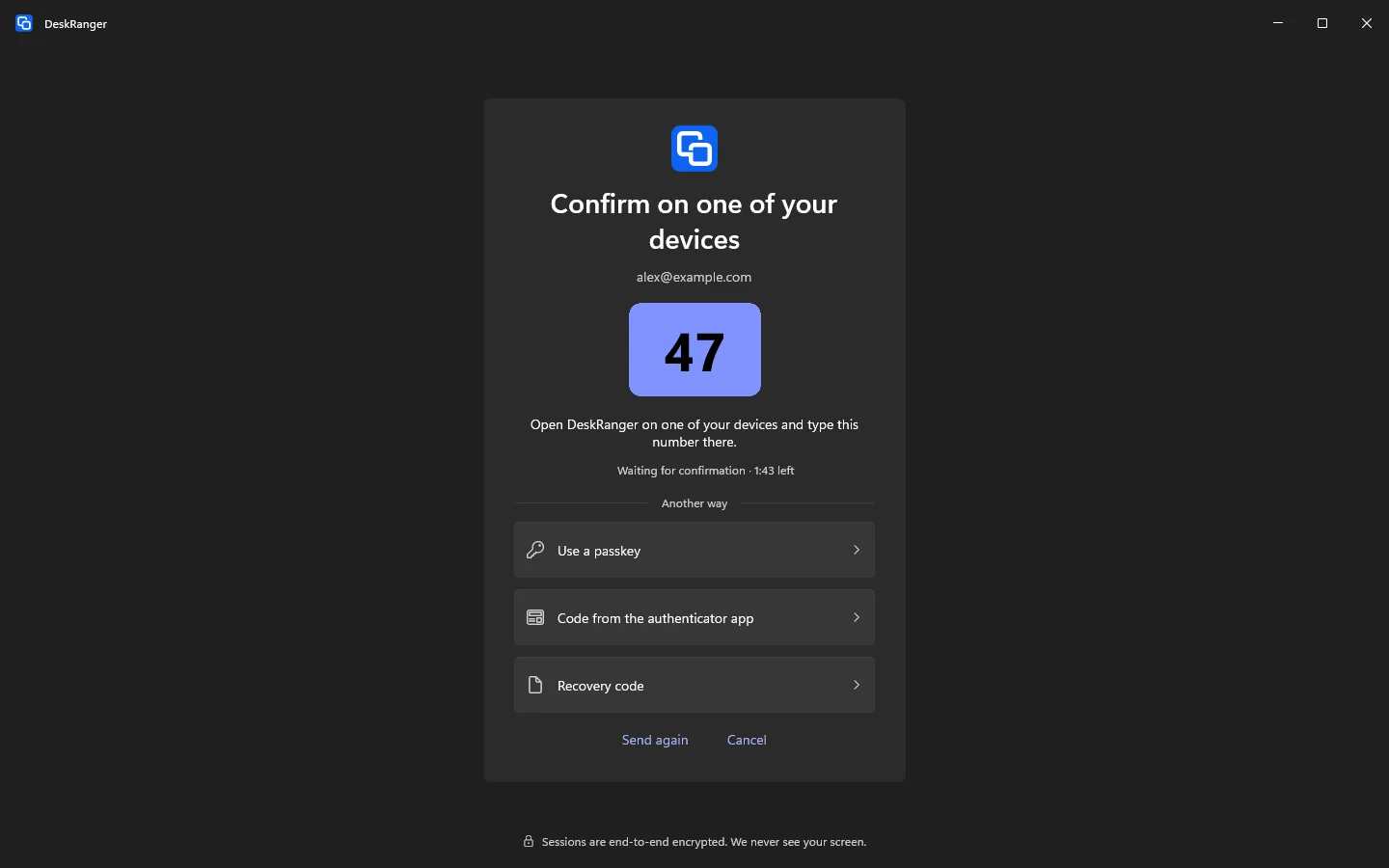
After the password the sign-in shows Confirm on one of your devices with the number; below it, Another way lists the other ways. If the PC itself is already a trusted device, you confirm With Windows Hello on this PC.
iPhone & iPad
This function is planned for iPhone & iPad.
Web
In the web console everything is under Security. When you sign in, Sign in with a passkey is above the form. After the password the console shows Confirm on one of your devices with the number; below it, Another way lists the other ways. The browser itself never confirms anything: you always type the number in a DeskRanger app.
You add passkeys under Security with Add passkey…. The browser or your system then asks for Touch ID, Face ID, Windows Hello or a security key.
Basic protection: code by e-mail
If you have set up none of these, you can choose Basic protection as a light tier: for every new sign-in we send you a six-digit code by e-mail. It is valid for 10 minutes and only for this one sign-in, and the mail never contains a link that signs you in by itself.
This helps against a stolen or reused password. It does not help when someone also has your mailbox, because resetting the password goes through e-mail too. That is why basic protection never counts for device lock, for turning two-factor sign-in off or for deleting the account. Once you set up a passkey, an authenticator app or a second device, the e-mail code is off.
Signing in with Apple, Google or Microsoft
- Apple itself requires two-factor sign-in for the Apple Account. A sign-in with Apple therefore counts as complete.
- Google and Microsoft do not tell us whether you use two-step verification there. If two-factor sign-in is on at DeskRanger, we ask once more after Google or Microsoft.
Confirming before important changes
Before you change your e-mail address or your password, delete the account or change passkeys and two-factor sign-in, DeskRanger asks once more: Confirm it’s you. That then counts for 5 minutes and only for this one change. With two-factor sign-in off, your password is enough.
macOS
On the Mac, Confirm it’s you appears as a window. If the Mac is a trusted device, Touch ID on this Mac is enough; otherwise the window lists the other ways.
Windows
On a Windows PC a window Confirm it’s you shows the ways that count for this change. If the PC is a trusted device, With Windows Hello on this PC is at the top.
iPhone & iPad
This function is planned for iPhone & iPad.
Web
In the web console a window shows the ways that count for this change: a passkey, the approval on one of your devices, an authenticator app or a recovery code.
Lost your phone
- Other devices are still there: remove the phone from another device. The approval on your devices keeps working, and passkeys in iCloud or with Google stay with you.
- Only the authenticator app was on the phone: sign in with a recovery code and set the app up again.
- Nothing left: request account recovery when you sign in. After a 7-day wait, two-factor sign-in is off and you set it up again. Until then your e-mail address and all signed-in devices get a notice, and you can cancel from any of them. Device lock is not affected.
A password reset never turns two-factor sign-in off.
If it doesn’t work
The sign-in was declined on one of your devices. If it was you, choose Send again. If it was not, change your password.
None of your devices with DeskRanger can be reached right now. Open DeskRanger on one of them; on iPhone or iPad requests show up when you open the app. Or take another way under Another way.
Check that your phone’s time is right: authenticator codes depend on the clock. A recovery code works only once.