Help › Getting started
Create an account and sign in
One account for all your devices: with email and password, or with Apple or Google.
You sign in with the same account on all your devices. That is how they find each other, and how your own devices may connect to one another.
Create an account
macOS
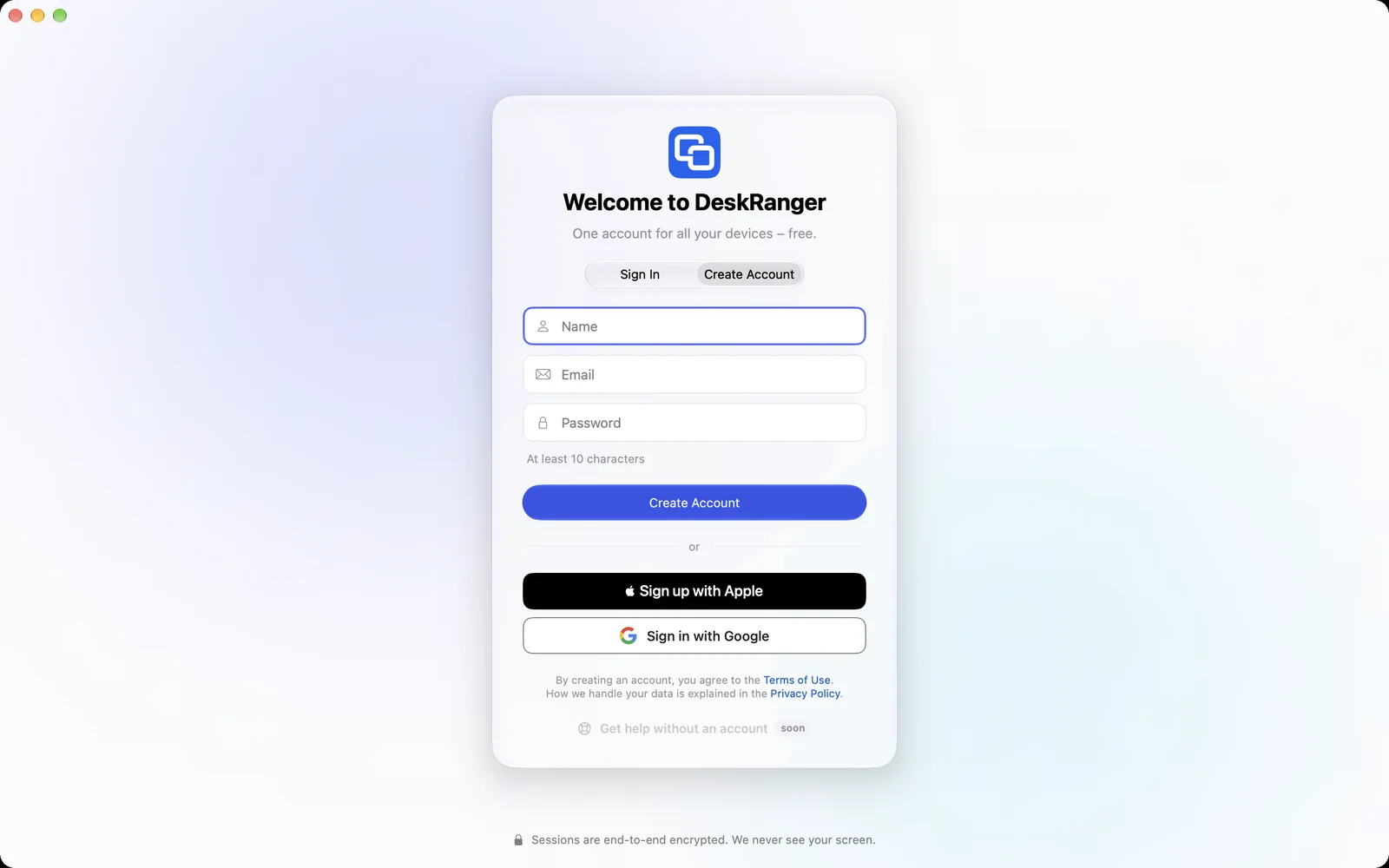
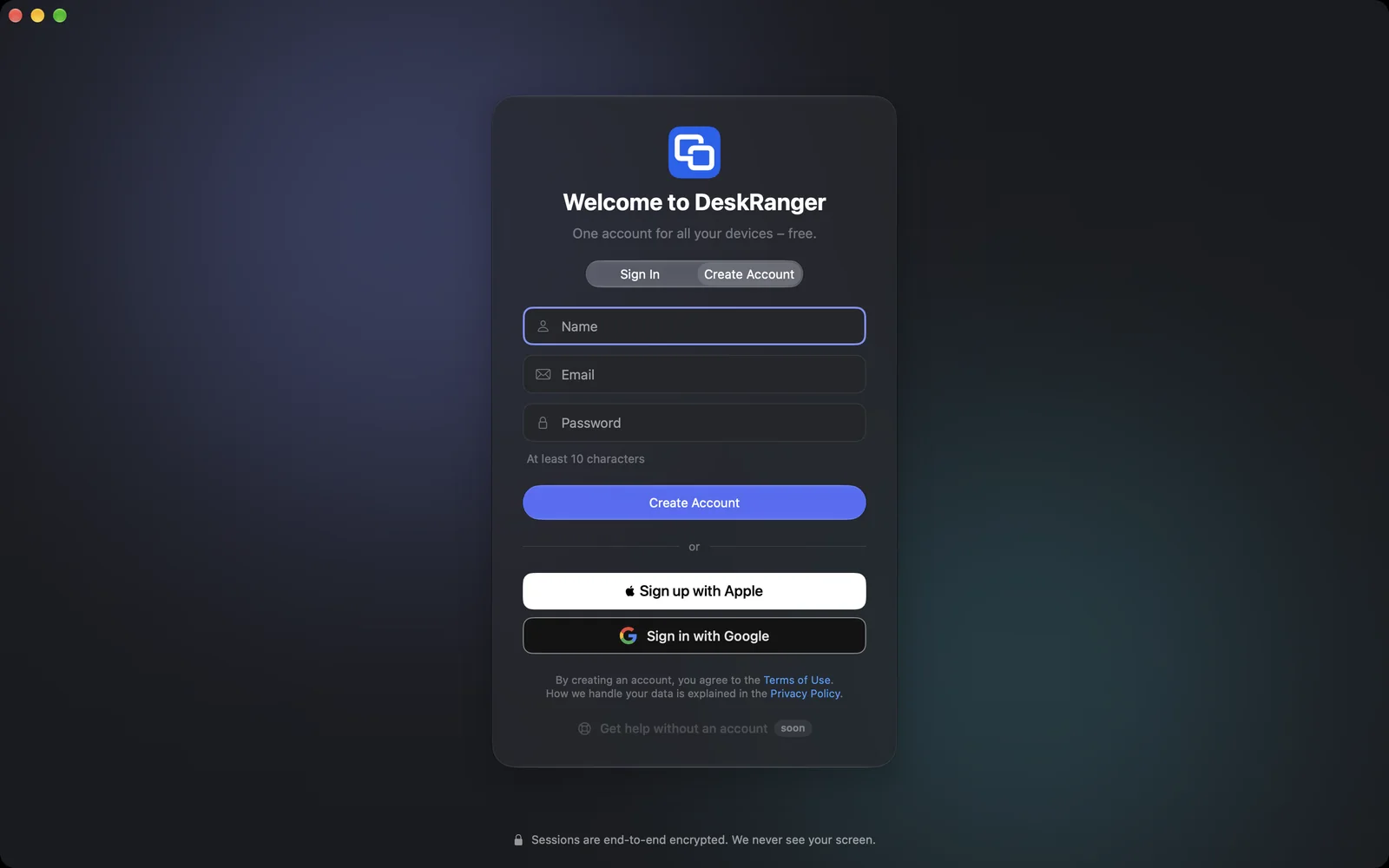
- Open DeskRanger and choose Create Account.
- Enter Name, Email and Password and confirm with Create Account.
- Or use Sign in with Apple or Sign in with Google. If there is no account yet, DeskRanger creates it on the first sign-in. Google opens in a browser window.
Windows
This function is coming soon to Windows.
iPhone & iPad
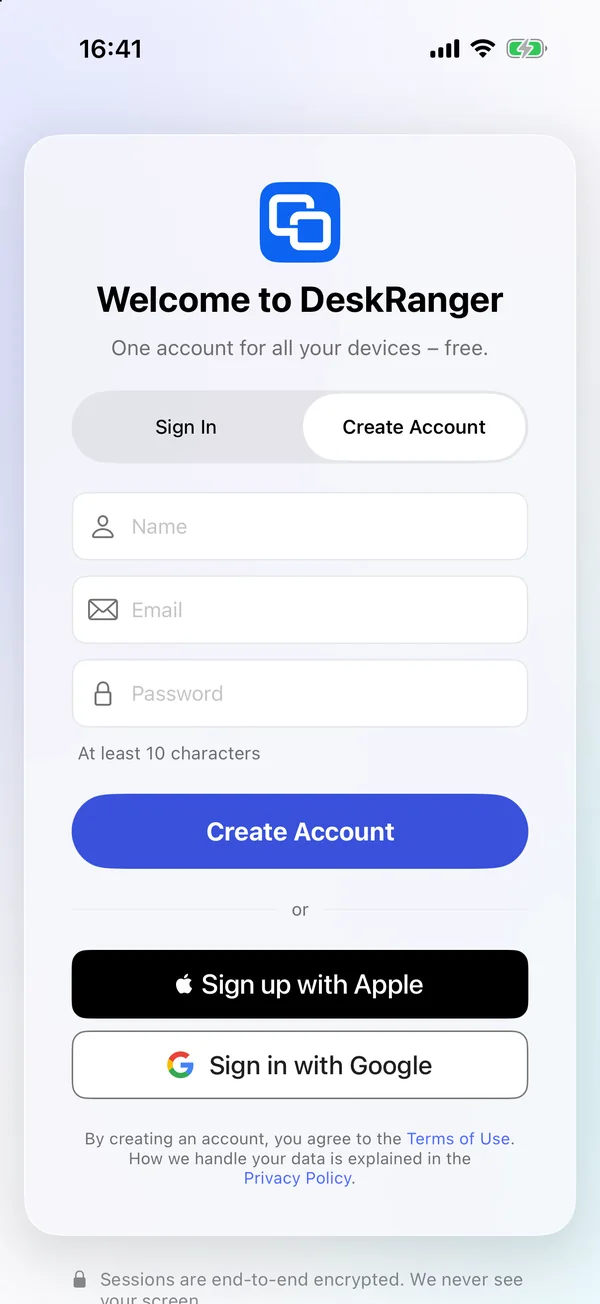
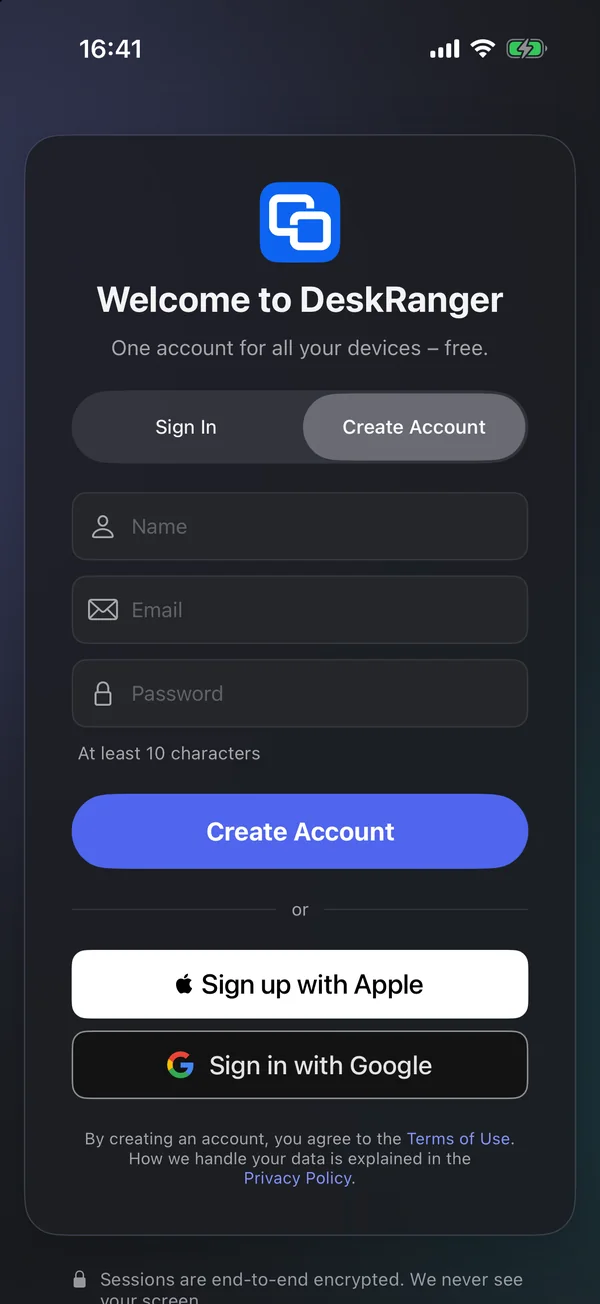
- Open DeskRanger and tap Create Account.
- Enter Name, Email and Password, or use Sign in with Apple or Sign in with Google.
Web
In the web console you sign in with email and password. A new account is created there only through Sign in with Apple or Sign in with Google; otherwise create it in an app.
Below the form, DeskRanger links the Terms of Use and the Privacy Policy. By creating the account you agree to the Terms of Use.
Apple or Google for an existing account
If you already have an account with a password, DeskRanger joins an Apple or Google sign-in to it only when both have confirmed the same email address. That way nobody gets into your account with someone else’s address.
Confirm your account’s email address first: sign in with your password and choose Confirm Email under Account. After that, signing in with Apple or Google works.
Delete the account
macOS
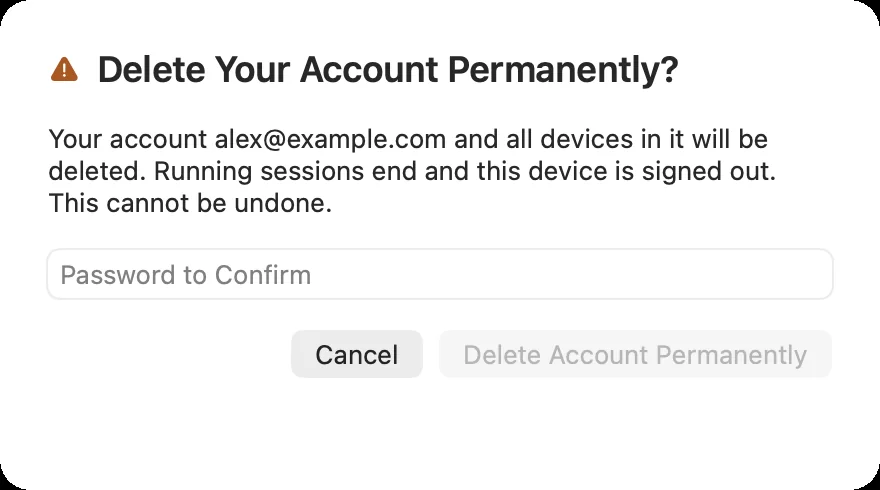
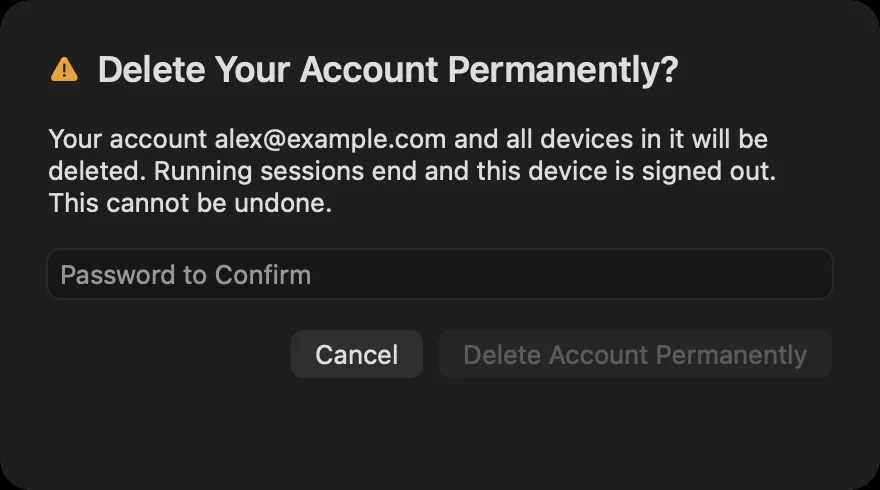
Settings (⌘,) › Account › Delete Account…. You confirm with your password; an account without a password is confirmed with Apple or Google.
Windows
This function is coming soon to Windows.
iPhone & iPad
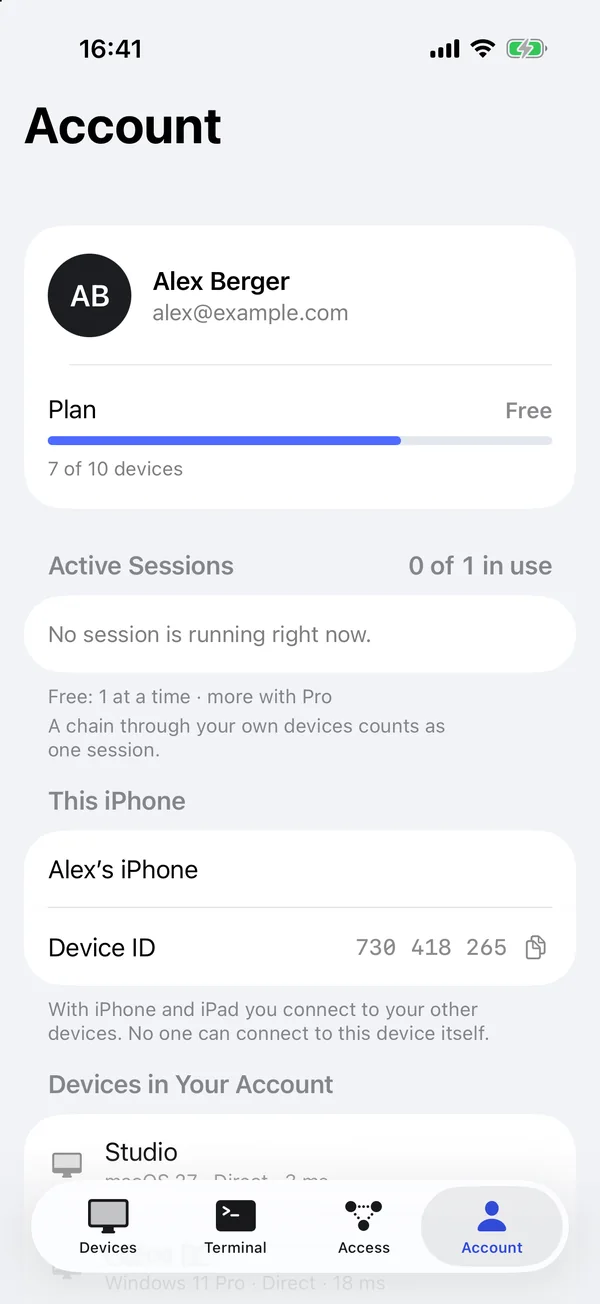
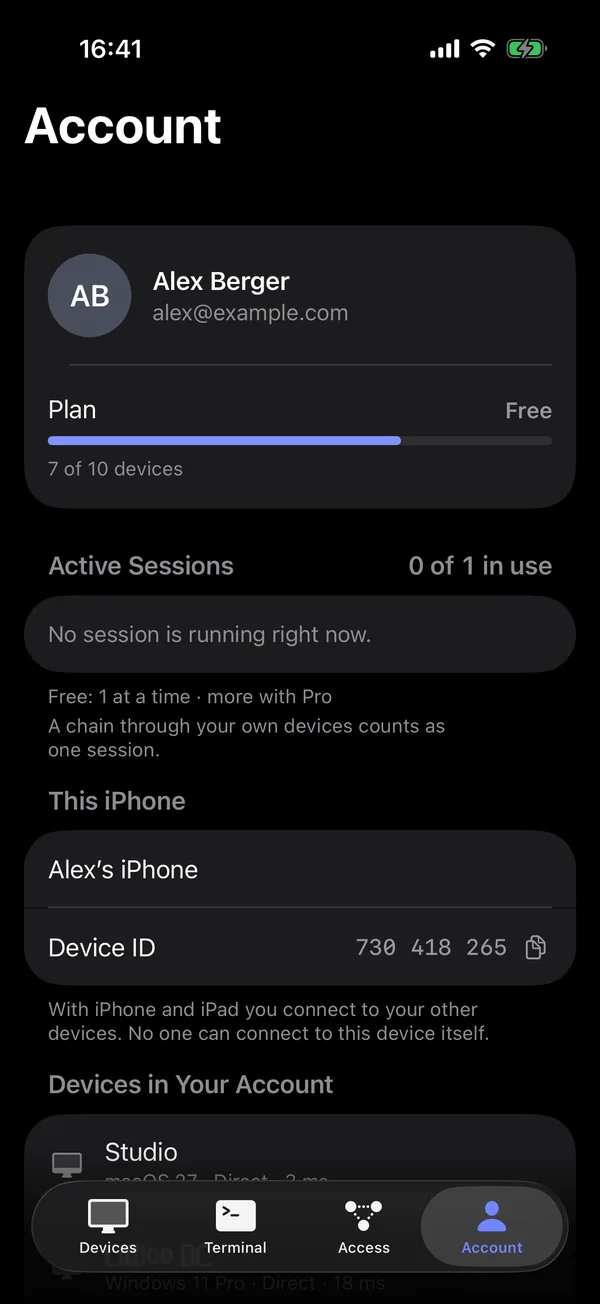
In the Account tab, at the bottom: Delete Account….
Web
In the web console on the Account page. If you signed in with Apple or Google, that sign-in may be at most 24 hours old.
All devices of the account are deleted with it, and running sessions end. This cannot be undone.