Help › Functions
Help someone with a support code
The person who needs help gives you a code and allows your request. They see everything and can end it at any time.
With a support code you help people who are not in your account, such as parents or friends. This is included in Free.
1. Create a code
The person who needs help does this.
macOS
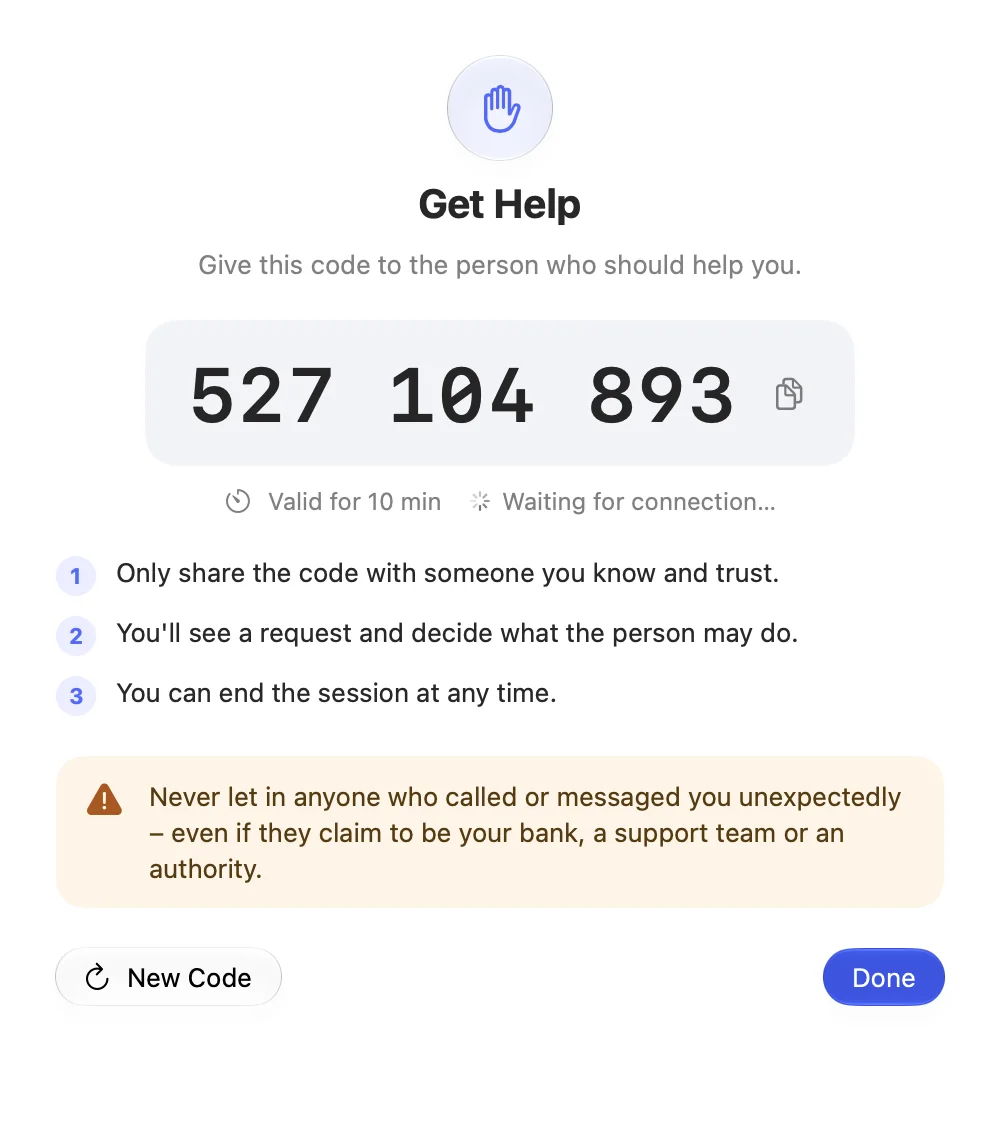
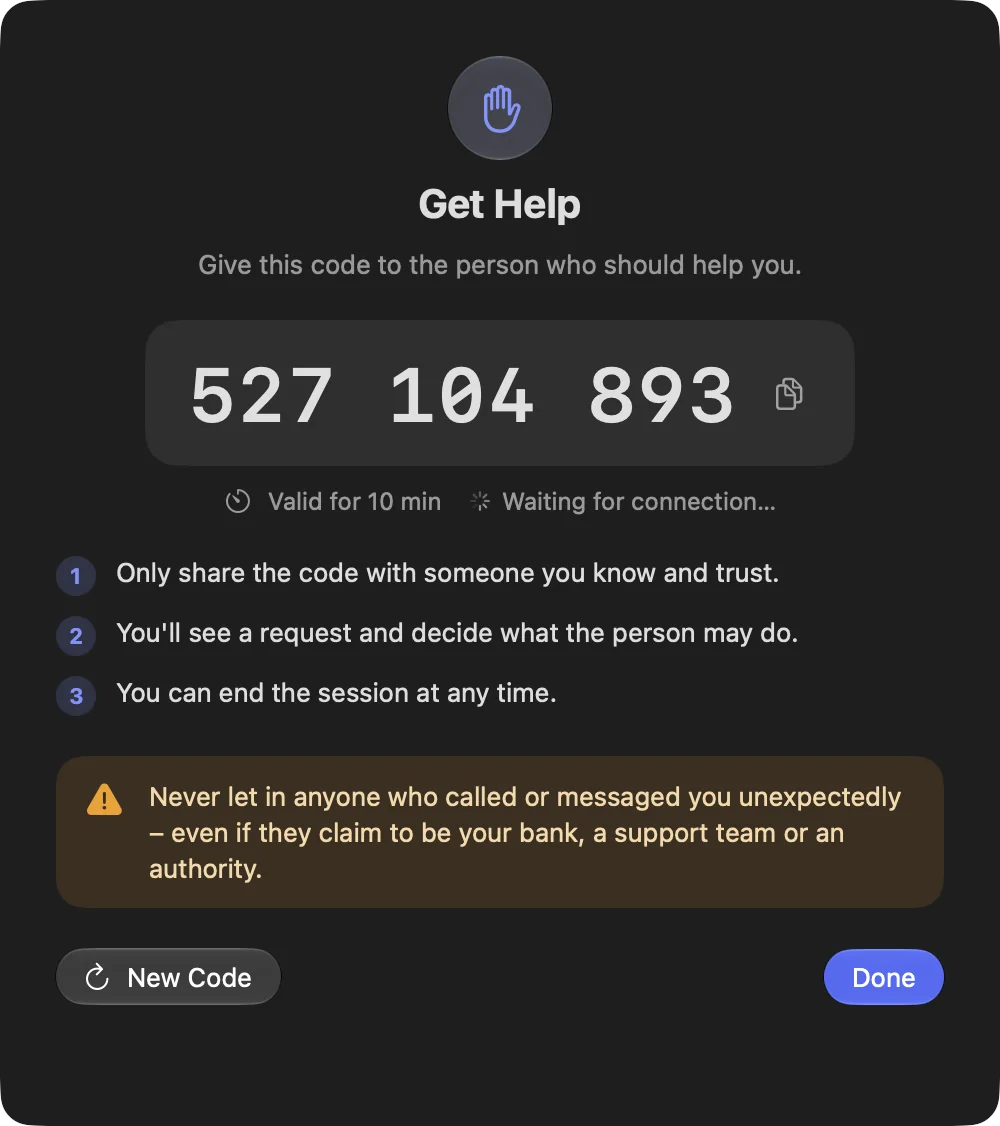
Choose Support Code › Get Help… in the toolbar, or Get Help in the menu bar. DeskRanger shows a 9-digit code. It is valid for 10 minutes and for one connection.
Windows
This function is coming soon to Windows.
iPhone & iPad
An iPhone or iPad can share its screen for viewing. Start the screen broadcast in DeskRanger and choose With a support code. iOS does not allow control.
2. Enter the code
You do this when you help. You must be signed in to DeskRanger.
macOS
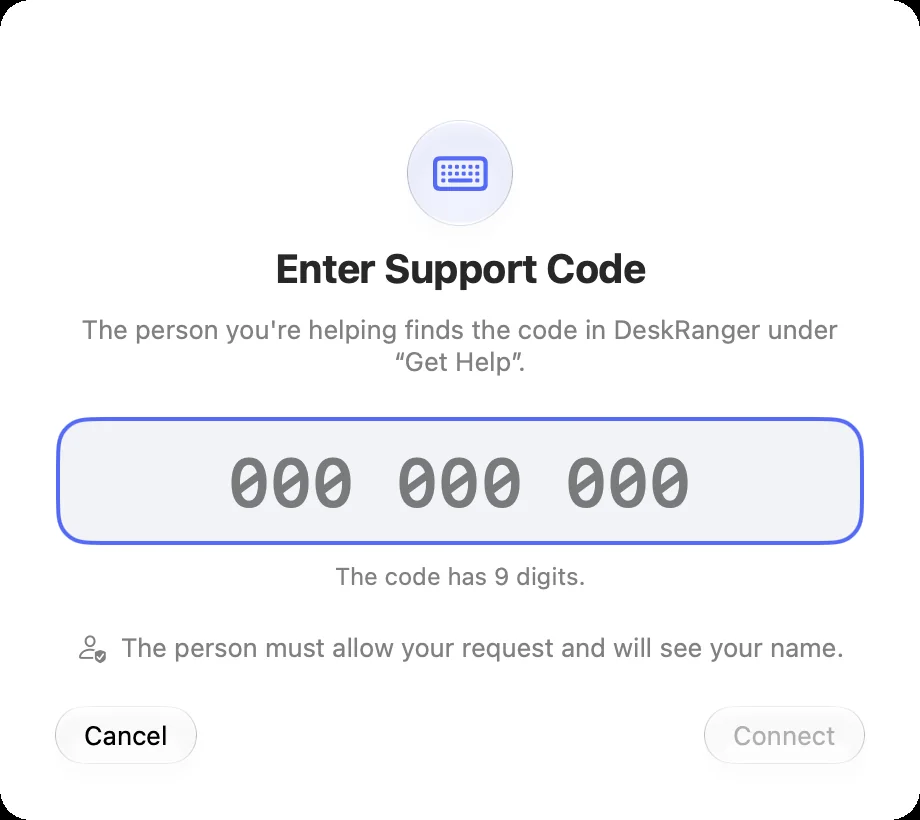
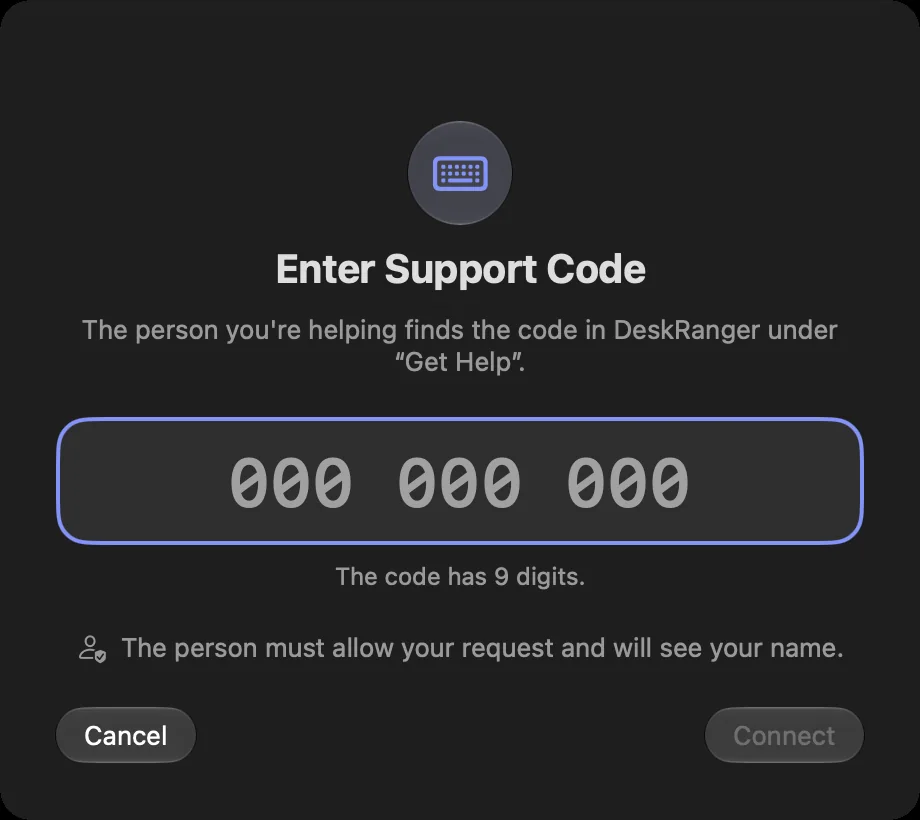
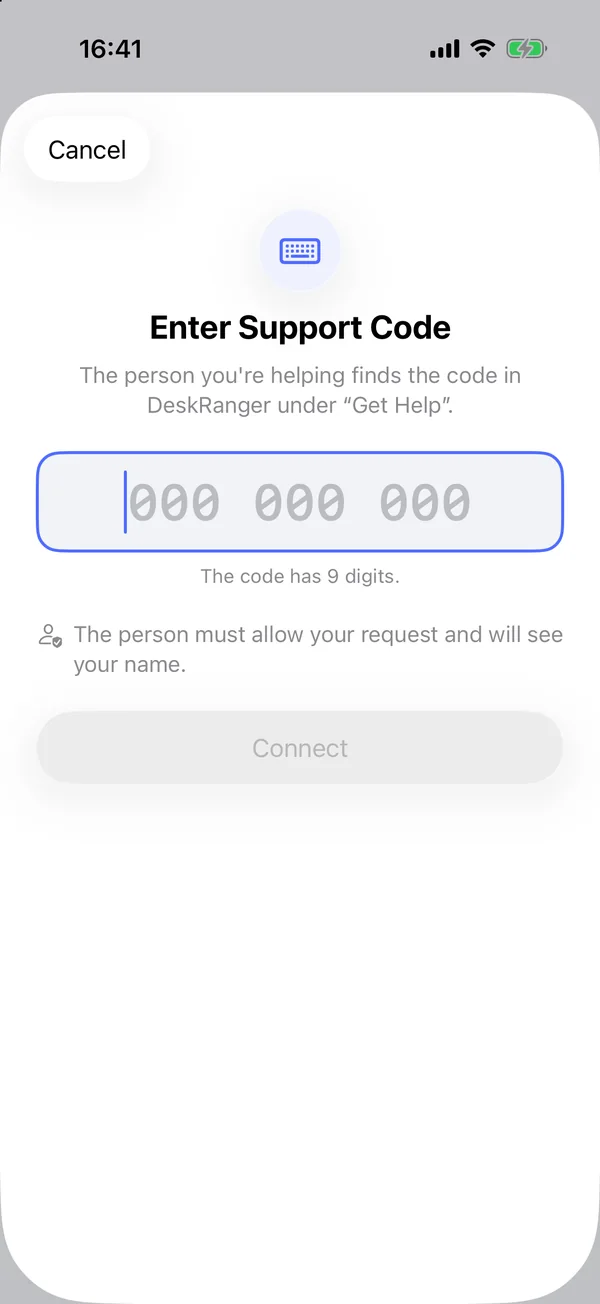
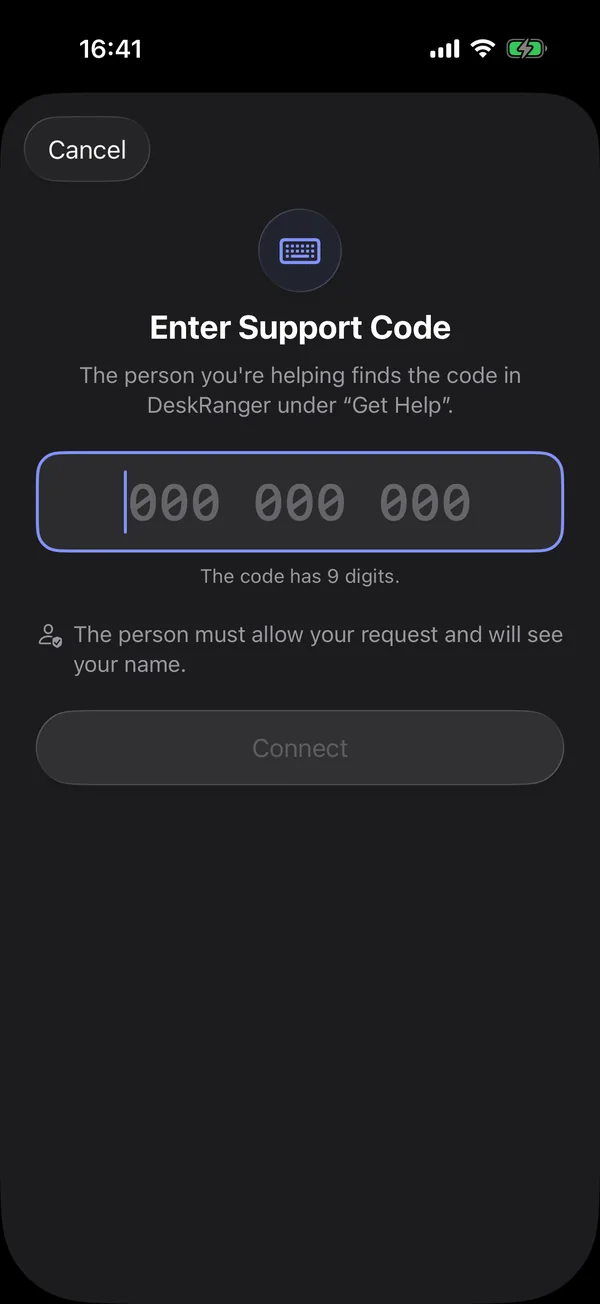
Support Code › Enter Support Code… (⇧⌘K). Enter the 9 digits and click Connect.
Windows
This function is coming soon to Windows.
iPhone & iPad
In the Account tab: Enter Support Code….
Web
In the web console on the support page: enter the code and connect.
3. Allow
A request with your name appears on the other Mac. The person there decides what you may do: seeing the screen is always included. Control mouse and keyboard, Transfer files and Share clipboard are switched one by one; files start off. The session begins only with Allow. If nobody reacts, DeskRanger declines after 30 seconds.
During the session
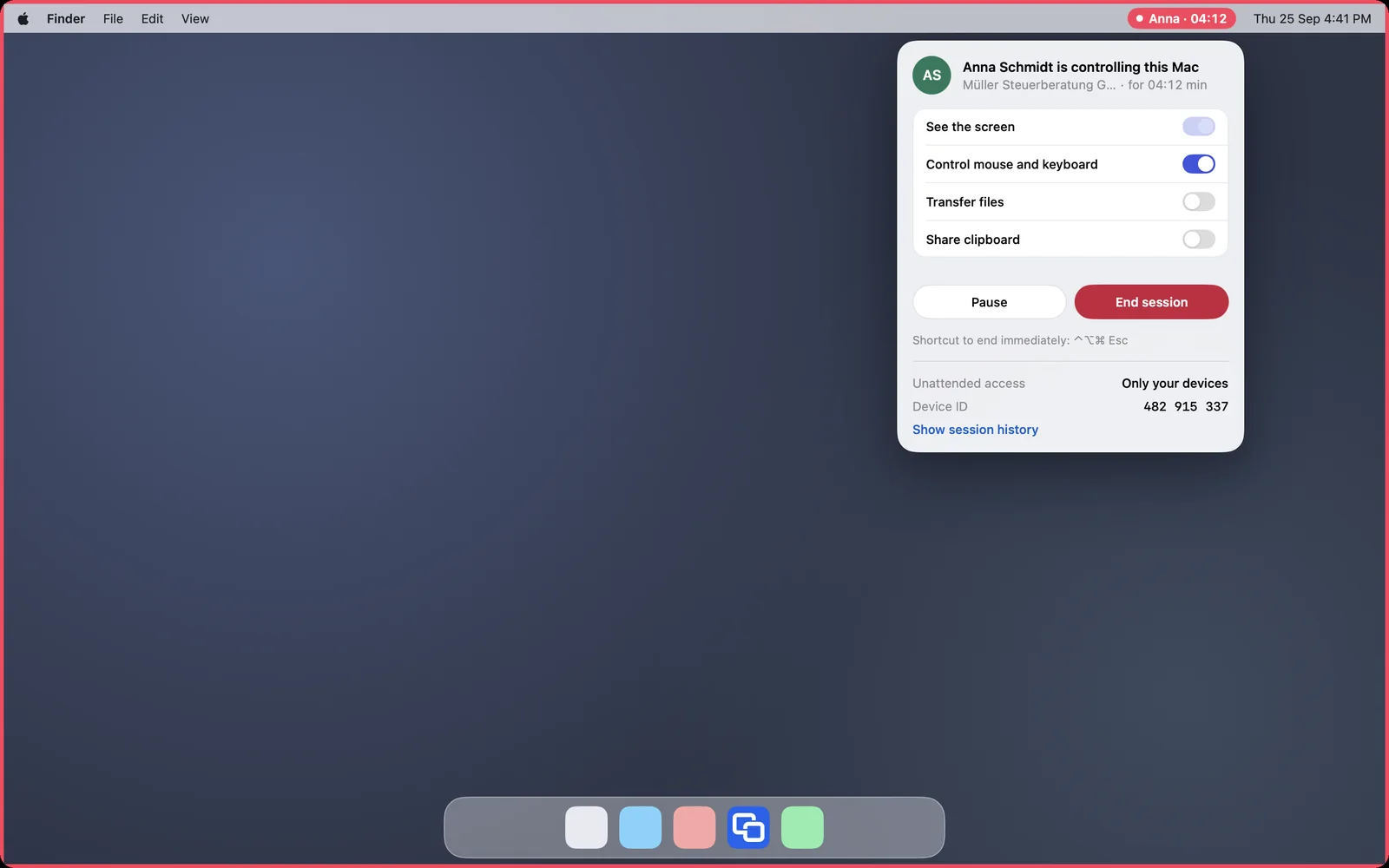
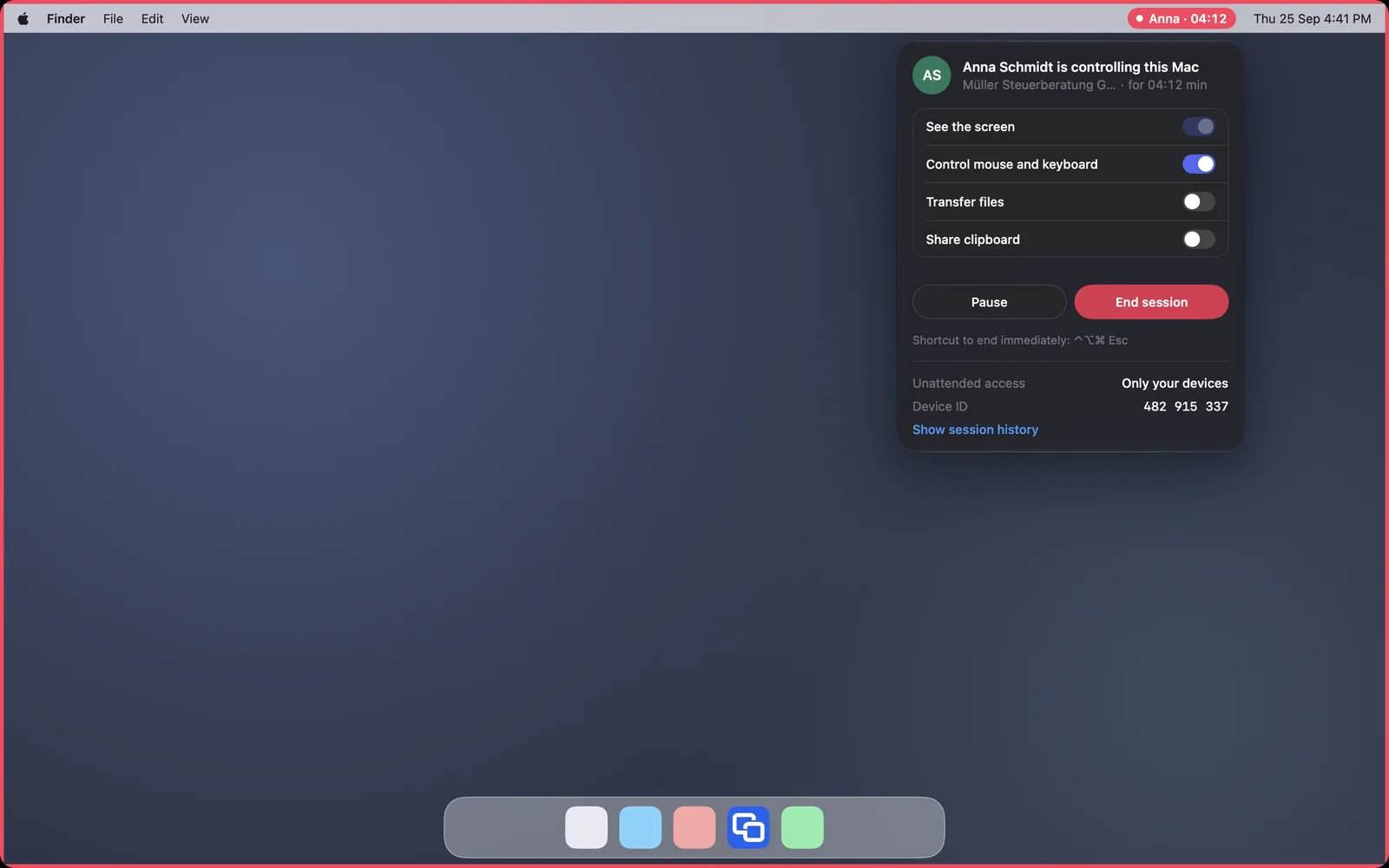
The Mac of the person you help shows a red frame the whole time and your name in the menu bar. There they can switch off single permissions, pause or End session; ⌃⌥⌘ Esc ends it at once. More permissions can only be given at their Mac itself, never from the session.
If it doesn’t work
The code was mistyped, already used or is older than 10 minutes. Ask for a new code: New Code.
The request was declined or not allowed within 30 seconds. Enter the code again when the person is ready.