Help › Getting started
Connect to one of your devices
Open the screen of one of your devices as if you were sitting in front of it. Your own devices don’t ask.
FreemacOSWindows · Coming sooniPhone & iPadWebAndroid · PlannedLinux · Planned
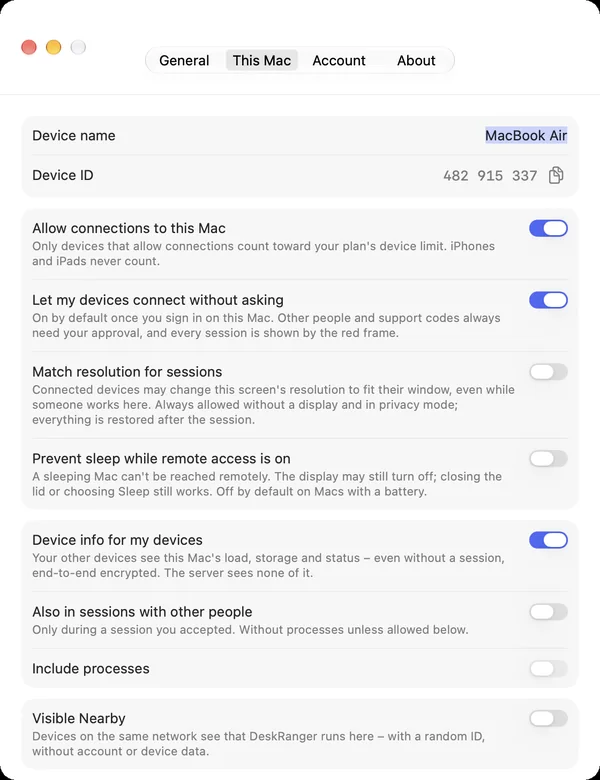
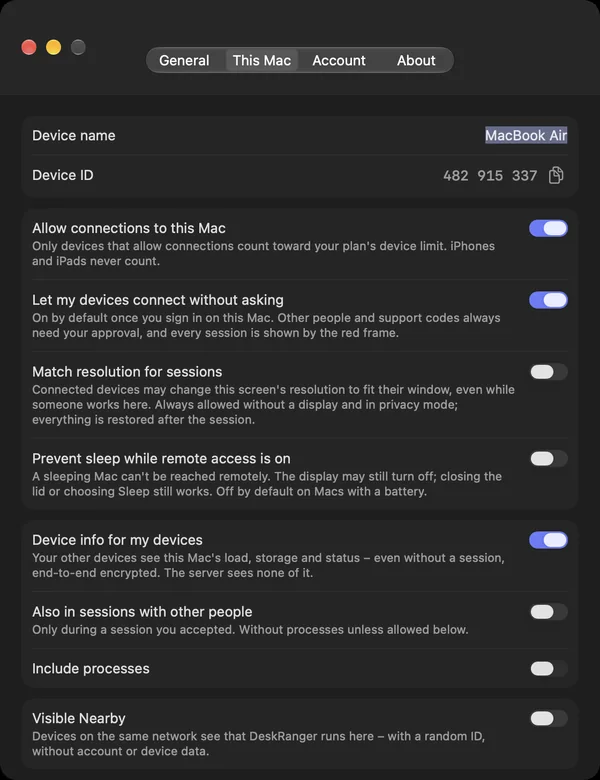
Both devices must be signed in with the same account. On the Mac you want to reach, Allow connections to this Mac must be on.
macOS
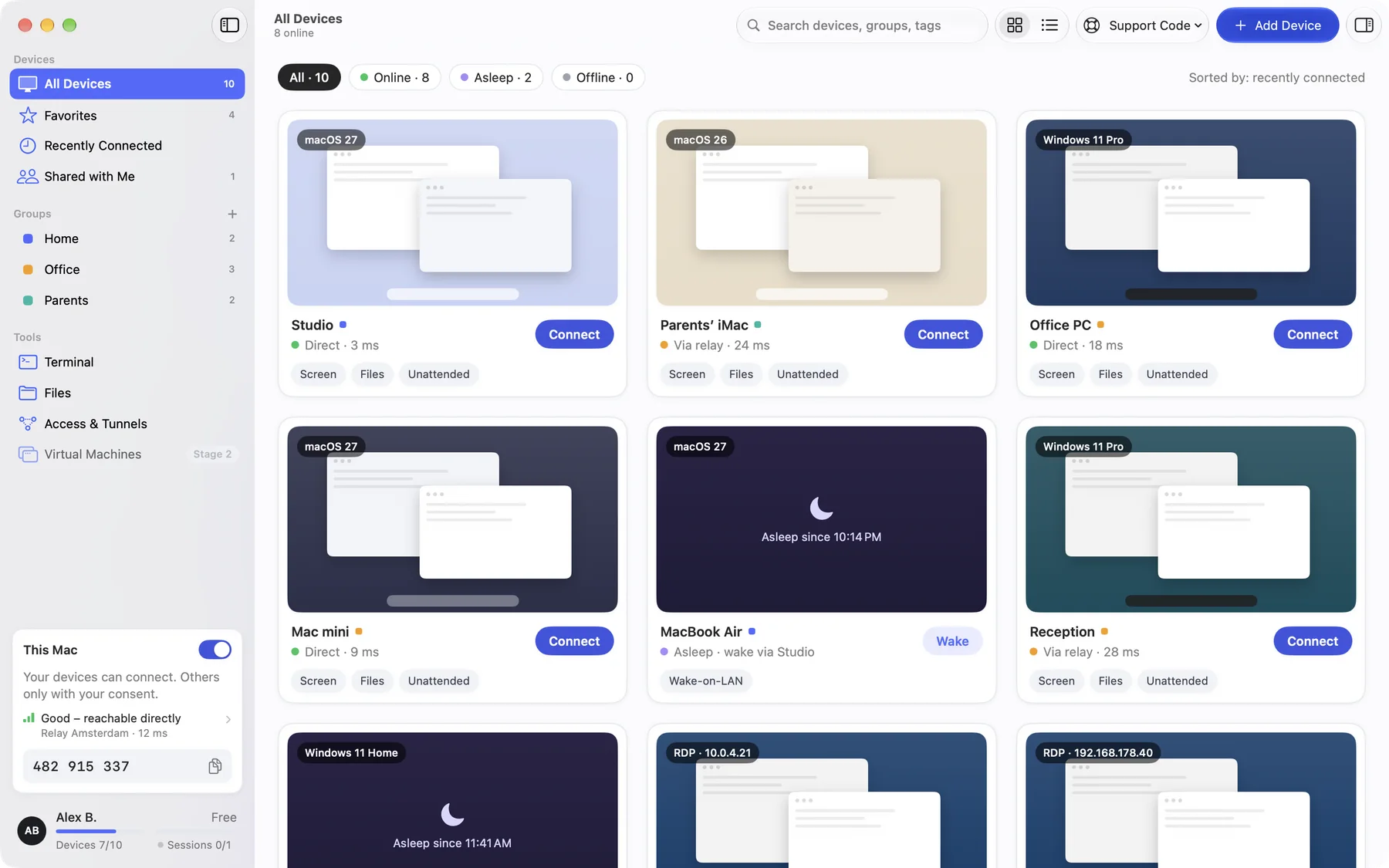
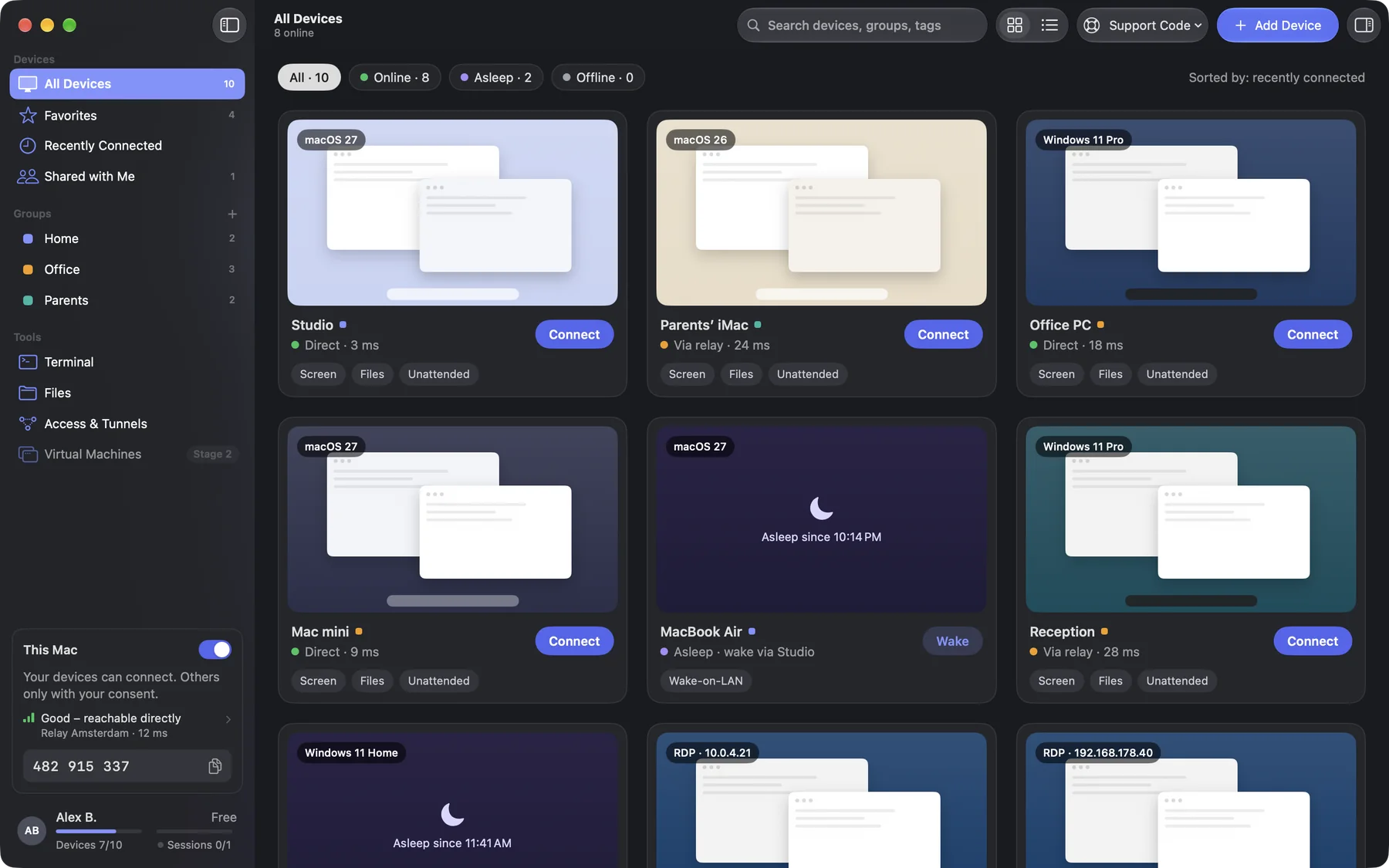
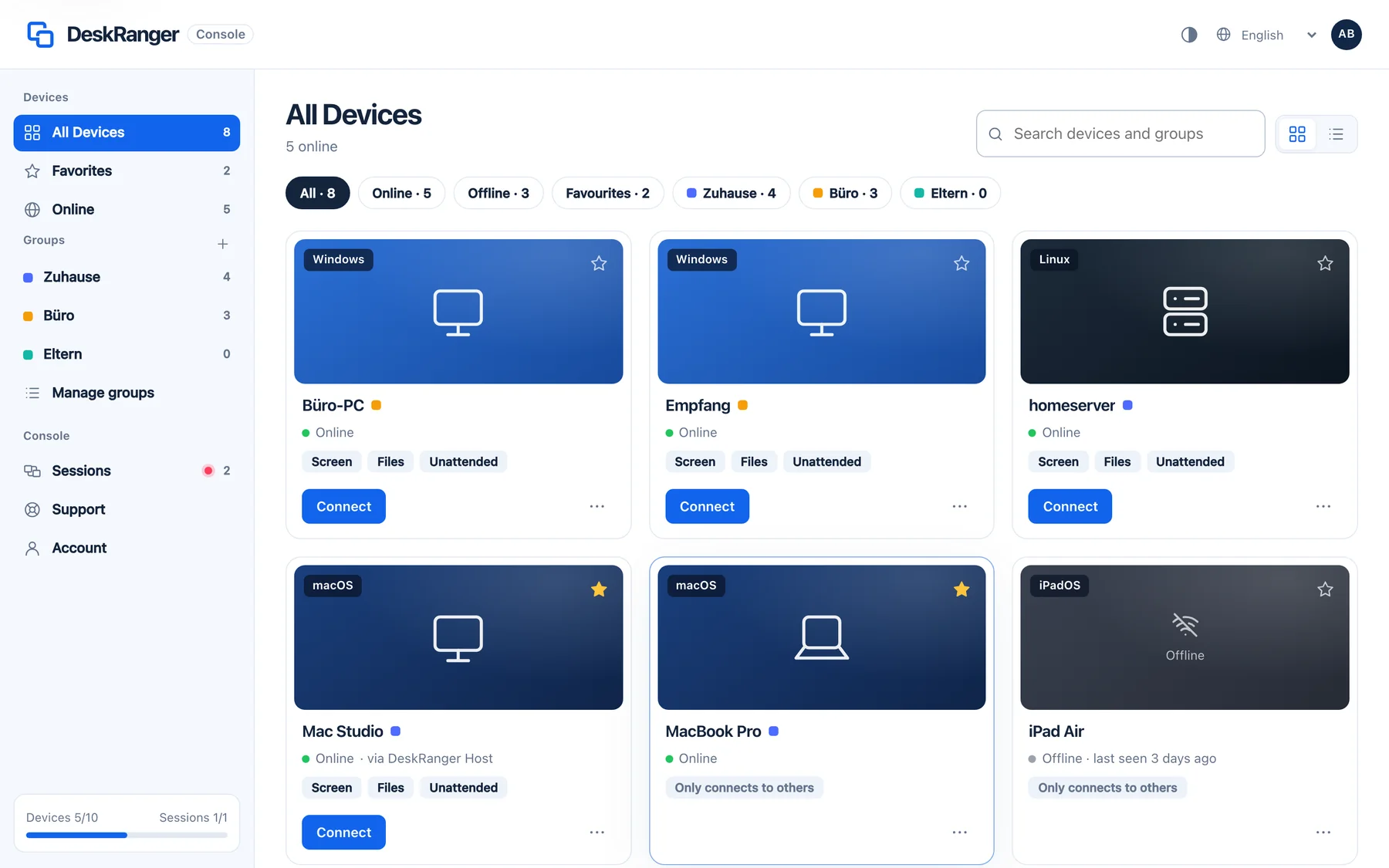
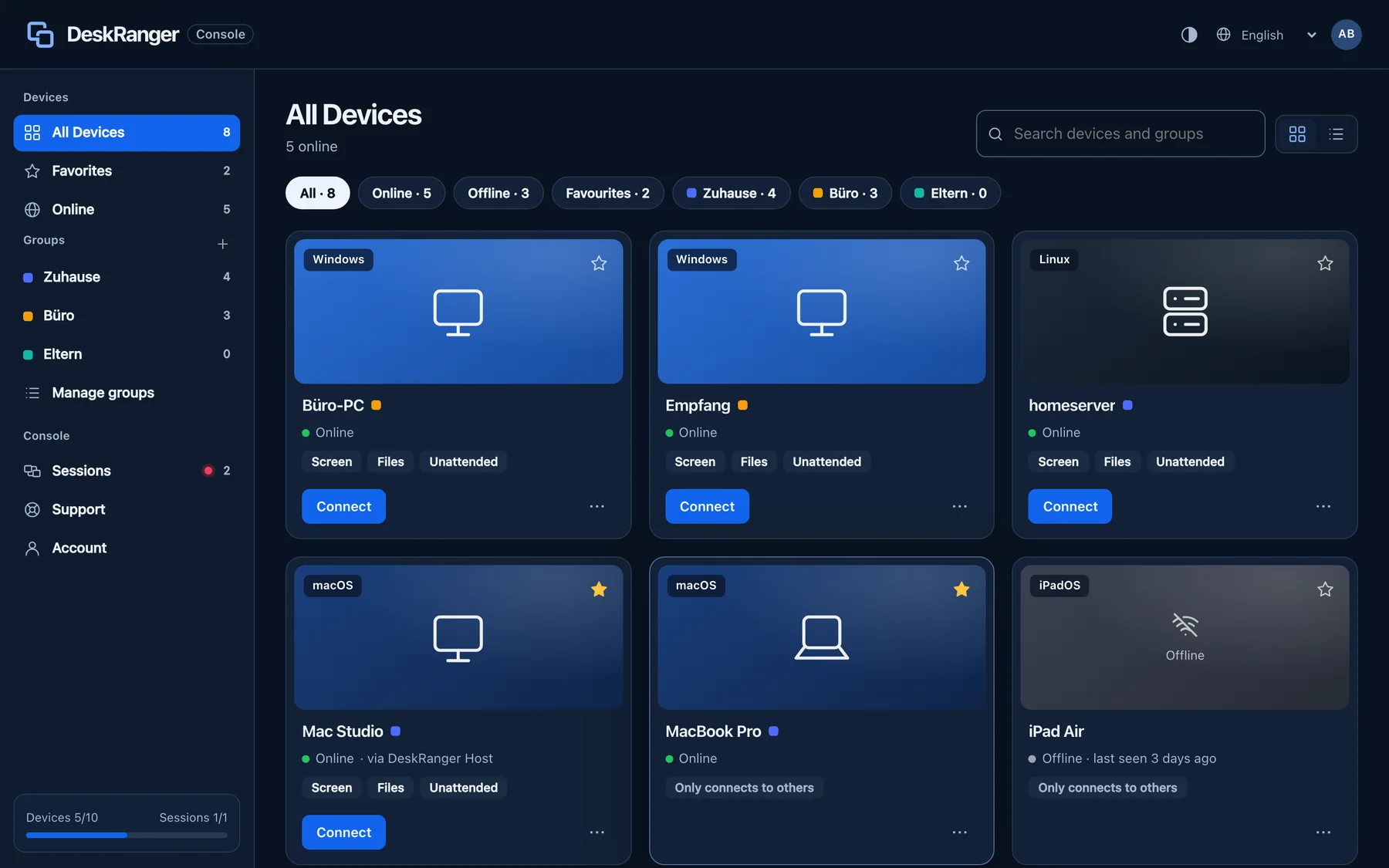
- Choose the device in All Devices.
- Click Connect. The session opens in a window of its own.
- When you are done, click End in the toolbar.
Windows
This function is coming soon to Windows.
iPhone & iPad
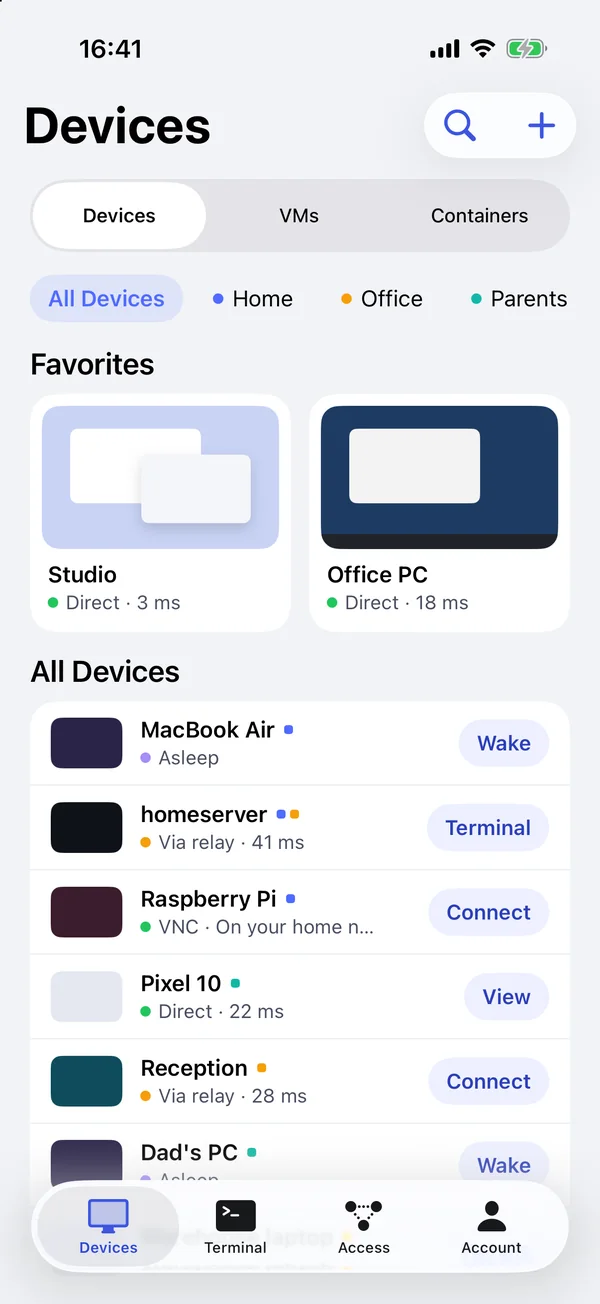
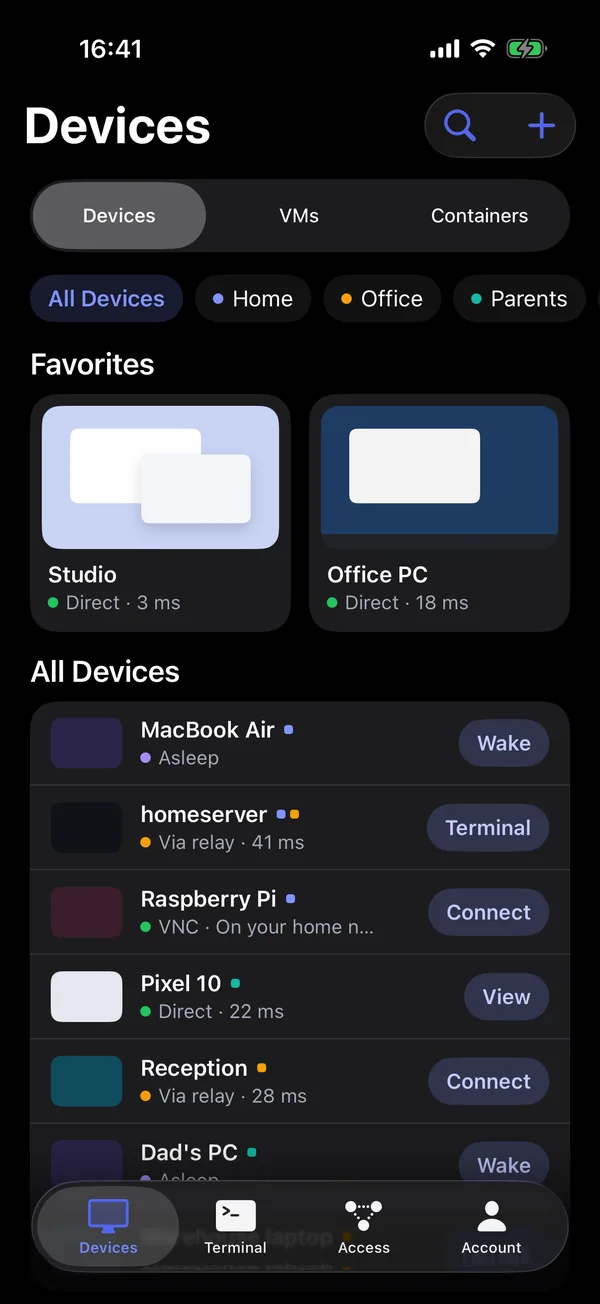
- In the device list, tap Connect next to the device.
- When you are done: End session.
Web
- Open the devices in the web console and click Connect on the device.
- From a browser, DeskRanger always asks: someone at the other device has to allow the request.
What the other Mac shows
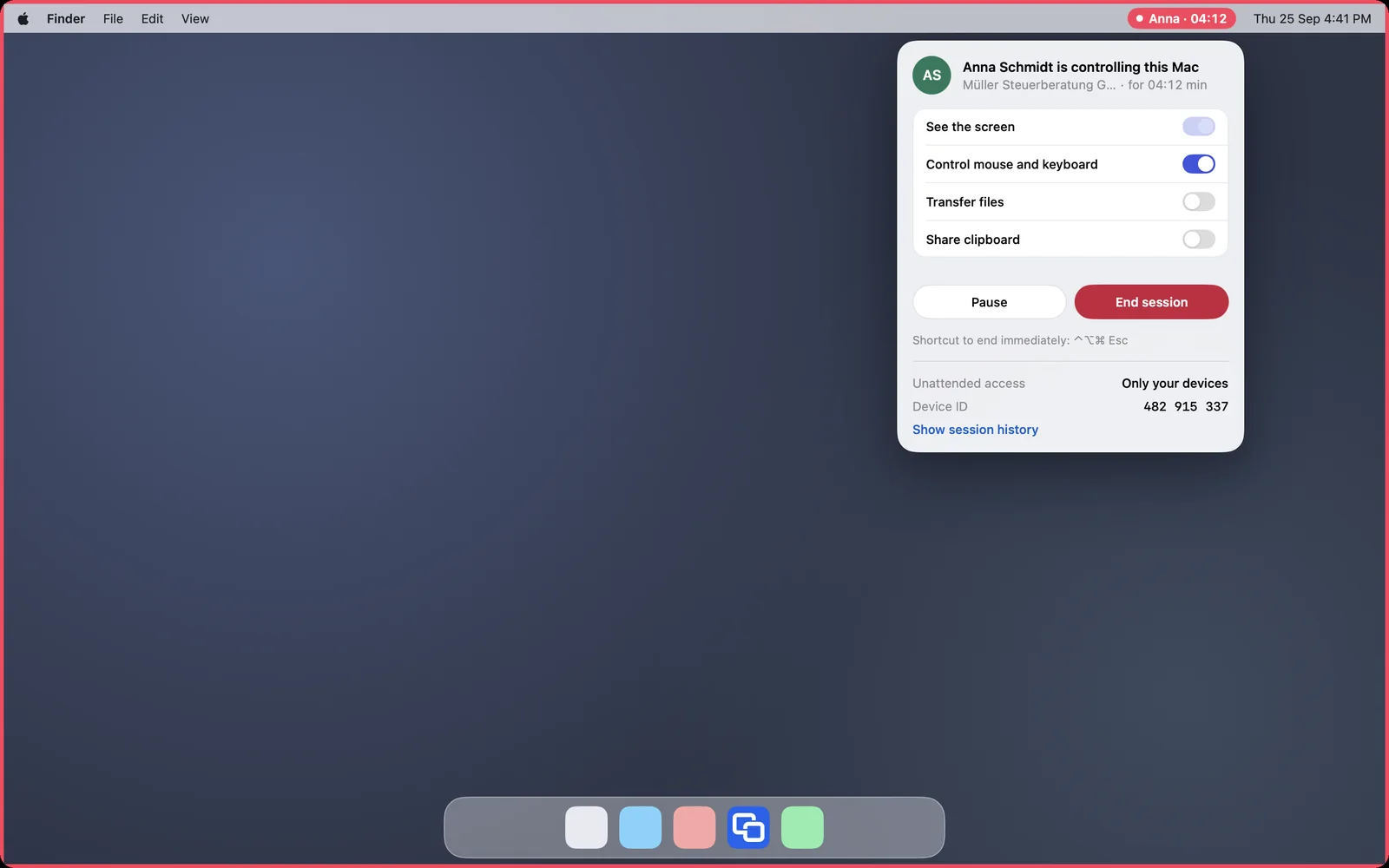
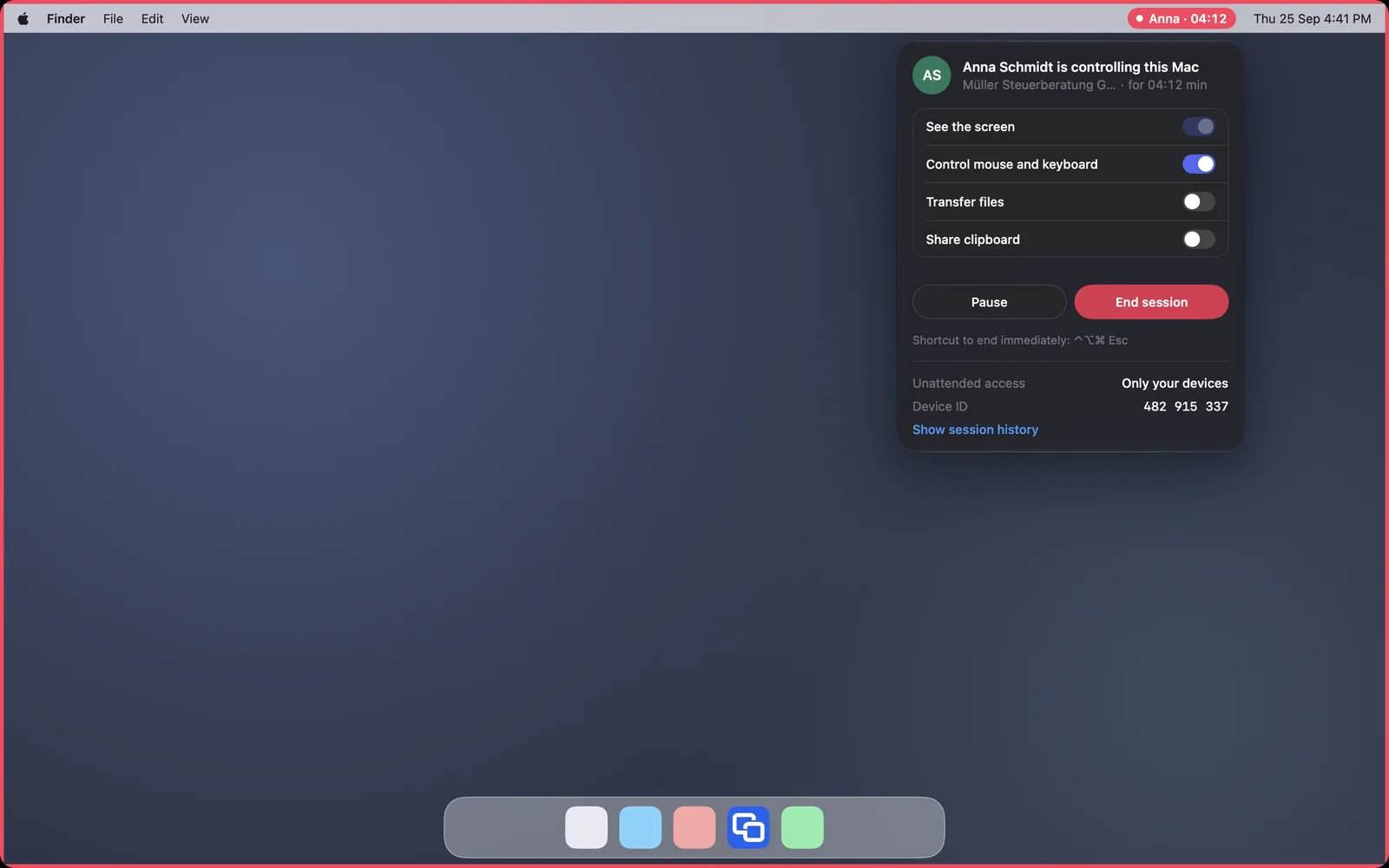
During a session the Mac shows a red frame around the screen and a red indicator with name and duration in the menu bar. From there you can pause or End session. ⌃⌥⌘ Esc ends it at once.
If it doesn’t work
The person at the other device declined or did not react for 30 seconds. Try again when someone is at the device.
In Free and Pro you connect from one device at a time. End the session on the other device first. More under Channels and devices.