Help › Functions
Shared folders
Open folders on your other devices like in Finder or Explorer – without a session, with previews and drag and drop.
Share a folder on one device, and you see it on your other devices under Files. You browse it, look at pictures and documents and drag files both ways. You do not need a screen session for this. Files go directly from device to device and are end-to-end encrypted.
Shared folders between your own devices do not count as a session of your plan.
Share a folder
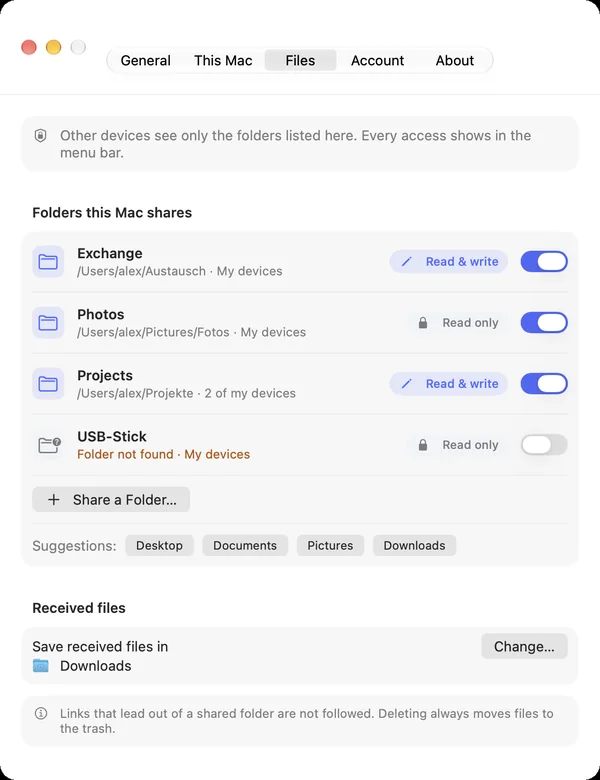
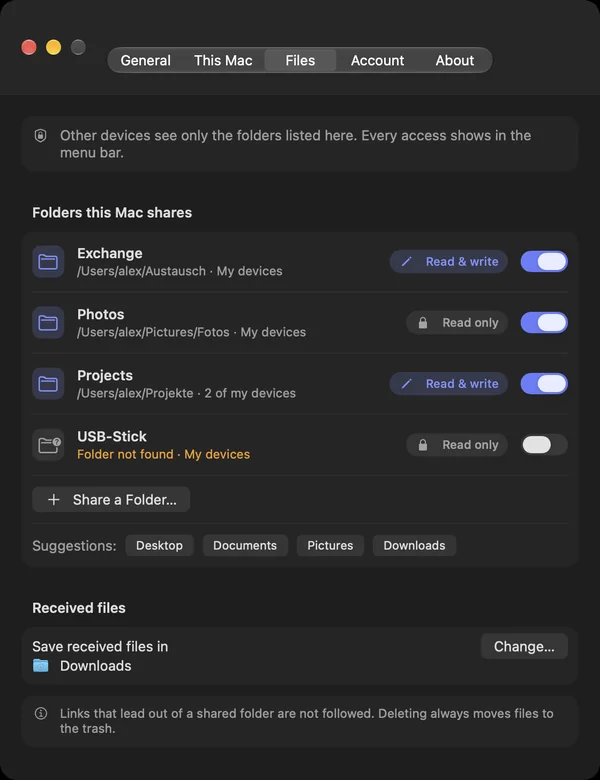
On the device with the files: Settings › Files › Share a Folder…. At first nothing is shared; other devices only see the folders listed there.
- Every folder starts as Read only. With Read & write, your other devices may also add, rename and delete there.
- All my devices covers all your devices; with Only these devices you pick single ones.
- What is deleted through DeskRanger goes to the trash of the device with the folder. You get it back from there.
- Stop Sharing ends the sharing at once.
macOS
Suggestions such as Desktop, Documents or Pictures are shared with one click. You can share your whole home folder, but DeskRanger warns you. System folders and the whole startup disk cannot be shared.
Windows
The shared folders are in the settings under Files. Shared folders of this PC can be reached as long as the DeskRanger app hosts the PC.
iPhone & iPad
This function is planned for iPhone & iPad.
Web
This function is planned for Web.
Open your devices' folders
macOS
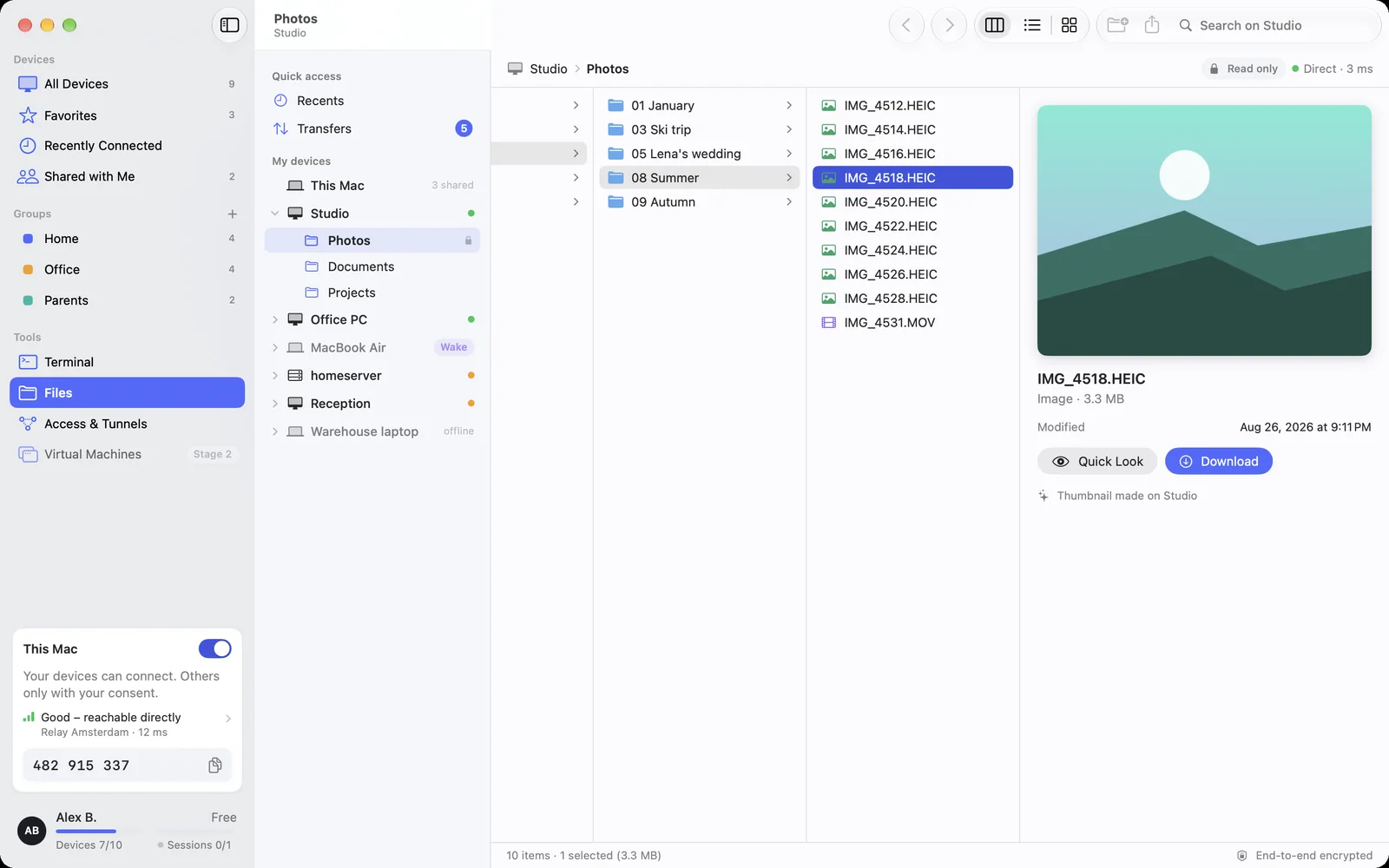
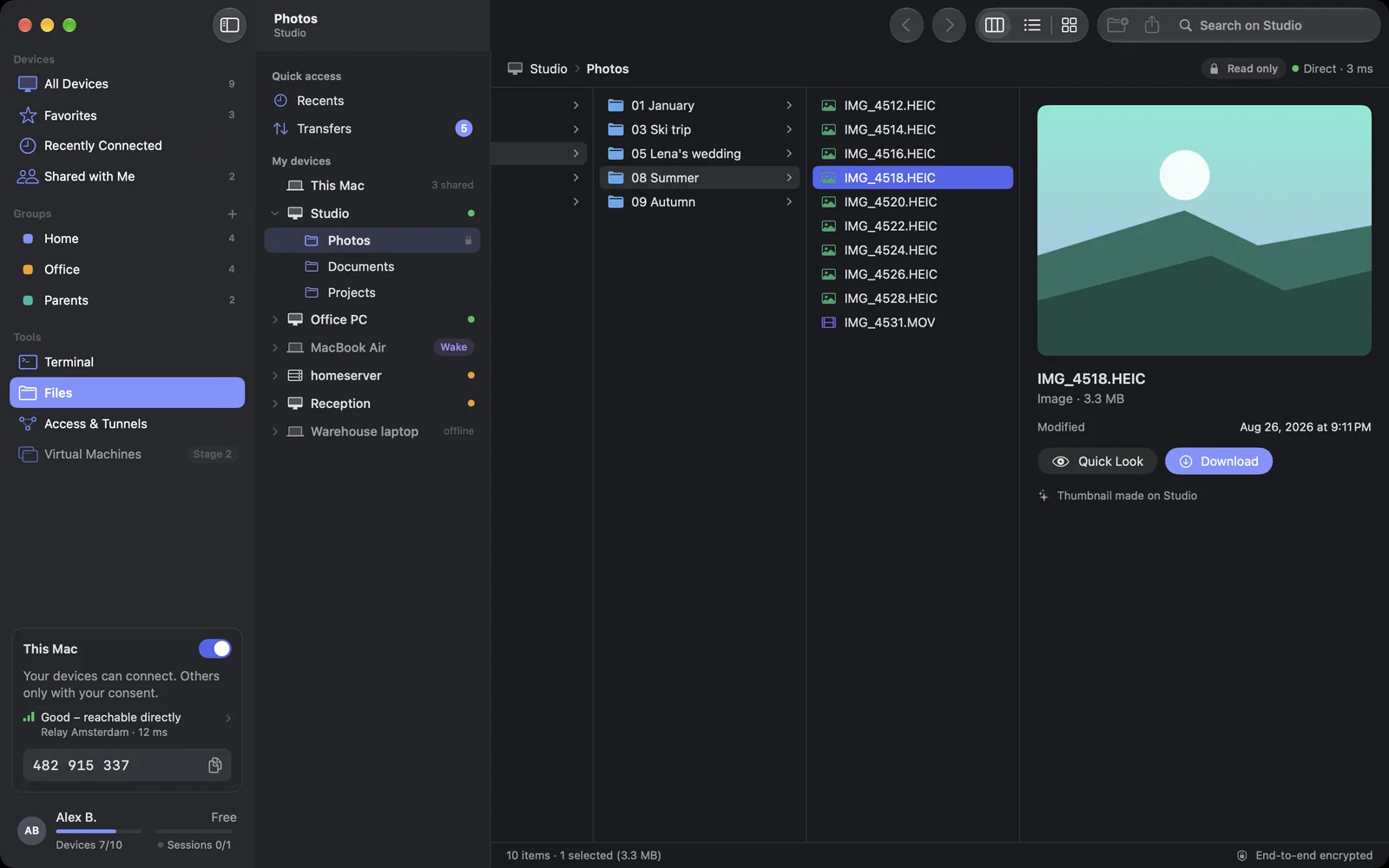
Choose Files in the sidebar. On the left are your devices with their shared folders. At the top right you choose Columns, List or Icons. The space bar shows a Quick Look; thumbnails and previews are made by the device with the files, and the file itself stays there until you download it. The search at the top right searches on the device.
Windows
Choose Files in the sidebar. The view shows details or icons; the Details pane on the right shows the preview and properties. Up goes one folder up. The search searches on the device.
iPhone & iPad
This function is planned for iPhone & iPad.
Web
This function is planned for Web.
A device that sleeps or is offline keeps its folders in the list. They open as soon as it can be reached again.
Drag and drop
- Drag files or folders from DeskRanger onto the desktop or into a window. They arrive complete and verified.
- Drag files from your computer onto a folder, a shared folder or a device in the sidebar. The bar at the bottom says where they go.
- Even without a shared folder: drag files onto a device's card under “All devices”. They land in its download folder.
Transfers
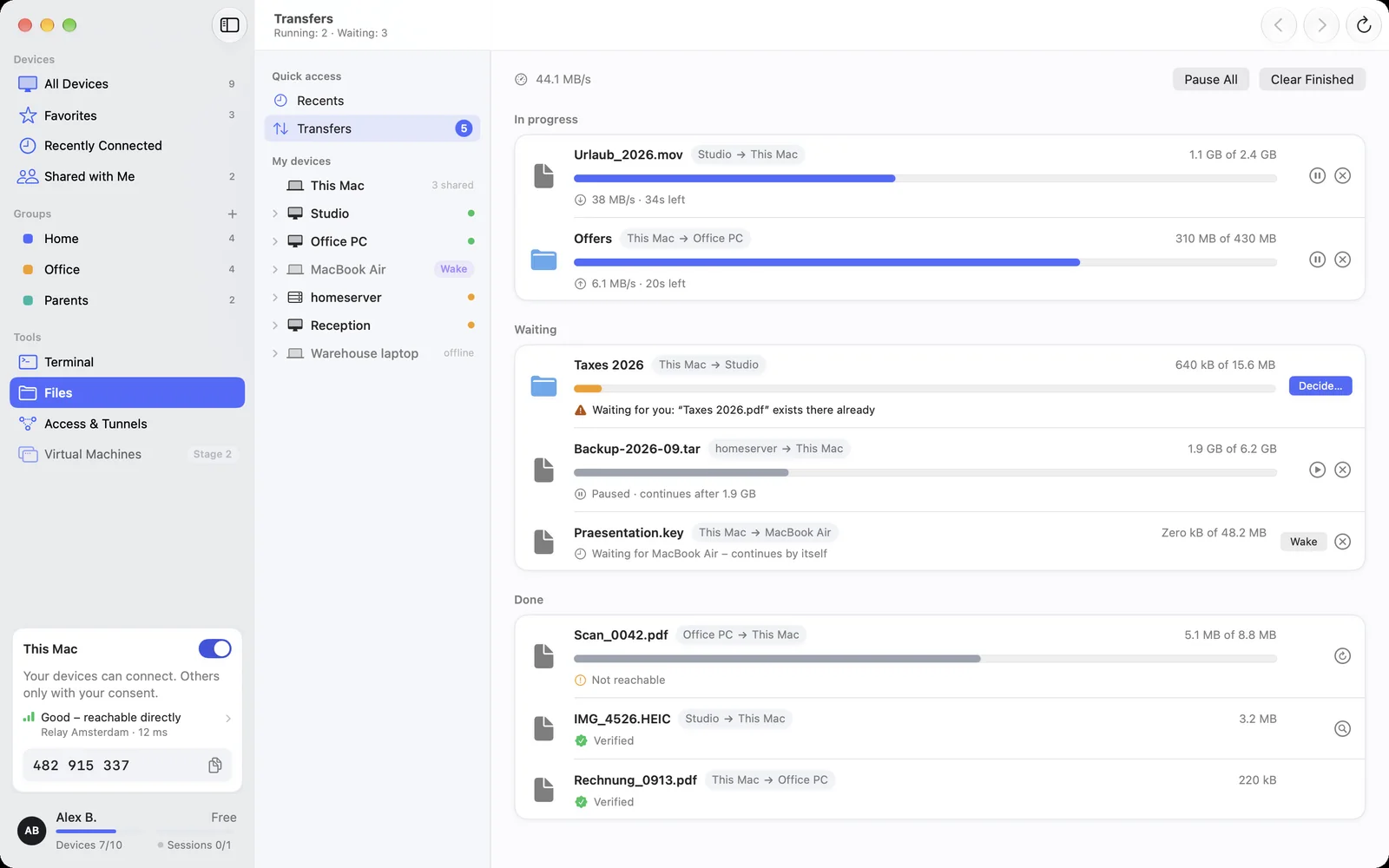
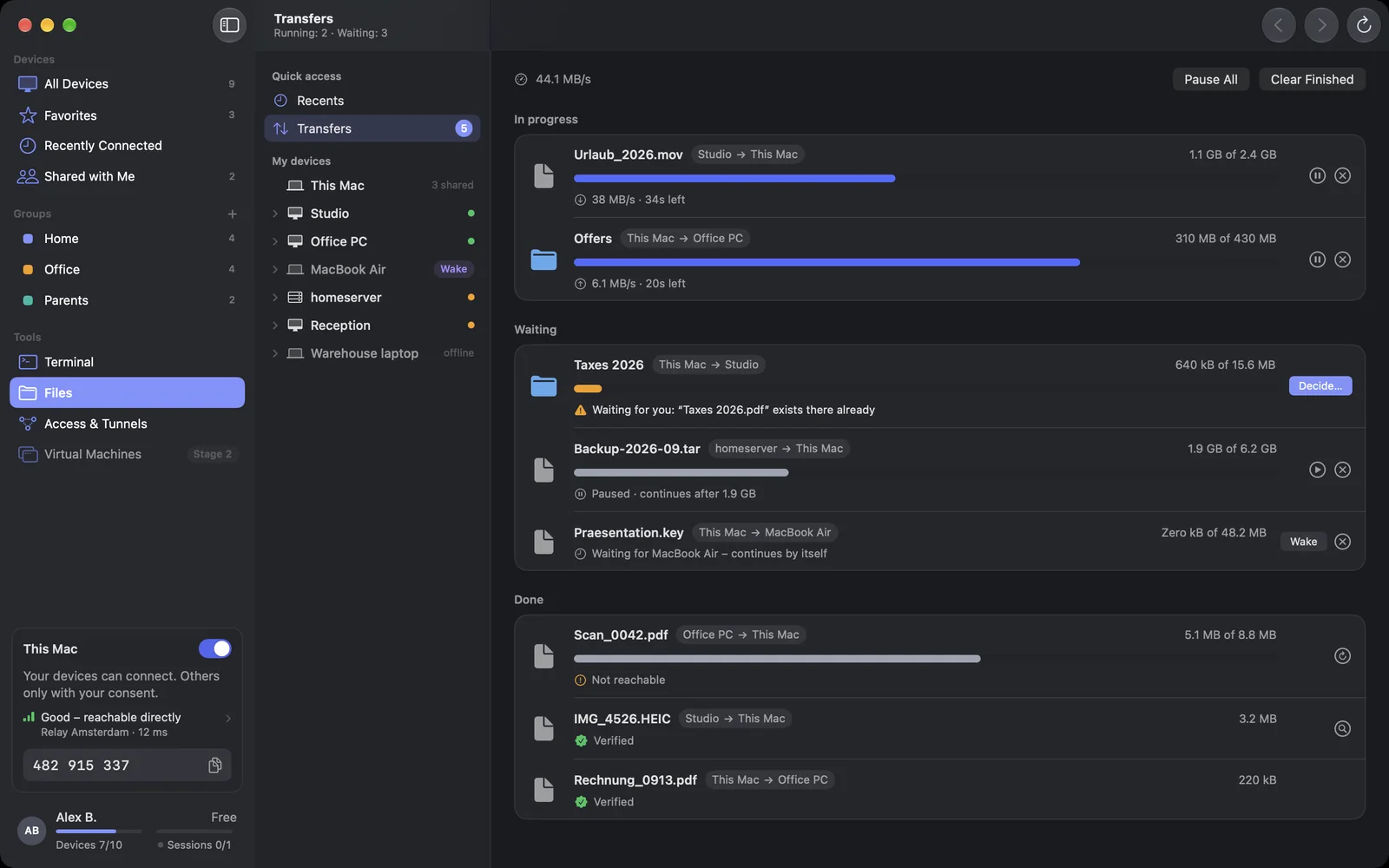
Under Transfers you see everything that runs, waits or is done. With Pause and Resume you stop a transfer and continue it. If the connection drops or you quit DeskRanger, it continues later where the transfer was. If a device sleeps, the transfer waits and starts once it is online.
macOS
iPhone & iPad
This function is planned for iPhone & iPad.
Web
This function is planned for Web.
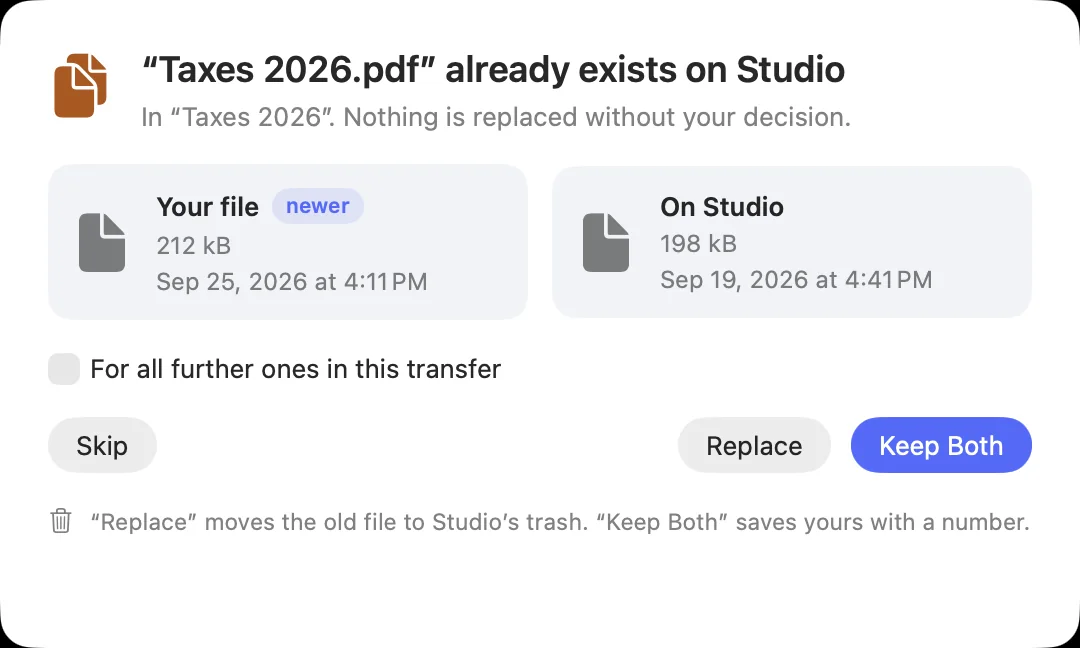
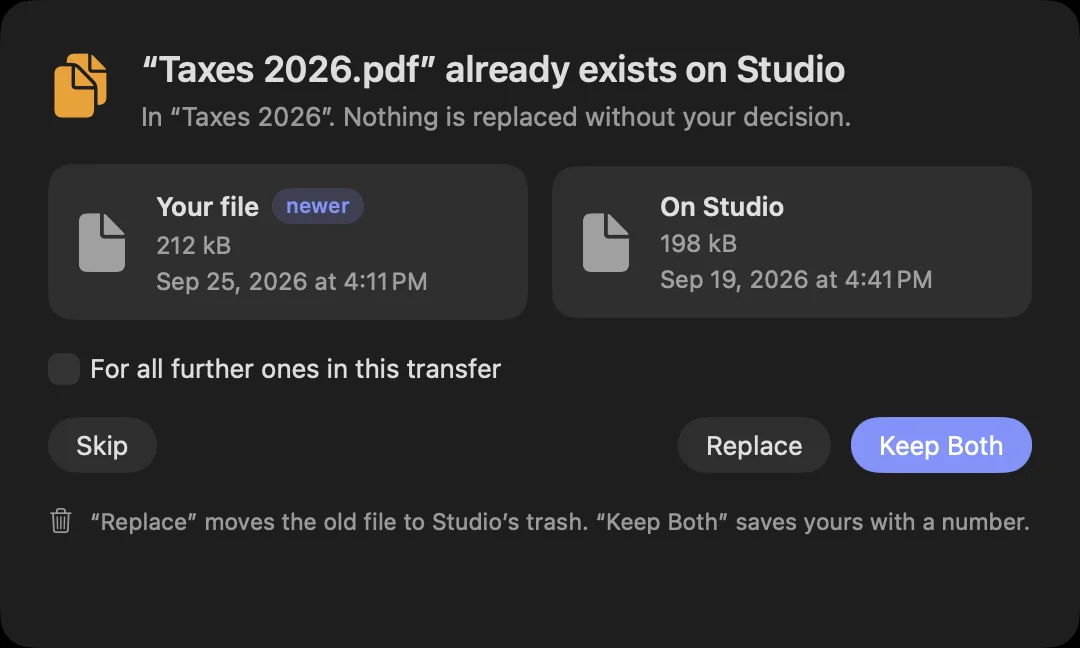
DeskRanger never overwrites without asking. If a file exists there already, it asks: Keep Both, Replace or Skip. “Replace” moves the old file to the trash. If the content is the same, the file is skipped.
macOS
iPhone & iPad
This function is planned for iPhone & iPad.
Web
This function is planned for Web.
Who is using them
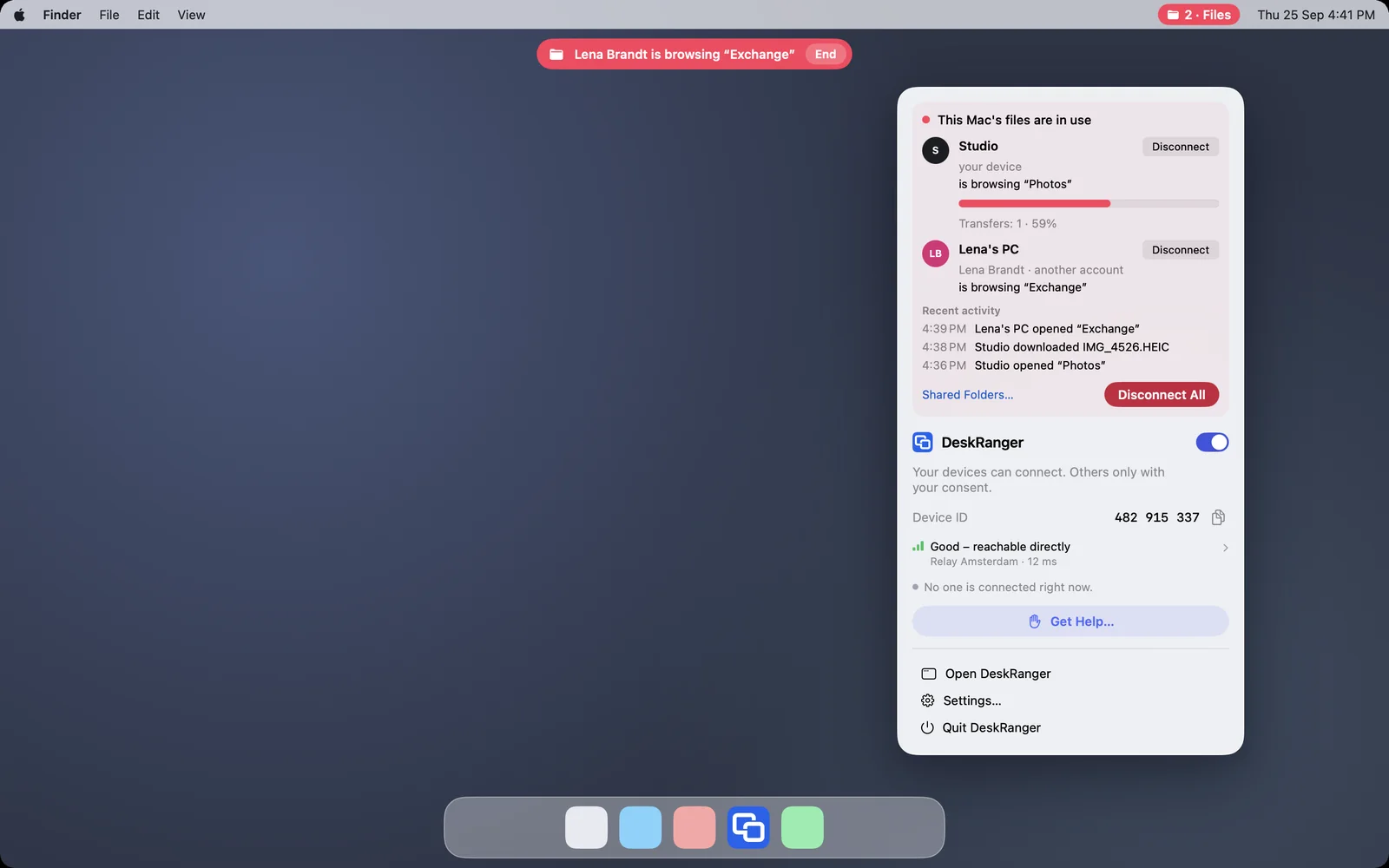
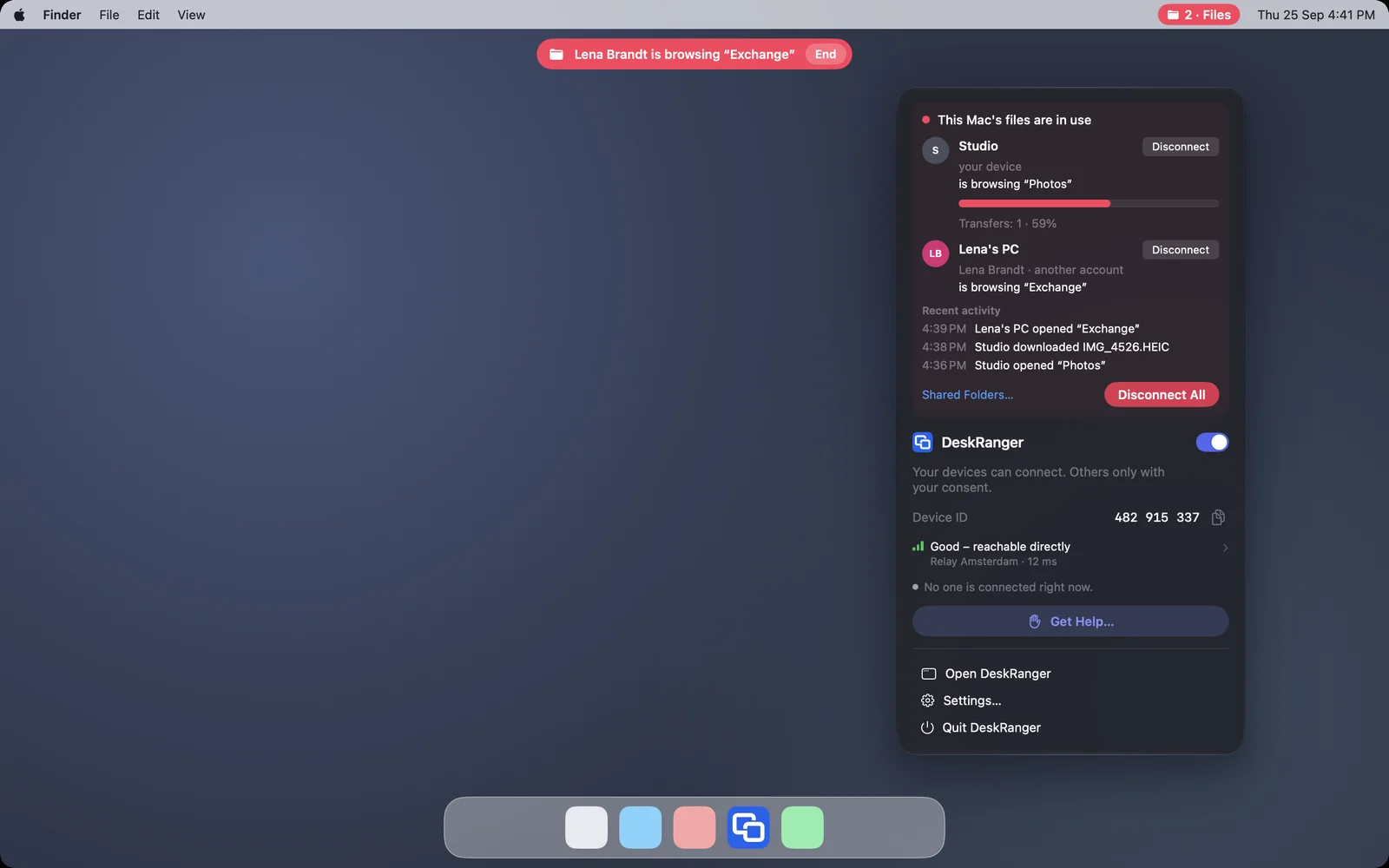
While a device uses the shared folders, the device with the files shows it. The menu lists every connected device, what it opens and copies, and the recent access. Disconnect disconnects a device at once, Disconnect All all of them.
macOS
The red indicator with the folder symbol appears at the top of the menu bar. If someone from another account has access, the Mac also shows a banner with End.
Windows
The icon in the notification area turns red, and its menu shows the same rows.
iPhone & iPad
This function is planned for iPhone & iPad.
Web
This function is planned for Web.
If it does not work
The folder is no longer shared with this device, or it is shared with other devices only. On the device with the files, check the settings under Files.
The folder is shared read only. On the device with the files, set it to Read & write.
The link points outside the shared folder. Share the folder it points to itself.
The other device runs an older DeskRanger version. Update it there.
The device with the files did not make a picture of this file, or it could not be reached just then, for example while it was waking up. Open the preview again once the device is connected. You can still download the file.
The device no longer belongs to your account, or this list does not know it yet. Refresh the page. If it still says Unknown device, check under Account which devices belong to it.