Help › Getting started
Add a nearby device
Add a computer on the same network to your account with a confirmation code – without anyone signing in there. And what a device added this way can do.
A device normally joins your account when you sign in on it. For your mother’s or a colleague’s computer that is awkward: your password has no business there. So you can also add a device on the same network from your own device. Both show the same six-digit code, and a person confirms at each device. We cannot add a device to your account this way – it only works on site, with both screens.
How it works
You need both devices on the same network and a person at each – or yourself at both.
macOS
On the device that is to be added:
- Install DeskRanger and open it. Do not sign in: leave the sign-in screen open.
- Next to the sign-in it says Or have a nearby device add this one. The Mac is now ready for a few minutes. When the time is up it says The time is up. – Make Ready Again continues.
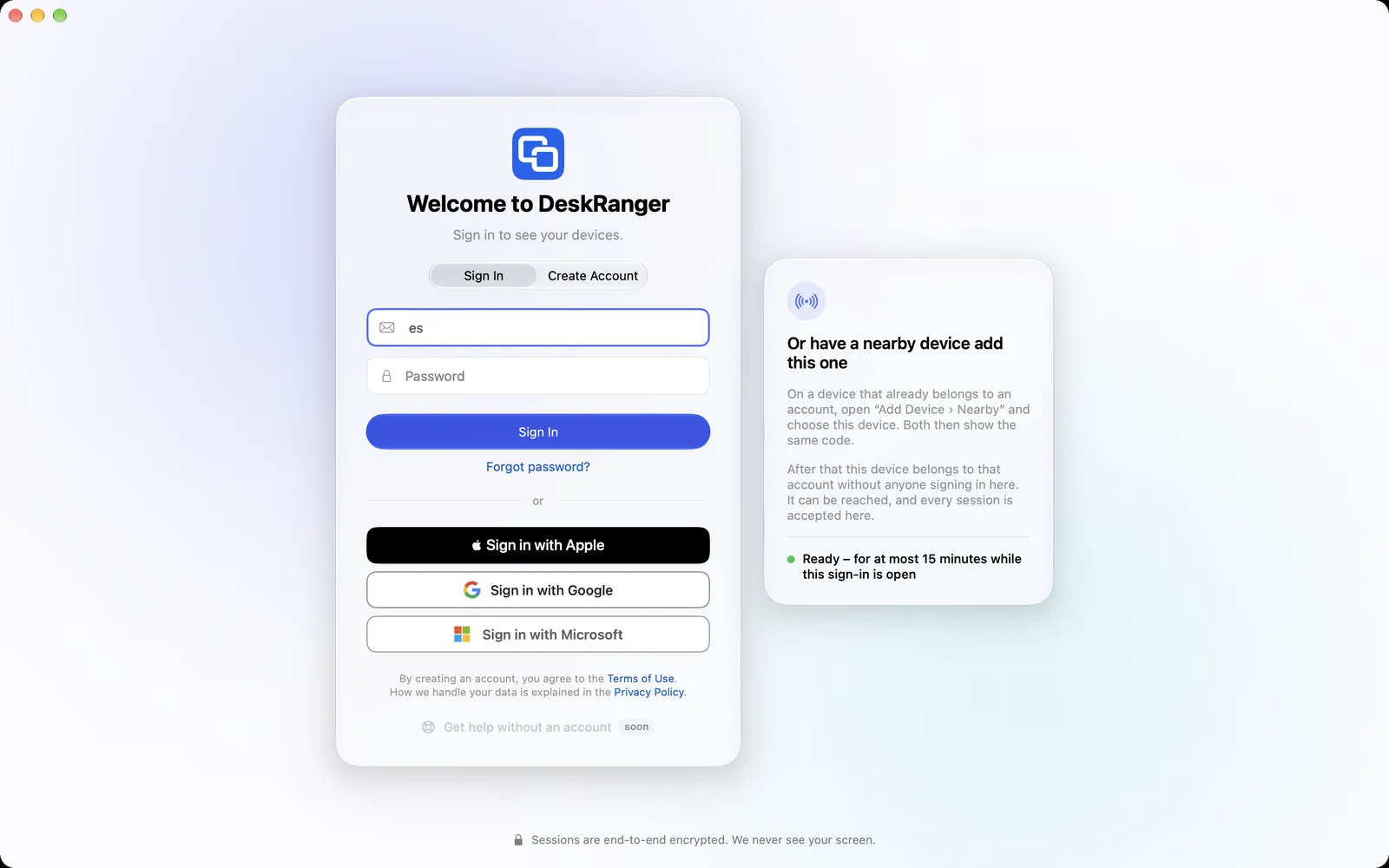
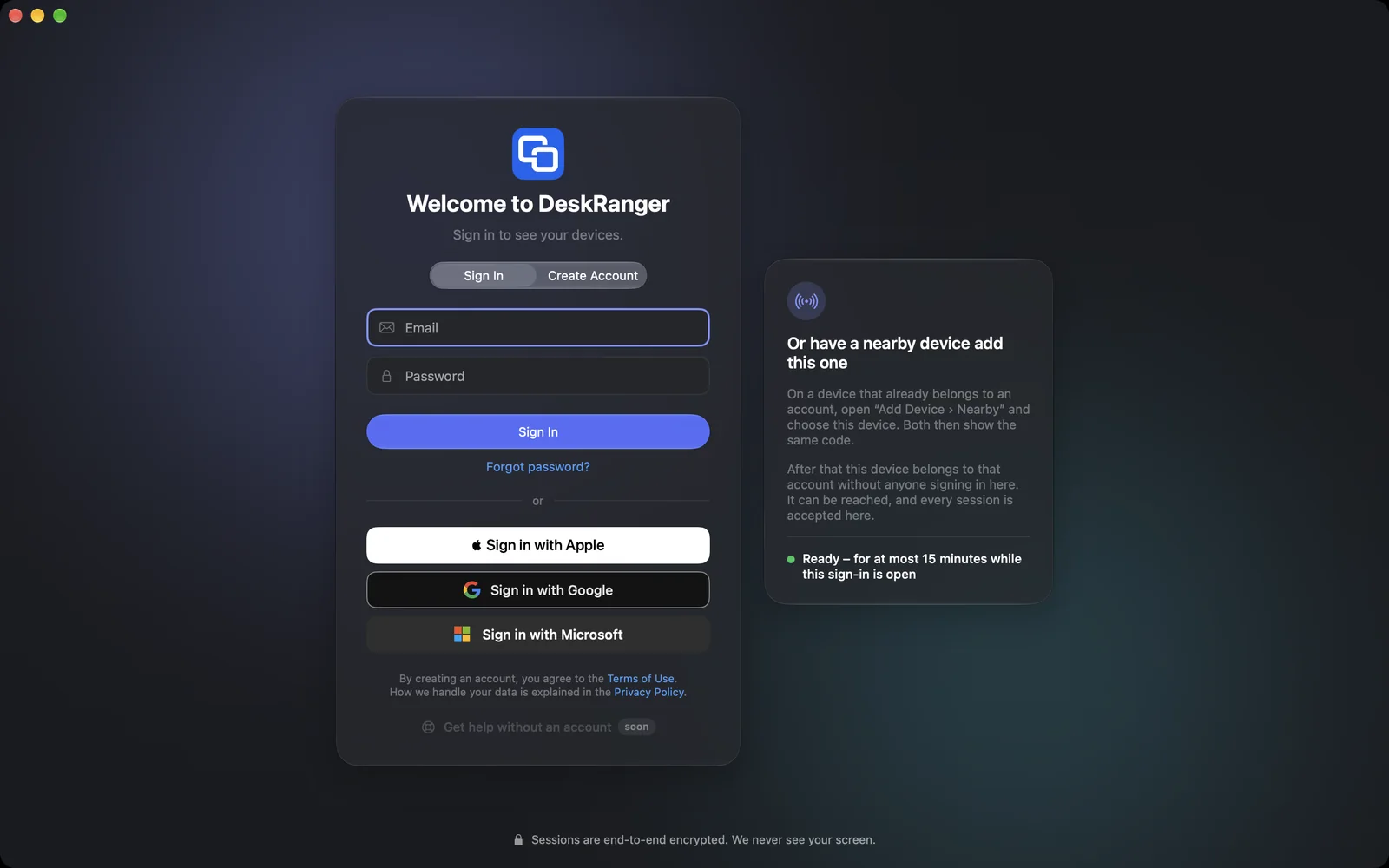
On your device:
- Open Add Device › Nearby.
- The other device is listed with DeskRanger · ready to be added. Choose Add.
- Both devices now show a code. Compare the six digits.
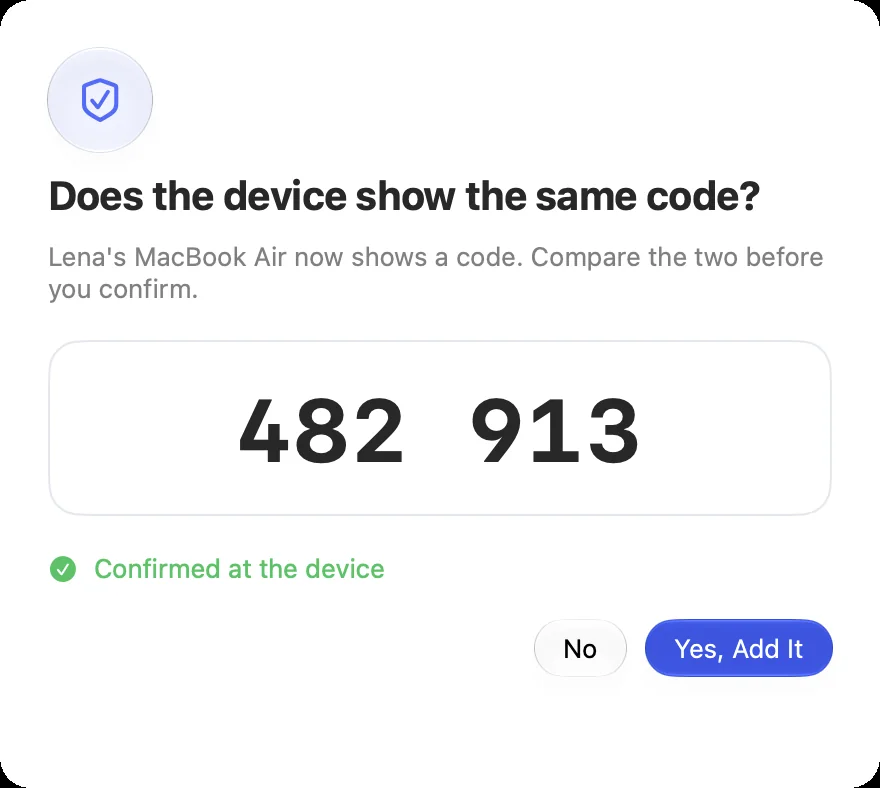
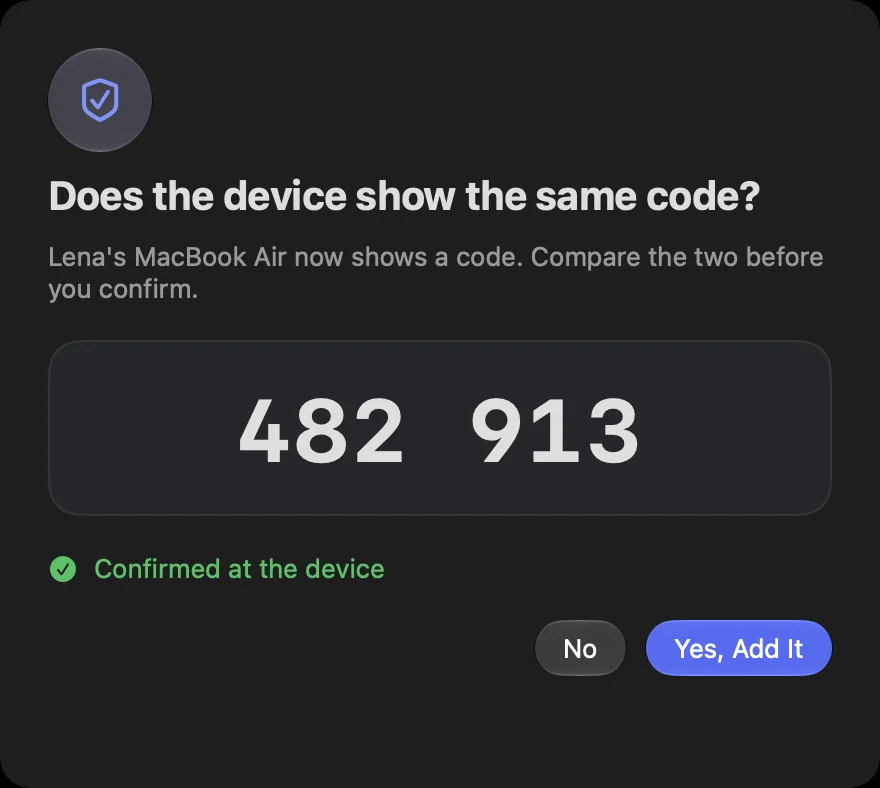
Then both confirm:
- On the other device: Code Matches – Add. If the codes do not match, choose Decline there.
- On your device: Yes, Add It. The button becomes active once the other device has confirmed.
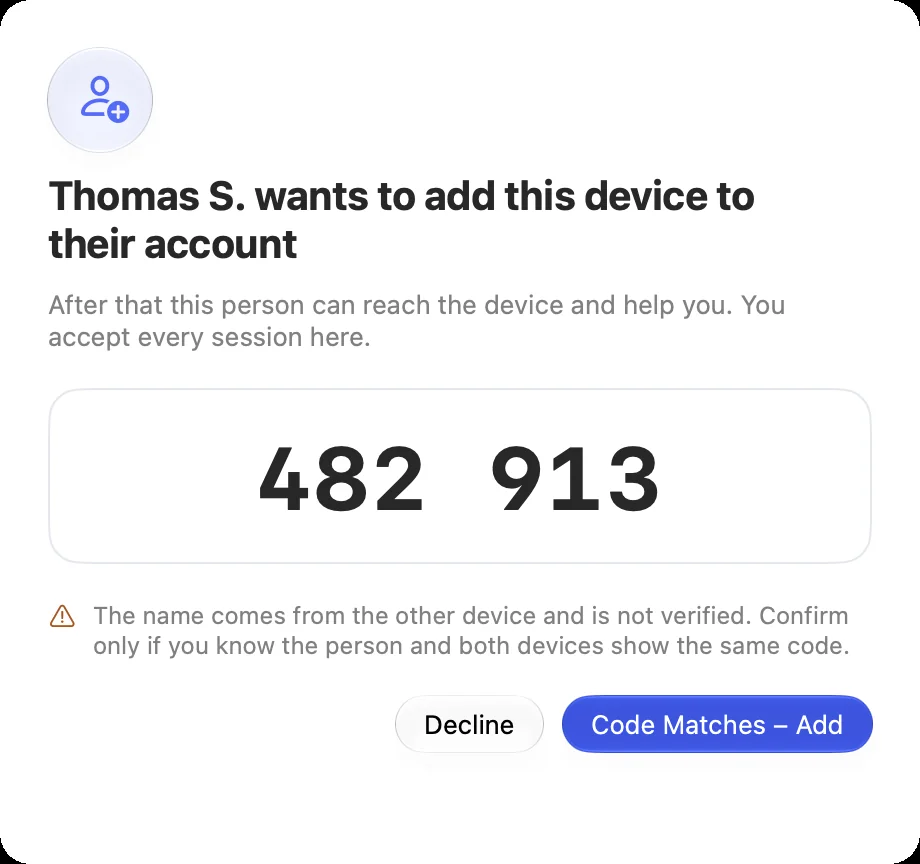
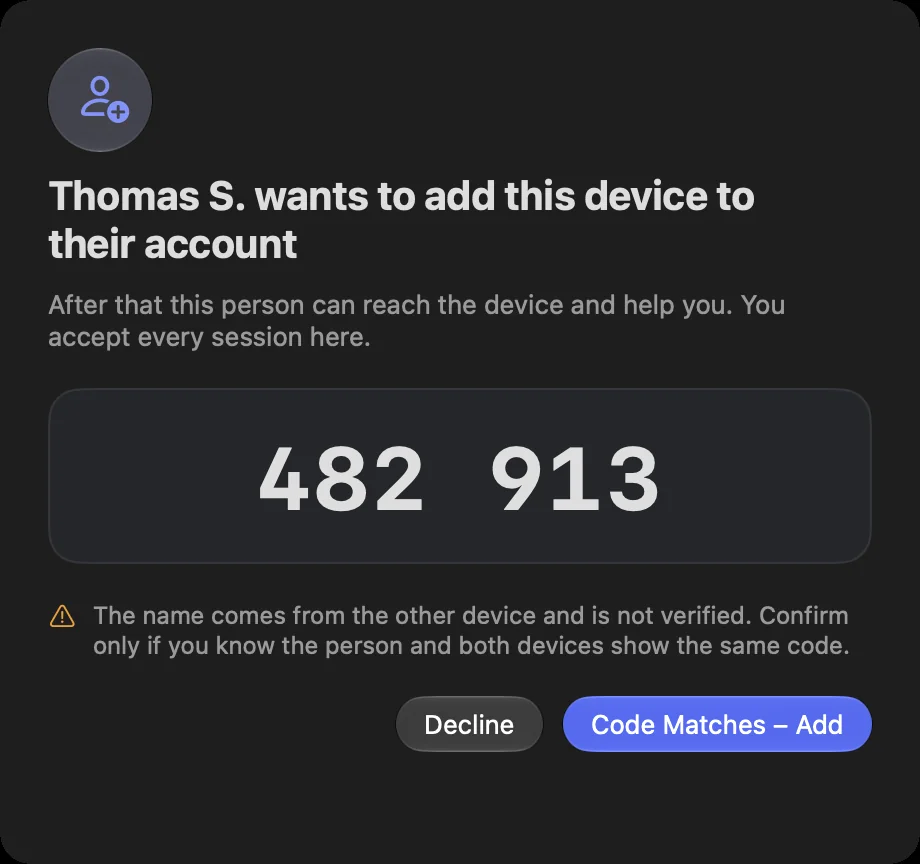
If device lock is on, your Mac asks for Touch ID or your password at Yes, Add It. That is also the approval of the new device – one question, not two.
Windows
On the device that is to be added:
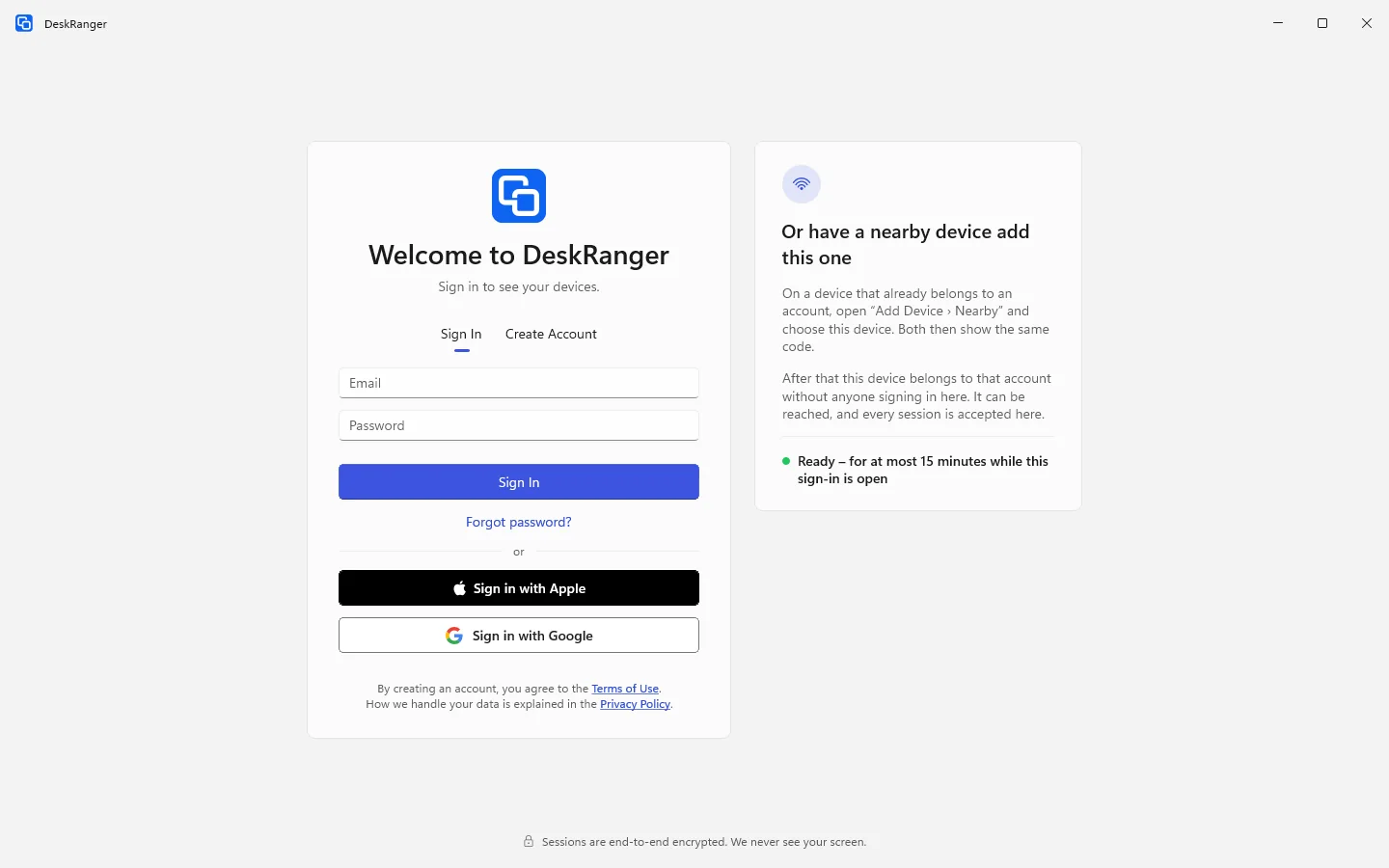
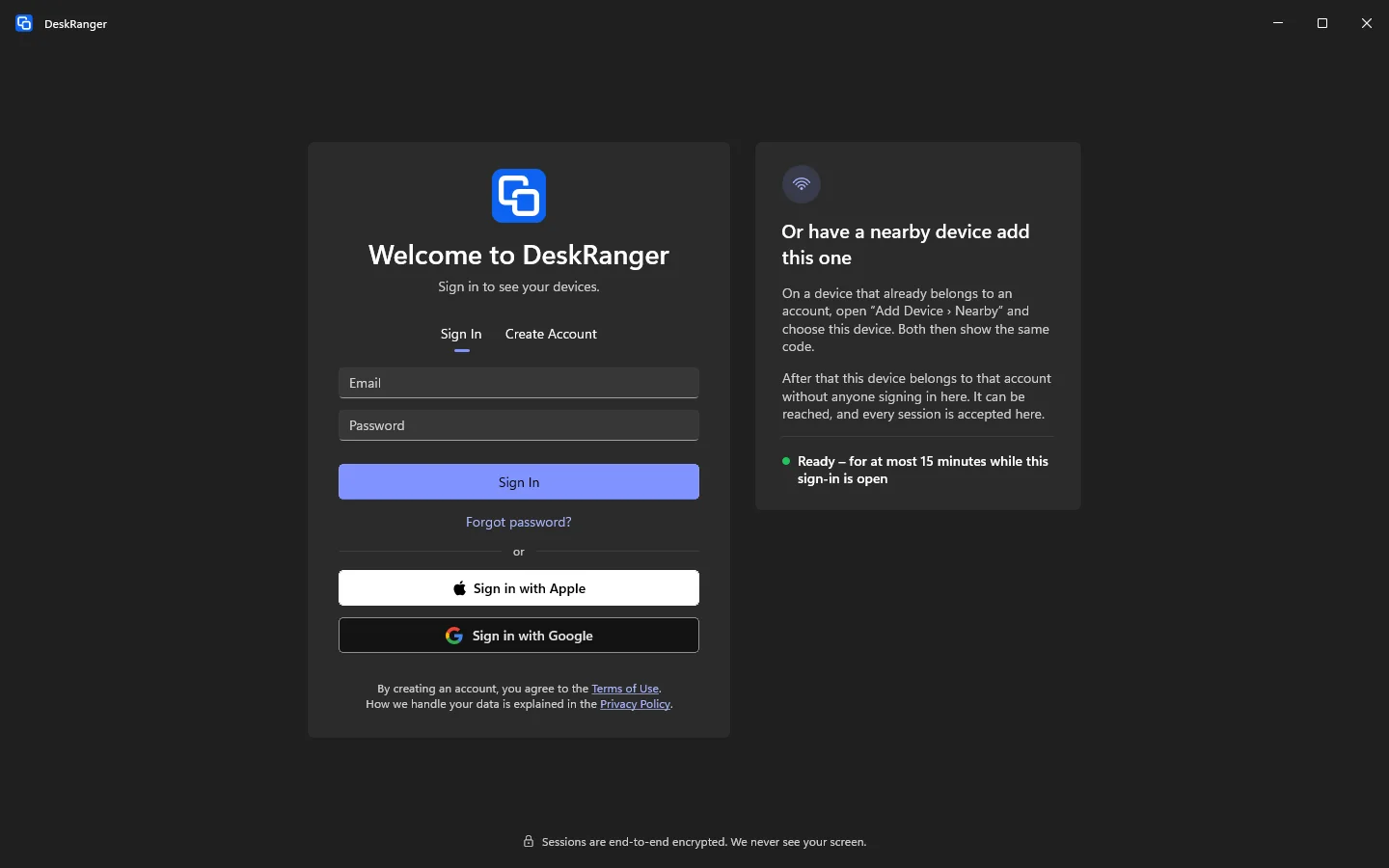
- Install DeskRanger and open it. Do not sign in: leave the sign-in screen open.
- Next to the sign-in it says Or have a nearby device add this one. The PC is now ready for a few minutes. When the time is up it says The time is up. – Make Ready Again continues.
On your device:
- Open Add Device › Nearby.
- The other device is listed with DeskRanger · ready to be added. Choose Add.
- Both devices now show a code. Compare the six digits.
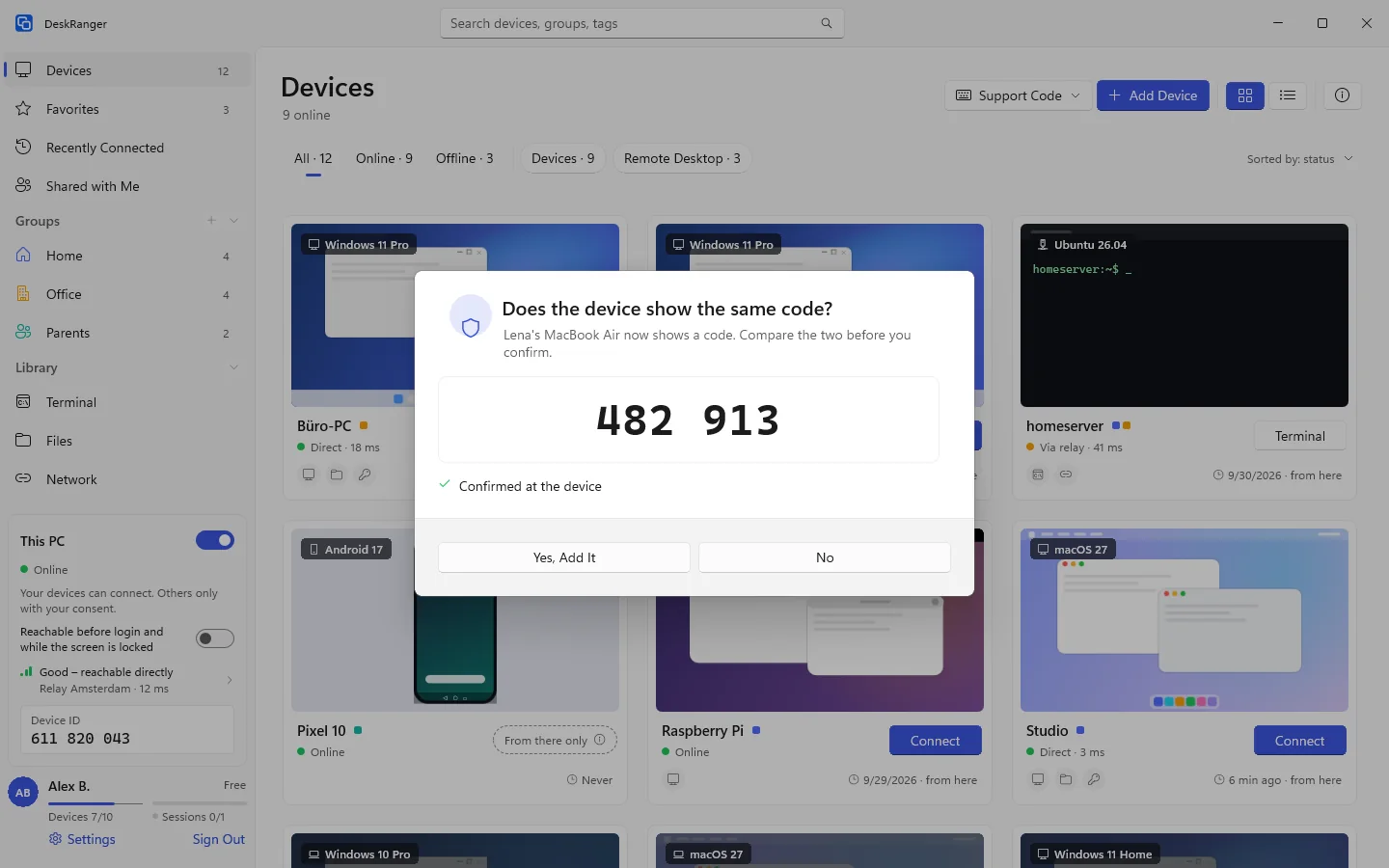
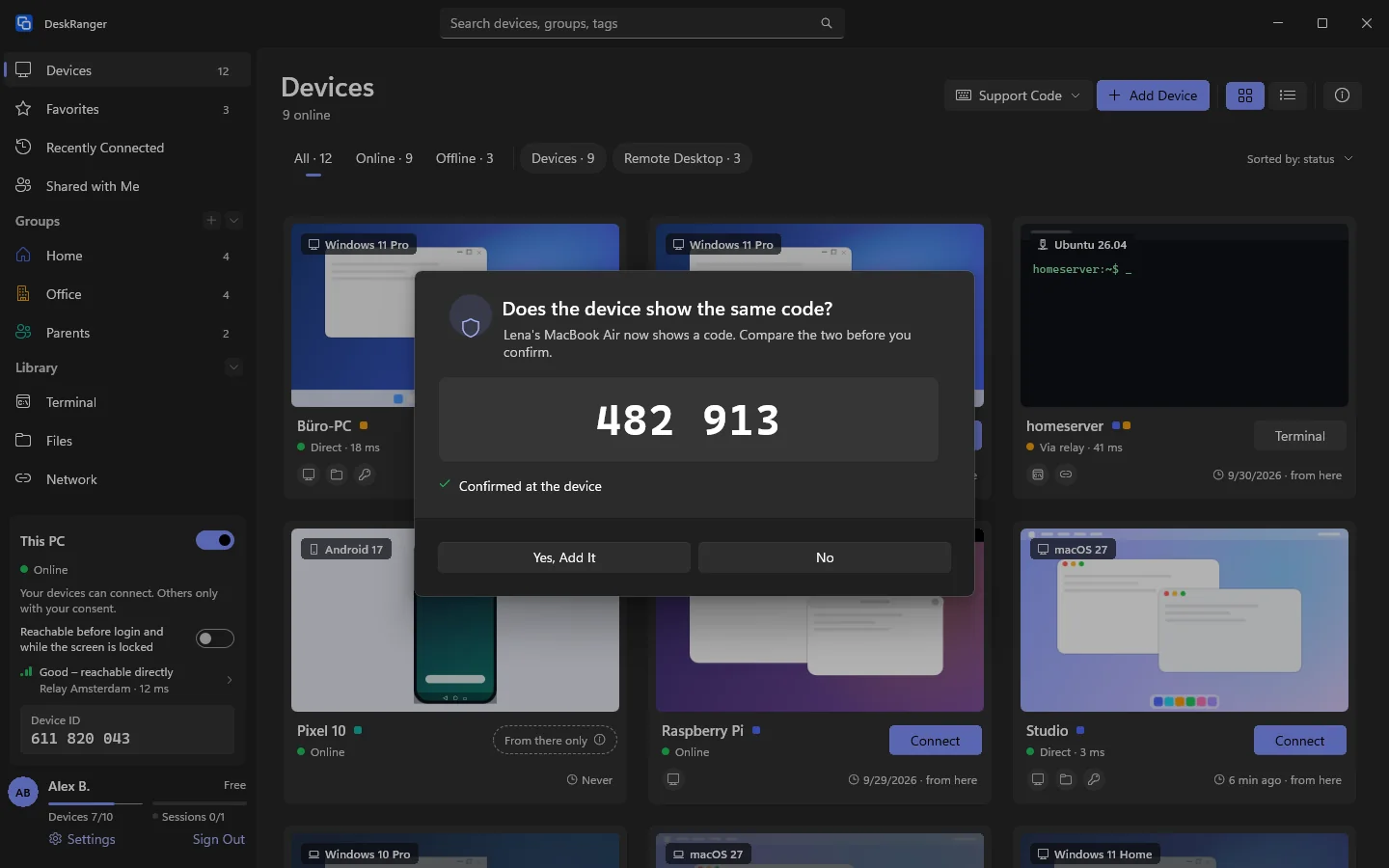
Then both confirm:
- On the other device: Code Matches – Add. If the codes do not match, choose Decline there.
- On your device: Yes, Add It. The button becomes active once the other device has confirmed.
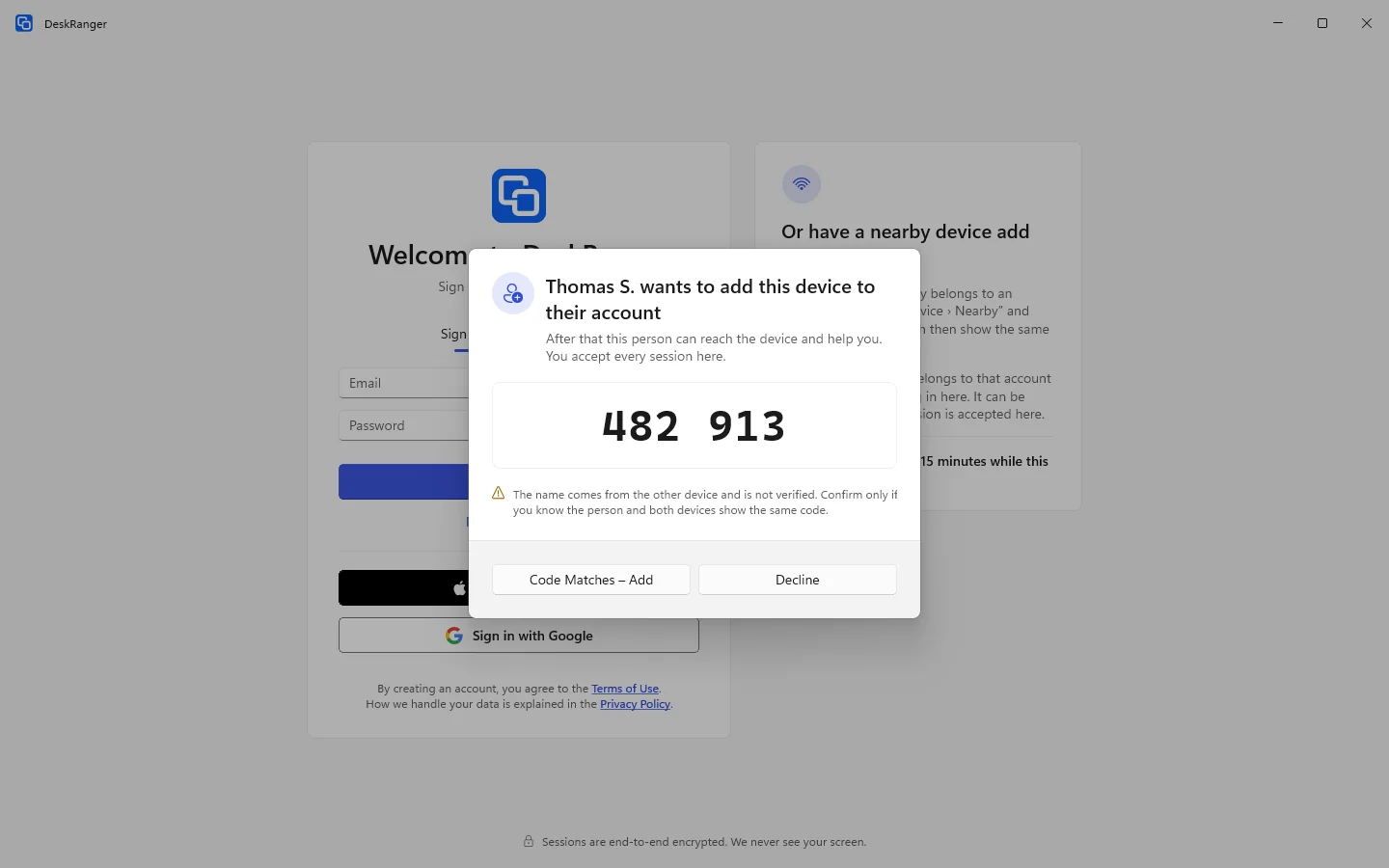
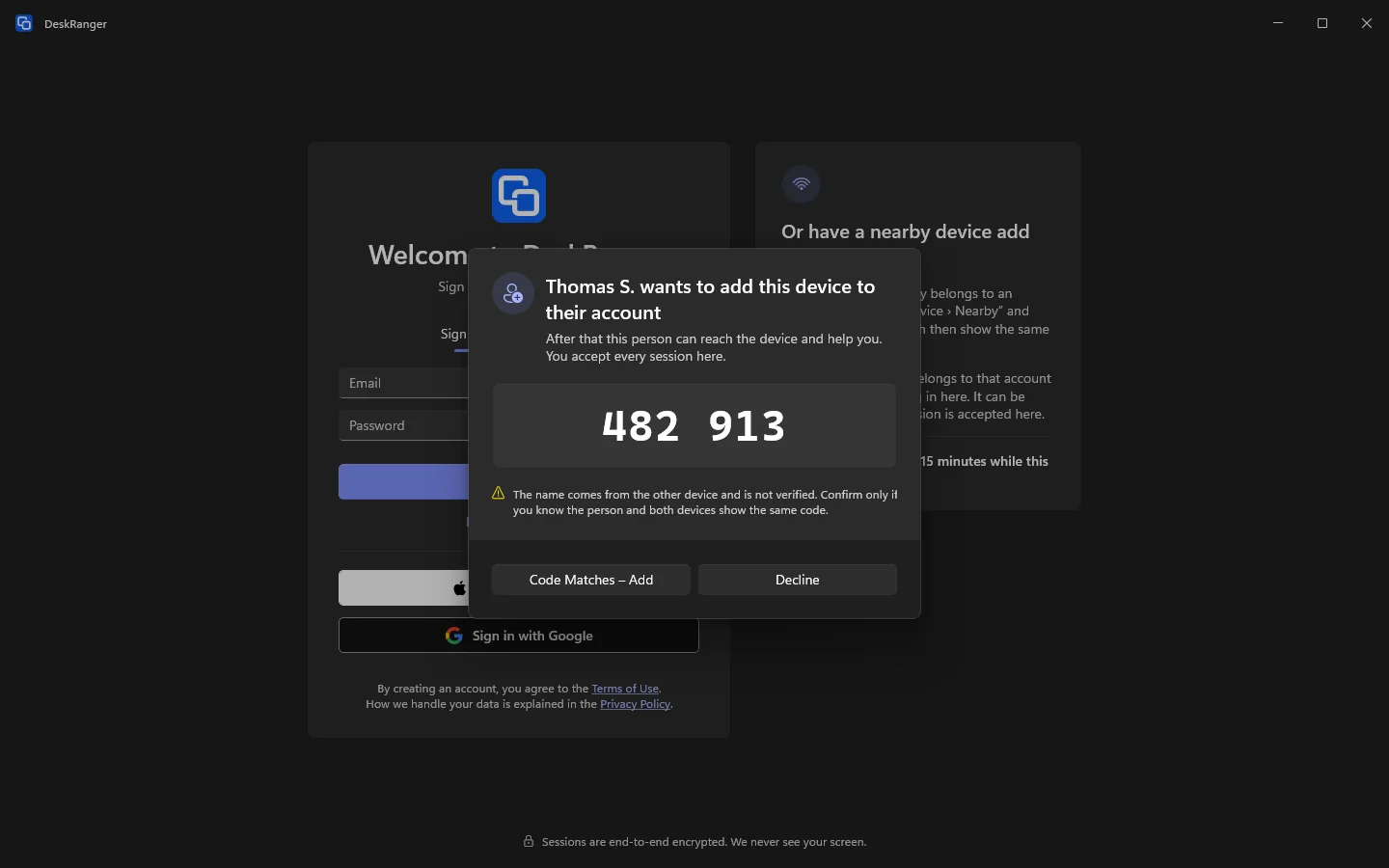
If device lock is on, your PC asks for Windows Hello at Yes, Add It. That is also the approval of the new device – one question, not two.
The name in the window on the other device comes from your device and is not verified. That is why it says there: The name comes from the other device and is not verified. Confirm only if you know the person and both devices show the same code.
What a device added this way can do
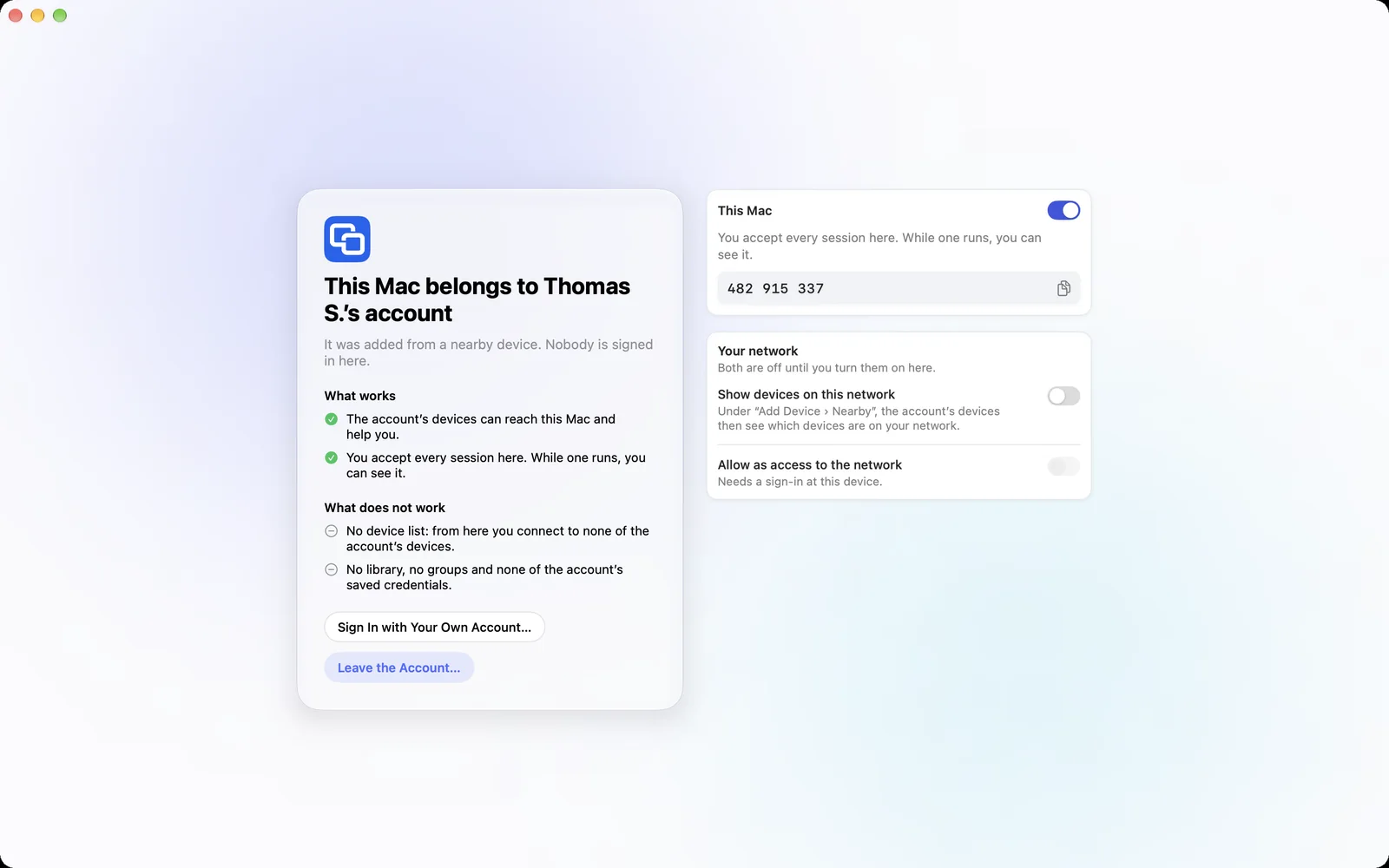
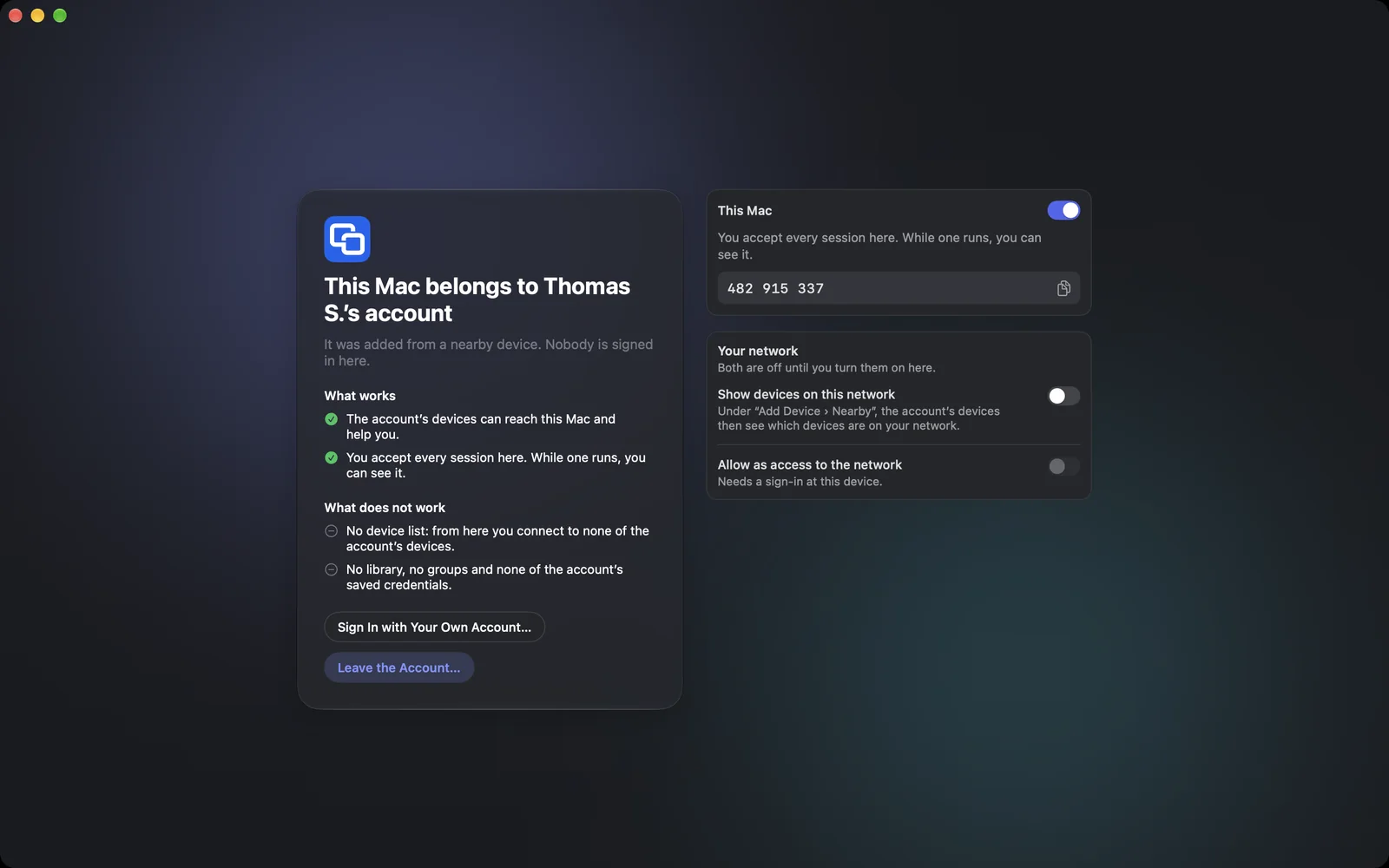
Nobody is signed in on the added device. It belongs to your account, but it sees nothing of it.
macOS
Windows
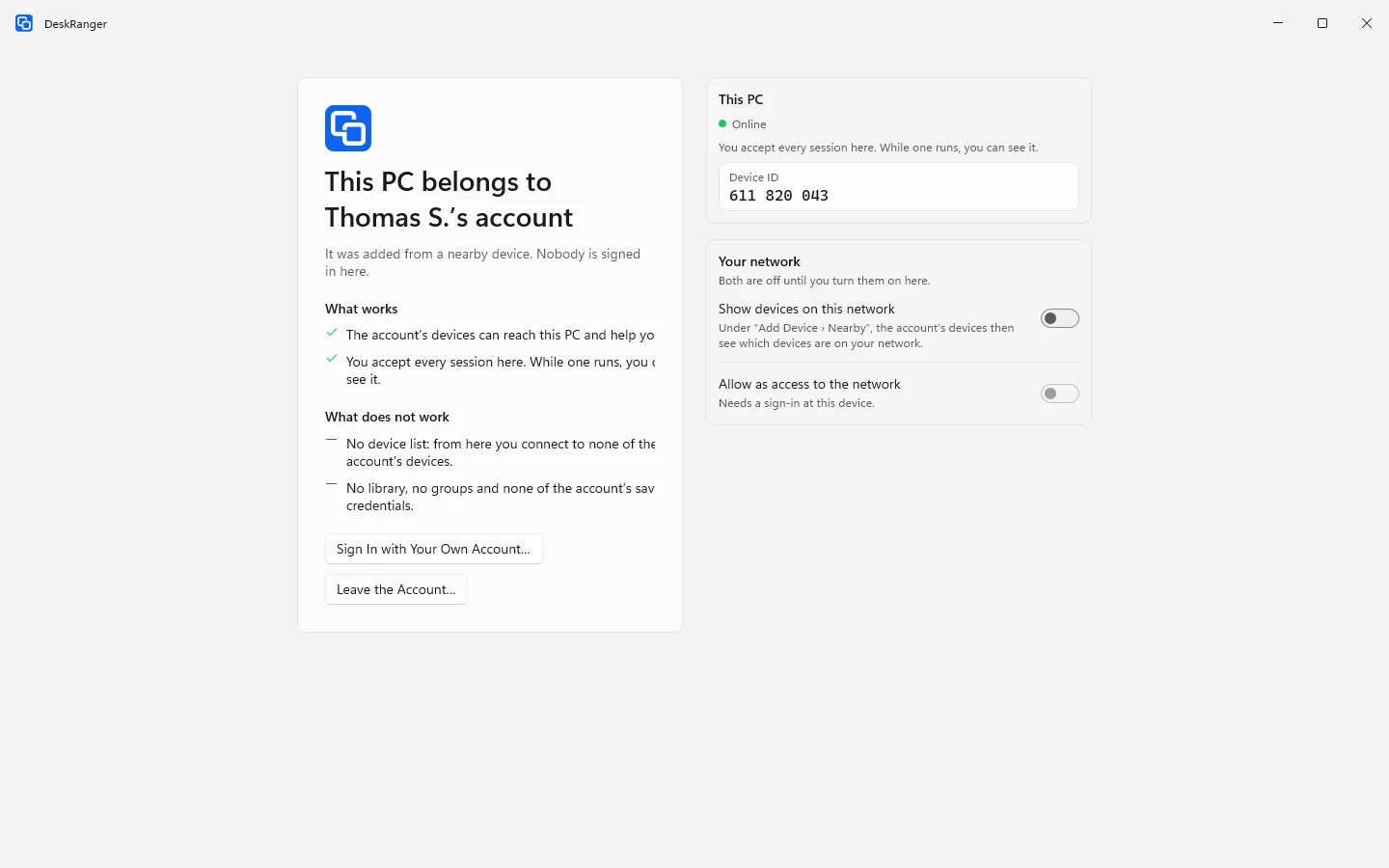
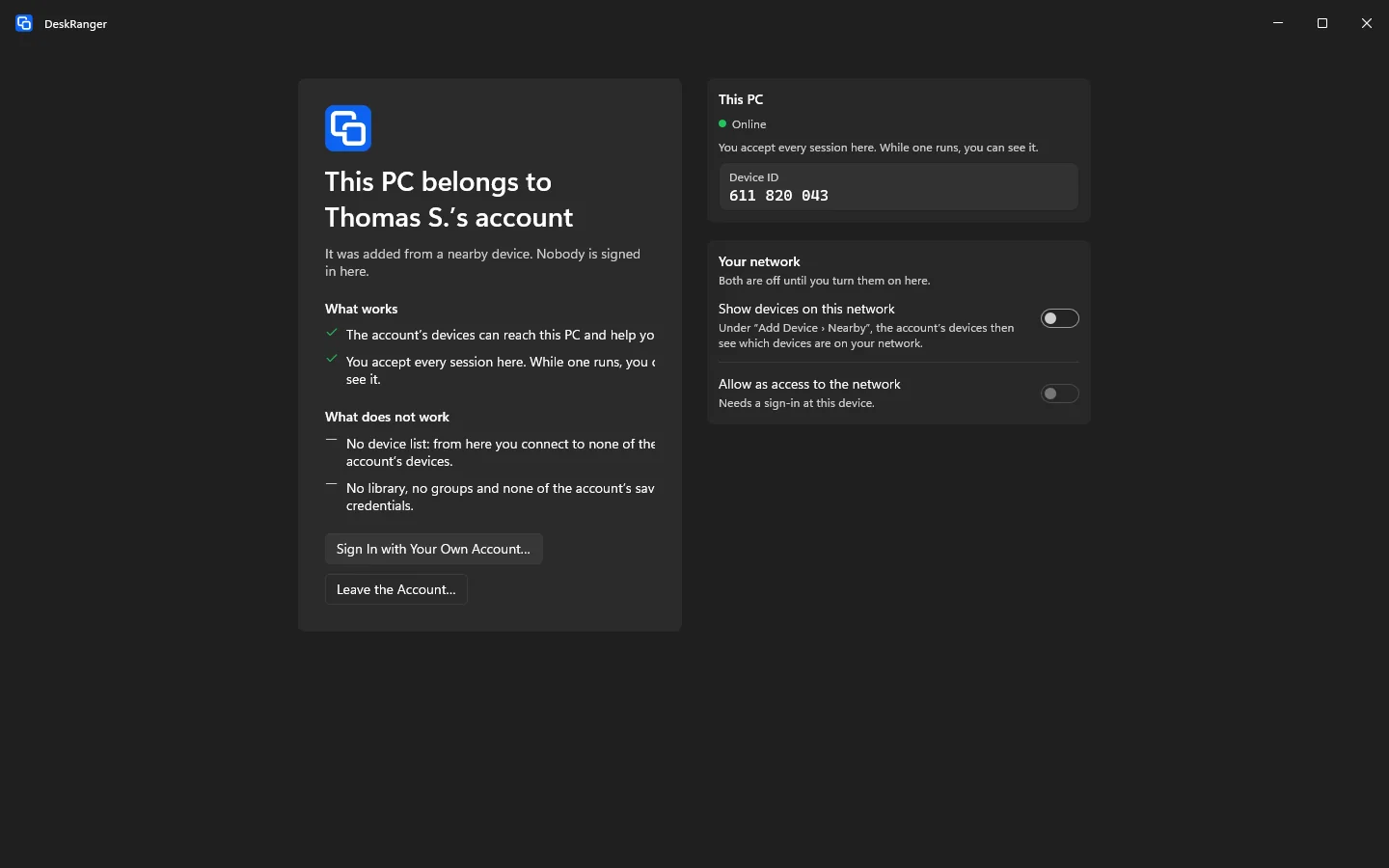
- You can reach it and help. It is in your device list like any other device.
- Every session is accepted there. The person at the device sees your request and accepts or declines it. While a session runs, they can see it – as always.
- It does not see your account. No device list, no library, no groups, no saved credentials. Nobody connects to your devices from there.
- Its network stays closed. Your account learns which devices are on its network only when the person there turns on Show devices on this network. Allow as access to the network is off and can be turned on there only after a sign-in.
The person at the device stays in control
The added device has two ways out, at any time and without asking you:
- Leave the Account… removes the device from your account. Your devices are told, as with any removed device. It can be added again later.
- Sign In with Your Own Account… signs the person in with their own account. If that is another account than yours, DeskRanger asks first: Signing in removes it there. The other account’s devices are told. If you sign in there with your own account, it simply becomes a normal device of your account.
If the device cannot reach our service right now, it says so and changes nothing. Leave on This Device Only forgets the account anyway. It then still shows in your device list as offline. Once it is online again, it tells our service that it left, and the entry usually disappears by itself. Do not rely on it: the device tries only a few times and for 30 days at most, and it can fail. If the entry stays, remove it yourself in your device list – you can also do that at any time before.
If it does not work
Both devices have to be on the same network, for example the same Wi-Fi. On guest networks devices often cannot see each other.
The other device is only ready while DeskRanger’s sign-in screen is open there.
A device is added only when both show the same code. If they show different ones, someone else is in between or another device asked at the same time. Try again.
Your plan limits how many computers can be reachable. Remove a device you no longer need, or turn off accepting connections there.
On the device that is to be added, Visible Nearby is off. Turn On turns it on right there.