Help › Functions
Network: your devices under simple names
Put this device into your network: your devices reach each other under simple names and fixed addresses, encrypted and only among themselves.
In the network your devices reach each other under simple names and fixed addresses, for example the NAS at home from your laptop on the road. Everything that crosses the network is end-to-end encrypted: our servers only store which devices belong to it and how to reach them, never what is transferred. You find it under Network in the sidebar.
Switching it on
Use the switch Join the network on this device to switch the network on. DeskRanger first asks once for your agreement to what our server stores (Before you start): the names and addresses of your devices, their public keys and the internet addresses they can be reached at.
macOS
On the Mac the switch sits in a card at the top right of the page: while the network is off, the card says Join the network on this device; while this device is on the network, it says “This Mac is on the network” with the address and the name on the network. To its left the network stands as a pill with its number of devices; use Network beside it to add another network.
iPhone & iPad
This function is coming soon to iPhone & iPad.
Only a device you protect with DeskRanger Secure may join the network, so nobody can add a device without you. If DeskRanger Secure is off, DeskRanger offers Turn on DeskRanger Secure first.
Windows
On the PC the switch also sits at the top right of the page in a card: while the network is off it says Join the network on this device; when this device is on the network it says “This PC is on the network” with its address and its name on the network. To the left of it the network stands as a pill with its number of devices; use Network beside it to add another network. The ⋯ menu beside the card has Leave network and Settings.
Windows
Windows asks for administrator approval once when you turn this on. DeskRanger installs a network adapter. Only someone signed in to Windows at this PC itself can switch the network on or off; The DeskRanger service must be running on this PC to use the network.
iPhone & iPad
This function is coming soon to iPhone & iPad.
On a Linux server you switch the network on in the terminal: sudo deskranger network on, and off again with sudo deskranger network off. The DeskRanger service sets up a network device of its own for it and registers the names in the network with systemd-resolved; deskranger status shows the addresses in the network and how many devices are reachable right now. If DeskRanger Secure is still off or another device has to approve the join, the command says so.
On a Linux computer with the DeskRanger app, the Network page shows your account’s network: the map, the device list, the names, the history and the cards about other devices. A new key that another of your devices brings (for one network or several) you can confirm in the app like any other approval; a device joining or sharing a local network is confirmed on a Mac or a PC for now. From a device’s panel you check with “Check connection” whether it answers, and you bring a device of your account into the network with “Bring into the network”; it answers the invitation itself. You change the network’s name in the settings. The tabs Local networks, Services, Rules and Guests show what the core reads, and the rules and guests can be edited here; offering a local network works only once the app controls the service. A sleeping device that another device on the network can wake is woken from its panel with “Wake”. With several networks, a row above the tabs lists them: you open one, add a new one with “+ Network” (a template only fills in the name) and leave one at the foot of its page. On the map a local network stands as an area behind its access device, and in the device’s panel under “Roles in the network” you choose that device as the access or as the backup for a local network; the card “Access to …” in Local networks shows who carries it now.
At the top of the page a card shows whether this computer is on the network, with its address and name, and the switch; below it four tiles show how many devices are reachable (and how many are offline), how often the paths were direct over the last 24 hours, the local networks and the internet (direct, through a device, or as an exit for others). Above the map you switch between Paths (lines in the path's colour, with the response time) and Networks (the network's devices joined); Traffic comes later.
macOS
While the network is on, DeskRanger starts in the background when you sign in, so the network comes back by itself after a restart without you opening the app. When several people use this Mac, the network belongs to the person who switched it on first; someone else takes it over only with an administrator’s password (DeskRanger wants to move this Mac’s DeskRanger network to another account.).
When another VPN routes all of this Mac’s traffic through itself (a company VPN, for example), the network stays blocked and the page shows “Another VPN is active” with its name. Switch the other VPN off and the network starts. A VPN that connects only certain networks does not get in the way.
iPhone & iPad
This function is coming soon to iPhone & iPad.
The steps when you switch it on
DeskRanger leads you through switching on, step by step. As soon as you flip the switch, the page shows a checklist. Each row is one step with one sentence, a state (open, in progress, waiting for you, done or failed) and at most one button. Only one step waits for you at a time; every row after it is still open. Above the list it says how many steps are done. When all are done, the checklist folds away by itself and the page shows that this device is in the network.
macOS
On the Mac the steps are:
- DeskRanger Secure: only when DeskRanger Secure is off. The Turn on DeskRanger Secure button opens the set-up; as soon as DeskRanger Secure is on, switching on continues by itself.
- Allow the network extension: macOS requires you to allow DeskRanger’s network extension yourself in System Settings; DeskRanger cannot flip that switch for you. The Open System Settings button opens the right page of System Settings. There: Turn DeskRanger on in System Settings under General › Login Items & Extensions › Network Extensions. DeskRanger notices by itself when you have turned the switch on and carries on; you do not have to press anything more. If DeskRanger was updated in between, the row says “DeskRanger was updated – please restart it.” with Restart App. If DeskRanger is not in the Applications folder, the row says: “macOS only activates the extension when DeskRanger is in the Applications folder.”
- Allow the VPN configuration: Then macOS asks whether DeskRanger may add a VPN configuration; allow it. This is not a connection to a VPN provider: macOS calls every app’s network adapter that. If you refuse, the row stays failed, and Ask again makes macOS ask once more.
- Check other networks: DeskRanger checks whether another VPN sends all traffic through itself or whether addresses overlap with another network. This happens before joining, so macOS does not ask you something that would fail anyway. If DeskRanger finds something, the row names it; end the other VPN or change its addresses there and choose Check again.
- Join the network: when the network already exists, another of your devices confirms that this one may join; until then the row shows “Waiting for you”, and you can withdraw the request with Withdraw request. If joining went wrong, Try Again helps.
In DeskRanger Lite from the App Store the extension is part of the app: the second step does not exist, and macOS only asks whether DeskRanger may add a VPN configuration.
After an update of DeskRanger the app renews the network extension by itself at its next start; macOS does not ask again for that. If the network is switched on and carries nothing at that moment, it reconnects for a few seconds. If data is running through the network, DeskRanger does not interrupt it: the app looks again about every ten minutes and renews the extension as soon as nothing has been exchanged with another device for a minute, or when you switch the network off. If your devices keep exchanging a few packets in the background, the network would never be quiet: then DeskRanger renews the extension despite those few packets at night between 2 and 5 a.m., or after six hours of waiting when nobody has worked at the Mac for ten minutes. A running transfer and a running DeskRanger session always wait, though.
While a newer extension waits, a quiet line under the card says “Network extension waits for its update (build %1$@ → %2$@)” with both build numbers, followed by “It is taken once the network is quiet: the next time it is turned off and on, or at night.”; the same line shows in “This Mac” under the network. The switch stays usable; you do not have to do anything.
If the network adapter does not start at the first try (for example because macOS has just replaced the extension and the new one is not ready yet), DeskRanger tries a few more times by itself with growing pauses of 2, 5 and 15 seconds. The step stays on “running” meanwhile; only when every try failed does the card show the error with “Try again”. On Windows the same rule holds for the service’s adapter. What you must answer yourself, such as the approval in System Settings, is not repeated; it names its own way.
Windows
On the PC the steps are:
- DeskRanger Secure: only when DeskRanger Secure is off. The Turn on DeskRanger Secure button opens the set-up; as soon as DeskRanger Secure is on, switching on continues by itself.
- Approve as administrator: Windows asks once for an administrator’s approval. That is Windows’ own question, and you answer it there. If you refuse, the row stays failed, and Ask again asks the question once more.
- Set up the network adapter: DeskRanger installs the network adapter. This takes a moment and needs nothing from you. If it fails, start it again with Try Again.
- Check other networks: DeskRanger checks whether another VPN sends all traffic through itself or whether addresses overlap with another network. If it finds something, the row names it; end the other VPN or change its addresses there and choose Check again.
- Join the network: when the network already exists, another of your devices confirms that this one may join; until then the row shows “Waiting for you”, and you can withdraw the request with Withdraw request. If joining went wrong, Try Again helps.
iPhone & iPad
This function is coming soon to iPhone & iPad.
Waiting for approval
When the network already exists, another of your devices has to confirm that this one may join: Waiting for approval. Open DeskRanger there and choose the request. Each kind of request has its own text: a device joining, a device with a new key, or the first network of your account. When a device brings a new key for several networks, one request lists all of them and a single confirmation covers each (the line under the list says so; if the server does not understand that yet, DeskRanger asks once per network and says so); if it fails in one network, DeskRanger names that network and its request stays open. Until then you can withdraw the request with Withdraw request, which switches the network off again.
If two devices ask for the first network at the same time and you approve both at the same moment on two devices, only the first approval creates the network. The second one says: “Your account has a network now – another device just created it. Switch the network on again on the device that asked, and it joins that one.”
The map and the list
macOS
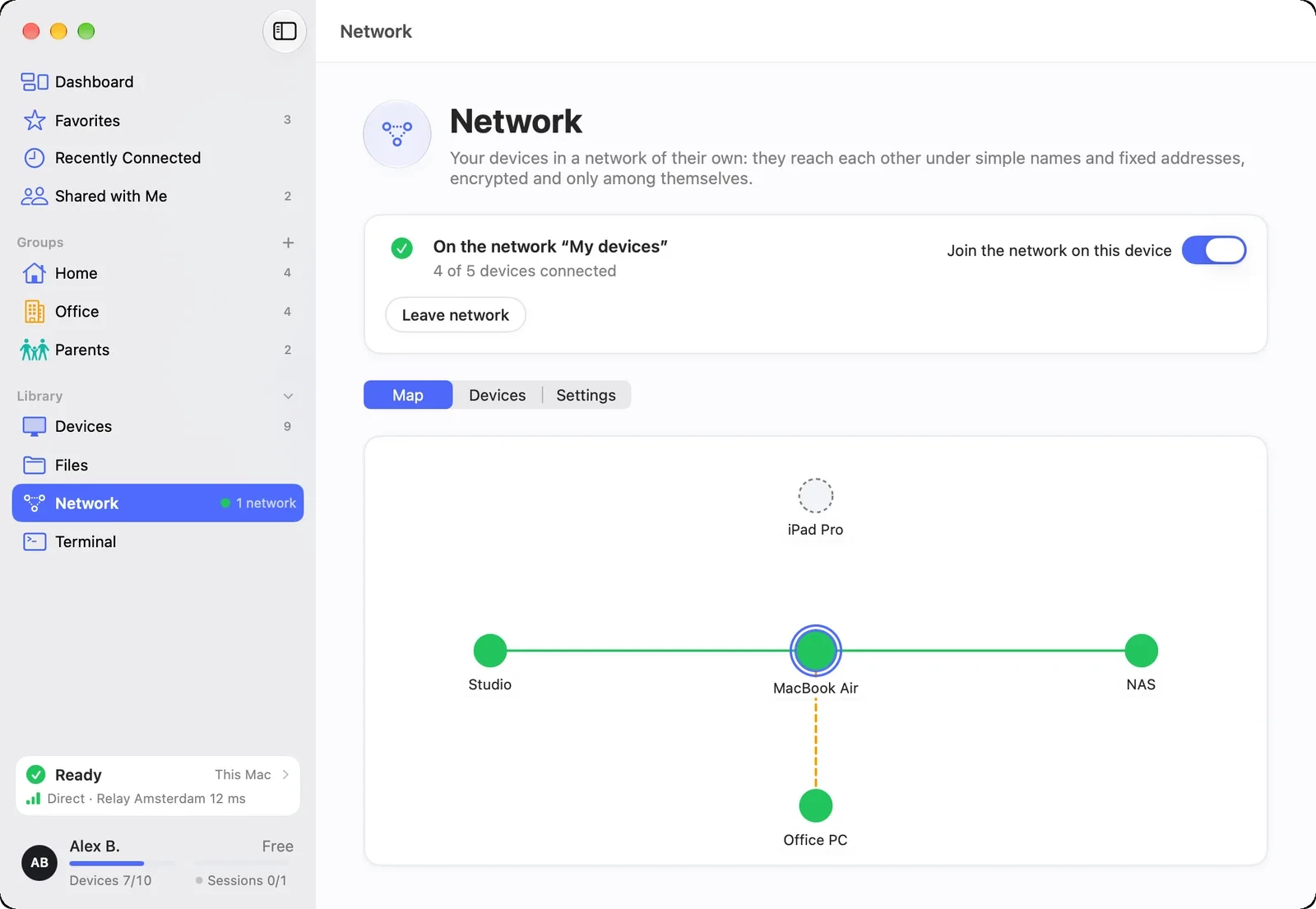
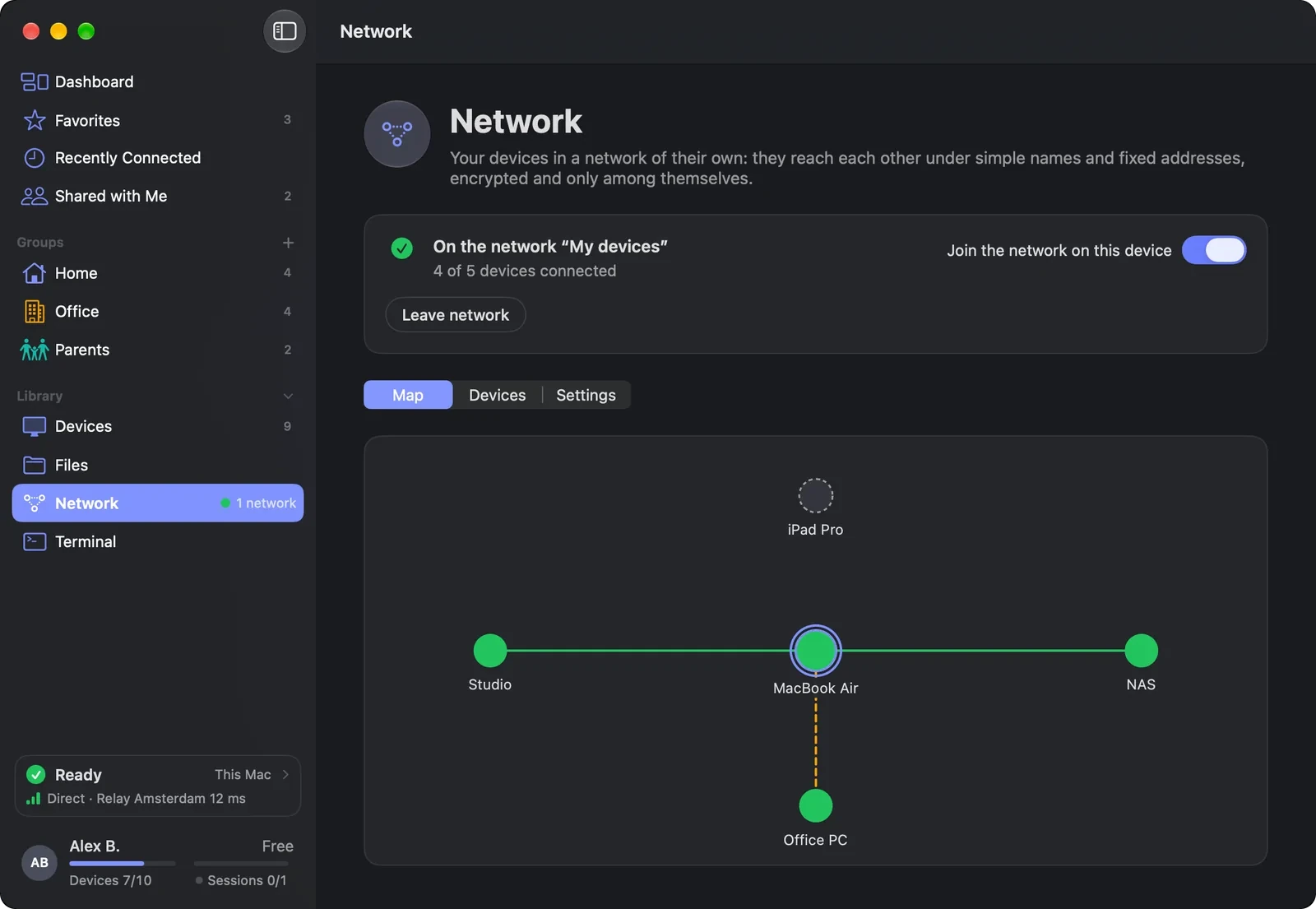
Under Map each device is a small card, with this device in the middle. A solid line shows the path of an open connection (Direct · local, Direct, Direct · IPv6 or Via relay) and its latency; when it runs over a relay it is dashed and names the relay's location. A thin dashed line means the device is online and Ready, but nothing has been sent to it yet. A connection opens by itself with the first packet and closes again after about ten minutes without data. At the top left of the map are the views Paths, Networks and Traffic; Networks shows the network you are viewing as one area in its own colour: its devices are joined by thin lines and carry a dot in that colour; devices that do not take part right now (offline, or their network switched off) are faded and have no line. You choose which network at the top of the page. Traffic comes later and is grey.
A device that is running but has its own network switched off is shown as “Network turned off”, with a grey ring with a bar (not the empty ring of “Ready” and not the dashed ring of a device that is not online). It gets no line and does not count as reachable until someone switches the network on again at that device; the display can trail the switch-off by up to six minutes. “Not reachable” with a red ring with a diagonal stroke means the device is online and in the network, but the last attempt from this device to open a connection to it got no answer; it too gets no line and does not count as reachable until a connection stands or the device reports again. While this device itself is not in the network, the others show no way at all, not even “Offline”. “Connecting …” with the half-filled ring means a connection is being opened right now. The card, the panel on the right and the list show the name the device has in your device list; its name in the network is in the panel on the right under Name on the network. Long names end with “…”, the full name appears as help text.
A click on a device shows its details beside the map: the path with Check connection, Address and Name on the network (each with a button to copy it), Roles in the network, the device's services and, at the bottom, the buttons to connect. The view for this device is shorter: there is nothing to connect to.
While this device is on the network, the window's title shows under “Network” how many devices are on the network and how many of them this device reaches (“Devices in network: 5 · reachable: 4”). The first tile above the map shows the same as “4 / 5” (devices reachable). Its “· 1 offline” counts only devices that are not online; a device with its network off or “Not reachable” is not among them. Both numbers include this device; a device counts as reachable with an open connection or when it is Ready. The second tile shows how much of that ran directly, for example “86% direct” (last 24 hours): Share of the time in which connections to the devices of your network ran directly over the last 24 hours, instead of through a relay. While nothing is measured yet it reads “No data yet”, never “0%”. The two grey tiles (Local network, Internet via home) and the grey tab (Local networks) have no function yet: “Coming later”.
Windows
Under Map each device is a small card, with this device in the middle; the map and the details of the chosen device are one surface. A solid line shows the path of an open connection (Direct · local, Direct, Direct · IPv6 or Via relay) and its latency; a relay path is dashed and names the relay's place. A thin dashed line means: the device is online and Ready, but nothing was sent to it yet. A connection opens by itself with the first packet and closes again after about ten minutes without data. At the top left of the map are the views Paths, Networks and Traffic; Networks shows the network you are viewing as one area in its own colour: its devices are joined by thin lines and carry a dot in that colour; devices that do not take part right now (offline, or their network switched off) are faded and have no line. You choose which network at the top of the page. Traffic comes later and is grey.
A device that is running but has its own network switched off is shown as “Network turned off”, with a grey ring with a bar. It gets no line and does not count as reachable until someone switches the network on again on that device. A device that is online and has its network on, but to which this device's last attempt to open a connection got no answer, is shown as “Not reachable”, with a red ring with a diagonal stroke (not the dashed grey ring of a device that is not online). It gets no line either and does not count as reachable until it gives a new sign of life or a connection to it stands. The Windows service also reports open connections. An open path shows its latency; Connecting … means the connection is being set up. While this device itself is not on the network, the others show their system instead of a way; “Offline” is then not shown for any of them. “Connecting …” with the half-filled ring means a connection is being set up right now. The card, the panel on the right and the list show the name the device has in your device list; the name in the network is in the panel under Name on the network. Long names end with “…”, and the full name appears as a tooltip.
If this PC cannot read the addresses of the other devices, it opens no new connections. A card above the map and the list says so, in one of five cases: “The DeskRanger server doesn't accept this PC's sign-in” (sign in to DeskRanger again; the card shows only once this has lasted about a minute and a half, because DeskRanger usually renews its sign-in by itself before that), “This PC isn't opening new connections in the network right now” (while a connection to this PC is running, DeskRanger renews its sign-in by itself as soon as all of them have ended; you do not need to do anything), the same title “The DeskRanger server doesn't accept this PC's sign-in” with the sentence that the sign-in comes from another Windows user of this PC (new connections open again when that user signs in to DeskRanger again), “The DeskRanger server doesn't allow this PC to use the network” (signing in again does not help here; on another device, check under “Devices” whether this PC still belongs to your account and is approved) and “This PC can't reach the DeskRanger server right now” (only after about a minute and a half without a connection to the server; open connections in the network keep running). The case with another Windows user, the case that waits for connections to end and “The DeskRanger server doesn't allow this PC to use the network” show at once. While the card shows, devices without an open connection show no path and do not count as reachable; a device with an open connection, with its network switched off or one that is offline keeps its display.
On a Mac the same card has three cases: “The DeskRanger server doesn't accept this Mac's sign-in” (sign in to DeskRanger again; it shows after about a minute and a half), “The DeskRanger server doesn't allow this Mac to use the network” (shows at once; signing in again does not help) and “This Mac can't reach the DeskRanger server right now” (after about a minute and a half without a connection to the server; open connections keep running).
On an Android phone the card has the same three cases as on a Mac: “The DeskRanger server doesn't accept this phone's sign-in” (sign in to DeskRanger again), “The DeskRanger server doesn't allow this phone to use the network” (signing in again does not help) and “This phone can't reach the DeskRanger server right now” (after about a minute and a half without a connection to the server); it stands above the device list, with no button.
On an iPhone and iPad the same card sits at the top of the network page with the same three cases: “The DeskRanger server doesn't accept this device's sign-in”, “The DeskRanger server doesn't allow this device to use the network” and “This device can't reach the DeskRanger server right now”.
A click on a device shows its details beside the map: the path with Check connection (the result stands under the button; if the network is off on that device it says “The network is turned off on this device”), Address and Name on the network (each with a button to copy it), Roles in the network, the device's services and, at the bottom, the buttons Screen, Terminal and Files, each only when the device offers it; they open the device as the Devices page does. When the path runs through a relay, “Why?” stands under the button. With nothing chosen the view shows this device; it is shorter, there is nothing to connect to.
The line under the title counts the devices on the network and how many of them this device reaches (… devices on the network, … reachable). Both numbers include this device; a device is reachable when it has an open connection or is Ready. The first tile above the map shows the same as “4 / 5” (devices reachable); its “offline” number counts only devices that are not online, a device with its network switched off or “Not reachable” is online and not in it. The second tile shows how much of it ran directly, for example “86% direct” (last 24 hours): Share of the time in which connections to the devices of your network ran directly over the last 24 hours, instead of through a relay. While there is no measurement it says “No data yet”, never “0%”. The two grey tiles (Local network, Internet via home) do nothing yet: “Coming later”.
iPhone & iPad
This function is coming soon to iPhone & iPad.
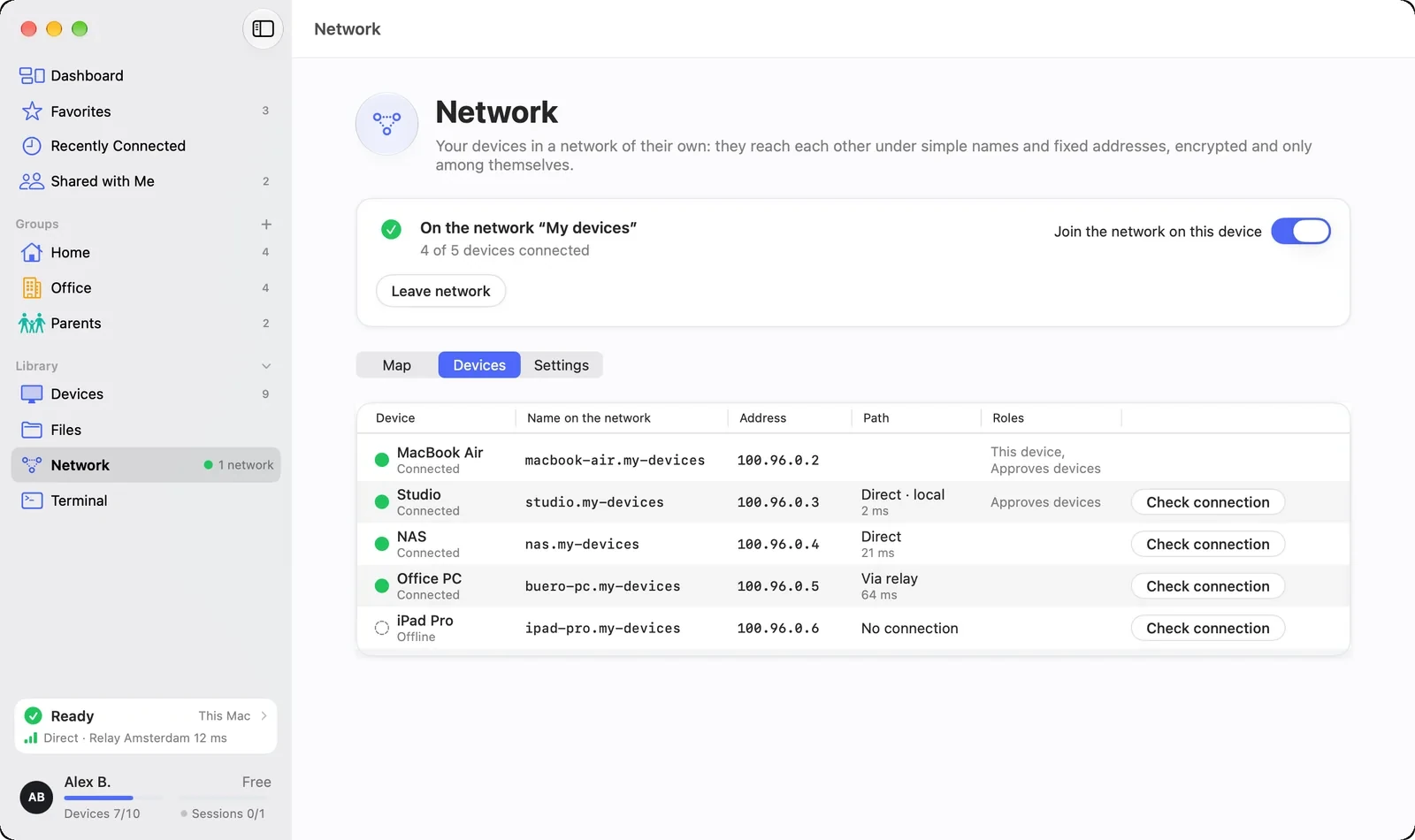
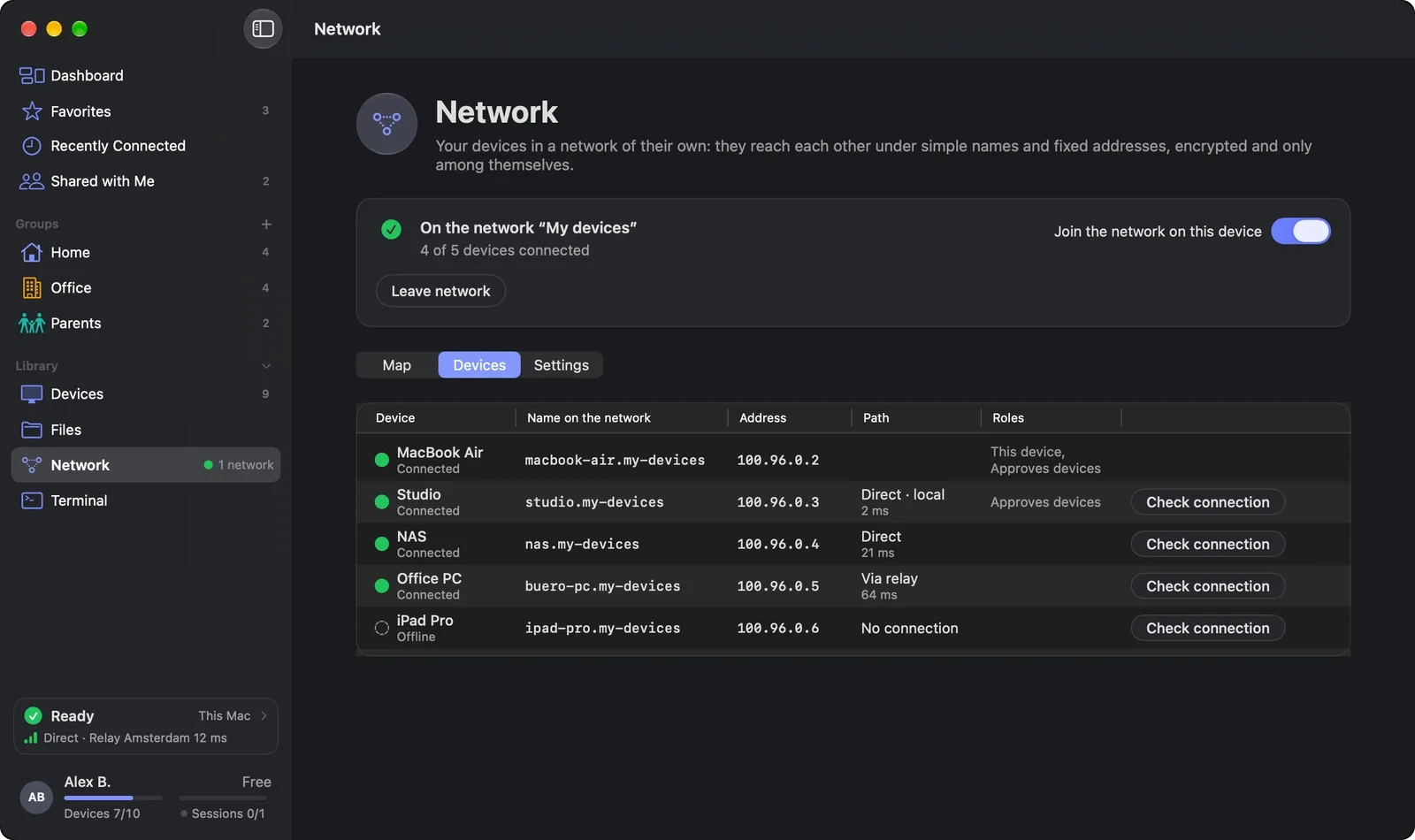
Under Devices the same devices stand in a list with Name on the network, Address, Path and Roles. Check connection sends a data packet through the network itself to the device and waits about five seconds for the connection: if that works, the row says Reachable with the latency, and the path shows how the device was reached. If it does not, DeskRanger also asks the device over your account and says what it found: “Online, but not reachable over the network” or “No answer from the device”. If this device is not on the network itself, it says “This device is not on the network”. Without an adapter (for example in the Store version) nothing can be sent through the system; the check then only asks over your account and says “Device is online”. Copy name and Copy address copy what you need.
macOS
On the Mac you find Check connection, Copy name and Copy address in the ⋯ menu of each row and with a right-click on the row; Check connection is also in the panel beside the map. A successful result disappears after about ten seconds; the path stays in the row. In the panel the result of the check stands under the button, on its own line. If the network is switched off on the device, it says “The network is turned off on this device”.
Windows
On the PC the list shows each device as a row with an icon for the kind of device, its name, address, a badge for the path (Path) and Roles. No row is preselected; a click on a row or on a device in the map selects it. Check connection, Copy name and Copy address are in the ⋯ menu of each row. A successful result disappears after about ten seconds; the path stays in the row. The line under the title counts the devices as described above; the first tile above the map shows the same as “4 / 5” (devices reachable); the grey tiles have no function yet: “Coming later”.
iPhone & iPad
This function is coming soon to iPhone & iPad.
Below the map stand the devices of your account that are not in the network yet – on a bench, “In the account, not in the network · …”, dashed, without a path and without a line. At the top right of the map, Network only / All devices … switches between the devices in the network and all devices of your account; this device remembers your choice. While only this device is in the network, the map shows all devices. With the plus on such a device, with the main button in the panel beside the map and in the list you bring it into the network with Bring into the network; the list has the column In network for it. It is the same way as adding a device to the network, with the same approval.
On a Mac, PC, iPhone, iPad, Android device or Linux computer the device card can wake a sleeping device too (switched on only in test builds for now): when a device in its local network can wake it, the card shows Wake. One click is enough, with no question; then the card shows Waking … until the device is awake, or Did not wake, and you try again. During a remote session on this device the card wakes nothing. When the network cannot wake the device, because this device is in no network, the device is not in the network, or nobody in its local network can wake it right now, the hint on the button says why.
On iPhone, iPad and Android
On a phone or tablet you see your network. At the top is this device’s card; below it, under Devices, are your network’s devices with their name on the network, address and whether they are online, then the name, suffix, address range and history of the network. On iPhone and iPad you cannot change the network; do that on a Mac or PC. On Android a device with an approval key changes the name and suffix itself (tap “Save”, then confirm once). In the standard level the page also shows cards about other devices: a device that stays out, with “Let it in again”, a key alarm with “Accept the new key …” and more; on iPhone, iPad and Android they appear as on the Mac and PC. If your account has no network yet, it says: “No network yet. Turn the network on on a Mac or PC and its devices appear here.”
On iPhone, iPad and Android the devices come in two parts. Under In the network are the members of the network. Under In the account, not in the network are the other devices of your account; they have no line, because they have no way in the network yet. Add to the network on such a device invites it: it answers itself on its own screen, and with DeskRanger Secure the usual confirmation on your devices follows. Until it answers, the row says “Invited · waiting for an answer”. Only a device that is in the network itself can invite; on a phone that is not in the network yet the rows stand without the button.
iPhone & iPad
On iPhone the network is in the Network tab, on iPad in the sidebar. Pull the list down to reload it; touch and hold a device to use Copy name or Copy address.
Your iPhone or iPad joins the network itself: turn on the switch on the card at the top. The first time, DeskRanger explains which data the network needs, then iOS asks once whether DeskRanger may add a VPN configuration; tap “Allow”. After that the device reaches the network’s other devices by their names (only names that end in your network’s name and the names of the local networks, such as fritz.box, go to the network; all other lookups on the phone stay with iOS), and the card shows its address and its name on the network. It also reaches the local networks a device of the network makes reachable through DeskRanger; when you are in such a network yourself, at home on its Wi-Fi for example, connections to it go there directly. Turning it off takes it off the network again; you can also turn it on and off under Settings › VPN. An iPhone or iPad is only a member of the network: it shares no local network and is no exit.
Android
On Android open the network in the sidebar under Network. Pull the list down to reload it.
On Android the phone can join the network itself: tap the switch “Join the network on this device” on the card at the top. The first time, DeskRanger explains what happens in the network; after Continue Android asks once whether DeskRanger may set up a VPN connection. With DeskRanger Secure you then confirm with your fingerprint or screen lock – there are no more prompts. While the phone is in the network, Android shows the key icon and the notification “This phone is in the network” with Switch off. Only connections to your devices in the network and to the local networks a device of the network makes reachable go through DeskRanger; everything else works as before. When you are in such a local network yourself, at home on its Wi-Fi for example, connections to it go there directly, not through DeskRanger.
Your devices' names in the network work on the phone too, for example studio.meine-geraete. Android has no name ranges of their own for a VPN: while the phone is in the network, every app asks DeskRanger for every name. DeskRanger answers only the names of your devices and of the local networks (such as fritz.box) itself and passes every other lookup on unchanged to the DNS servers of your Wi-Fi or mobile network; it keeps no names and writes none to its log. If “Private DNS” in Android's settings is set to a provider, Android asks only that provider: then these names do not work, the addresses do, and the card says so. With “Automatic” both work.
Android has room for one VPN only: if you switch on another VPN, the network goes off on the phone and the card says so. After the phone restarts, the network comes back if it was on. If you sign out, change the account or delete it, the network goes off on the phone and its key is deleted.
Waiting for DeskRanger Secure
When you switch DeskRanger Secure on, it takes your network over in a single confirmation. Rarely a network is left behind, for example because another device changed it at the same moment. Then the Network page shows the line “Waiting for DeskRanger Secure” with the button Secure now on every device that may confirm the network (Mac, PC, iPhone, iPad and Android). One tap gives exactly one confirmation with Touch ID, Face ID, fingerprint or Windows Hello, and its text names the network. If you cancel, nothing changes and the line stays. When several networks wait, every device shows Secure all next to it: one single confirmation for all of them, and its text names the networks. If it does not work, the page says “The network could not be taken over. Try “Secure now” again.” and the buttons read Confirm again; confirm again. Your network keeps running meanwhile; the line goes as soon as the network is taken over.
Removed and changed devices
If the server removes a device from your device list, it no longer counts in your network here until it is listed again; then it counts as available again. If you removed a device yourself, its key stays out until you choose Let it in again. If a known device comes with a different key, it counts nowhere until you accept the new key — do that only if you set the device up again yourself.
Names
Under Settings you change Network name and Device name suffix. Every device is then reachable as “nas” and “nas.ending.dr.internal”. When the ending contains a hyphen (for example “my-devices”), “nas.ending” works too; when it is a single word (“office”), it does not. A local network brings only private names into the network: names ending in .local, .lan, .home.arpa, .internal, .home or .localdomain, and the router names fritz.box and speedport.ip; your devices never look up public names such as “bank.com” through DeskRanger. Only a device with DeskRanger Secure on may change this, and each change is listed under Network history with the device that signed it.
If two of your devices change the network at the same moment, DeskRanger holds it back and shows both versions (Two versions of the network); you keep yours or take the other one after a confirmation. On the phone the card shows Decide …, which opens the same choice.
Rules
Under Rules you decide who may reach what in this network: “who → where → what”. The page has two lists, Between devices and Local networks and internet (local networks that a device of the network makes reachable, and the internet through the exit). A rule allows something; what no rule allows is not allowed. While the network has no rules of its own, the default applies (“No rules of your own yet: the default applies. As soon as you change something and save, it stands in the network as rules.”), and the first save writes it into the network as rules.
On the right under Templates stand ready-made rules to adjust (for example “Guest: printers only” or “Servers over SSH only”). A click opens the editor with the template; you only choose the devices, you can change everything, and nothing is saved until Save. Add rule opens the editor: a name, who (all devices or single ones), where, what (everything, ping, TCP or UDP, with a port or a port range if you like) and an optional end date. If something is missing, the field says what. The card Test a rule below the lists answers beforehand whether a device may reach a target, names the deciding rule (“By the default” or a rule with its number and name) and the path it would take. Save writes the rules into the network, Discard changes drops your changes, Restore the default resets to the default. With DeskRanger Secure on, saving needs one confirmation; a device without an approval key may not change rules.
On iPhone, iPad and Android, Rules is a row in the network's page that opens the rules on a screen of its own. Tap a rule to change it; delete it from its menu (on iPhone and iPad also by swiping). The editor opens as a sheet, and Test a rule sits below the lists. The phone shows only what works today.
Groups: above the rules stands Groups. Add group creates a group (a name and the devices in it; a device may be in several groups), and the group's menu changes or deletes it. In a rule's editor you pick groups under “who” and “where” like single devices, for example “Office → Servers, port 22 only”. A group that a rule names can only be deleted after you change the rule. Save saves groups and rules together: a new group and the rule that names it are one single step, with DeskRanger Secure on one single confirmation. You create and pick groups on the Mac, the PC and on Linux; the phones show a group in a rule by its name and leave it untouched when you change the rule.
Saving works once every other device of the network can read rules. If one cannot, the page names it: it needs an update first, or it has not connected to this device yet and so is not known yet. If the network changed in the meantime, DeskRanger reads the rules again and you save once more.
The page says how far the rules carry: “Every device checks the rules itself.” Our server only passes them on – it cannot change a rule. With DeskRanger Secure every change needs an approval on a trusted device. Rules protect against mistakes and against devices that cannot sign; they do not protect against a person who holds a device with your account's approval key. Under “where” you can also pick a single local network or a single device in it on the Mac and the PC (by its address in the local network, for example 192.168.178.10); the phones show such rules as “unchanged” and do not touch them, nor parts of a network. As text is still grey: Coming later.
Services in the network
Under Services are the services that other devices in this network offer, for example a web interface or a printer in a local network. Each row says where the service comes from: “Name · device”, and for a service from a local network “Name · local network via device”. Below it are the kind and the address with its port. Open is there for web pages, Copy address for every service. The list follows what the devices report right now: a service that goes away disappears here as well. When no device reports anything, it says “No services yet”. On iPhone, iPad and Android it is a section “Services in this network” on the network's page, with Open and Copy address; when no device reports anything, the section is missing.
On the Mac and on Linux the switch Show in system also shows a service in your system, for example in the Finder or file manager, when printing or in a browser, under its name with its origin (“Name · device”). It applies to this computer only: the service is never announced on the local network. On Linux this needs Avahi (avahi-daemon, part of most desktops); when it is not running, the switch is off and says so. The switch applies to exactly this service; when the device changes its name, address or port, it is off again and says “Changed – switch on again”. The service leaves the system when the device stops reporting it, the device or this computer leaves the network, the rules no longer allow it or nothing came from the device for ten minutes; when it reports it again, it comes back by itself. When you quit DeskRanger it is gone as well. On the PC there is no such switch: Windows cannot be set up so that a service appears on this PC only and is never announced on the local network. On the PC the services appear only under Services in DeskRanger, with Open and Copy address.
Without an adapter
Windows
On Windows, DeskRanger itself reaches the devices in the network even without an adapter. Another program reaches them through a local SOCKS5 address, which you copy with Copy address. The reason is named: The Store version cannot install a network adapter., Another VPN (“…”) is active. or The network adapter is turned off in settings.
iPhone & iPad
This function is coming soon to iPhone & iPad.
The address takes SOCKS5 and HTTP CONNECT, also for targets in a local network a device shares. UDP over SOCKS5 works with programs that name their source port when they set it up; most do.
When the addresses or names of the network overlap with another network on this device, the network stays blocked until you switch the other one off and check again. The same holds when this device's router or a DNS server has an address in the network's range, as with some mobile carriers; otherwise the internet traffic would go into the network instead of out. On a Mac the network extension checks this itself too, while DeskRanger is closed.
Away from home, and when something does not work
The network also works away from home, in a café or on mobile data. When two devices cannot reach each other directly, the traffic goes encrypted through a relay; the relay only passes data on and cannot read it. You need no other VPN. If another VPN on the Mac brings its own name servers (DNS), the network extension asks macOS first to look up the relay names, so it finds the relay in that case too.
macOS
If something does not work and support asks for details: open Settings › Developer and choose “Get the network extension's log”. DeskRanger asks the running extension for the end of its log and saves it as a file next to the app's logs. Send that file to support. It says per device whether and how it is reached, or why not; names of your files, contents and passwords are not in it.
Windows
If something does not work and support asks for details: open Settings › Developer and choose “Get the service log” on the card “Service log”. DeskRanger asks the service for the end of its log and saves it as the file service.log next to the app's logs. Send that file to support; sign-in data and keys are removed first.
iPhone & iPad
This function is coming soon to iPhone & iPad.
While DeskRanger is closed
On a Mac, iPhone and iPad the network extension reads the network's changes itself, also while DeskRanger is closed: a device you take out of the network loses its access within about a minute. A change only DeskRanger itself may take, such as “Start over without a key” or DeskRanger Secure switched off, pauses the network on this device; the line then says “Network paused – open DeskRanger on this device to keep it running.”. As soon as you open DeskRanger, it runs on.
Several networks
On every device you can be in more than one network. On the Mac and PC the Network page shows them as a row of tabs at the top, one per network, with Network at the end; on Android as a row of chips; on iPhone and iPad as the list “Networks” with Network as its last row. Tap a network to open its page: its devices, map, names and history. The switch in the card always belongs to this device and its own network; looking at another network does not switch anything.
With the plus you create a new network. Pick a template (“Home”, “Office & site”, “Lab & servers” or “Empty”); a template only fills in the name, which you can change. Create network then asks for the same confirmation as switching on. When the limit is reached the page says “This device is already in 16 networks.” or “Your plan does not allow more networks.”; nothing is created then.
Another device can invite you to one of its networks. The invitation appears on the Network page and this device joins only when you say Join. A network that another of your devices joined is shown once as “New in network “…””.
Leave network (on the Mac and PC in the ⋯ menu of the network's page, on Android, iPhone and iPad at the foot of the page) takes this device out of that one network; your other networks stay. It applies at once on this device. The network stays in the row as “Left on this device” and Join brings you back. If the network is protected by DeskRanger Secure, a device with an approval key still has to confirm the leaving; until then the page says “Leaving is not recorded yet”.
When two of your networks use the same addresses or the same ending, the page says “Address used twice” or “Name used twice”: the second network is not routed on this device until one of them is changed.
This Mac or PC as access to your home network
macOS
When this Mac offers its home network to other devices in your network, the menu bar menu shows every use, for example “iPhone is using “Home” through this Mac”, with End. If a device with an older version keeps using the access after that, it says so below.
When the Mac is connected somewhere else, for example on the road, the access pauses and the menu asks once “Is this still your home network?”. Yes opens the access again, No keeps it paused. Another VPN that takes all traffic, or a phone hotspot as the internet connection, also pauses the access at home.
When you quit DeskRanger, the access through this Mac ends until you open DeskRanger again; if someone is using it right now, DeskRanger asks first. If DeskRanger crashes, the access pauses by itself after a few seconds. When you log out of the Mac, the access carries on while nobody is logged in. When someone else switches to the Mac’s screen (fast user switching), the access pauses at once until DeskRanger runs for that person and shows them the use.
Windows
When this PC offers its home network to other devices in your network, the menu in the notification area of the taskbar (next to the clock) shows every use, for example “iPhone is using “Home” through this PC”, with End. If a device with an older version keeps using the access afterwards, the menu says so below. When there is no use and no question, the menu shows nothing about it.
When the PC is connected somewhere else, for example on the road, the access pauses and the menu asks once “Is this still your home network?”. Below it says: “Access through this PC is paused until you answer.” Yes opens the access again, No leaves it paused.
When you quit DeskRanger on the PC, DeskRanger asks first if someone is using the access right now: “Devices in your network are using access through this PC right now. If you quit DeskRanger, it ends until you open DeskRanger again.”
iPhone & iPad
This function is coming soon to iPhone & iPad.
Home detected and the name of your Wi-Fi
In the tab “Local networks”, the card “Home detected” shows whether this device is at home right now. DeskRanger finds that out with the access device at home, not from the name of a Wi-Fi: anyone can give a Wi-Fi any name.
With the switch “Show the Wi-Fi's name” the line also shows the name of your Wi-Fi, with the Wi-Fi’s name. The switch is off at first. The systems give out a Wi-Fi’s name only with permission for the location. So the system asks for it, but only once and only when you turn the switch on. If you decline, the line stays without a name, and Open settings leads to the setting in the system. When you turn the switch off, the name disappears at once. You take back the permission itself in the system’s settings. On Linux there is no such permission: DeskRanger reads the name from NetworkManager, and nothing asks for your location.
The name stays on this device: DeskRanger shows it only here and sends it neither to your other devices nor to our servers, and it is in no log.
In the browser
iPhone & iPad
This function is coming soon to iPhone & iPad.
Web
In the web console, Network shows your networks to look at, laid out like the app. If you have several networks, you pick one at the top; the browser remembers your choice. Below are the tiles “Devices online” (how many devices of the network are online), the local network with its access device and the internet exit. The browser measures no paths: there are no latencies and no share of direct paths here, only whether a device is online or offline. The tabs are Map, Devices, Local networks, Services, Rules and Guests; on a narrow screen you swipe through the tabs, and the tables stack.
On the Map the network itself is in the middle with the devices around it and a line to every device that is online. Each local network is a box beside the device that makes it reachable (“Via …”), with the backup access below it. A click on a device opens its side panel on the right (below the map on a narrow screen): name, system, online or offline, the addresses, the name in the network, the roles (“Roles in the network”) and the DeskRanger services, plus the link Open device. A very long device name wraps to two lines on the map and stands whole in the side panel. The tabs Devices, Local networks, Services, Rules (as “who → where → what”) and Guests (with their expiry) show the same as tables. The browser checks each network itself before it shows it; a network that cannot be checked is not shown. You join, approve and change things in the DeskRanger app: “View only: joining, approving and changes happen in the DeskRanger app.”
At the top right of the map, Network only / All devices … switches between the devices in the network and all devices of your account; the browser remembers your choice. The devices that are not in the network yet stand dashed on the bench “In the account, not in the network · …”, without a line. Bring into the network does not exist in the browser: a browser is not a device in the network and cannot take anyone in; do that in the DeskRanger app. The same map, compact, is the tile “My devices · …” on the Dashboard.
Leaving the network
Leave network takes this device out of the network. Your other devices then stop counting it as reachable within a few seconds. If the network ends unexpectedly, for example because the power fails or the internet is gone, that takes a few minutes.
On the Mac, iPhone and iPad the device also leaves the network when you sign out of DeskRanger, change to another account or delete your account: a signed-out account keeps nothing running. After you sign in again, switch the network on again.
macOS
On the Mac you find the action in the ⋯ menu beside the card at the top right of the page, in the menu bar and in the bubble of “This Mac”. Switching the switch in the card off also takes this device out of the network.
Windows
At the PC you find the same action in the ⋯ menu beside the card at the top right of the page, in the notification area's menu and in the bubble of “This PC”.
Windows
At the PC the network belongs to the DeskRanger service and so to the whole computer. When the service's sign-in ends, for example because you sign out of the DeskRanger app you signed the service in with, the PC pauses the network; when you sign in again with the same account, it carries on by itself. When the PC is removed from your account, you delete your account or the service changes to another account, the network is off; switch it on again afterwards.
iPhone & iPad
This function is coming soon to iPhone & iPad.