Help › Getting started
The Dashboard: the start page
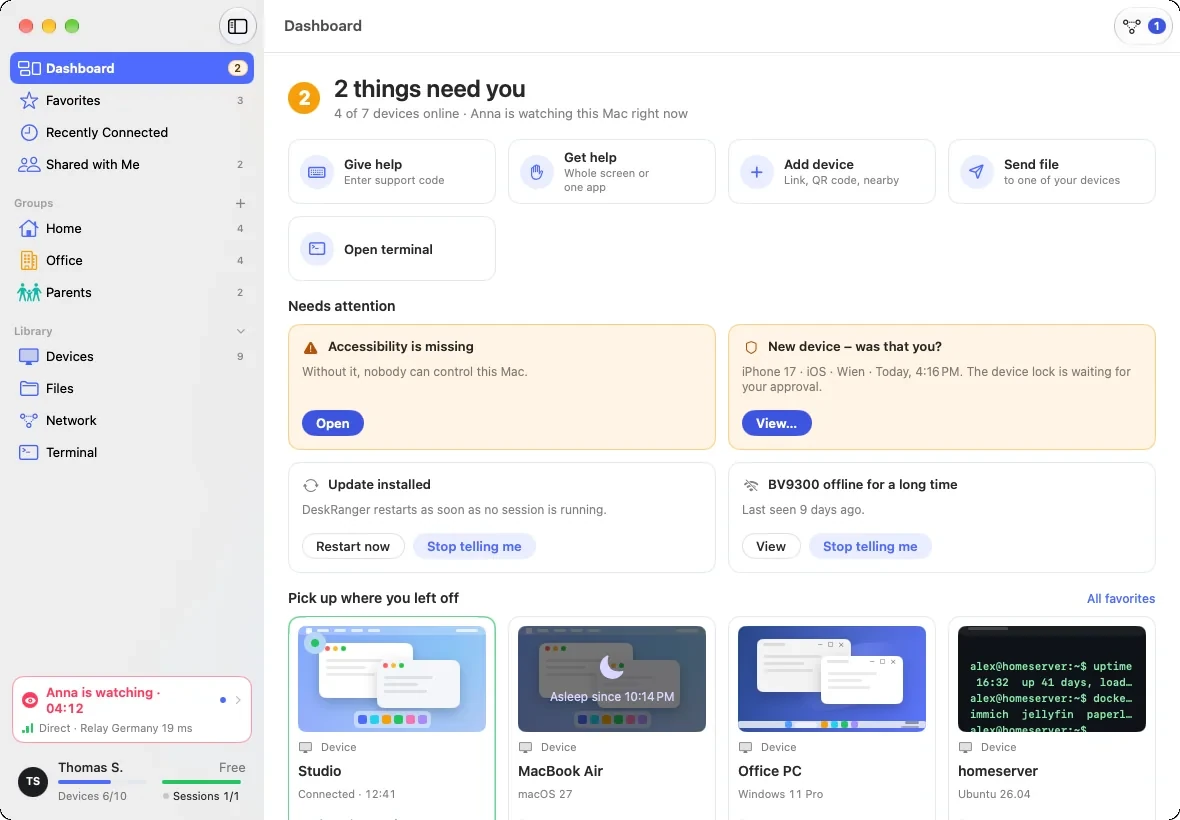
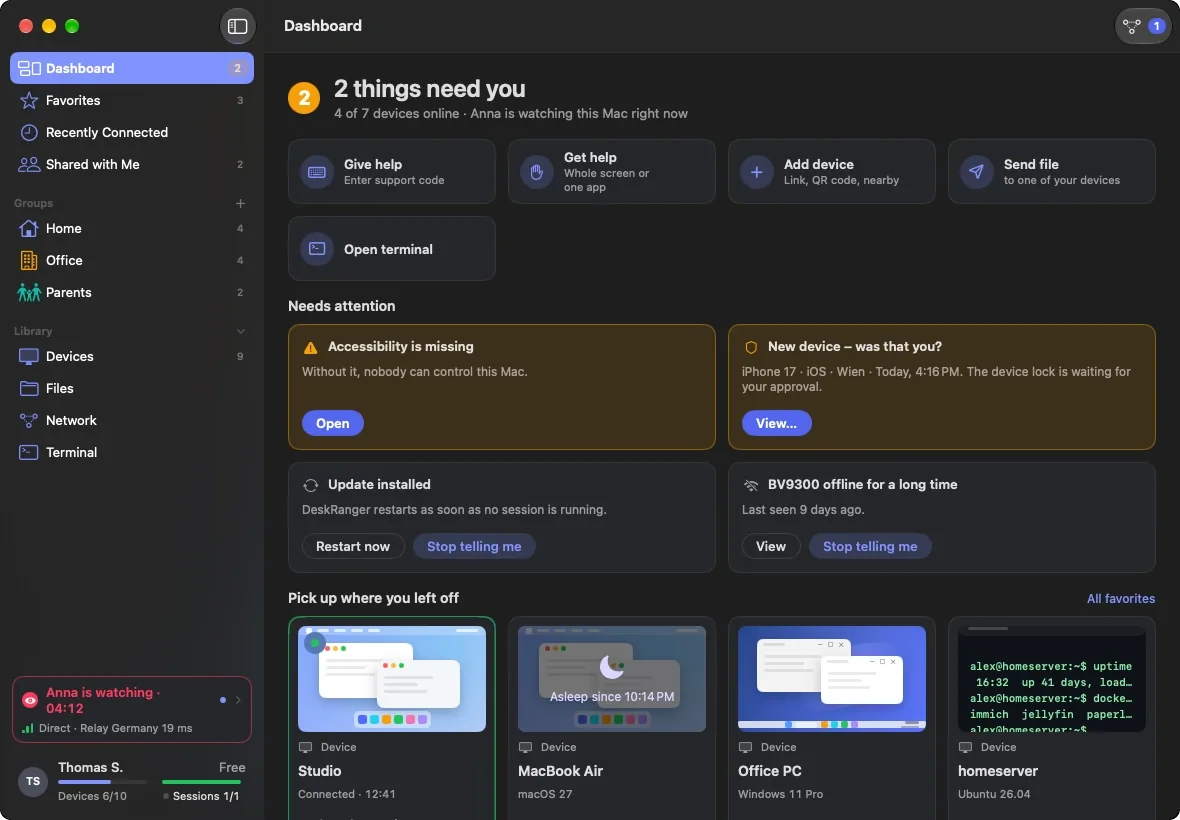
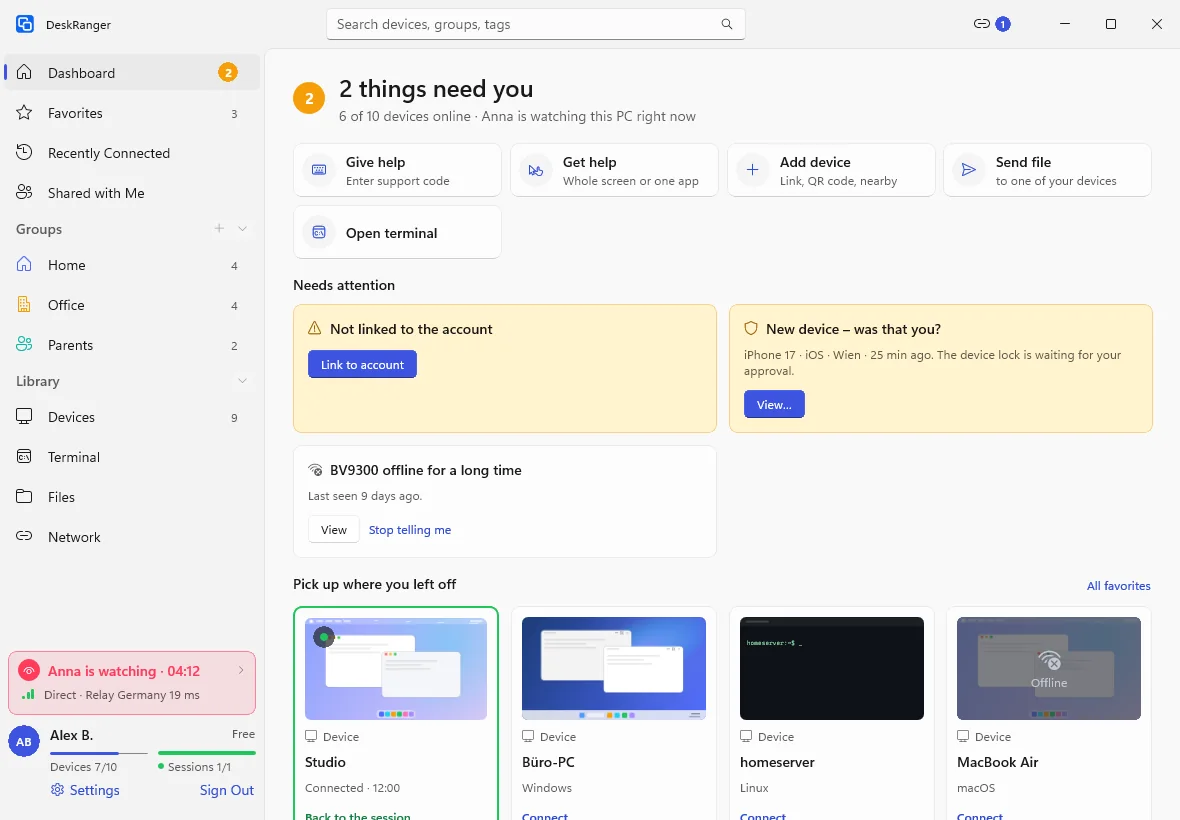
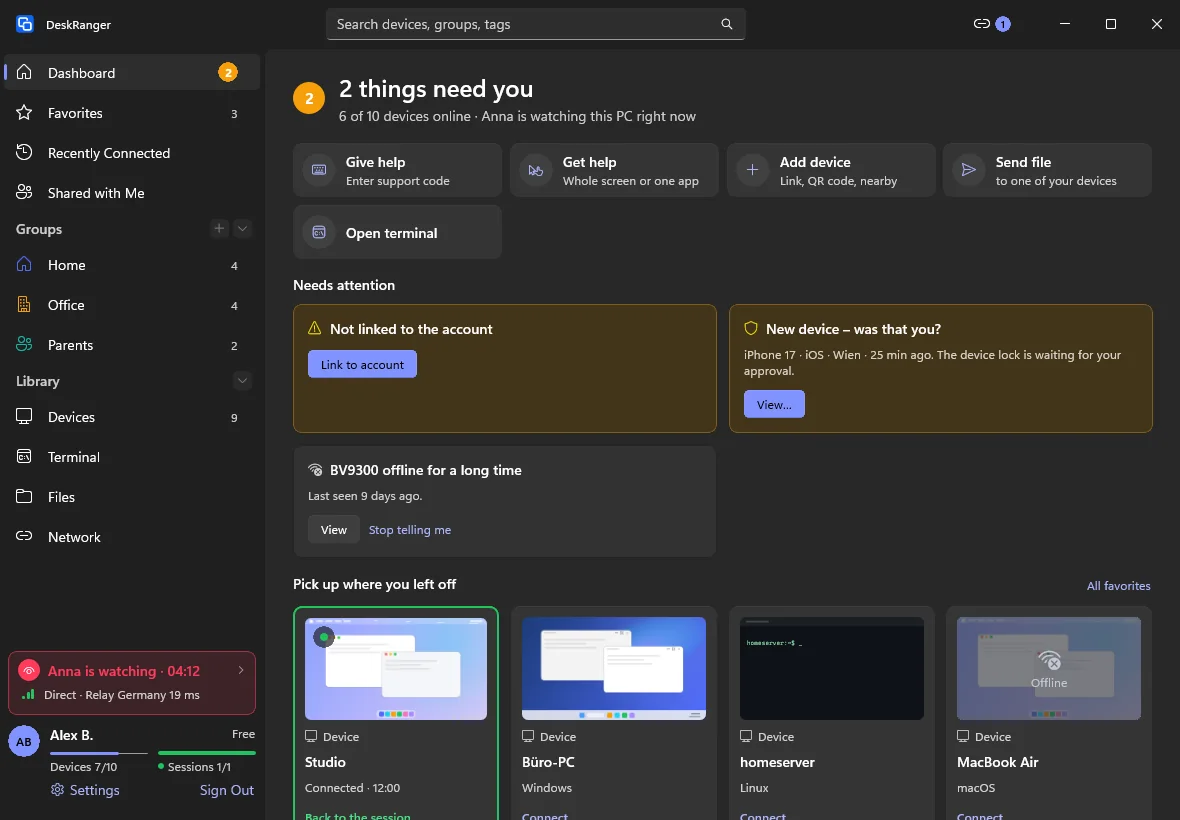
At a glance: how your devices are doing, what needs you and where you can carry on.
The Dashboard is DeskRanger's start page. It says in one sentence whether everything is in order, and under it what is running, what is waiting for you and where you were last. It uses the information DeskRanger knows on this device and requests sign-in activity when you open it. A tile appears only once it has something to show.
macOS
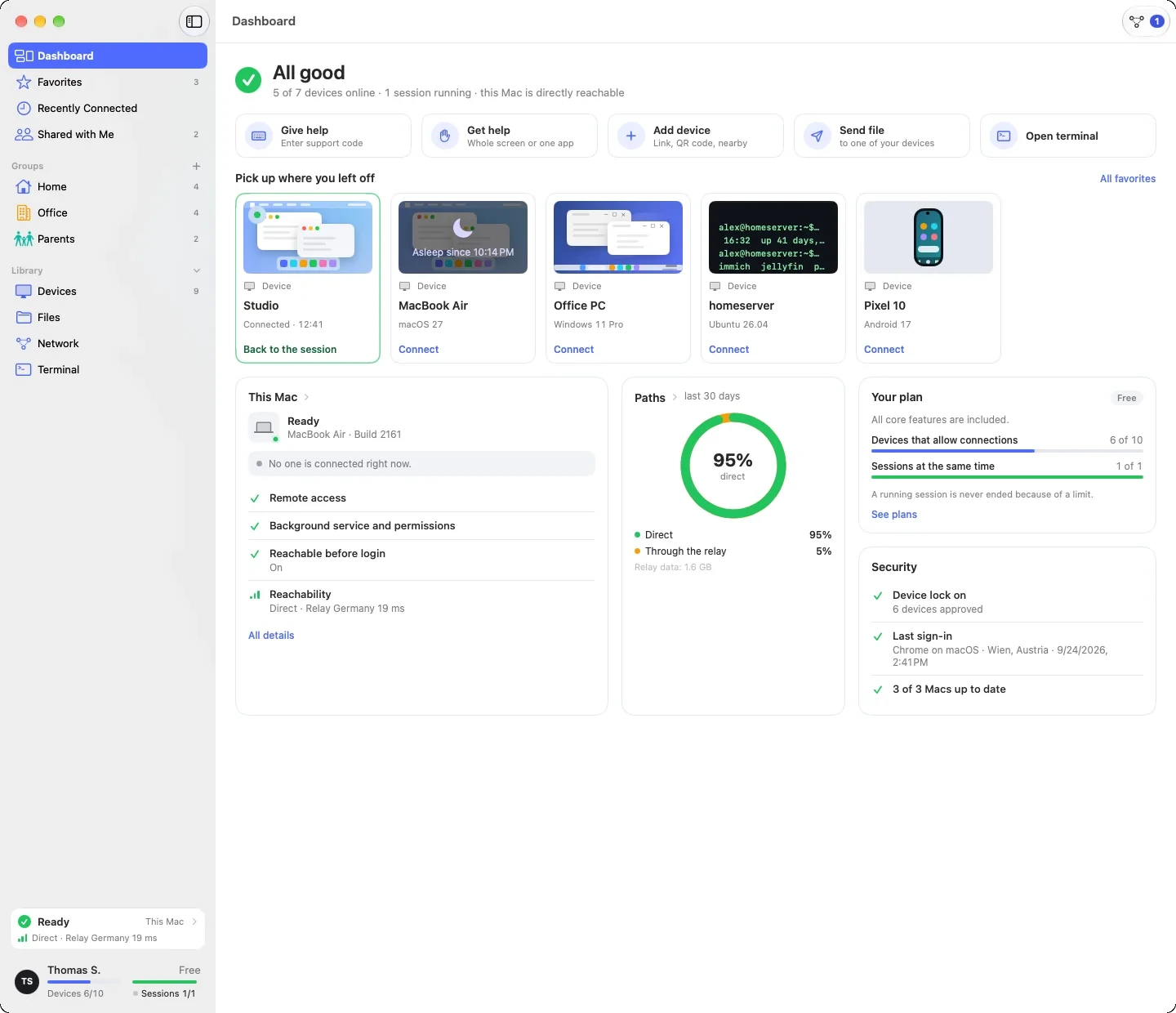
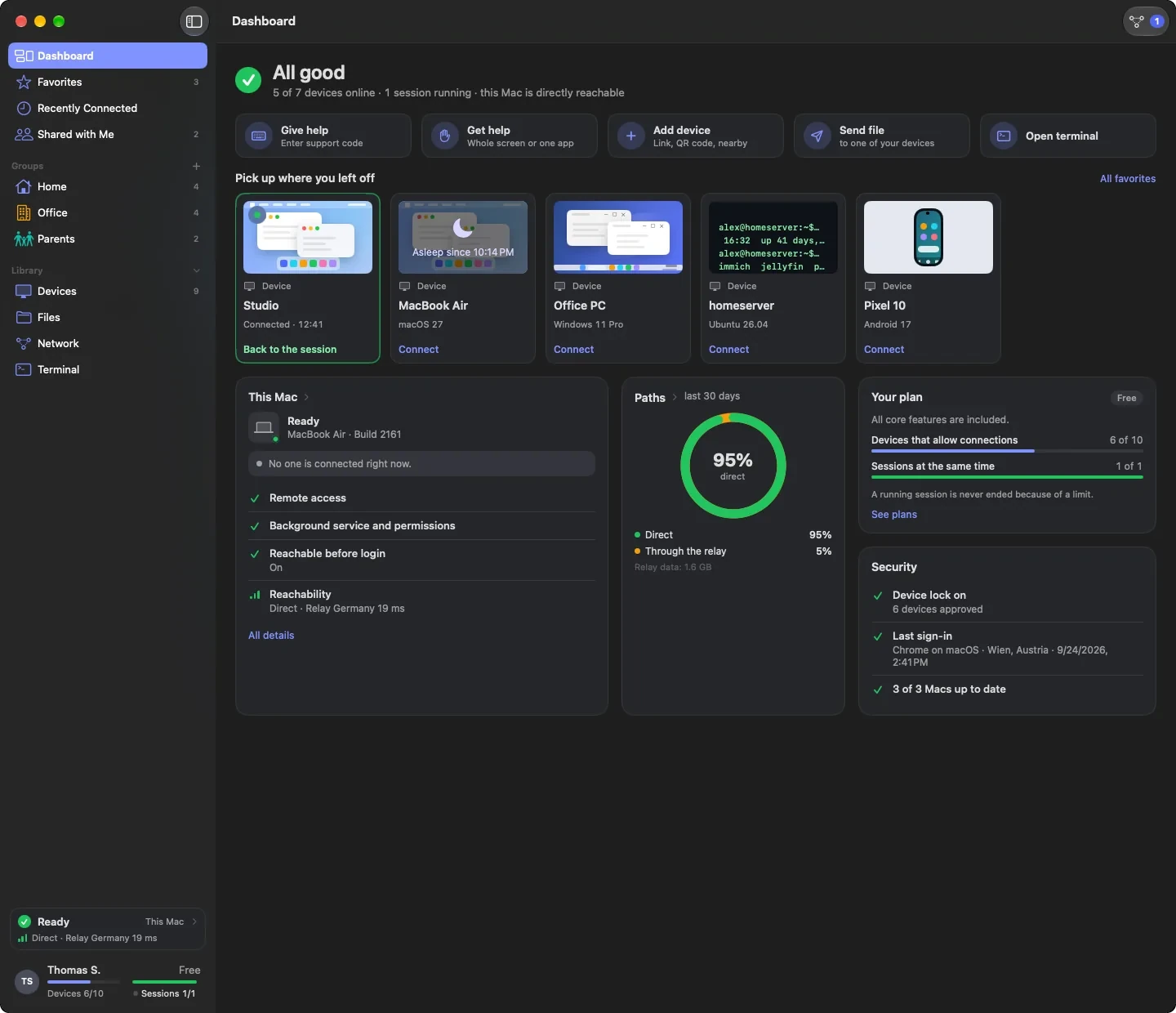
You open it with the first row of the sidebar, with ⌘0, or with Dashboard in the Window menu; the same entry is in the Dock icon's menu. On the first start, and when the page you used last is gone, DeskRanger opens the Dashboard. Otherwise it opens the page you chose last.
Windows
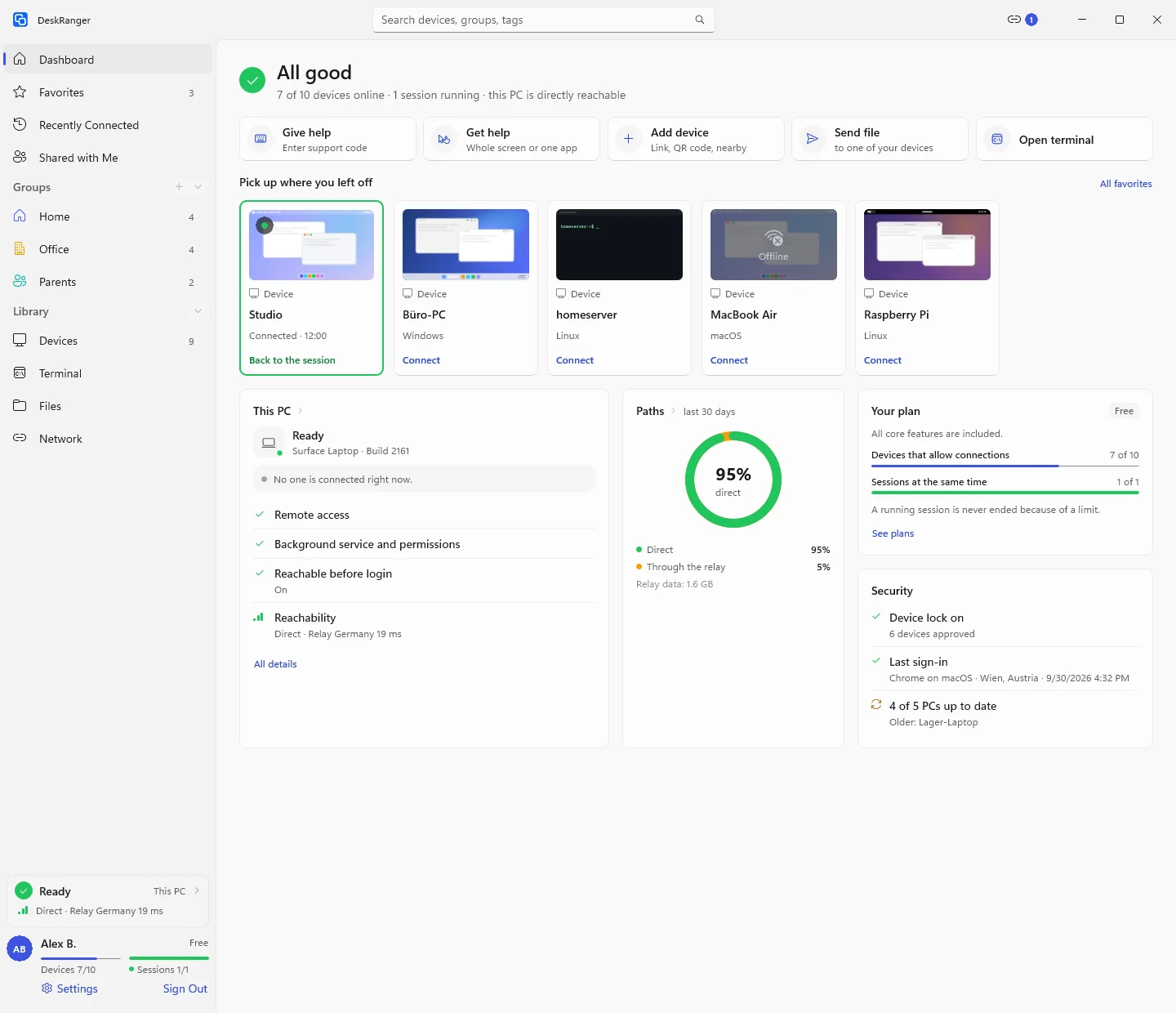
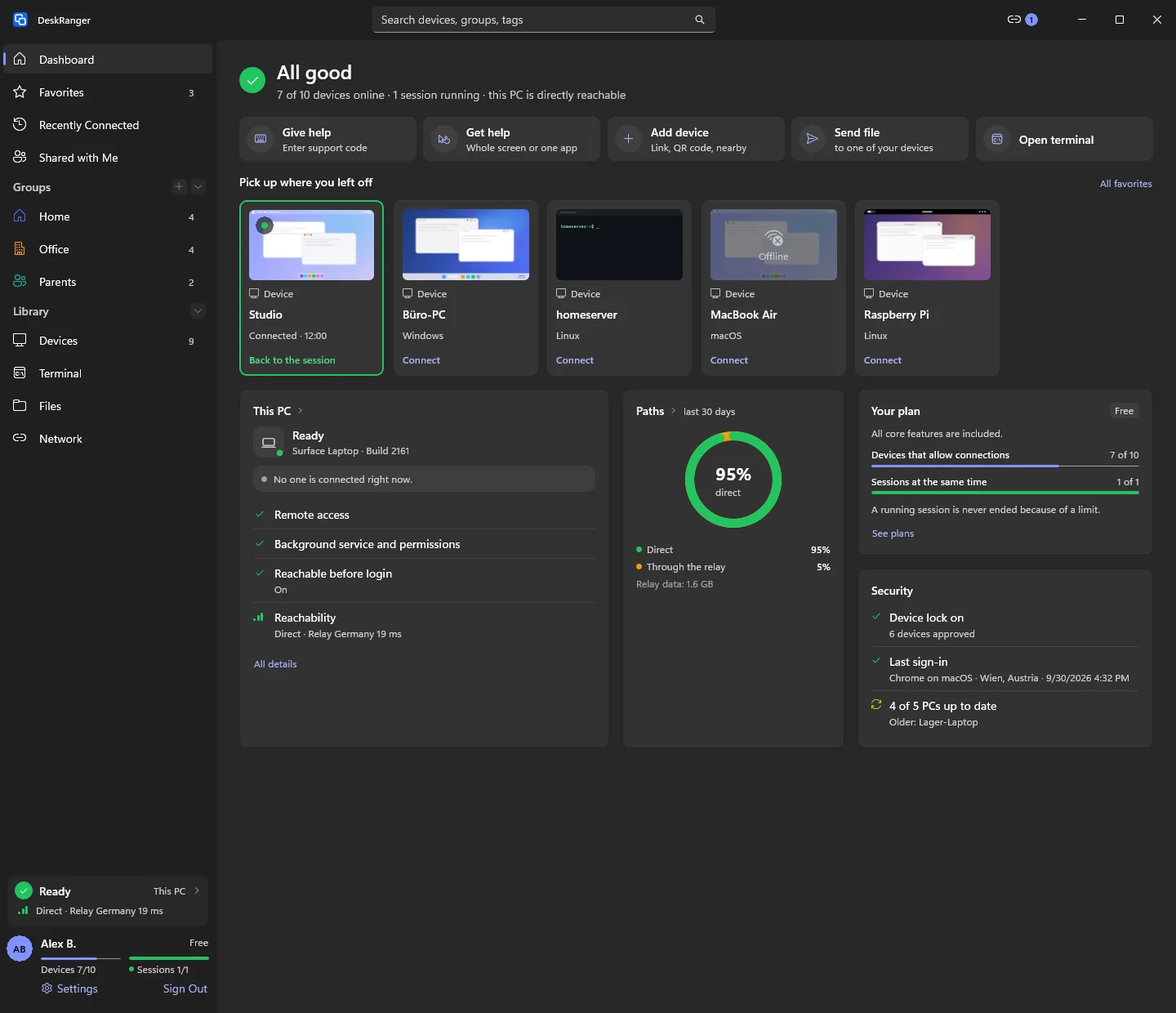
You open it with the first row of the sidebar or with Ctrl+0. On the first start, and when the page you used last is gone, DeskRanger opens the Dashboard. Otherwise it opens the page you chose last. On Windows the sidebar cannot be hidden, so there is no dot for “something is waiting”, only the number at Dashboard.
iPhone & iPad
On the iPad Dashboard is the first row of the sidebar, on the iPhone the first segment under the title of Devices. On the first start, and when the page you used last is gone, DeskRanger opens the Dashboard. Otherwise it opens the page you chose last. On iPhone and iPad there is no tile for this device, and the sentence at the top does not describe its reachability. You can still share its screen for viewing. On the iPhone the tiles sit under each other and Pick up where you left off is a row you swipe sideways; on the iPad they move side by side where there is room.
Web
In the console in the browser Dashboard is the first row of the sidebar and the start page: on the first visit, and when the page you used last is gone, the console opens the Dashboard. The browser shows what it knows: the sentence at the top with the devices and the running sessions, Give help and Add device, Needs attention (new sign-ins and devices that are offline for a long time), Pick up where you left off and Your devices at a glance. Tiles for this device, paths, plan and security, the activity and Customize are not in the browser, nor are Send file, Open terminal and Get help. Got it remembers what you have seen in this browser only; the browser forgets it when you sign out. Stop telling me on a device that has been offline for long applies on your devices too: the browser signs it with its key, at once when a session, the terminal or the Network page is running in it, otherwise the next time you open one of them. With DeskRanger Secure it counts only while your devices trust this browser. A browser never hides a new sign-in or an update note on your devices. What you saw or dismissed in the app on one of your devices disappears in the browser too, by the same rules as on your devices and only when the browser could check that device's signature.
Android
On the phone Dashboard is the first tab of the start page, before Devices; the same entry is at the top of the menu on the left. While something is waiting for you, the yellow number is on the tab and on the menu entry. On the first start, and when the page you used last is gone, DeskRanger opens the Dashboard. Otherwise it opens the page you chose last. On the phone the tiles stand in one column, in the order described below; Pick up where you left off is a row you swipe. Send file is not there, because files are transferred inside a session, and Get help shares the whole screen.
The sentence at the top
The top says how things look: All good in green, or in yellow how many things need you. Under it are the numbers: how many of your devices are online (this device and your own devices, without browsers: a sign-in in a browser is not a device), how many sessions are running and whether this device can be reached directly. If someone is watching this device, their name is there. If this device has no network, it says No internet connection. As long as DeskRanger does not know something yet, the sentence says One moment…. It never claims “all good” or “no network” without knowing: right after the start, while the connection is still being checked, it says neither. If DeskRanger cannot read the list of your devices right now (a weak network, a timeout), the page shows your devices as they were last read, with Weak connection — showing the last known state first in the line, and asks again by itself. A list that could not be read is never empty: your devices do not disappear, and the first start does not appear. After the app restarts, DeskRanger knows the last list but not how your devices are right now: until the first successful read every card is grey and says Status unknown, and nobody is counted as online or offline.
Quick actions
The cards below start what you need most: Give help (enter a support code), Get help (whole screen or one app), Add device, Send file (to one of your devices) and Open terminal; the last one names the server you connected to last.
iPhone & iPad
The iPhone and iPad offer only what they can do: Give help (enter a support code), Get help (opens Share Screen, the same as in the menu with the plus; the screen is shown, not controlled), Add device and Open terminal. You send files inside a session.
Needs attention
Needs attention appears only when there is something. There are two kinds:
- Tasks are yellow. Each has exactly one button and counts in the sentence at the top and as the number at Dashboard in the sidebar. A task is what this device still misses for connections (on the Mac a permission, on Windows the test capture, on Android the notifications, for example) and a new device that DeskRanger Secure needs you to confirm: New device – was that you?.
- Notes are calm and do not count: an installed update that waits for the sessions to end (Update installed) and a device that has been offline unusually long. Stop telling me hides a note until what it says changes, on all your devices: the others remove it the next time they load their start page (at the next refresh while it is open).
- New sign-ins in a browser or an app share one calm card (New sign-in, with their number when there are several). It shows the sign-ins from the recent past that are newer than the ones you last saw, and never this device's own sign-in. A sign-in stays on the card even when it has been signed out again since: someone who signs in with your password and then signs out does not slip away unnoticed. View opens the sign-in activity, Got it removes the card; both remember what you have seen. The next new sign-in shows again: this warning cannot be switched off. What happened before this update counts as seen. If you saw a sign-in in the app on another of your devices, the card goes here too – but only if this device already knew that device before the sign-in. A device someone has only just signed in on (again) can never hide that sign-in this way, and our server cannot remove a card either: each device checks the signature of the device that reported it as seen.
Pick up where you left off
Pick up where you left off shows one row of tiles, as many as fit the width of the window: running sessions first (with Back to the session), then what you used last, newest first, filled up with your favorites in your order. The device you are sitting at is never there. A click opens it like a double click in the list. Recently Connected beside the title leads to the page with everything you used last; as long as there is nothing used yet, only favorites are there and All favorites leads to Favorites.
This device, paths, plan and security
- This Mac (on Windows This PC, on Android This device) is the same state as the field at the bottom of the sidebar (Install and set up): who is connected (with End), the open tasks with their button and everything that is in order. All details opens the bubble with the rest.
- Paths shows for last 30 days how much of the time went directly and how much through the relay. Only this device keeps that, and nothing is uploaded (Direct or through the relay).
- Your plan shows your plan, Devices that allow connections and the sessions at the same time as bars. Only devices that allow connections count for the plan, so this number is often smaller than the one at the top. All core features are included. A running session is never ended because of a limit. There is no buy button here, only the quiet link See plans.
- Security shows whether DeskRanger Secure is on, your last sign-in (Last sign-in) and how many of your devices are up to date. When DeskRanger Secure is off, it shows neutrally with Off and Turn on…, never with a tick: off is your choice, but not “all good”. Only devices with the same system as this one are compared (on the Mac the Macs, on Windows the PCs); other systems have their own versions, so there is no such row on Android, the iPhone or the iPad. DeskRanger asks for the sign-in activity when you open the Dashboard, with a pause between requests; it is the same as under Security.
When the window is narrow, the tiles move under each other. The order stays.
Your devices at a glance
The device overview tile shows the same map as the Network page, in a compact form: this device on the left, your devices in columns beside it, the lines at right angles. The top says how many of your devices are in the network; Open map opens the Network map. The line to a device says how you reach it right now: Direct, dashed Through the relay, thin dashed Ready. Devices that are not in the network have no line; they stand as dashed small cards on a strip below (Not in the network). While a session runs to a device, its card carries a red badge (Session) and stands first; so do favourites. When not every device fits, the end says “+… more” – a click on it opens the Network map, a click on a device shows it under Devices. On the first start the tile shows a hint (Alone for now. Every new device gets its place here.).
When a device belongs to your network (“My network”), it carries a small network mark on its icon, and the network’s name stands in the legend under the map. For devices in the network the line shows the way through the network: green for a direct way, dashed orange for Via relay; the line under the name says the way more precisely: Direct · local, Direct · IPv6 or Via relay. Only a device that is in the network itself knows the way through it. When this device is not in the network, the other devices keep their network mark, but their lines show the way through your account, and under the map stands This Mac is not on the network (on the PC: This PC is not on the network) with Open Network to the Network page. The map reads the network when the Dashboard opens and when something about the network changes; it does not ask on a timer.
iPhone & iPad
iPhone: the iPhone draws no map. Your devices at a glance is a list of two parts: In the network and, below it, In the account, not in the network. The line under each name says the way, for example Direct with the delay. A device of your account that is not in your network yet says In the account · online or In the account · offline and has a plus: it invites the device (Add to the network). The list shows the devices with a running connection first, then by their way, offline ones last; when not all devices fit, the last row says how many are left out and opens the Network page, where every device stands. The iPad shows the map as the Mac does.
Web
In the browser the tile shows the same map, compact: “This browser” on the left, your devices in a column beside it, the lines at right angles, “+… more” at the end – a click on it opens the Network page. Which devices are in the network the tile does not know there (the Network page checks that), so it shows all devices of your account; the devices outside the network you see on the Network page.
Android
The phone draws no map. Your devices at a glance is a list of two parts: In the network and, below it, In the account, not in the network. The line under each name says the way, for example Direct with the delay. A device of your account that is not in your network yet says In the account · online or In the account · offline and has a plus: it invites the device (Add to the network). The list shows the devices with a running connection first, then by their way, offline ones last; when not all devices fit, the last row says how many are left out and opens the Network page, where every device stands.
Linux
On Linux the tile for this device is called This Computer and shows the same information as the box at the foot of the sidebar, from the same facts, so never anything different. Get help opens the page with your number in a window, Send file leads to the Files page, where you pick the device and the file. When this computer is in no network, the line under the map says This computer is not on the network.
Activity
Activity shows the last 7 days: one bar per day, at the bottom the time you spent on other devices (You on other devices), on top the time others spent on this device (Others on this device). Below are the latest connections with device, duration and path; what is running now is on top with running. A session with a support code appears as Support session.
Only this device keeps this list, stored on this device only: it never goes to our server and therefore looks different on each of your devices. DeskRanger keeps it only for a limited time. Clear history in the tile's menu deletes it at once. Connections to this device that the background service takes are in it too once they have ended; they also stay on this device. Clear history deletes both lists, the app's and the background service's. The background service's connections belong to the whole device: whoever is signed in at this device sees them in Activity and can clear them, including those it took while someone else was signed in.
Customize
With Customize at the top right you hide tiles and change their order (Customize the dashboard). Needs attention and the tile for this device cannot be hidden (Always shown); the sentence at the top always stays on top. The tiles close up in your order. Reset brings everything back. What you set here applies to this device only, not to your account. On the first start there is no Customize yet: there the page leads in its own order.
The first start
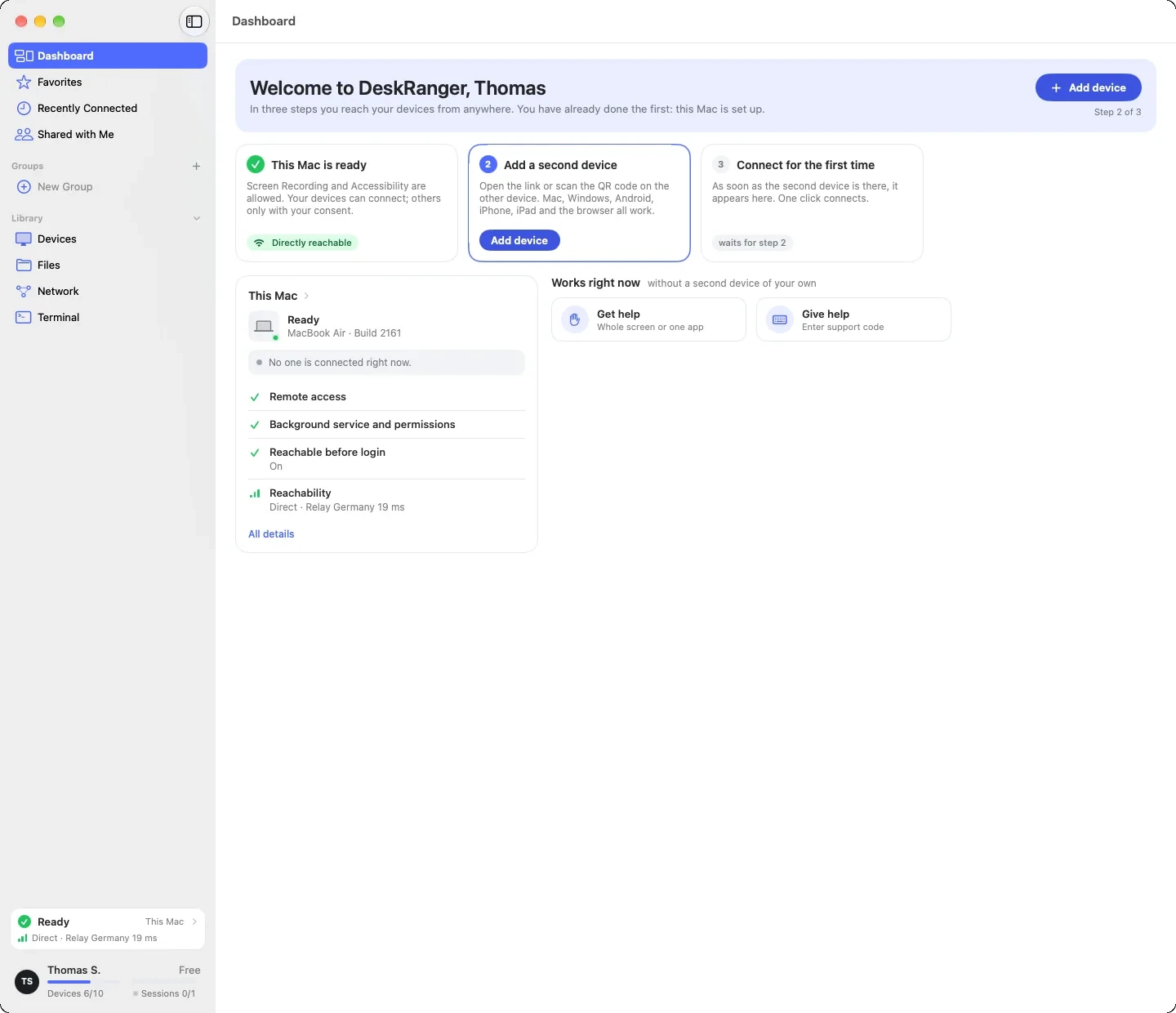
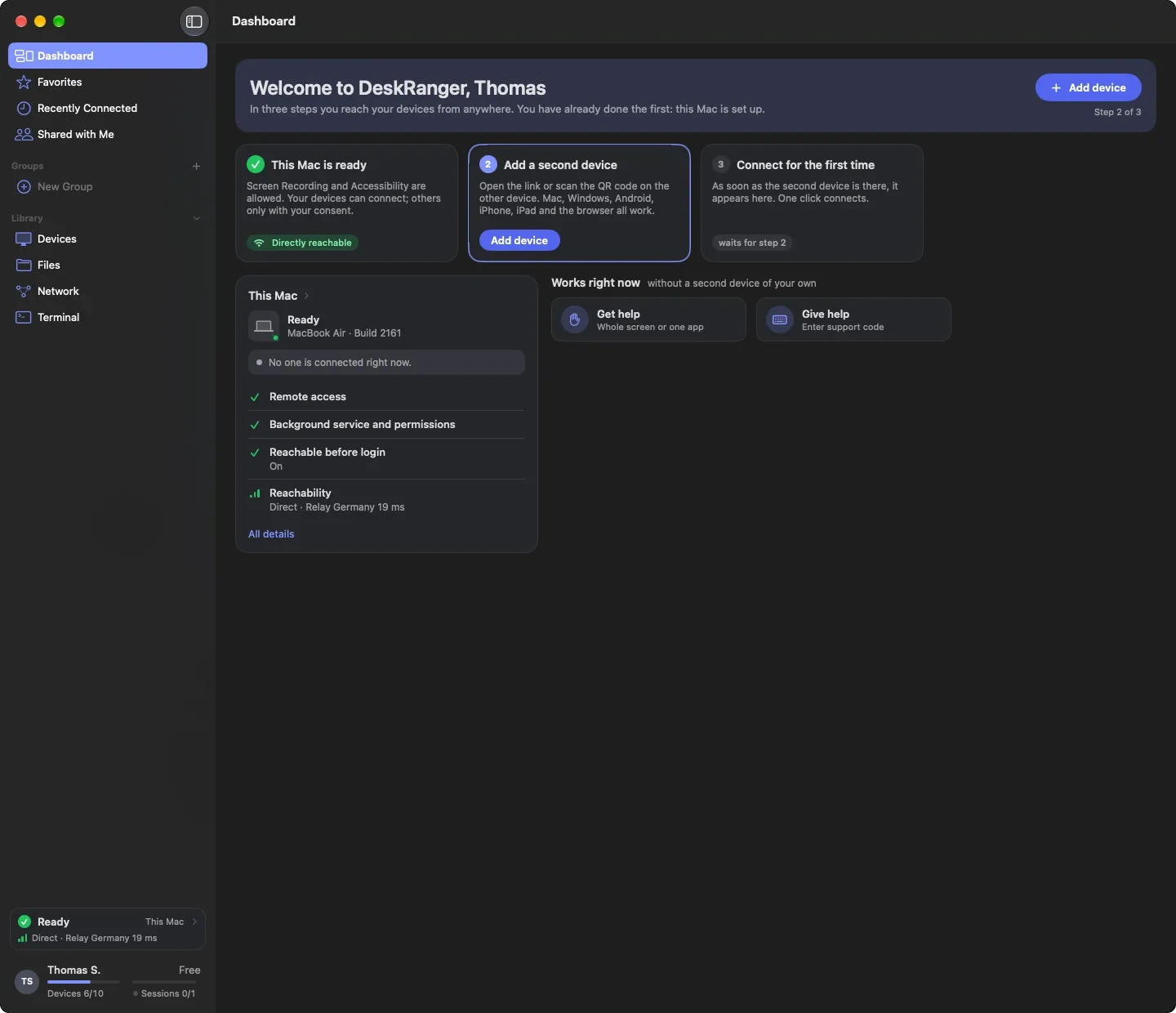
If you have no second device yet, the page leads: This Mac is ready, Add a second device and Connect for the first time. The next step is highlighted. If this device still misses something (on the Mac a permission, on the phone for example the notifications), it stands in the first step with its button. Below is what works without a second device of your own (Works right now). As soon as the second device is there, it becomes the normal page. The first start only appears when the list of your devices was actually read and holds no second device.
macOS
Windows
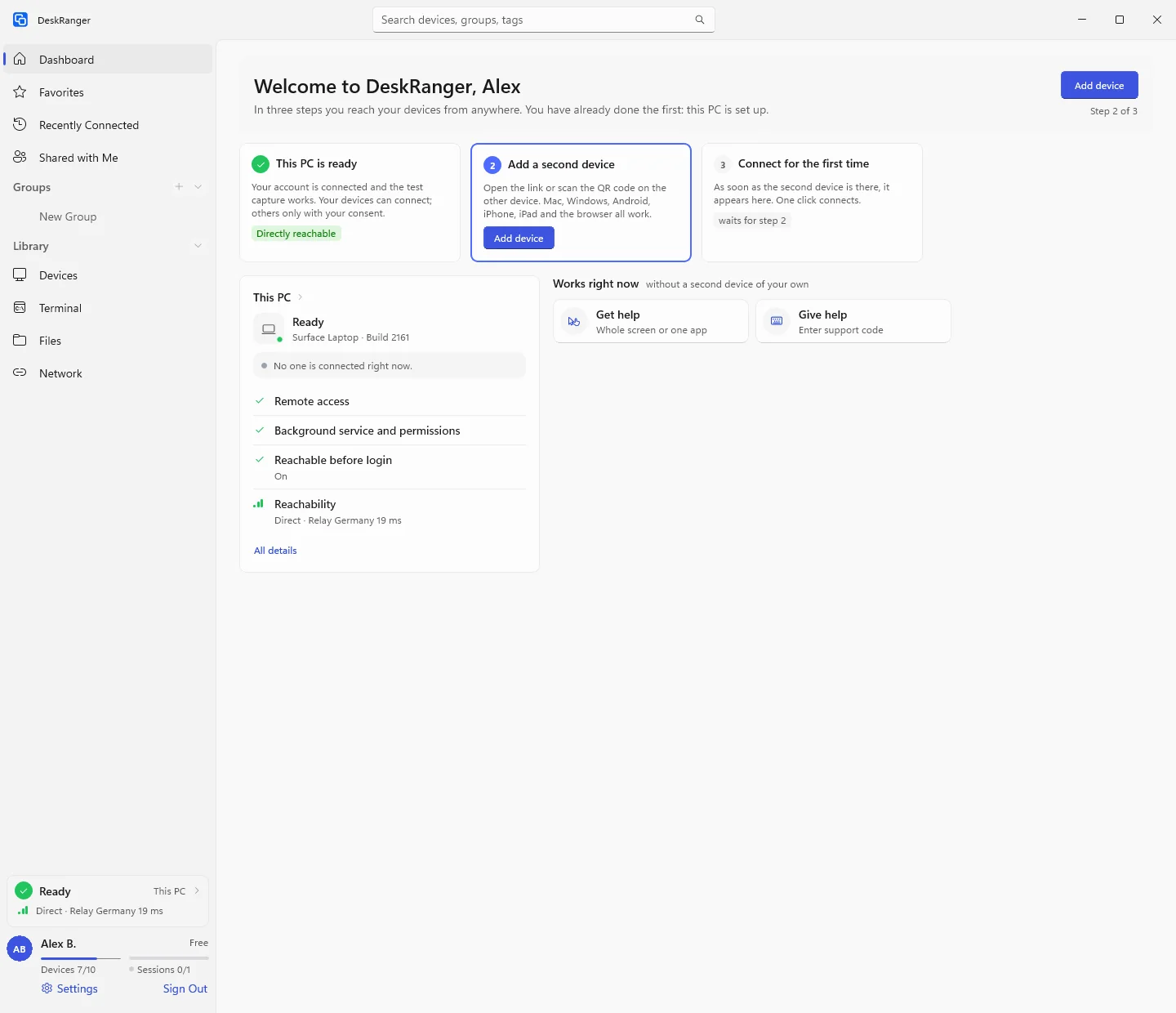
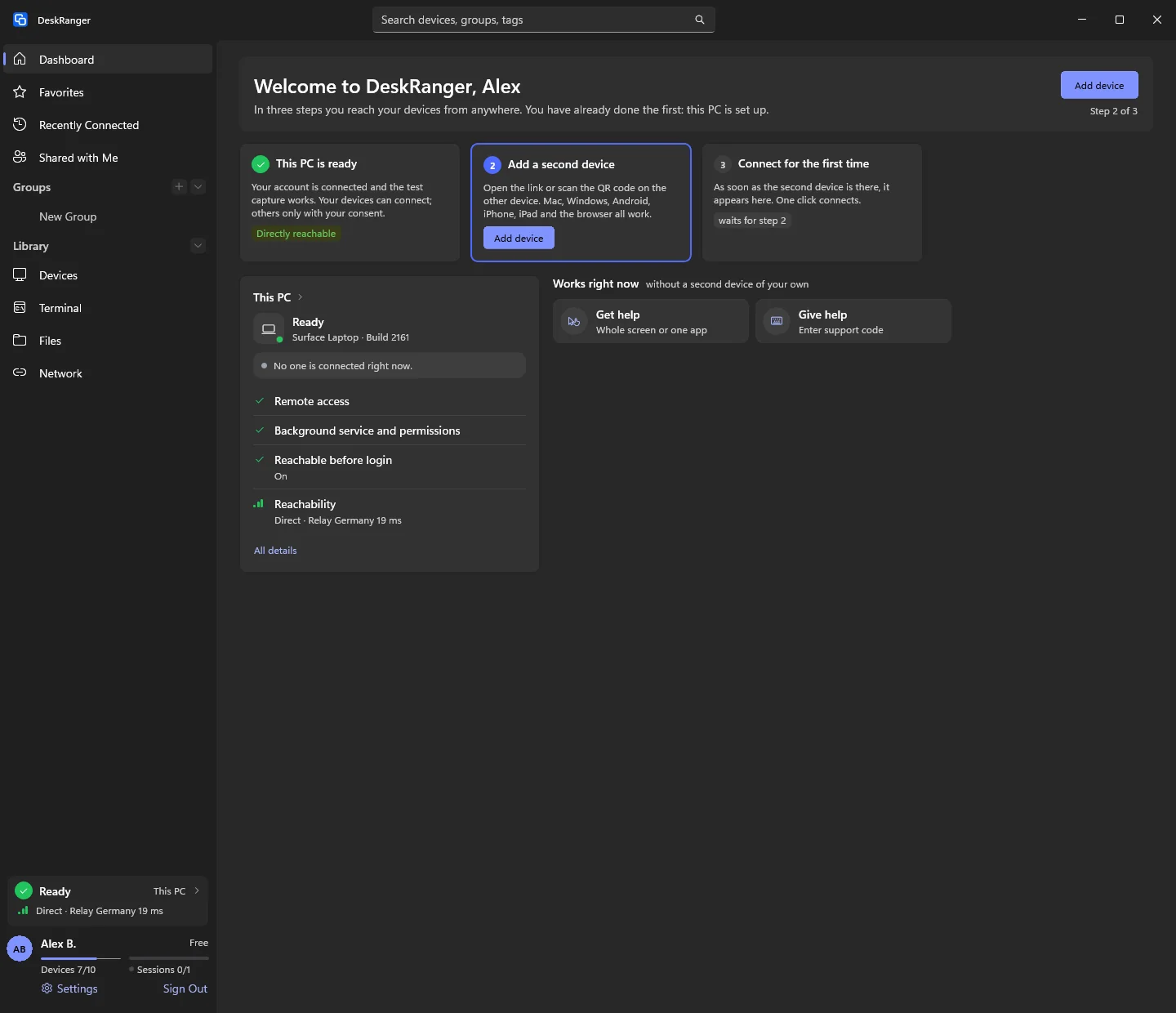
iPhone & iPad
This function is coming soon to iPhone & iPad.
The sidebar to go with it
macOS
With the Dashboard the sidebar's order changes: Dashboard is at the very top, with a yellow number while something is waiting for you. Favorites, Recently Connected and Shared with Me follow, then Groups. Devices is now the first row of the Library; it stays when you collapse the Library with the arrow at its heading. What you hid in the sidebar or opened last stays as it was. When the sidebar is hidden and something is waiting for you, a yellow dot sits beside the button that shows it again.
Windows
With the Dashboard the sidebar's order changes: Dashboard is at the very top, with a yellow number while something is waiting for you. Favorites, Recently Connected and Shared with Me follow, then Groups. Devices is now the first row of the Library; it stays when you collapse the Library with the arrow at its heading. What you hid in the sidebar or opened last stays as it was.
iPhone & iPad
iPad: Dashboard is at the very top of the sidebar, with a yellow number while something is waiting for you. Favorites, Recently Connected and Shared with Me follow, then Groups. Devices is the first row of the Library and stays when you collapse it with the arrow at its heading.
iPhone: The row of segments under the title begins with Dashboard, with the same yellow number; Devices, the collections and your groups follow. On the first start the Dashboard comes first; the iPhone remembers the segment you chose last.